.png)
Below are the steps to connect azure usage account:
-
Login to Mavvrik
-
Go to Menu > Admin > Public Clouds
-
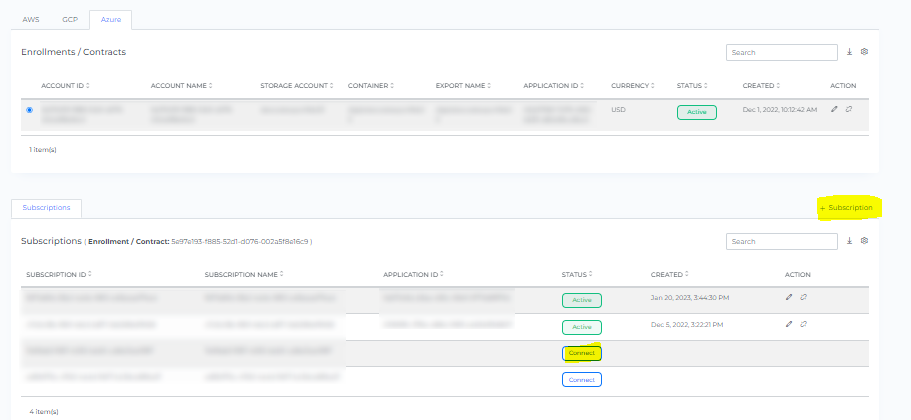
Below Page will be displayed with the list of All linked Subscription accounts.
-
Click on Connect button of the specific subscription account / You can directly click on +Subscription
-
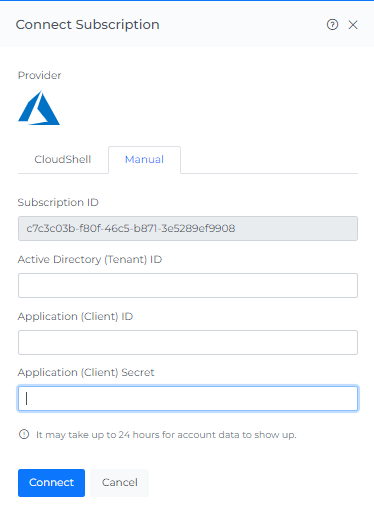
Click on Manual
-
Fill in the following details.
Active Directory (Tenant) ID Step-1: Create Azure Active Directory app
Application (Client) ID Step-1: Create Azure Active Directory app
Application (Client) Secret Step-1: Create Azure Active Directory app
-
Click Connect
-
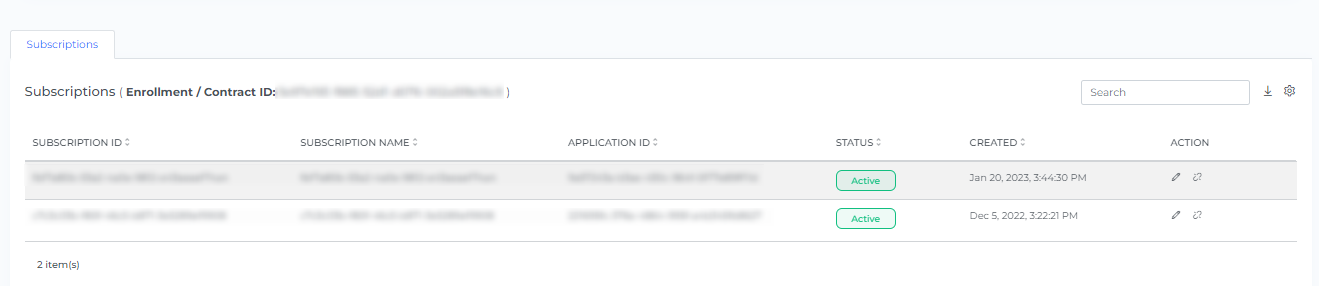
On-boarded Subscription accounts will be displayed on the list of a member accounts. It takes up to 2 hours to discover the data.
-
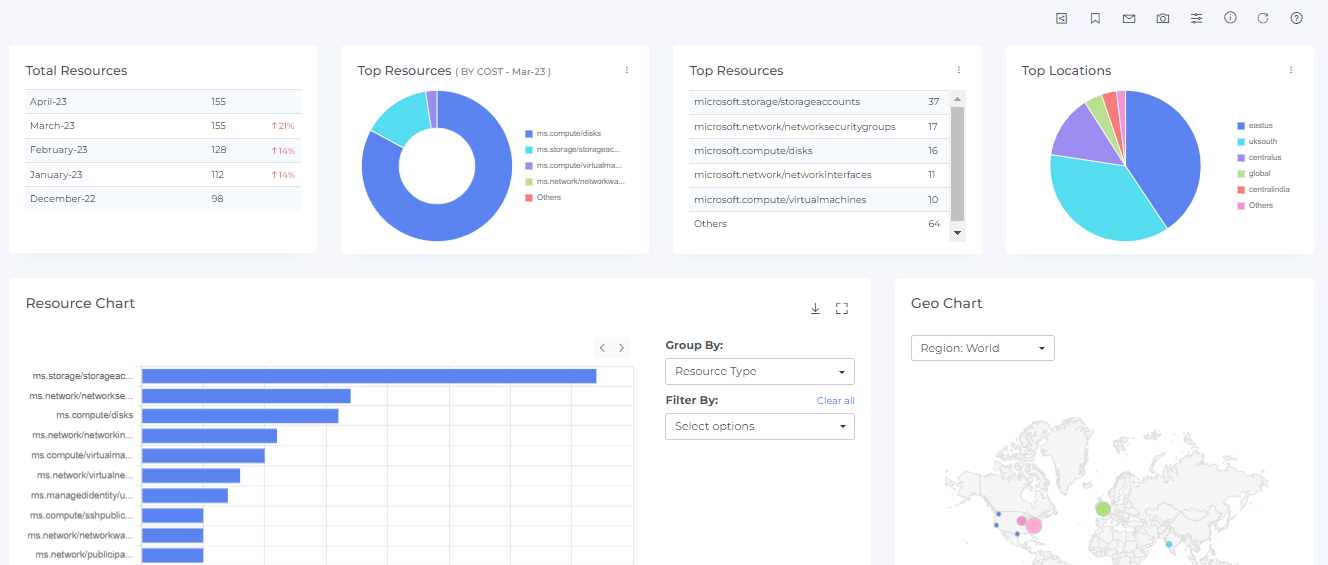
Click the Resource from the Menu option.
-
Resources will get discovered in Mavvrik
Troubleshooting
-
If the account does not connect, verify the tenant ID, client ID, client secret, and subscription details entered in Mavvrik.
-
If a permission error appears, confirm that the required Azure roles were assigned to the application at the correct subscription scope.