.png)
The Cost page brings agent cost, usage, sessions, and runs into one place. Use it when a Finance, FinOps, or engineering team needs to understand what an agent costs, why that cost changed, and which activity created it.
Understand the terms on this page
A cost item is one metered record of agent activity. It can represent usage such as an LLM call, a tool call, or another operation with a measured quantity and cost.
A session groups related agent work, such as a user conversation, a request, or a scheduled workflow. A run is one execution within that session. A run contains the calls and spans Mavvrik received during that execution.
Choose the scope
Use the Agents list at the top of the page to view all agents or focus on one agent. This selection updates the widgets, chart, and detailed results on the page.
Review the cost summary
The widgets at the top provide a fast view of recent cost. Total Costs shows cost by month. Top Agents shows the agents with the highest cost. Top Model shows the models that contribute the most cost. Top Operations shows the operations that consume the most.
Use this area to find the largest contributor before you investigate the detailed data. For example, a cost increase may come from one new model, one agent, or an operation that ran more often.
These widgets are customizable. Open the three-dot menu on a widget to change its view or restore the default configuration. Select an item in a widget when you want to focus the chart and lower tables on that item.

Analyze the cost trend
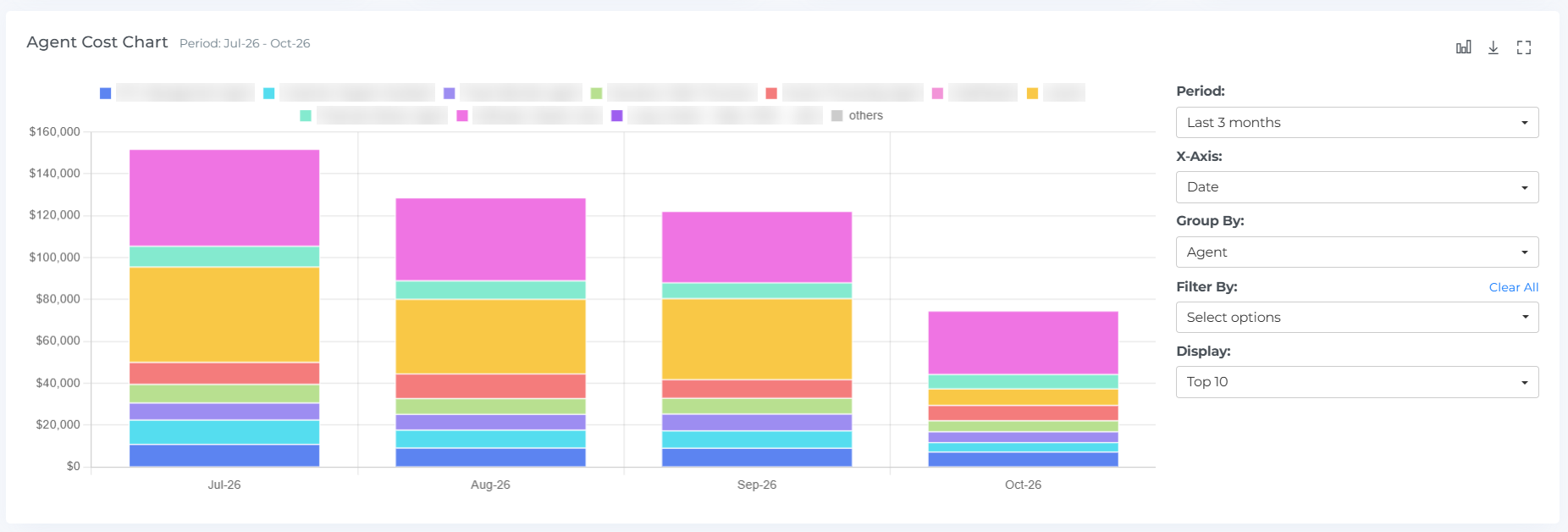
The Agent Cost Chart shows how cost changes over time. It helps you separate an overall increase from a change caused by one agent, model, or operation.
Use Period to select the time range. Use X-Axis to change the value shown across the chart. Use Group By to split cost by an available value, such as agent, model, or operation. Filter By narrows the results, while Display controls how many items appear.
Click a bar or chart segment to load its detailed results below the chart. Use the chart toolbar to change the chart view, download the displayed data, or expand the chart.
Investigate cost items
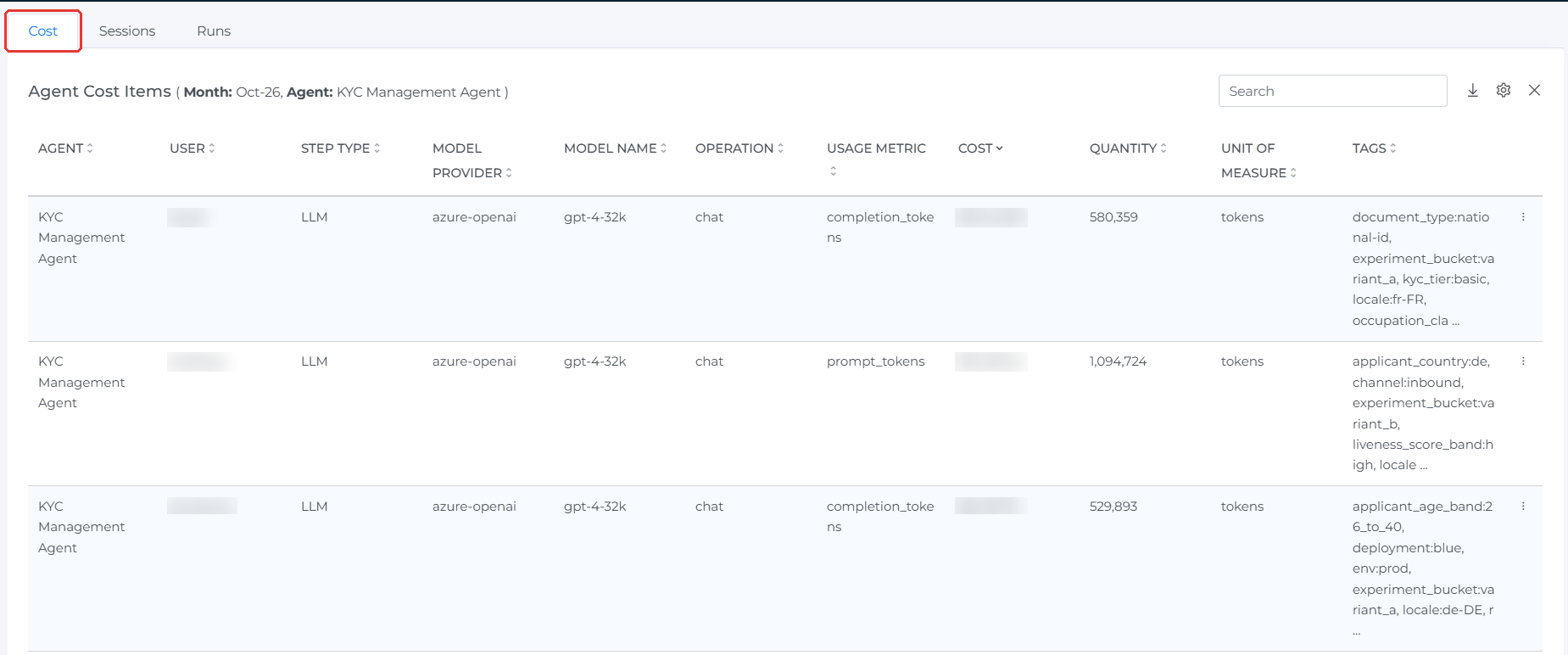
The Cost tab lists the detailed records behind the selected chart value. A row can identify the agent, user, step type, model provider, model, tool, operation, usage metric, quantity, tags, virtual tags, and cost.
Use search to find a value in the results. Use the download icon to export the displayed rows. Use the settings icon to choose the columns that appear in the table.
Follow the activity behind a cost
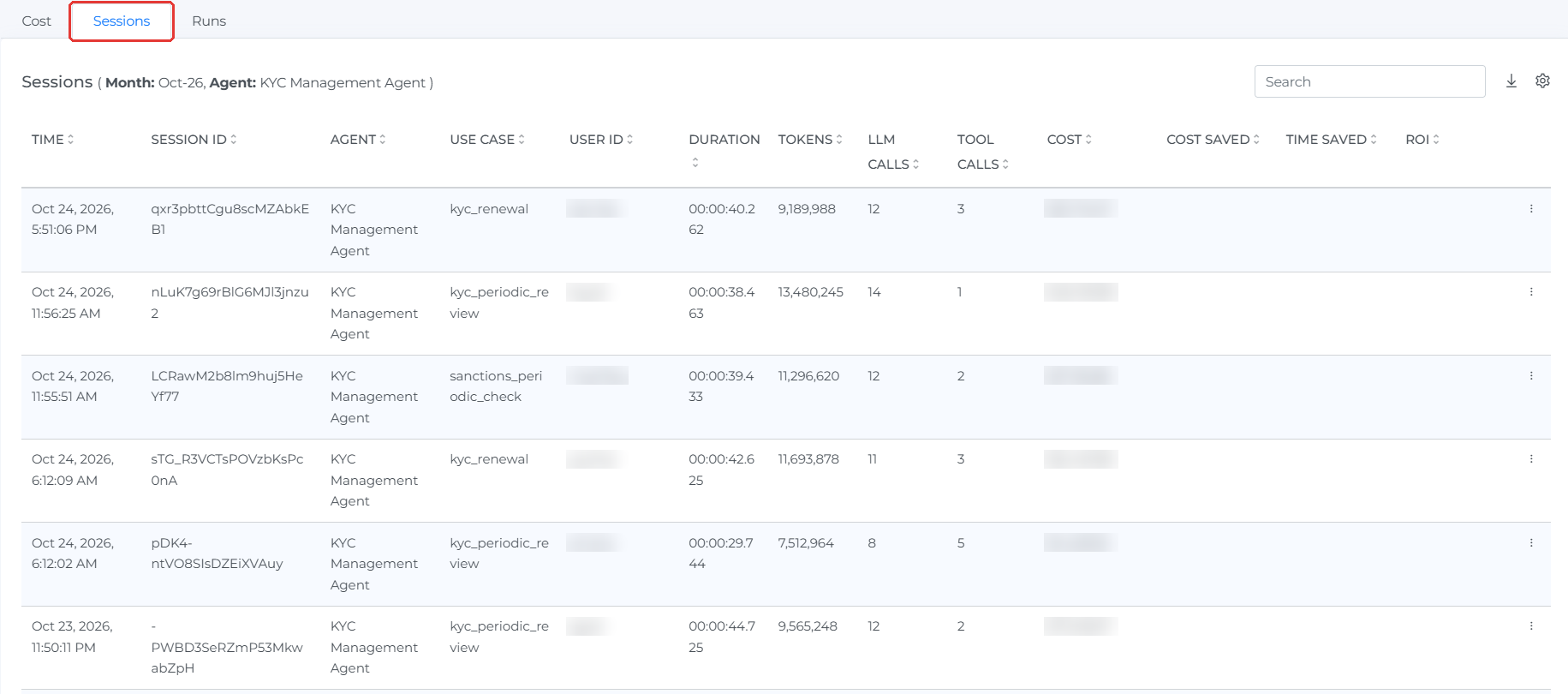
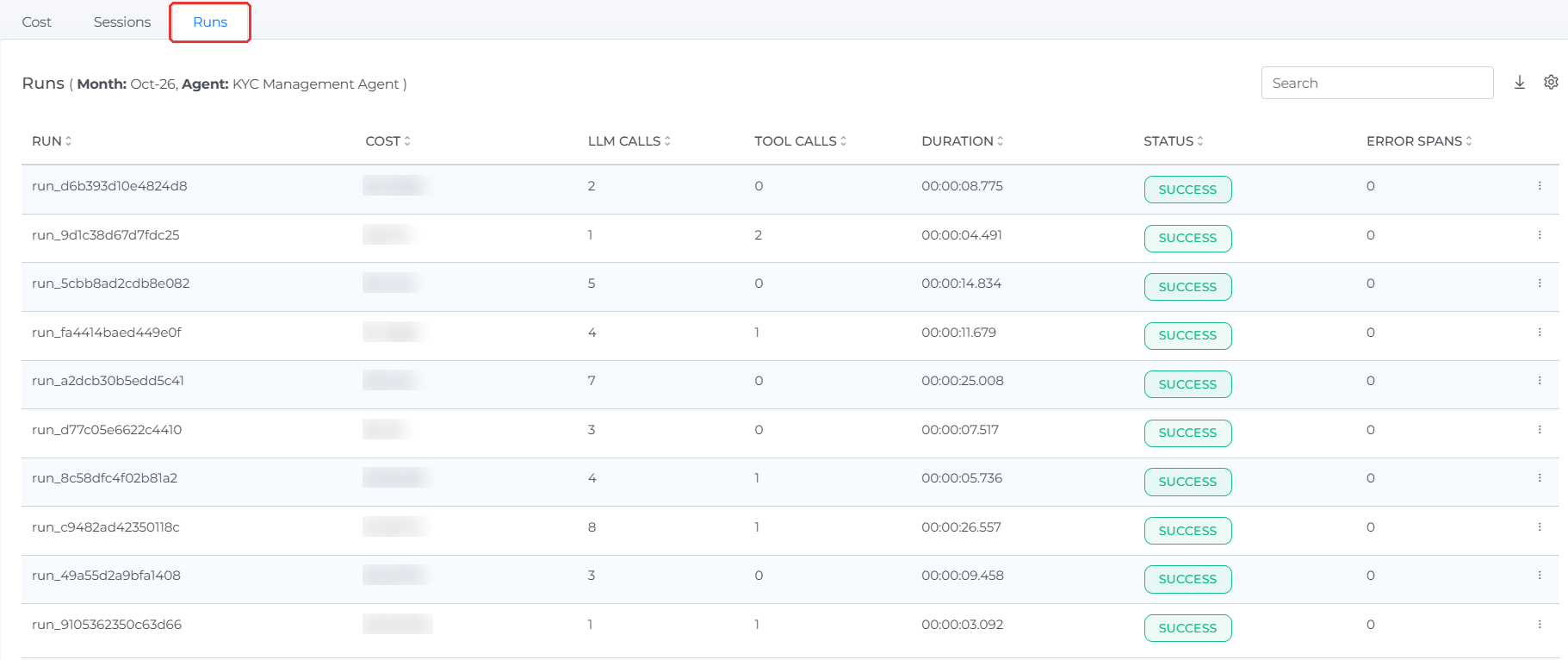
The Sessions and Runs tabs keep the context from your chart or widget selection. For example, after you select an agent and month, the tabs show the sessions and runs that match that selection.
The Sessions tab lists the session time, ID, agent, use case, user, duration, tokens, call counts, and cost. Open a session to review its cost, duration, calls, and related runs.
The Runs tab lists each run with its cost, duration, status, LLM calls, tool calls, and error-span count. Open a run to review the collected spans and its metrics, including models, tokens, trace IDs, duration, and total cost.
The Sessions tab on this page is contextual. The separate Sessions page provides a wider view across all agent sessions.
Filter the page
Open Agent Cost Filters when you need to narrow the complete page. Filters are available for agent, connection, project, user, model, step type, tool, operation, usage metric, tag, and virtual tag.
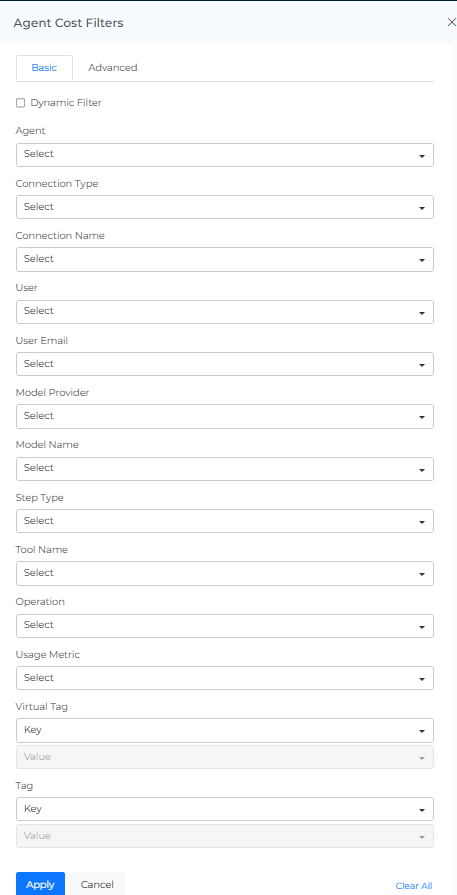
Select Dynamic Filter when later filter lists need to reflect earlier selections. For example, after you select an agent, the remaining lists show values related to that agent. Select Apply to update the page, or select Clear All to remove the active filters.