.png)
Agentic Pricing Rules
Agentic Pricing Rules let you apply custom markups, discounts, or fixed rates to the LLM usage your agents generate, on top of the standard provider rate. Use this when you've negotiated custom terms with a model provider, or want to build margin into what a customer sees for agent-driven usage.
Why this matters: the rate a provider like OpenAI, Anthropic, or AWS Bedrock actually charges per token isn't necessarily what should show up on a customer's bill. A pricing rule lets you adjust that (mark it up for margin, apply a negotiated discount, or replace it with a flat rate) without changing how the underlying usage itself is tracked or measured.
This shows up differently depending on your role:
-
Partner account managers use Agentic Pricing Rules to encode a customer's negotiated LLM rate (a standing markup on OpenAI usage, a discount on Anthropic usage) without adjusting invoices by hand each cycle.
-
Billing and finance ops rely on these rules to make sure agent-driven costs match what was contractually agreed, rather than reconciling the difference after the fact.
-
Deal desk and sales use it to turn a negotiated agreement (e.g. "flat 10% markup on all agent LLM usage") directly into an enforceable rule.
Before you start: you'll need Admin access with rights to manage pricing, and the tenant must have Agentic enabled; this is what makes the Agentic tab appear on the Pricing Rules page.
Steps to Create a Pricing Rule
-
Go to Admin → Pricing Rules.
-
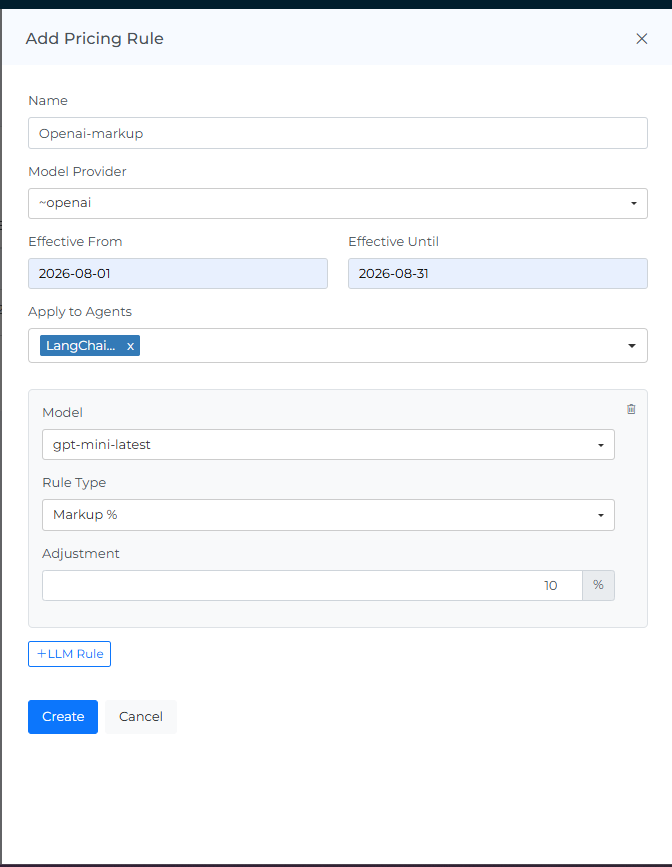
On the Agentic tab, click the Pricing Rule button.
-
Enter a Name for the rule.
-
Choose a Model Provider from the list, or select Other to enter a custom provider that isn't listed.
-
Optionally set an Effective From and Effective Until date (format: YYYY-MM-DD). Leave these blank if the rule should apply indefinitely.
-
Set Apply to Agents: leave it as All to apply the rule to every agent, or select specific agents.
-
Configure one or more LLM rules:
-
Model: choose a specific model, All models, or Other to enter a custom model name.
-
Rule Type: choose Markup %, Discount %, or Fixed Rate.
-
Adjustment: enter the percentage or dollar amount for the rule type you chose.
-
-
Add additional LLM rules with the LLM Rule button if you need more than one rate rule under the same pricing rule.
-
Click Create.
Example: Deal desk negotiates a flat 10% markup on all OpenAI usage for a specific customer, starting next quarter. To encode this: Model Provider → OpenAI, Model → All models, Rule Type → Markup %, Adjustment → 10, Effective From → the start of next quarter, Apply to Agents → All (or the specific agents used for that customer, if the markup shouldn't apply tenant-wide).
Field Reference
|
Field |
Description |
|---|---|
|
Name |
A unique name identifying the pricing rule. |
|
Model Provider |
The LLM provider this rule applies to (e.g. OpenAI, Anthropic, AWS Bedrock). Choose Other to specify a provider not in the list. |
|
Effective From / Effective Until |
The date range the rule is active. Leave blank for a rule with no start or end date. |
|
Apply to Agents |
Restricts the rule to specific agents, or leave as All to apply tenant-wide. |
|
Model |
The specific model the LLM rule targets. Choose All models to cover every model from the selected provider, or Other for a custom/unlisted model. |
|
Rule Type |
The kind of pricing adjustment: Markup %, Discount %, or Fixed Rate. |
|
Adjustment |
The percentage (for Markup/Discount) or flat dollar amount (for Fixed Rate) applied to matching usage. |
A note on historical data: a pricing rule applies going forward from the point it's created; it affects usage in upcoming months, not usage that's already been recorded in previous months. If you need past months' costs recalculated to reflect a new rule, that isn't done automatically from this page; contact your CSM team manager to have historical data updated.
Rule Types
Markup %: adds a percentage on top of the provider's standard rate. For example, a 10% markup on GPT-4o usage from OpenAI means a customer is billed 10% above the standard per-token rate for that model.
Discount %: reduces the provider's standard rate by a percentage. For example, a 15% discount on Anthropic usage reflects a negotiated rate lower than list price.
Fixed Rate: replaces the provider's per-token pricing entirely with a flat rate you define, regardless of the underlying usage volume. For example, a Fixed Rate of $0.002 per 1K tokens means every matching request is billed at that rate, regardless of what the provider's own per-token price is that month.
Editing and Deleting Rules
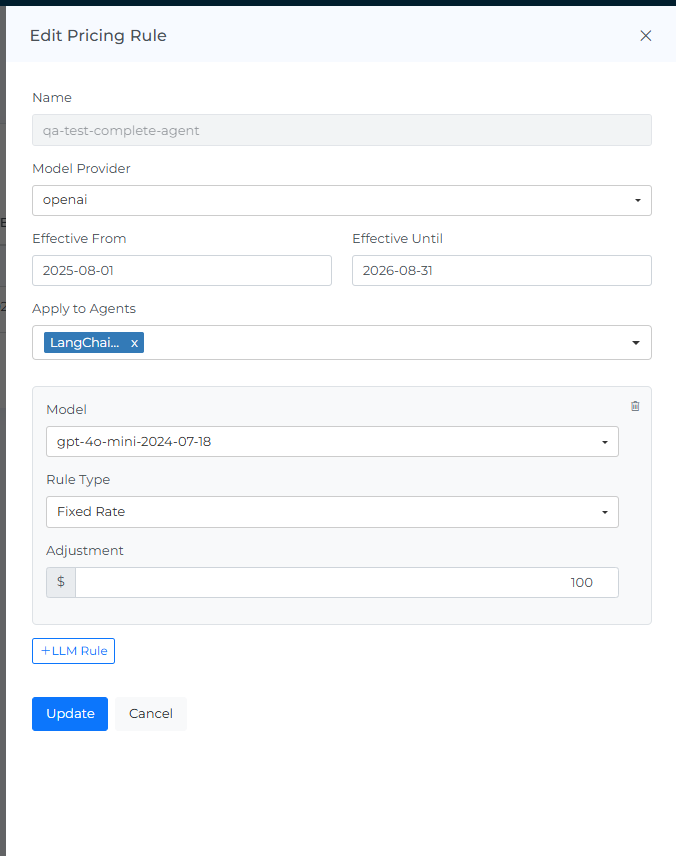
From the Pricing Rules table, use the Edit (pencil) icon on any row to open that rule in the same form used to create it, with all its existing values (name, provider, dates, agents, and LLM rules) already filled in. Make your changes and click Update to save them.
Use the Delete (trash) icon to remove a pricing rule you no longer need. Deleting is a destructive action, so you'll be asked to confirm before the rule is actually removed; nothing is deleted until you confirm the prompt.
Troubleshooting
A pricing rule is not affecting the intended usage
Open the rule using the Edit icon and check its saved configuration:
-
Confirm that Model Provider and Model match the usage you are reviewing. If you selected Other, check the provider or model name you entered.
-
Check Apply to Agents. If the rule targets specific agents, confirm that the intended agent is included.
-
Check Effective From and Effective Until against the period you are reviewing. For previously recorded months, refer to the historical-data note above.
-
Confirm that Rule Type and Adjustment match the intended markup, discount, or fixed rate.
If a setting differs from the intended configuration, correct it and click Update. Keep the rule limited to the agents and models it is meant to cover.