.png)
Manage Perspectives
Introduction
In Mavvrik, the term 'perspective' refers to the ability to create custom views of your data based on various filters. You can use the perspective feature to focus on specific data points, such as data from a particular provider, billing account, usage account, location, or tags. This can be useful for organizing and analyzing your data in a way that is most meaningful to you.
Why this matters: a Perspective is a filter definition you build once and then reuse everywhere — as the scope for a Budget, the target of an Alert, or a saved view on a Cost dashboard — instead of rebuilding the same set of filters separately in each of those places. Define "AWS Production" as a Perspective once, and every feature that references it stays consistent if the underlying filter logic ever needs to change.
The Perspectives list
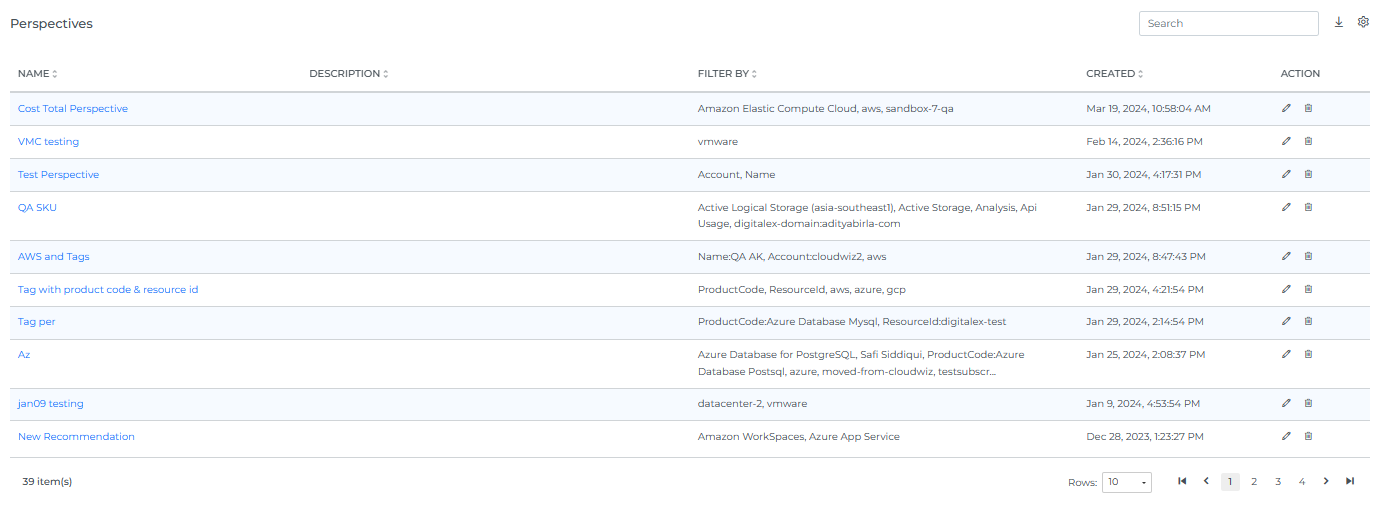
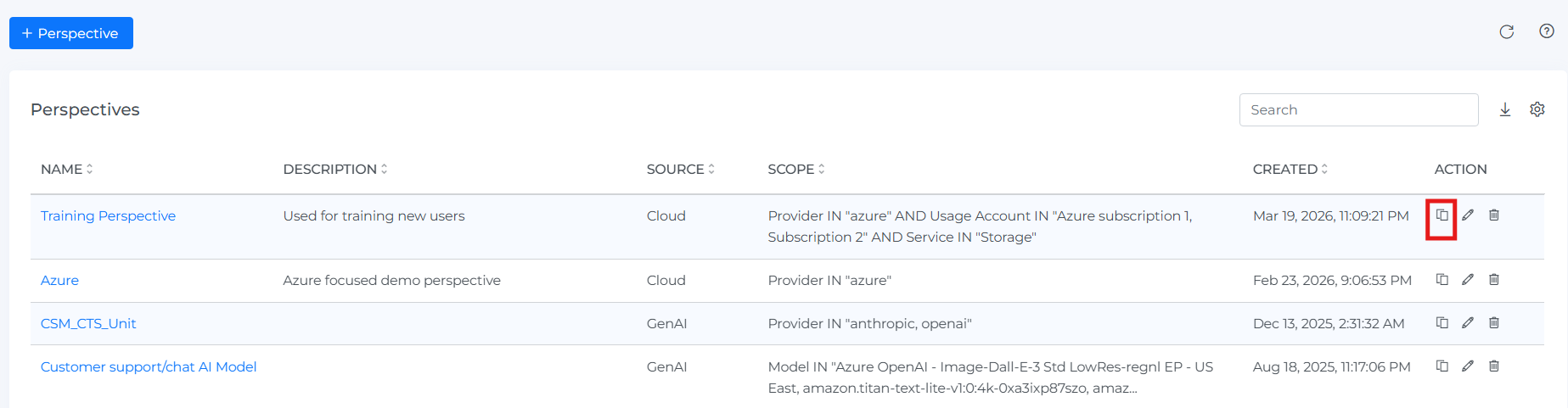
Navigating to Admin > Perspectives takes you to a list of all existing Perspectives before you create a new one. Alongside the "+ Perspective" button, the page header also has Reload and Help icons.
The list table's columns are:
-
Name
-
Description
-
Source: the Data Source the Perspective applies to (see the Data Source options below).
-
Scope: a summary of the Perspective's filter conditions (e.g.
Provider IN "aws"). -
Created
-
Action: Clone, Edit, and Delete icons for each Perspective.
Tip: clicking a Perspective's Name in the list takes you directly to the page it applies to (Cost, AI Assist, AI Cost, SaaS Cost, etc.) with that Perspective already applied as a filter — a quick way to jump straight to what a Perspective is scoped to, without applying it yourself from that page's dropdown.
Steps to Create Perspectives
-
Login with user roles as Owner/Editor
-
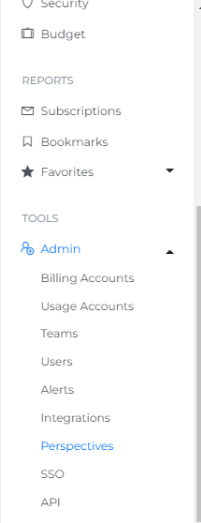
Click on Menu
-
Click on Perspectives under Admin
-
Click the "+ Perspective" button. This opens the Create Perspective panel.
-
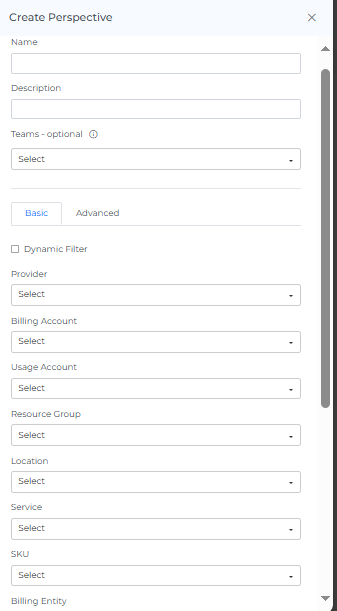
Enter Name, Description, and optionally Teams (labeled "Teams - optional" — you can select one or more teams to scope visibility)
-
Choose a Data Source. Live options include: Cloud, Agentic, Gen AI, AI Assist, Kubernetes, Datacenter, Confluent, Databricks, Datadog, MongoDB, Snowflake, and any customer-configured custom provider integrations (shown by that integration's own name).
-
Apply Basic or advanced filter
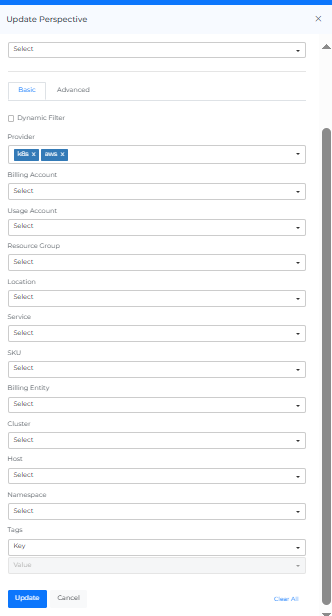
Basic: The Basic filter helps you focus on specific aspects of your RI Coverage, making it easier to analyze and understand the data. For a Cloud-sourced Perspective, the Basic filter fields are: Provider, Billing Account, Usage Account, Resource Group, Category, Location, Service Category, Service, SKU, Cost Type, Billing Entity, Instance Type, Cluster, Host, Namespace, Virtual Tag (Key/Value), and Tag (Key/Value) — Virtual Tag and Tag are two distinct filters, the former matching on Virtual Tags you've created, the latter on real cloud-provider tags. Fields vary by Data Source.
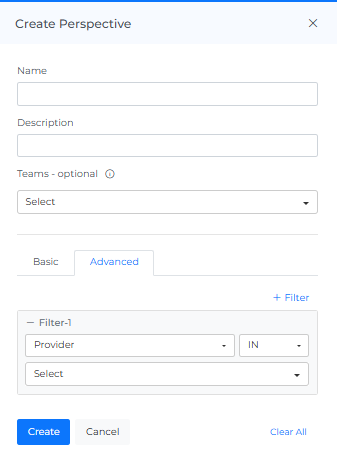
Advanced: Advanced Perspective Filters allow you to refine the results using detailed criteria. You can add multiple filters by selecting criteria such as "Provider," choosing an operator (for example, "IN"), and selecting values from the dropdown menus. Each filter connects to the next with an AND or OR toggle, so you can control whether matching records need to satisfy every condition or just one of them. Selecting + Group lets you nest a set of filters together as a single unit — for example, grouping "Provider IN gcp" OR "Provider IN oci" and then combining that group with another filter using AND — so you can build logic more complex than one flat list of conditions. You can apply or cancel your changes or select "Clear All" to reset the filters.
Note for Azure users: Reserved Instance and Savings Plan data doesn't display on the Reserved Instances and Savings Plans pages when a Perspective scoped to specific Azure usage accounts is applied. This isn't a limitation or a design choice — in Azure, RIs and Savings Plans are purchased and billed at the billing-account level, not the usage-account level, so there's no usage-account-scoped data to show once that filter is applied. AWS and GCP aren't affected by this. If you need Azure RI/SP data broken down by usage account, use the Coverage page instead, which reflects the applied Perspective correctly across all three providers.
-
Click Create
-
New Perspective is created and displayed as shown below. When you select the number of rows, you will be able to view that same quantity of rows on the page.
-
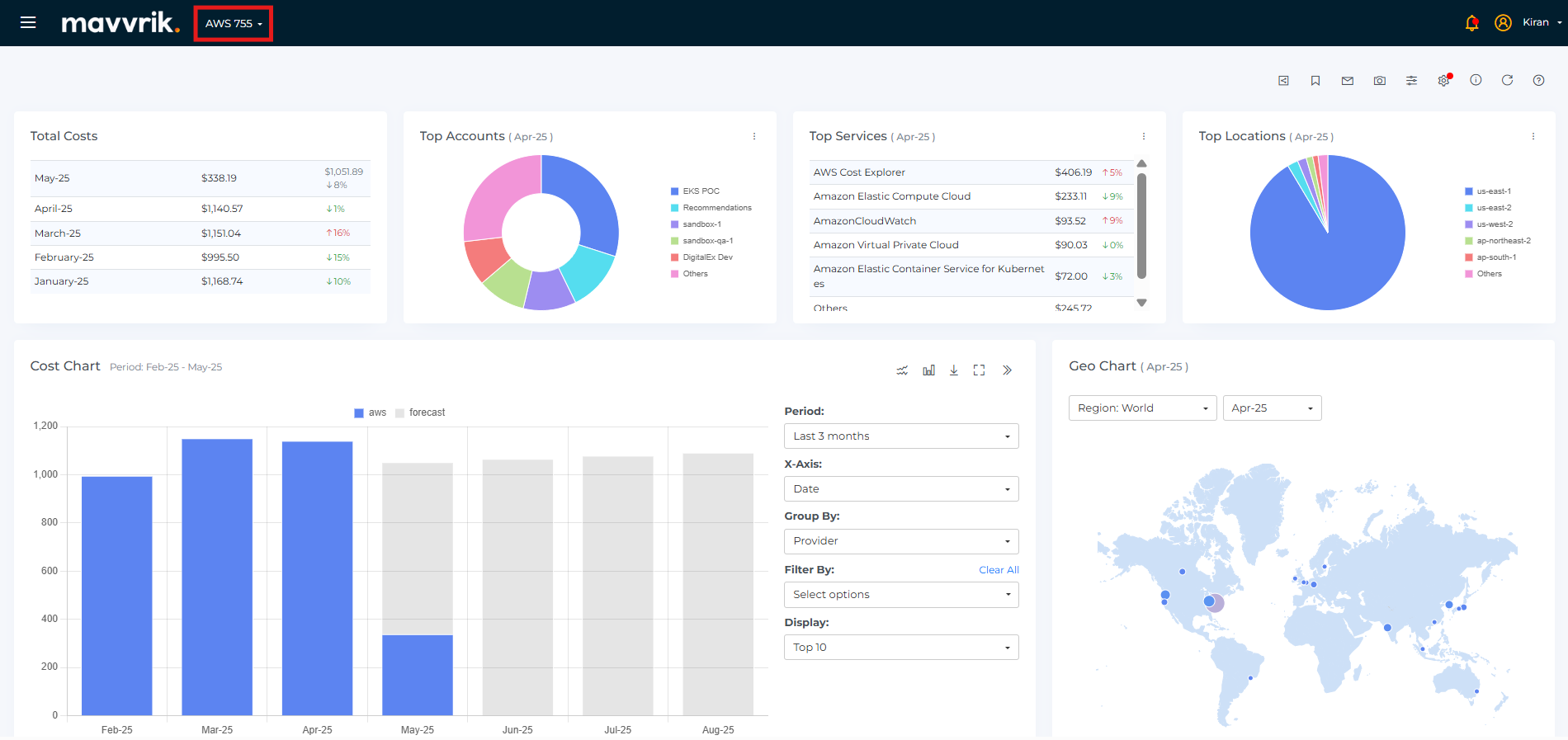
If you want to check the Cost, go to the Cost Page
-
Click on No Perspective & Select AWS Perspective
Steps to Edit Perspective
-
Login with user roles as Owner/Editor
-
Click on Menu
-
Click on Perspectives under Admin
-
Click on the Edit icon

-
Change filters
-
Click on Update
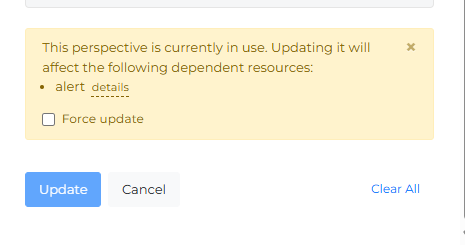
Update Perspectives even when they are linked to Budgets, Alerts, or Cost Allocations. The platform displays a warning outlining potential impacts and allows users to confirm changes before proceeding.
Steps to Delete Perspective
-
Login with user roles as Owner/Editor
-
Click on Menu
-
Click on Perspectives under Admin
-
Click on the Delete icon
-
Click OK from the popup
-
Perspective is deleted from the List
-
Click on the Cancel or X icon to close the pop
Note : If the perspective is being used in cost allocations,alerts,budgets it cant be deleted
Clone Perspective
Clone an existing Perspective to quickly create a new one with the same setup already in place.
This is useful when you need a similar view for another team, business unit, environment, or customer use case.
Instead of rebuilding filters and structure from scratch, you can start with a copied version and make only the needed changes.
The cloned Perspective is independent, so updates to it do not affect the original.
-
Login with user roles as Owner/Editor
-
Click on Menu
-
Click on Perspectives under Admin
-
Click on the clone icon (You can see same filtered options selected)
-
Edit the required filters and create
Troubleshooting
-
If you can't delete a Perspective, check whether it's still linked to a Budget, Alert, or Cost Allocation — remove it from those first, then delete it.
-
If updating a Perspective doesn't seem to have taken effect somewhere you expected, confirm you clicked through the confirmation warning fully — the update applies everywhere the Perspective is referenced, but only once that warning is confirmed.
FAQs
Can I delete a Perspective that's used in a Budget, Alert, or Cost Allocation?
No — a Perspective currently in use by any of those can't be deleted. You'd need to remove it from whatever's using it first.
If I update a Perspective's filters, does that change the Budgets or Alerts that use it?
Yes — updating a Perspective updates it everywhere it's referenced. The platform shows a warning outlining the potential impact before you confirm the change, so you can review what else will be affected first.
What's the difference between the "Virtual Tag" and "Tag" filters in the Scope step?
Tag filters on your real cloud-provider tags. Virtual Tag filters on Virtual Tags you've created in Mavvrik (see Virtual Tags). They're separate filters because a resource's real tags and its Mavvrik-assigned Virtual Tags aren't the same thing.
I clicked a Perspective's Name in the list and it took me to another page — is that expected?
Yes. Name is a direct link to the page that Perspective applies to, with the Perspective already applied as a filter — a shortcut so you don't have to apply it yourself from that page.