.png)
The Sessions page
The Sessions page gives you a single view of activity across your agents. Use it when you need to understand who used an agent, what work it did, how long that work took, and what it cost.
Understand sessions, runs, and spans
A session groups related agent work. It may represent a user conversation, a request, a channel interaction, or a scheduled workflow.
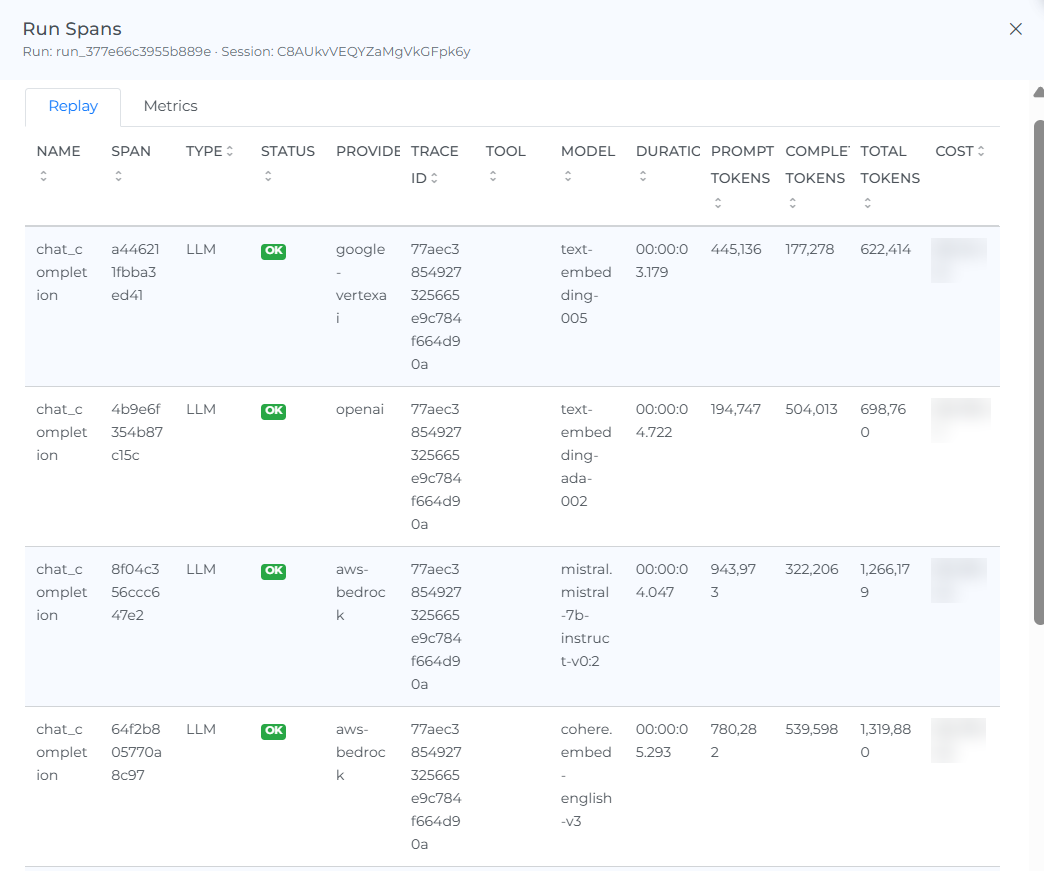
A run is one execution within a session. A run can include several spans, which record individual parts of the work, such as model calls, tool calls, and other operations.
Use the Sessions page when you need the wider activity view. Use the Sessions tab on the Cost page when you already selected a specific cost, agent, or period.
Review recent activity
The widgets at the top show the number of sessions, active agents, active users, and total cost for the last 30 days. Use the Month list to view a specific month, the current month, or the previous month.
These widgets help you understand whether a cost change came from more activity, more active users, or higher-cost behavior within individual sessions.

Explore sessions
The main table lists the sessions Mavvrik received for the selected period. Each row can include the time, session ID, agent, use case, user ID, user email, duration, tokens, LLM calls, tool calls, cost, cost saved, time saved, and ROI.
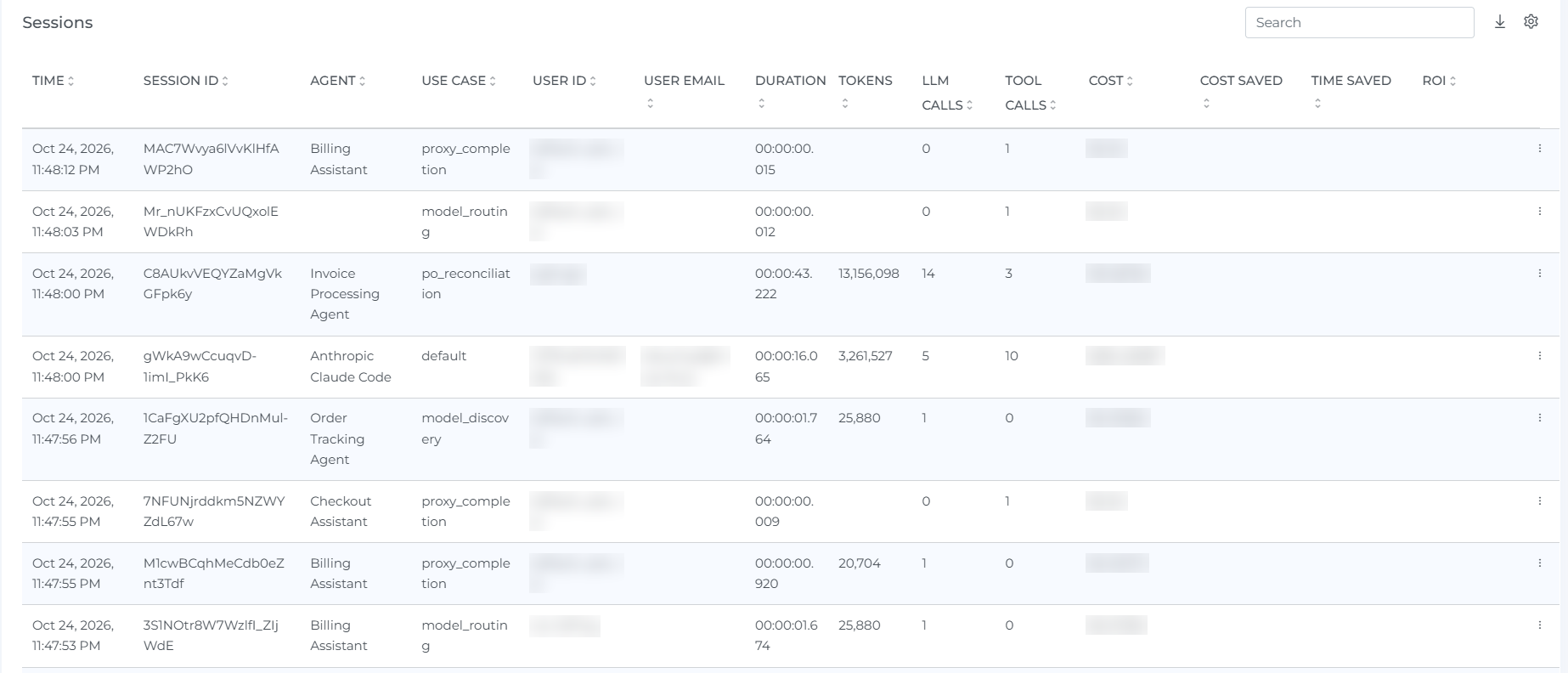
Use the table when you need to find an expensive session, compare activity across users, or investigate a session that did not behave as expected. Use search to find a session, agent, user, or other displayed value.
Use the download icon to export the displayed rows. Use the settings icon to choose the columns that appear in the table.
Open session details
Open a session to investigate the runs within it. The details show the activity captured for the selected session and let you open a run for deeper review.
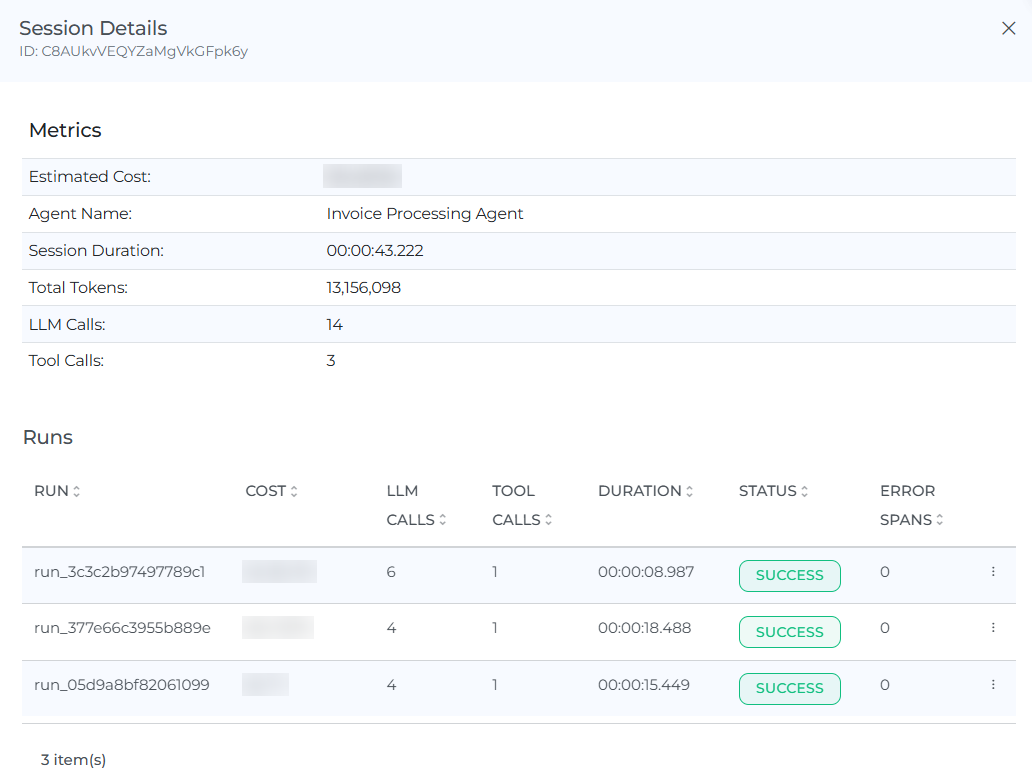
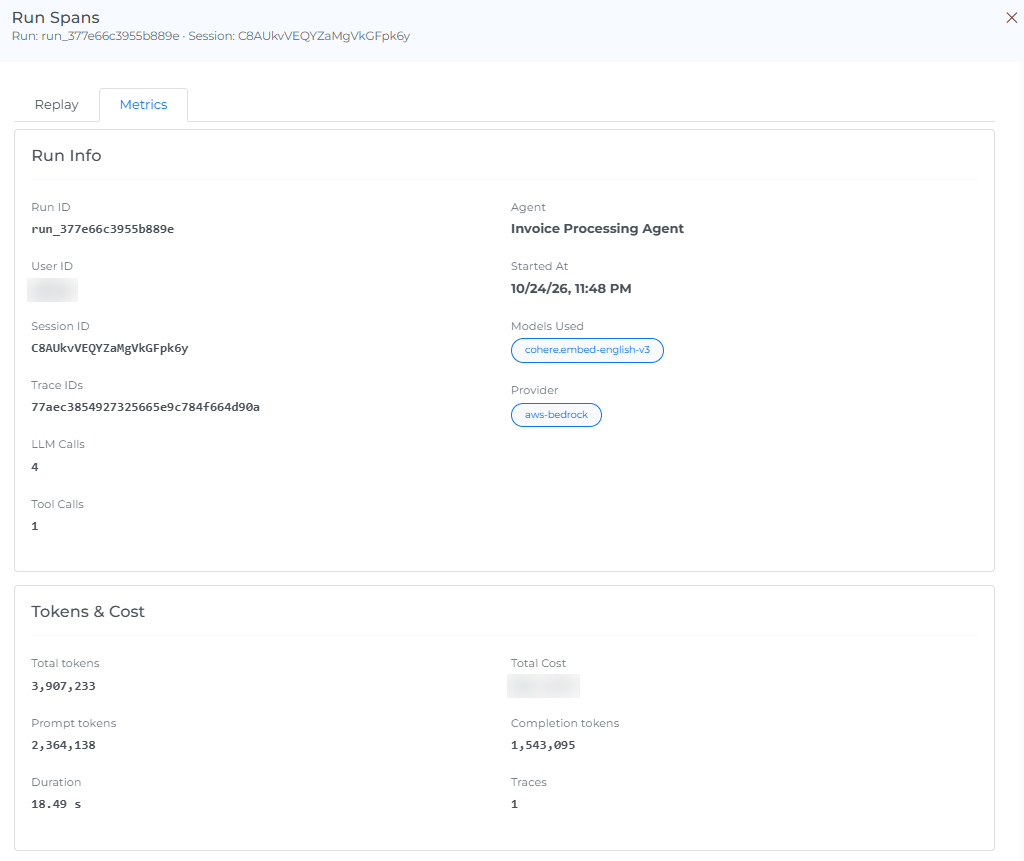
The run view includes Replay and Metrics. Replay lists the spans captured during the run. Metrics summarize the agent, session, user, trace IDs, models, tokens, duration, call counts, and total cost.
Filter sessions
Open Agent Session Filters to narrow the results. You can filter by connection, project, agent, user, user email, status, model provider, model name, span kind, operation, use case, and tag.
Select Dynamic Filter to make later filter lists reflect earlier selections. Select Apply to update the page. Select Clear All to remove active filters.