.png)
Managing Inactive Accounts & Connection Failures
When a connected account goes inactive, Mavvrik automatically alerts your workspace admins and account owners so they can fix the connection or disable the account.
An inactive account typically means we can no longer authenticate with your cloud/SaaS provider. This can impact data freshness, dashboards, and reports, so it's important to review and take action quickly.
How Inactivity Alerts Work
When Mavvrik detects an issue with an account:
-
The account status is marked as Inactive
-
An alert is sent to:
-
Admins/Owners of Mavvrik portal
-
-
The alert includes an error message that explains why the account went inactive. Click on Inactive status and then i icon to know the details
Daily Alert Frequency
-
Inactivity alerts are sent every day until the issue is resolved (either fixed or the account is disabled).
-
This ensures timely action and improved visibility into connection issues.
Common Error Messages & Recommended Actions
1. Error: Client secret key is expired
What it means
The client secret used to authenticate with your provider (for example, your Microsoft Entra ID app) has expired. Mavvrik can't refresh data using the existing credentials.
Action to take
-
Go to your identity provider (e.g., Microsoft Entra ID, or your relevant provider).
-
Open the application (app registration) associated with Mavvrik.
-
Create a new client secret:
-
Generate a new secret.
-
Copy the value and store it securely.
-
-
In Mavvrik:
-
Navigate to the Accounts / Connections page.
-
Edit the affected account.
-
Update the Client Secret field with the new value.
-
Save your changes.
-
-
Confirm that the account status changes back to Active and data starts syncing again.
2. Error: Microsoft Entra ID app is deleted
What it means
The Microsoft Entra ID application previously registered for Mavvrik has been deleted. Mavvrik no longer has a valid app registration to use for authentication.
Action to take
-
In Microsoft Entra ID:
-
Create a new App Registration for Mavvrik.
-
Configure any required permissions (same as originally set up for Mavvrik).
-
-
Generate a new client secret for the new app.
-
In Mavvrik:
-
Go to the Accounts / Connections page.
-
Edit the affected account (or create a new one if needed).
-
Update:
-
Application (Client) ID
-
Directory (Tenant) ID
-
Client Secret
-
-
Save your changes.
-
-
Verify the account status returns to Active and that data refresh resumes.
Error: SubscriptionCostDisabled (Customer does not have the privilege to see the cost)
What it means
Azure Cost Management access is disabled for the customer tenant (common in CSP / Microsoft Customer Agreement setups).
Because the cost visibility policy isn't enabled by the partner/provider, Azure blocks cost queries—so Mavvrik can't pull cost data from Cost Management APIs for that subscription.
Action to take
Enable Cost Management / cost visibility policy (Partner / Provider tenant)
You must sign in to the partner tenant (not the customer tenant) and you typically need Admin Agent permissions.
-
In the Azure portal, sign in to the partner tenant.
-
Go to Cost Management + Billing.
-
In Billing scope, select the correct billing account/scope.
-
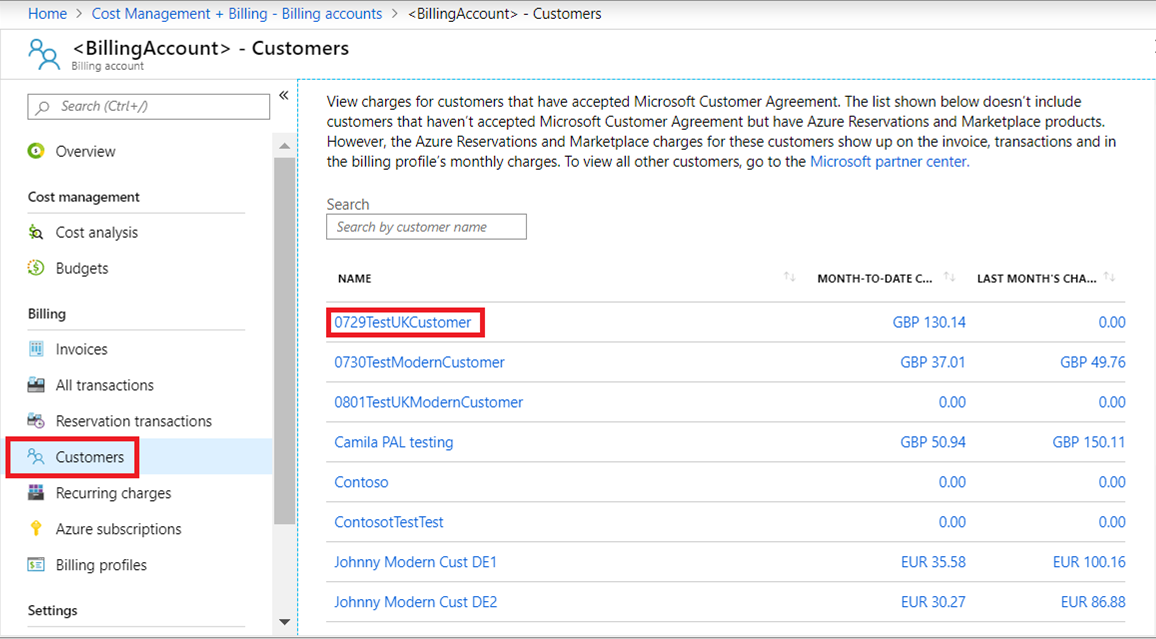
Select Customers.
-
If you don't see Customers, you're likely signed into the customer tenant by mistake.
-
-
Choose the customer that's getting the error.
-
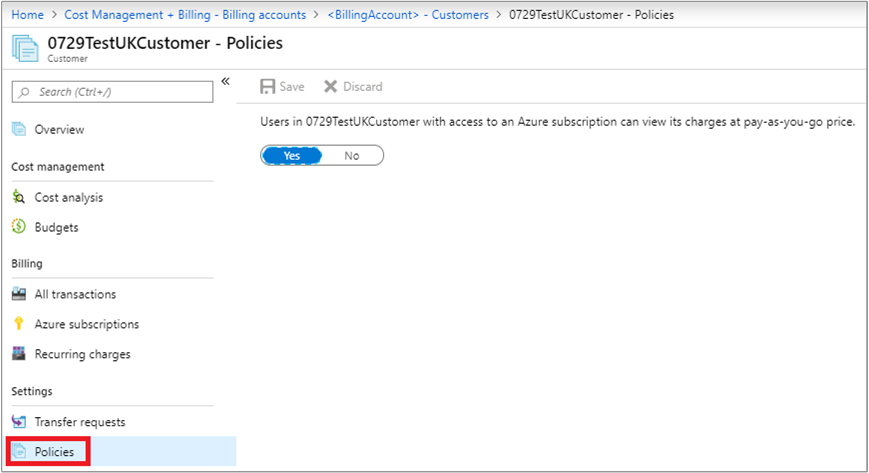
Under Settings, select Policies.
-
Find the policy for Azure usage charges / cost visibility.
-
Set the policy to Yes (enabled).
-
Save the change.
Account-Level Control & Disabling Unused Accounts
If you don't want to restore a connection or don't want alerts for a specific account, you can disable it.
Account-Level Control
If you do not want inactivity alerts for a specific account:
-
Navigate to the Accounts / Admin page in Mavvrik.
-
Find the relevant account.
-
Click Edit.
-
Change the account Status to Disabled.
-
Save your changes.
Once an account is disabled:
-
Mavvrik stops monitoring it for connectivity issues.
-
You will no longer receive inactivity alerts for that account.
-
Historical data already ingested remains available (subject to your retention settings).
This gives you full control over which accounts are actively monitored and alerted on.
The following are the steps you should take if you're seeing a warning message on the public clouds page.
-
Click on Edit of the billing/subscription account which shows warning.
-
Copy the command
-
Login to your Azure account where billing/subscription is configured.
-
Open the Cloud Shell
-
Run the command and wait till it's completed.
-
Click Done from Mavvrik UI & Run the Data ingestion
If you come across any error message on Mavvrik UI while onboarding Billing account or subscription, please adhere to the following table for resolution.
Steps to Take When a Client Secret Has Expired
-
Log in to the Azure Portal.
-
Navigate to Microsoft Entra ID > App registrations.
-
Select the application used for onboarding.
-
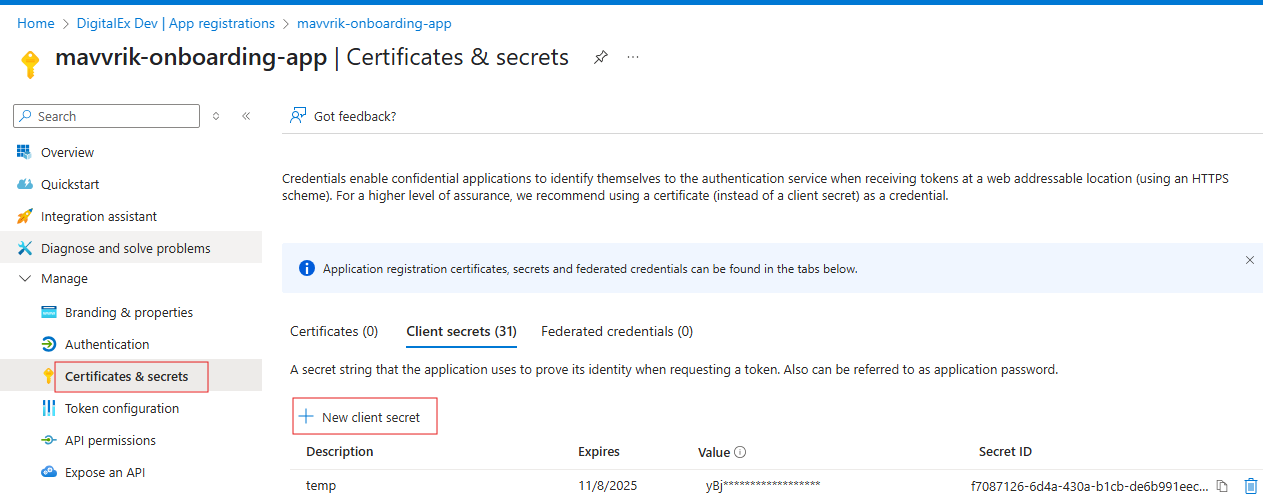
Go to Certificates & secrets.
-
Click + New client secret, add a description and expiration period, then click Add.
-
Copy the new client secret value immediately (it will not be visible again).
-
Log in to Mavvrik and go to Admin.
-
Edit the account that is showing as Inactive.
-
Paste the new secret into the Application (Client) Secret field and click Update.
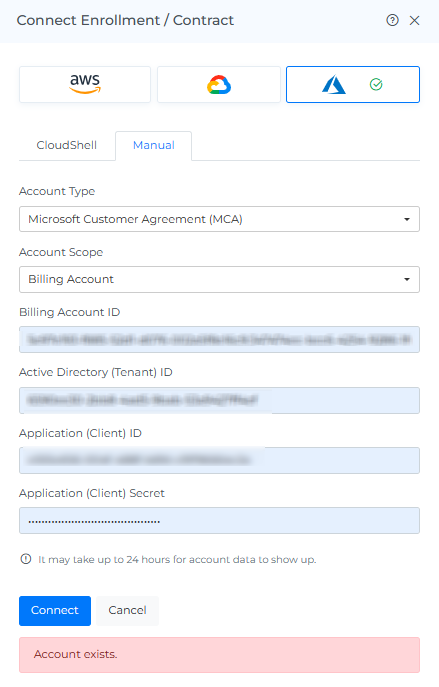
Below are the actions you should take when you encounter the following error message.
If you come across this error message; it signifies that an account with this Account ID has already been onboarded.
When encountering this error message, you have entered the invalid Account ID.
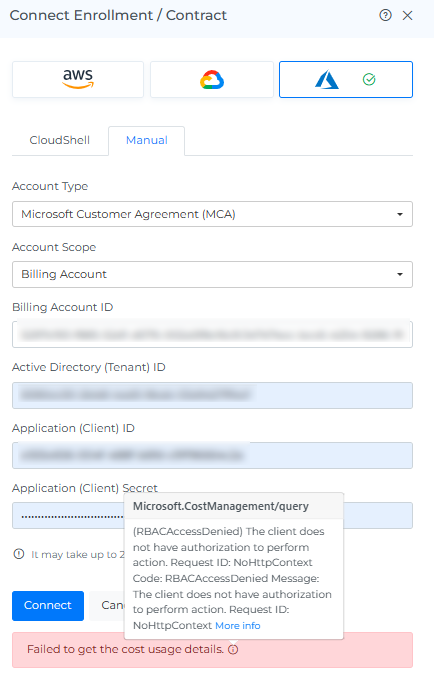
If you encounter this error message, it means that you've partially entered an incorrect Account ID.
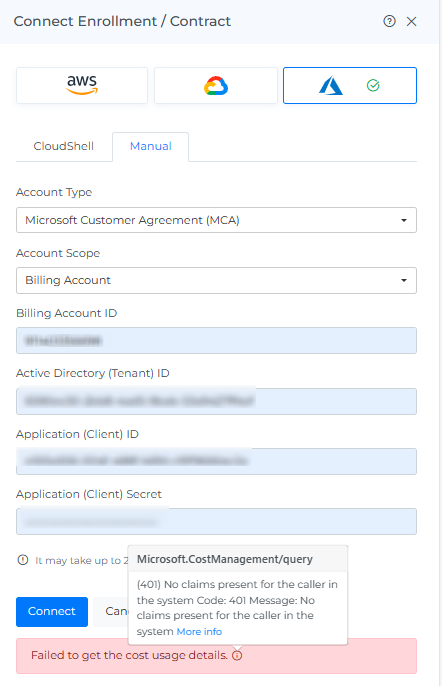
When you come across this error message, it indicates that you've entered the invalid Subscription ID.
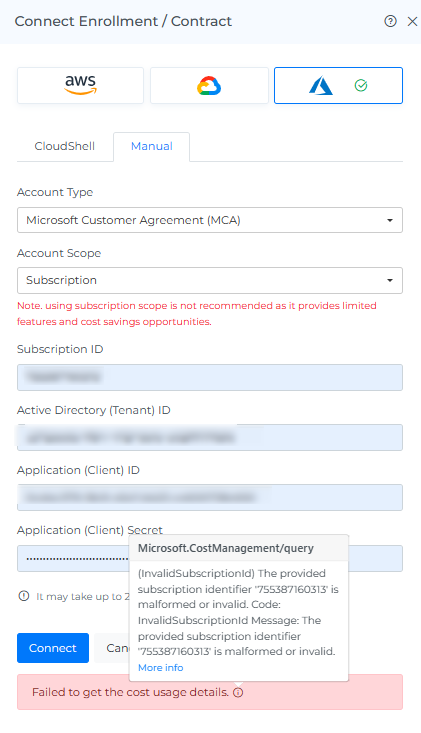
If you encounter this error message, it means that you've partially entered an incorrect Subscription ID.
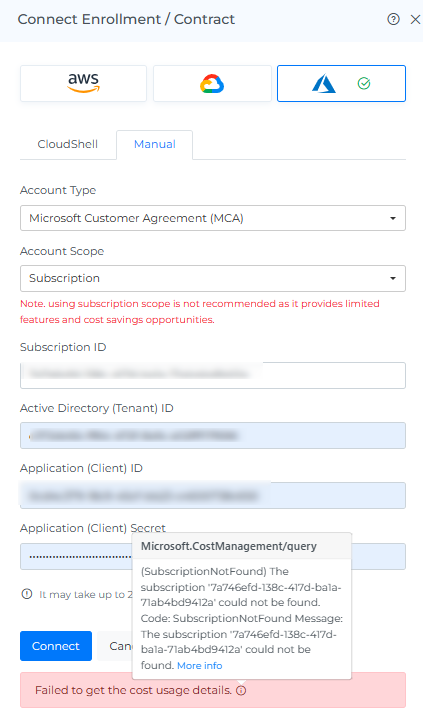
When you come across this error message, it indicates that you've entered the invalid Tenant ID.
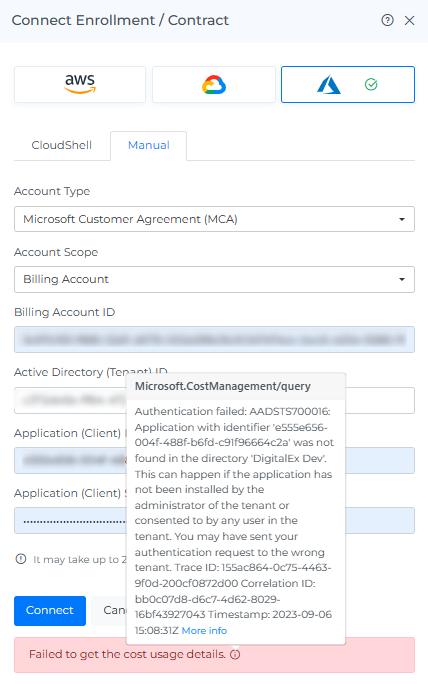
If you encounter this error message, it means that you've partially entered an incorrect Tenant ID.
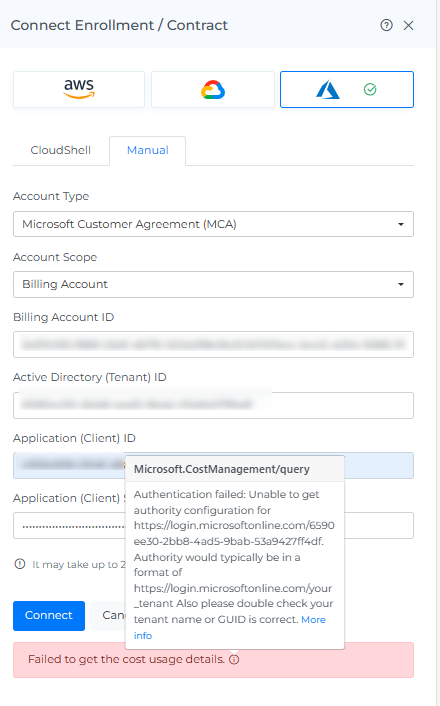
If you encounter this error message, it means that you've partially entered an incorrect or invalid Client ID.
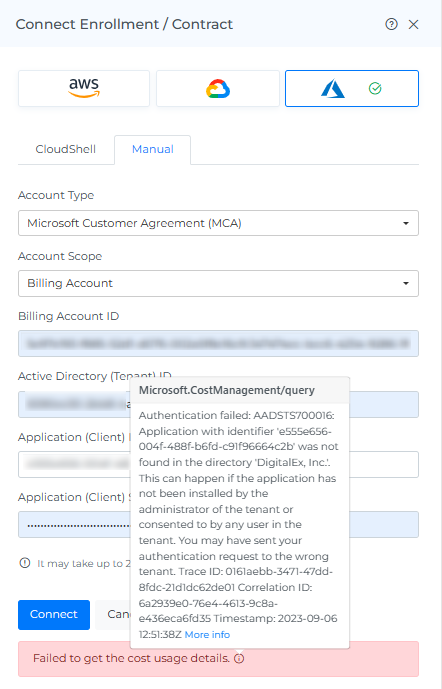
If you encounter this error message, it means that you've partially entered an incorrect or invalid Secret.
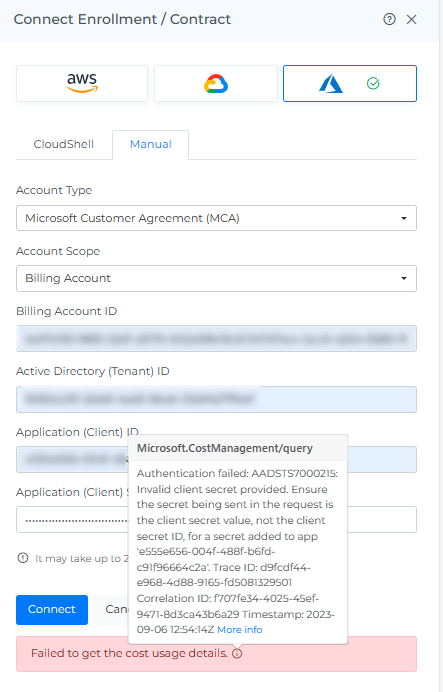
-
If a WARNING message appears on the Mavvrik public page interface, please adhere to the following table for resolution
|
Permission |
Details |
Resolution |
Doc References |
|---|---|---|---|
|
Microsoft.Storage/BlobReader |
This permission is necessary to access and read the cost exports from the bucket. |
Add "Storage Blob Data Reader" manually from Azure portal |
https://help.mavvrik.ai/content/step-3-assign-required-roles-permissions-to-the-ap |
|
Microsoft.Billing/billingAccountsOR/subscriptions |
This permission is necessary to access and read historical cost-related information at the scope of billing or subscription. |
Add "Billing Account Reader" role at billing scope or add "Cost Management Reader" role at subscription scope |
https://help.mavvrik.ai/content/step-3-assign-required-roles-permissions-to-the-ap |
|
Microsoft.CostManagement/query |
To retrieve cost-related data from previous months within the scope of billing or subscription, this particular permission is necessary. |
Add "Billing Account Reader" role at billing scope or add "Cost Management Reader" role at subscription scope |
https://help.mavvrik.ai/content/step-3-assign-required-roles-permissions-to-the-ap |
|
Microsoft.CostManagement/generateCostDetailsReport |
This permission is needed to use the API to produce cost exports for historical months within the scope of billing or subscription |
Add "Billing Account Reader" role at billing scope or add "Cost Management Reader" role at subscription scope |
https://help.mavvrik.ai/content/step-3-assign-required-roles-permissions-to-the-ap |
Common Troubleshooting
-
If you come across an issue related to access levels within your Azure portal, here are some potential solutions.
-
To create exports and assign roles to Microsoft Entra ID app we need Owner (recommended) or both Contributor and User Access Administrator role for logged in user (Ref: https://learn.microsoft.com/en-us/azure/role-based-access-control/built-in-roles#user-access-administrator )
-
To manage a Microsoft Entra ID app and create a client secret we need Application Administrator role.
(Ref: https://learn.microsoft.com/en-us/azure/active-directory/roles/permissions-reference#application-administrator) ) -
If the IT team cannot assign the above role, then involve an IT admin user. This user should at least have the Application Administrator or Administrator role and they will create the Microsoft Entra ID app on your behalf and get Application (client) ID, Directory (tenant) ID & Client Secret Value from them. (Ref: https://help.mavvrik.ai/content/step-3-assign-required-roles-permissions-to-the-ap)
-