.png)
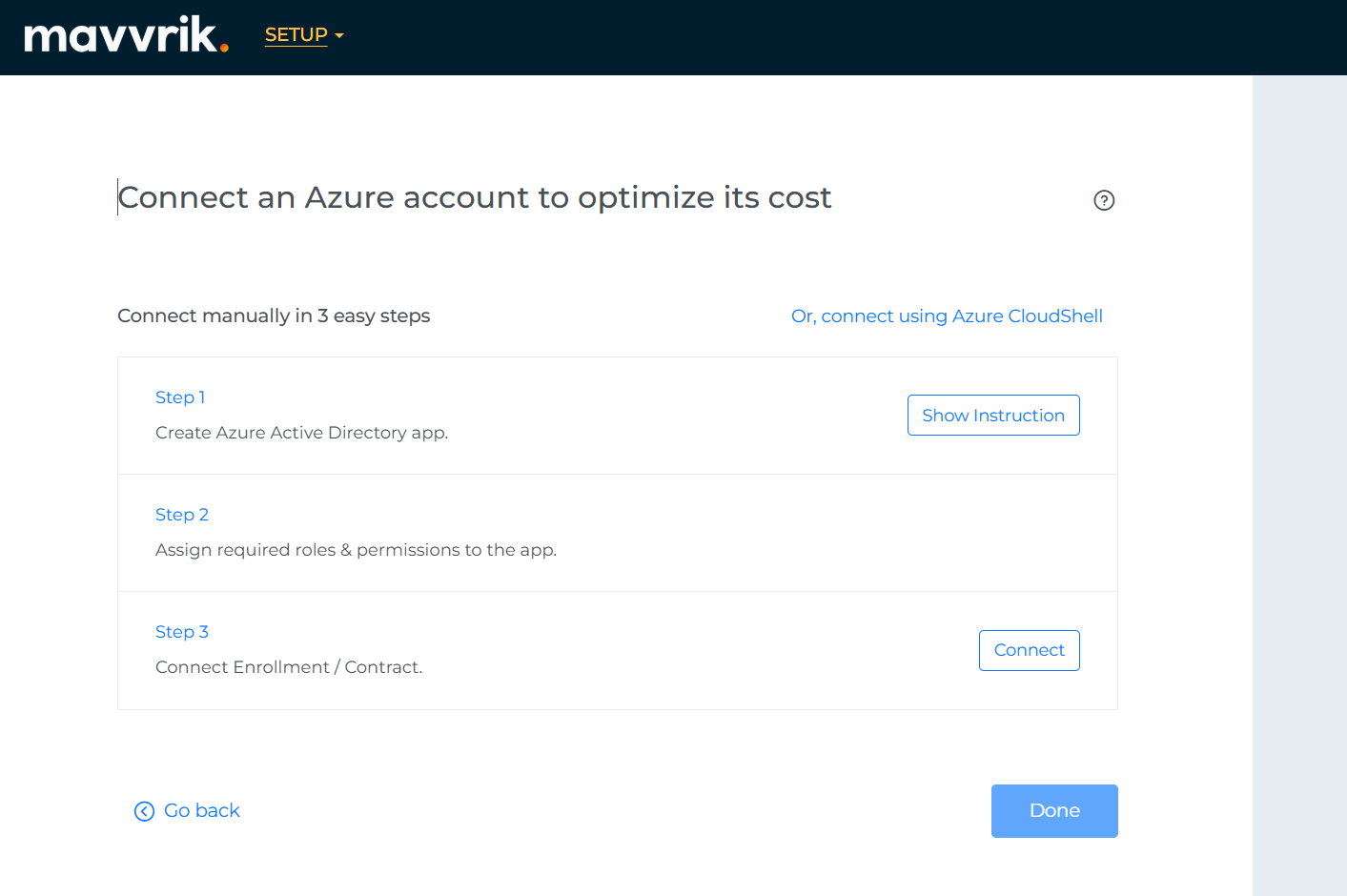
If you are setting up a billing account for the first time, you will be presented with the following screen. To create a billing account, simply select the "Create Billing Account" option.
-
Otherwise, you can navigate to Menu > Admin > Public Clouds > +Account
-
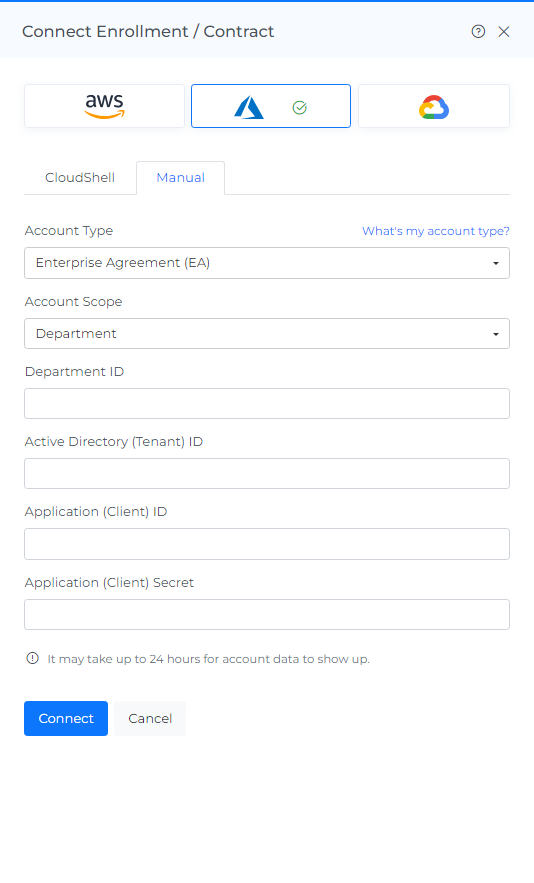
Select Azure Provider & Click on Manual tab
-
Choose your account type as EA
-
Select the Account Scope as Department
-
Fill in the following details captured in Step 1 and Step 2
-
Department Id
-
Tenant ID
-
Client ID
-
Client Secret
-
-
Click Connect
-
The onboarded Account will be displayed with the list of All linked Subscription accounts.
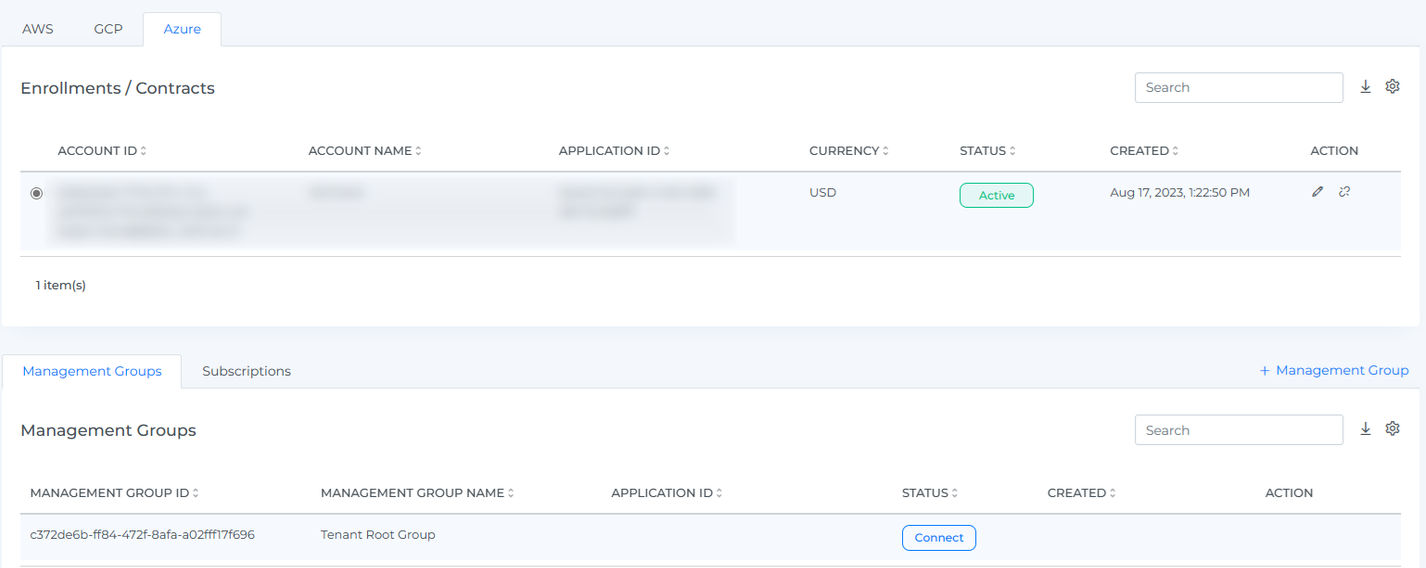
After adding a new account, it may take up to 30 minutes for the system to discover and process the data
-
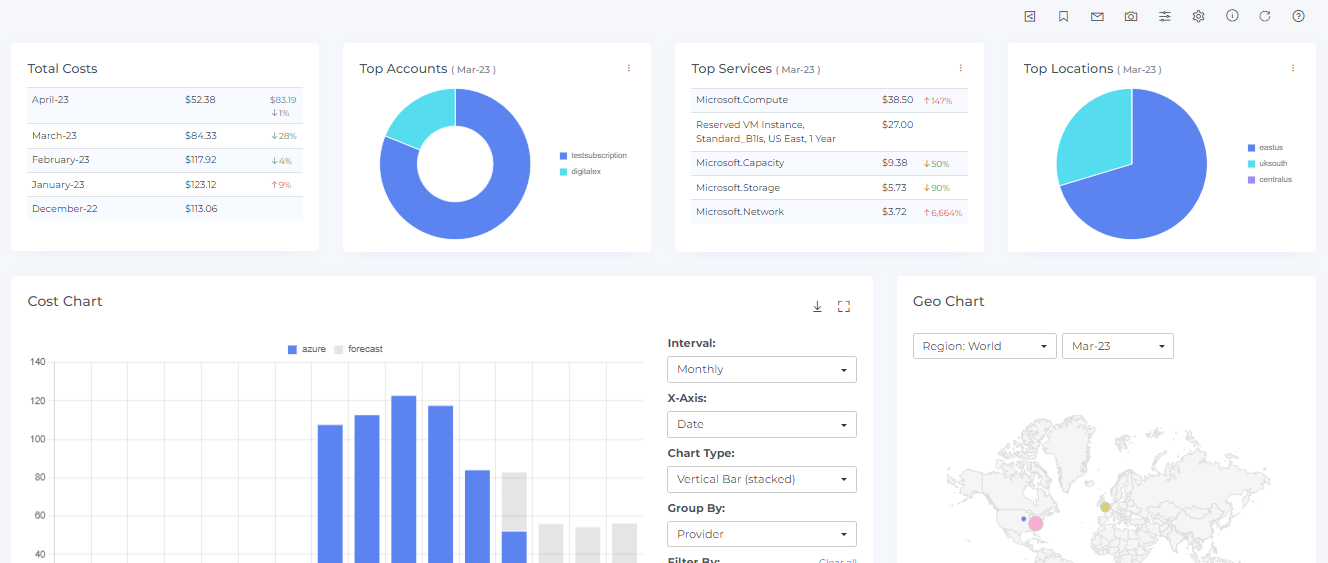
Go to the Menu option and Click Cost.
-
Data will display immediately after successful ingestion.
Troubleshooting
-
If the account does not connect, verify the tenant ID, client ID, client secret, and billing account details entered in Mavvrik.
-
If a permission error appears, confirm that the required Azure roles were assigned to the application at the correct scope.