.png)
Overview
Think of Advanced Savings as a full home energy audit, not just a note that a light was left on. A basic check might catch a device running when nobody's home — but a real audit also looks at whether your appliances are the right size for your needs, whether your home's insulation is doing its job, and whether you're even on the best utility rate plan. Advanced Savings does the cloud equivalent: it looks at idle and orphaned resources (the lights left on), oversized resources (appliances too big for the job), inefficient architecture (poor insulation), and your commitment or reservation pricing (your utility rate plan) — then rolls every finding into one number so you know the total size of the opportunity.
Recommendations are powered by Deep Waste Optimization, which surfaces savings opportunities that go beyond standard recommendation checks, and are available across AWS, Azure, and GCP. They're surfaced across four categories: Resource Hygiene (idle and orphaned resources), Workload Efficiency (rightsizing), Architecture Efficiency, and Rate & License (reservations and savings plans), rolled up into a single Savings Opportunity total.
Who uses this page
-
FinOps manager — uses the rolled-up Savings Opportunity total and filtering to prioritize which recommendations the team should act on first.
-
Finance leader — uses the summary cards to forecast achievable savings and report progress over time.
-
Engineering or platform lead — drills into individual resources, reviews the specific Action and Reason for each recommendation, and tracks it through to resolution with a ticket.
Savings Opportunity Cards
At the top of the page, five cards summarize your Achievable Monthly Savings:
-
Savings Opportunity — the total achievable monthly savings across every recommendation category combined.
-
Resource Hygiene — savings available from cleaning up idle, unattached, or orphaned resources.
-
Workload Efficiency — savings available from rightsizing over-provisioned resources.
-
Architecture Efficiency — savings available from architectural improvements.
-
Rate & License — savings available from reservations, savings plans, and commitment-based pricing.

Cost Options
Use the Cost Options icon to control how costs and savings are calculated across the page:
-
Cost Field — choose Actual (discounts shown as separate line items, so you can see the exact value of each discount received) or Amortized (commitment costs like Reserved Instances and Savings Plans spread evenly across the commitment period).
-
Savings Field — choose Actual, Discounted, or Optimal savings, depending on how you want potential savings represented.
Recommendations Table
The Recommendations table lists every individual recommendation, grouped into two views you can switch between:
-
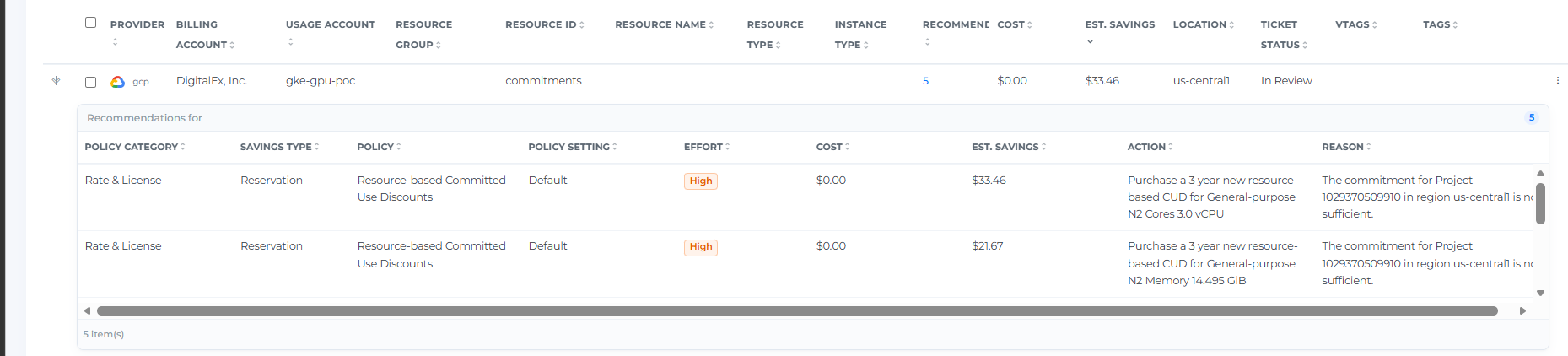
open — all active recommendations, including both resource-level recommendations (VM, disk, IP address, etc.) and commitment recommendations shown together. A commitment recommendation appears as its own row with Resource Type shown as "commitments" — expanding it shows the same breakdown format as any other row (Policy Category, Policy, Policy Setting, Effort, Cost, Est. Savings, Action, Reason), for example a Rate & License category recommendation to purchase a Committed Use Discount.
-
muted — recommendations you've previously muted, so they no longer count toward your active savings totals.
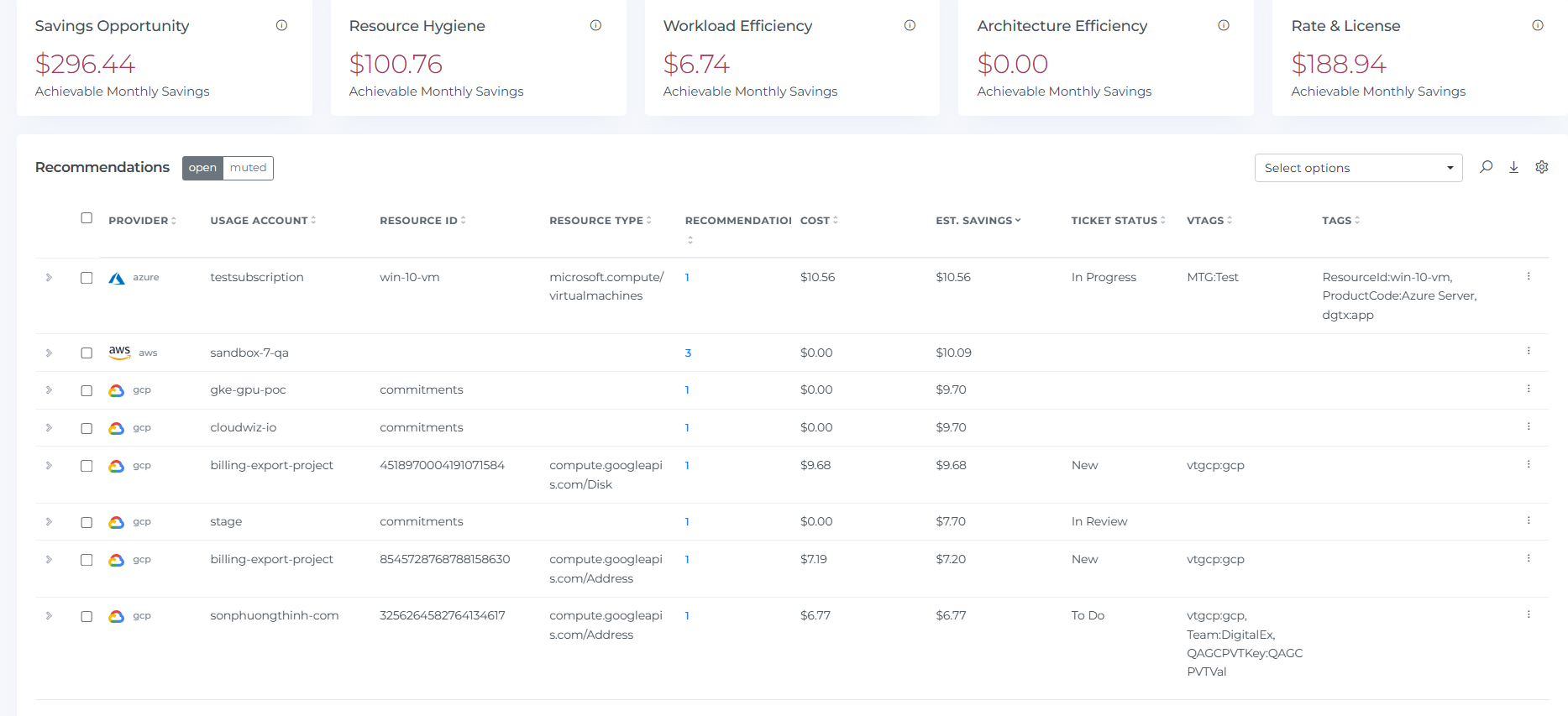
Each row shows the Provider, Usage Account, Resource ID, Resource Type, the number of Recommendations for that resource, its current Cost, the Est. Savings, Ticket Status, and any vTags/Tags associated with the resource. A single row can represent more than one recommendation for the same resource or account — the Recommendations count tells you how many are grouped together.
When a resource has multiple recommendations, the Cost and Est. Savings shown on its row reflect the single highest-value recommendation for that resource, not the sum of all of them — this avoids double-counting when recommendations represent alternative options (e.g. a 1-year vs. 3-year commitment) rather than fully separate opportunities. Expand the row to see the full breakdown and every individual amount.
Click the expand arrow on any row to see the full breakdown of that resource's recommendation(s), with each one listed individually along with its own Policy Category, Savings Type, Policy, Policy Setting, Effort level, Cost, Est. Savings, Action, and Reason.
Filtering Recommendations
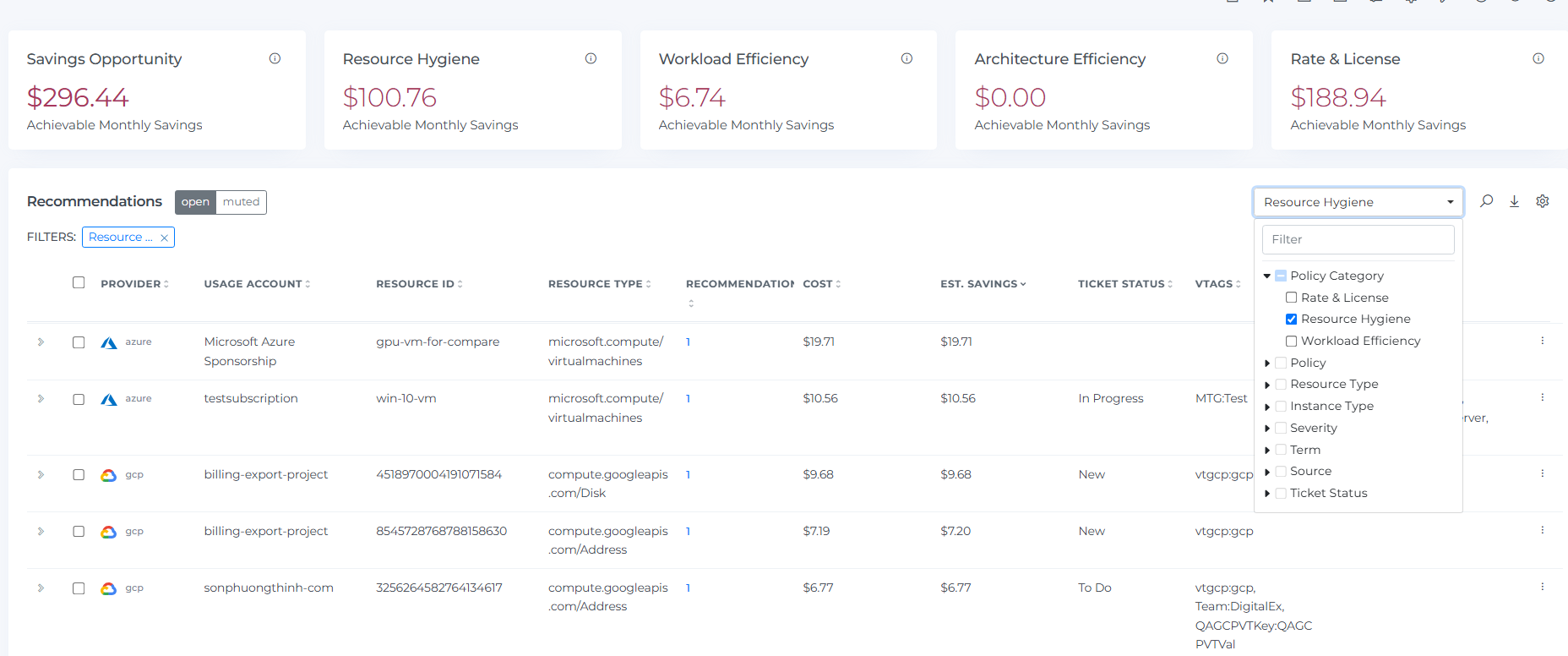
Use Select options above the table to filter by any combination of: Policy Category, Policy, Resource Type, Instance Type, Severity, Term, Source, and Ticket Status.
This lets you narrow the table down to, for example, only high-severity Resource Hygiene recommendations for a specific instance type — useful when triaging a large recommendation list down to what your team should act on first.
Search
Use the search icon to quickly find recommendations by keyword — useful when you already know the account, resource, or tag you're looking for and want to jump straight to it instead of scrolling or filtering.
Customizing Columns
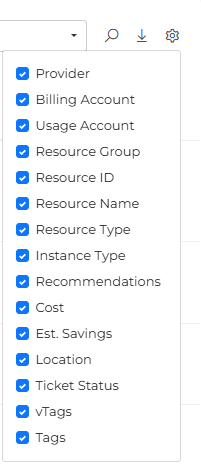
Click the Settings (gear) icon above the table to show or hide columns — for example, adding Billing Account or Location if you need that context, or hiding columns you don't use to keep the table focused.
Sorting, Pagination, and Export
Click any column header to sort the table by that field (ascending/descending). Use the Rows control and page navigation at the bottom of the table to move through results, and use Download CSV to export the current table view for offline analysis or sharing.
Taking Action on a Recommendation
Click the ⋮ (View Menu) on any row to:
-
View Details — see the full recommendation detail for that resource.
-
Update Ticket — create or update a tracking ticket for that recommendation, so your team has a single place to action it.
-
Mute — remove a recommendation from your active savings totals when it's not actionable (e.g. a resource that's intentionally kept idle). You must enter a note before muting — the Mute button won't submit without one. Muted recommendations move to the muted tab and can be unmuted later if needed.

Acting on multiple recommendations at once: select the checkbox on any rows you want to act on together (or use the header checkbox to select all rows on the page), then use the Select actions button that appears to mute all selected recommendations in one step. You'll still need to enter a note, and a confirmation dialog will show exactly how many individual recommendations are included before you confirm.
Settings
Click the Settings (gear) icon in the page header to open Savings Settings, where you can enable or disable individual recommendation policies and adjust their thresholds — separately for each connected cloud provider (AWS, Azure, GCP, and Oracle Cloud Infrastructure) and category (Hygiene, Workload Efficiency, Architecture Efficiency, Rate & License).
Each policy shows its current Severity, Lookback Period, and the specific thresholds that trigger it — for example, Virtual Machine Idle uses a CPU threshold of 0–5% and a memory threshold of 0–65%, both measured over the lookback window using the 95th percentile. Toggle a policy off if it doesn't apply to your environment, or adjust its thresholds to match your own definition of "idle" or "underutilized."
Policy changes can take up to 24 hours to take effect.
Header Icons

-
Share — copies a link to the current page (with your active filters) to your clipboard, so you can share the same view with a teammate.
-
Bookmark — save the current view for quick access later.
-
Subscription — schedule recurring email delivery of this view.
-
Screenshot — capture the current page as a downloadable image/PDF.
-
Filters — quick access to the page-level filter panel.
-
Cost Options — control how costs and savings are calculated across the page (see above).
-
Settings — enable or disable and configure recommendation policies (see above).
-
Info — shows when the data on this page was last refreshed.
-
Reload — refresh the page's data.
-
Help — opens this help documentation.