
Rate Cards in Mavvrik allow you to define and manage token-based pricing for AI models accessed through connected gateways. Each rate card contains the model's input, output, and cached input token prices, along with the gateway and date associated with those rates.
You can create rate cards manually, update existing rates, and review pricing history from one place.
Viewing Rate Cards
Navigate to Admin > Pricing > Rate Cards.
The page lists your models, their associated gateways, input and output rates, cached input rates, start dates, and status.
You can switch between three views:
-
Active: Rate cards with configured pricing.
-
Discovered: Models identified in the system that do not yet have configured rates.
-
Deleted: Rate cards marked as deleted.
Use the search field to find a model or select an existing card to review or update it.

Creating a Rate Card
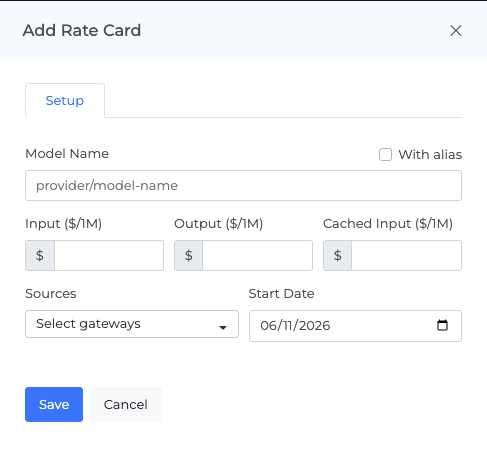
Click + Rate Card to open the setup panel.
Enter the model name and configure the following fields:
-
Model Name: The name used to identify the model.
-
With alias: Enable this option to add alternative names for the model.
-
Input ($/1M): Price per million input tokens.
-
Output ($/1M): Price per million output tokens.
-
Cached Input ($/1M): Price per million cached input tokens.
-
Sources: Select the gateway connections associated with the model.
-
Start Date: The date from which the configured rate version applies.
Click Save to save the rate card.
Updating Rates and Viewing History
To modify an existing rate card, click the edit icon in the model's row. The Setup tab displays the configured model information, rates, sources, and start date.
Update the required values and click Save.
The Rate History tab displays recorded pricing versions, including their start and end dates, associated sources, and input, output, and cached input rates. This helps you review how a model's configured pricing has changed over time.
Managing Rate Cards
The Rate Cards page also provides an Upload CSV option for entering rate card data in bulk.
You can search for specific models, switch between status views, edit existing cards, and access the available rate card actions from the model list.
When a model appears under Discovered without pricing values, review the model and configure its rates before relying on its pricing information.