.png)
Run Template Onboarding
Onboarding from Mavvrik setup page
Click Run Template after completing Step-1: Login to AWS account
-
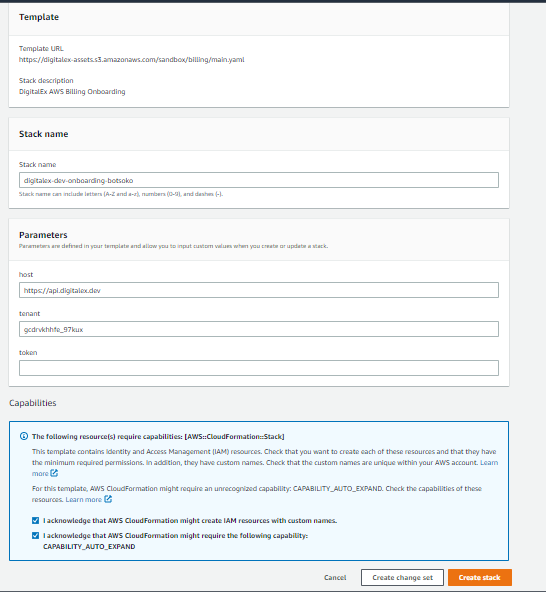
Page is navigated to AWS cloud formation where all the details will be auto-generated as shown in the below snap.
-
Check I acknowledge that AWS Cloud Formation might create IAM resources.
-
Click Create Stack button and wait till the template running is completed and status in AWS shows as CREATE_COMPLETE.
-
Click Done Button.
-
Click on Proceed to Dashboard
Onboarding from Mavvrik Admin page
If the user has already onboarded any of the cloud providers, below are the steps that need to be performed
-
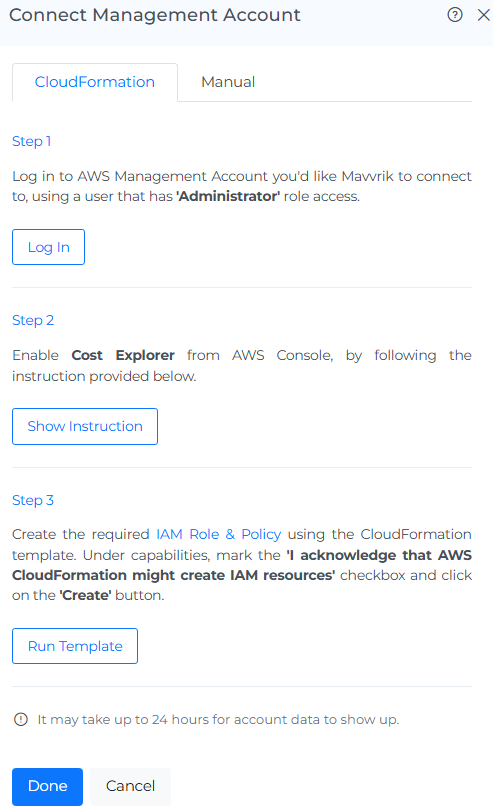
Click Run Template.
-
The page is navigated to AWS cloud formation where all the details will be auto-generated as shown below snap.
-
Check I acknowledge that AWS Cloud Formation might create IAM resources.
-
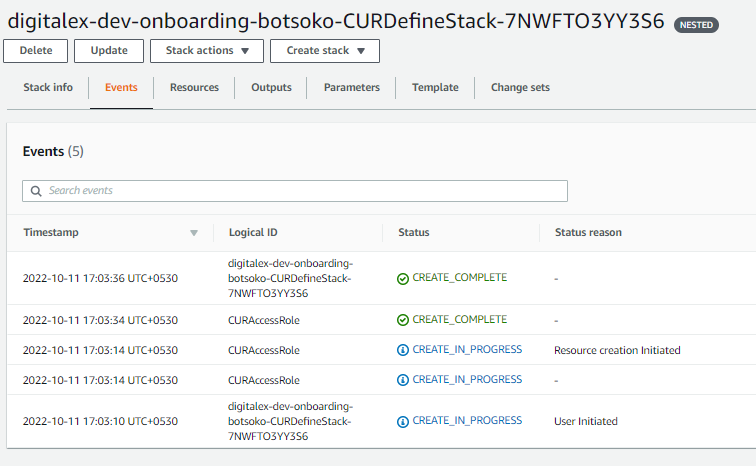
Click Create Stack button and wait till the template running is completed and the status in AWS shows as CREATE_COMPLETE.
-
Click on the Done button in Mavvrik after the template running is successfully completed.
-
The onboarded Management Account will be displayed with the list of All linked Member account.
-
Go to the Menu option and Click Cost.
-
Data will display immediately after successful ingestion.
Troubleshooting Missing Cost Data for the Previous 13 Months
If the data for previous months isn't visible on cost dashboard due to missing historical Cost and Usage Report (CUR) files, there are a couple of solutions to retrieve the data:
-
Request the missing month's CUR from AWS Support. Ensure to designate the same bucket you used during the onboarding process and request them to upload the CUR file into that specific bucket.
-
Leverage AWS Explorer APIs, which charge based on the usage account. This cost is a one-time fee. If you choose this route, follow the steps outlined below.
-
Click on Menu > Admin > Public Clouds
-
Click on AWS Tab > Edit Icon > Configure
-
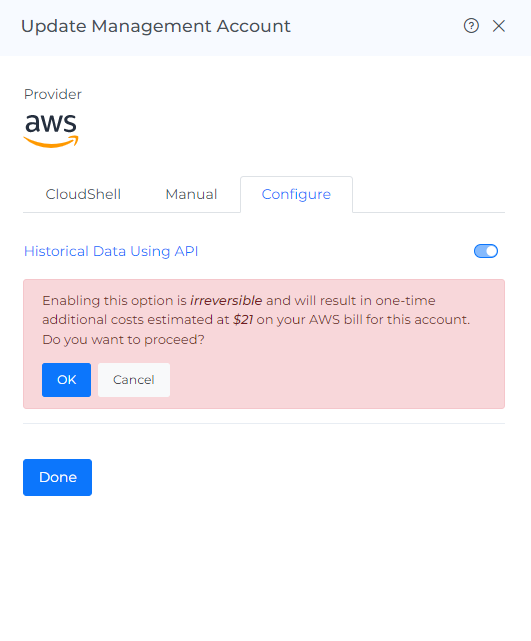
Enable the Toggle, Click Ok & Done