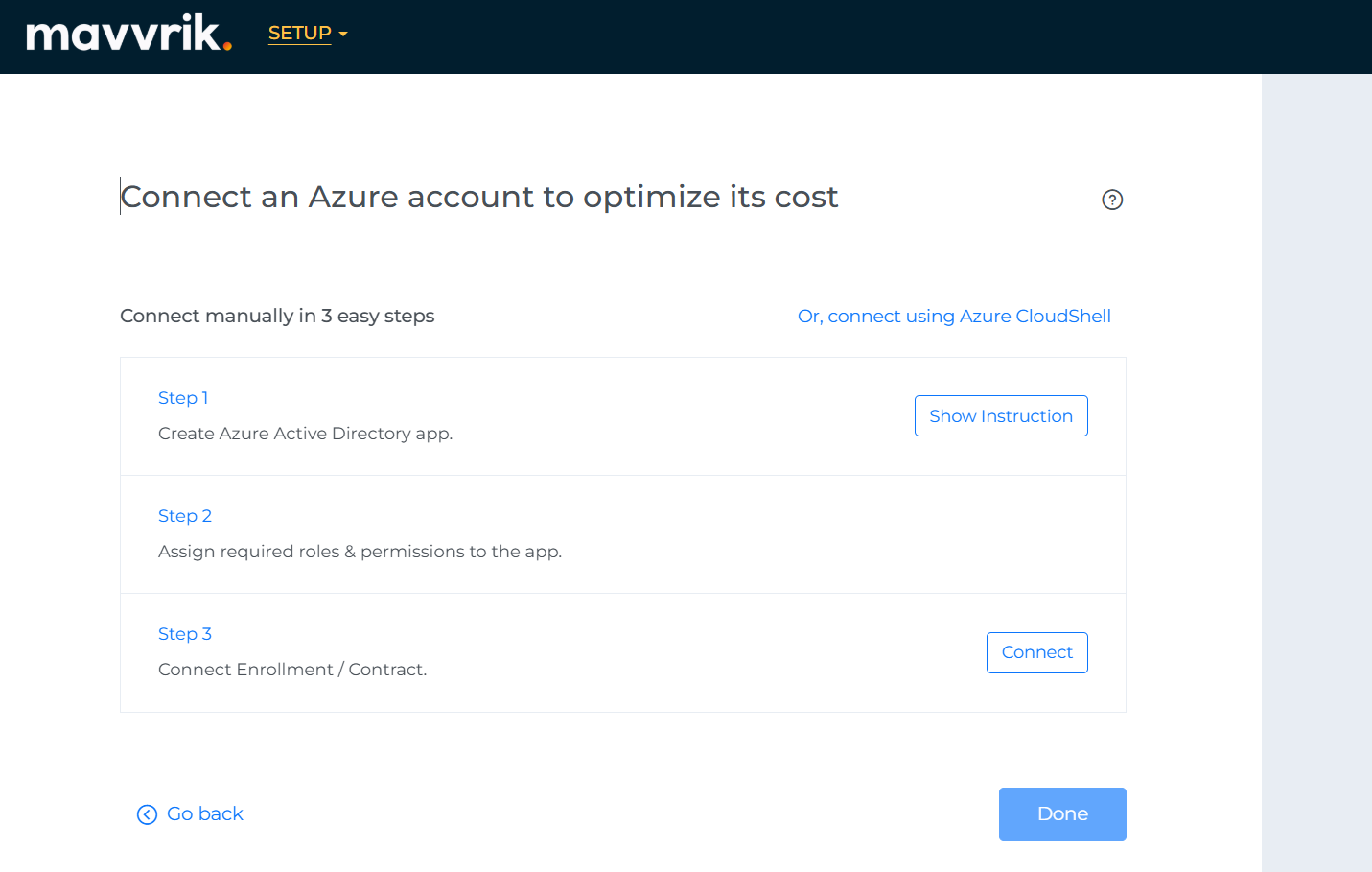
If you are setting up a billing account for the first time, you will be presented with the following screen. To create a billing account, simply select the "Create Billing Account" option.
Create a billing account during initial onboarding
Otherwise, you can navigate to Menu > Admin > Public Clouds > +Account
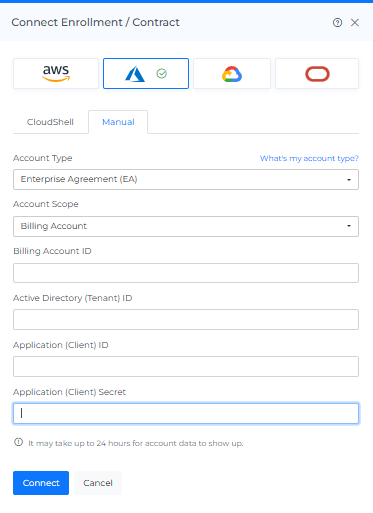
Select Azure Provider & Click on Manual tab
Choose your account type as EA
Select the Account Scope as Billing Account
Fill in the following details captured in Step 1 and Step 2
Billing Account ID
Tenant ID
Client ID
Client Secret
Click Connect
Azure EA billing account connection details
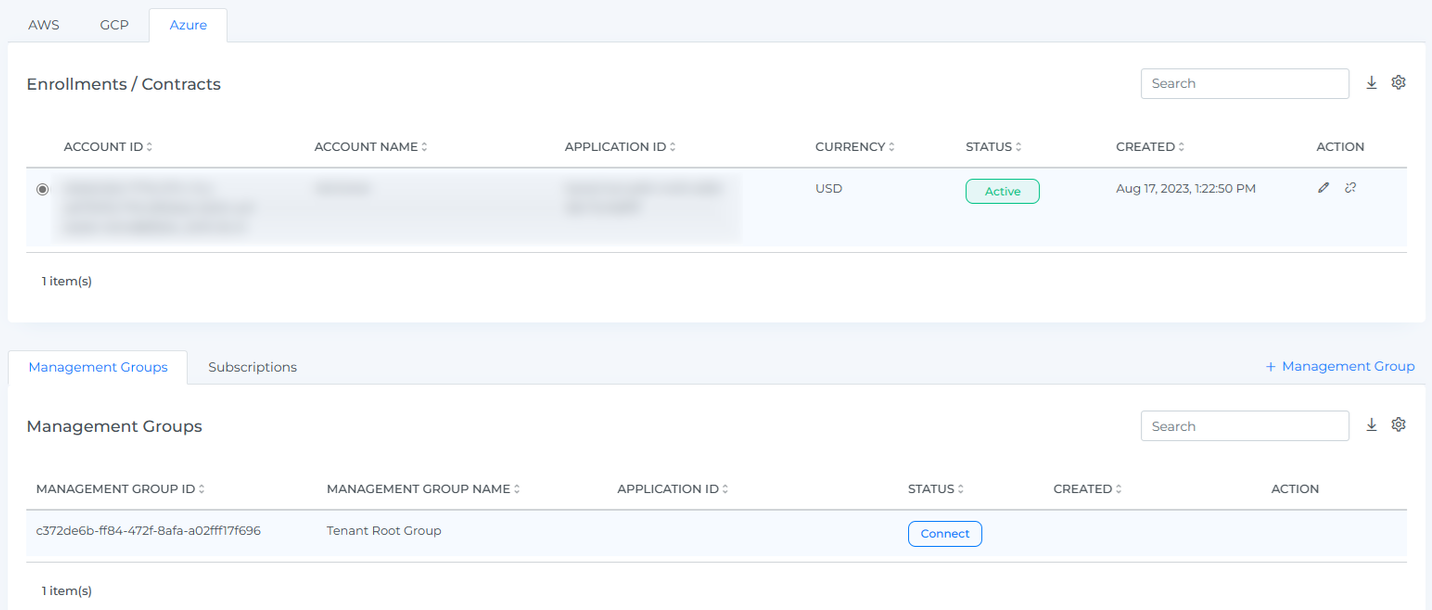
The onboarded Account will be displayed with the list of All linked Subscription accounts.
Onboarded account and linked subscriptions
After adding a new account, it may take up to 30 minutes for the system to discover and process the data
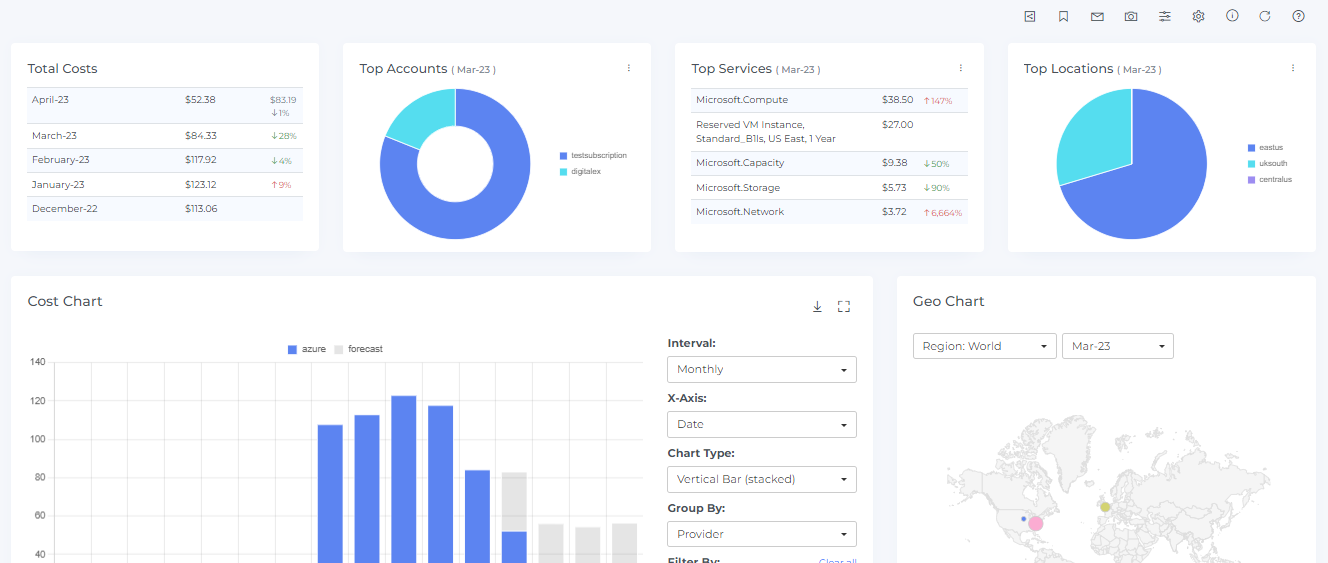
Go to the Menu option and Click Cost.
Data will display immediately after successful ingestion.
Azure cost data after successful ingestion
Microsoft Azure Consumption Commitment (MACC) Visibility
Track your Microsoft Azure Consumption Commitments (MACC) directly in Mavvrik. View available commitments with current balance and usage so Finance and Ops always know where they stand.
Scope & Requirements
Supported agreement types:EA (Enterprise Agreement) and MCA (Microsoft Customer Agreement).
Purchase path:Direct agreements only. MACC via resellers/partners is not supported.
Data shown: Available MACC(s), current balance, and consumption-to-date.
Where to Find It
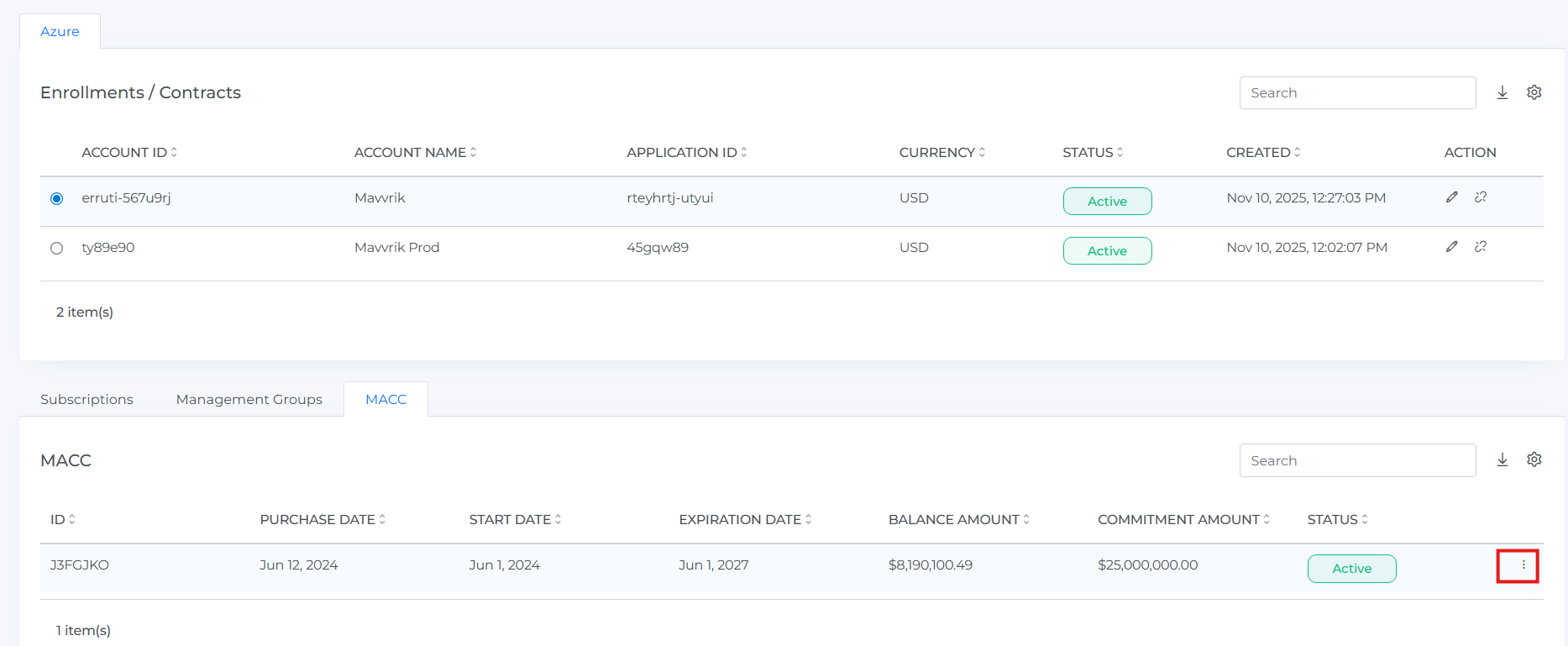
Go to Admin → Accounts > Public Clouds
Select the relevant billing account / enrollment.
Click the MACC panel to see Balance and Committed Amount.
Click View Details to view more details
If you have multiple eligible accounts, you'll see a list of MACCs by account. Select one to view details.
Select an eligible MACC account to view details
Troubleshooting
If the account does not connect, verify the tenant ID, client ID, client secret, and billing account details entered in Mavvrik.
If a permission error appears, confirm that the required Azure roles were assigned to the application at the correct scope.
.png)