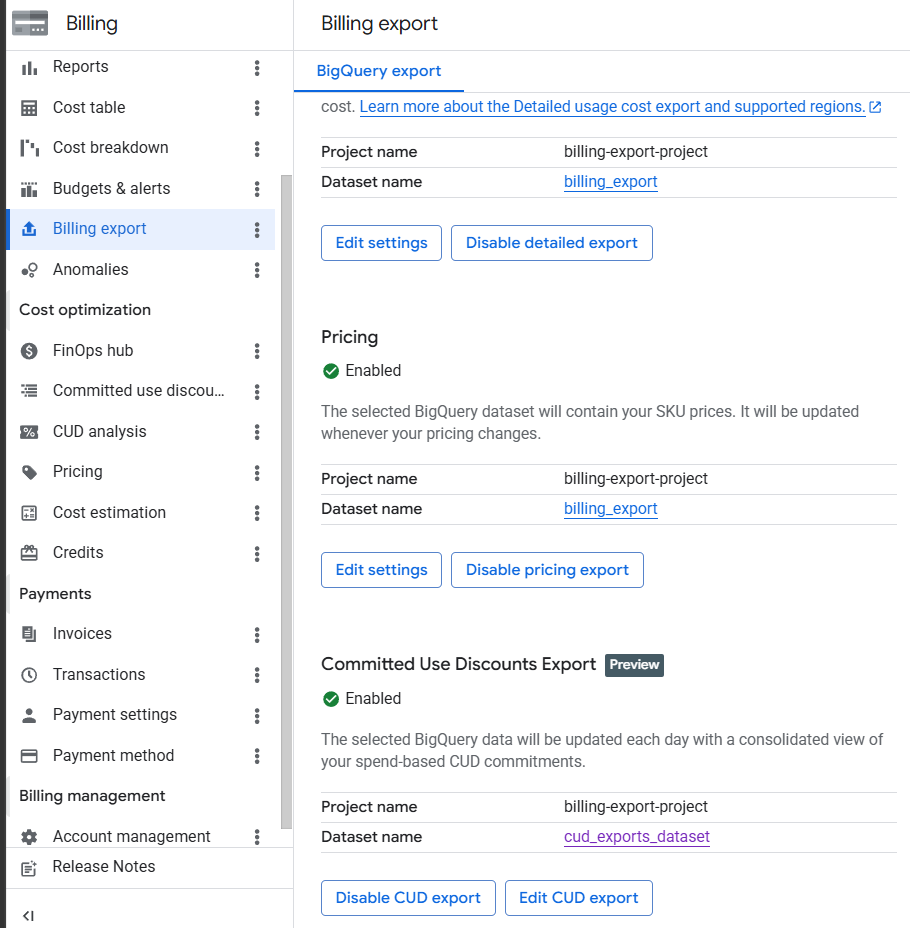
.png)
If the standard report is already enabled, use the same dataset of the standard report else create a new dataset to be enabled & follow the below steps.
Steps to create Dataset and Enable Billing Export
-
Click on Billing from Dashboard.
-
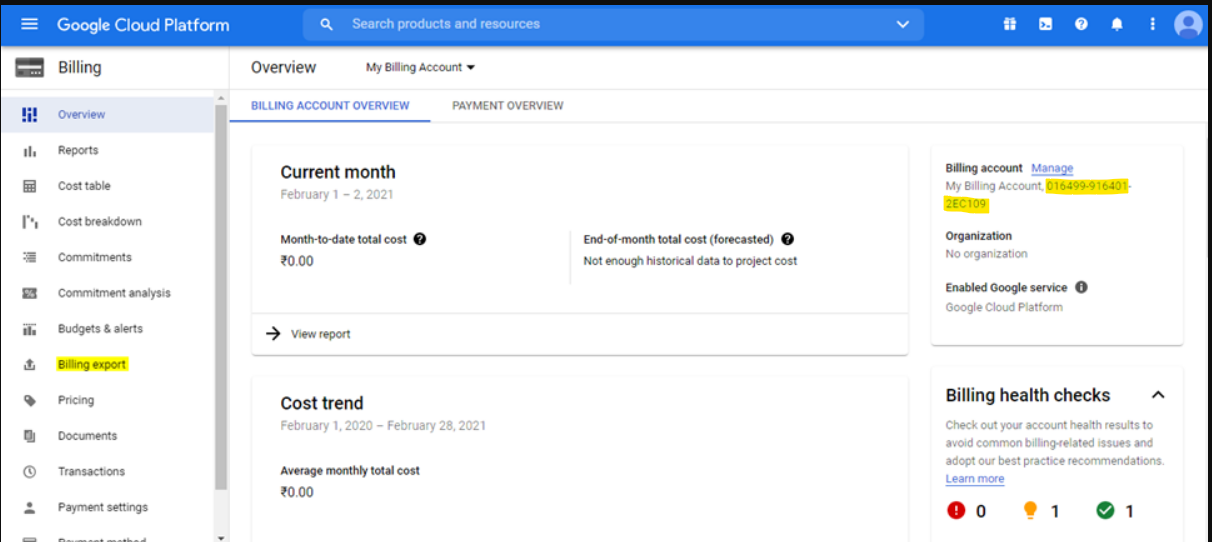
Click on Overview and capture Billing Account id which is required in subsequent steps
-
Click on Billing Export.
-
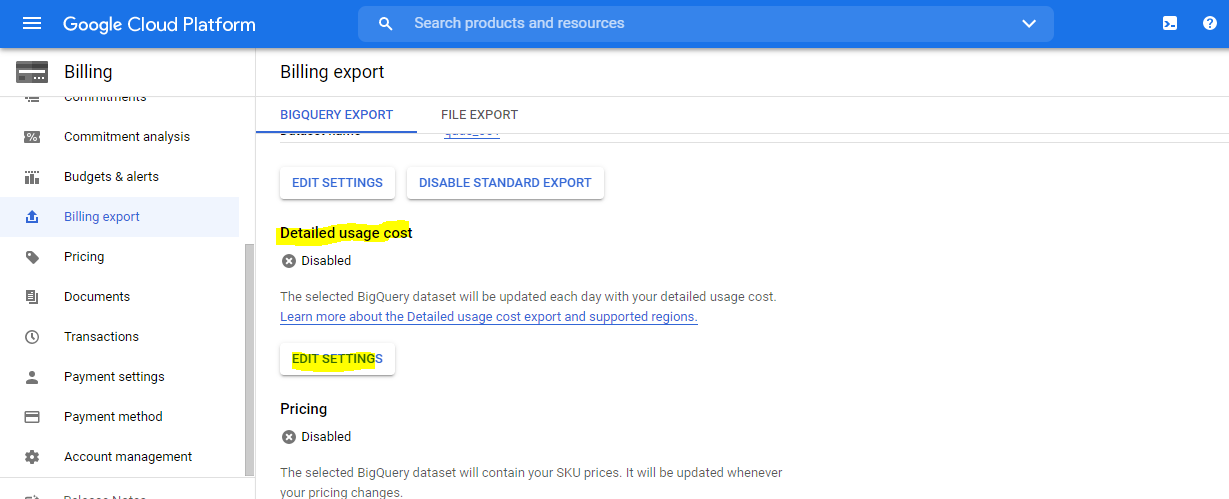
Clicking on Billing export navigates to the below page. Click on Edit settings.
-
Click on Edit Settings for Detailed usage cost
-
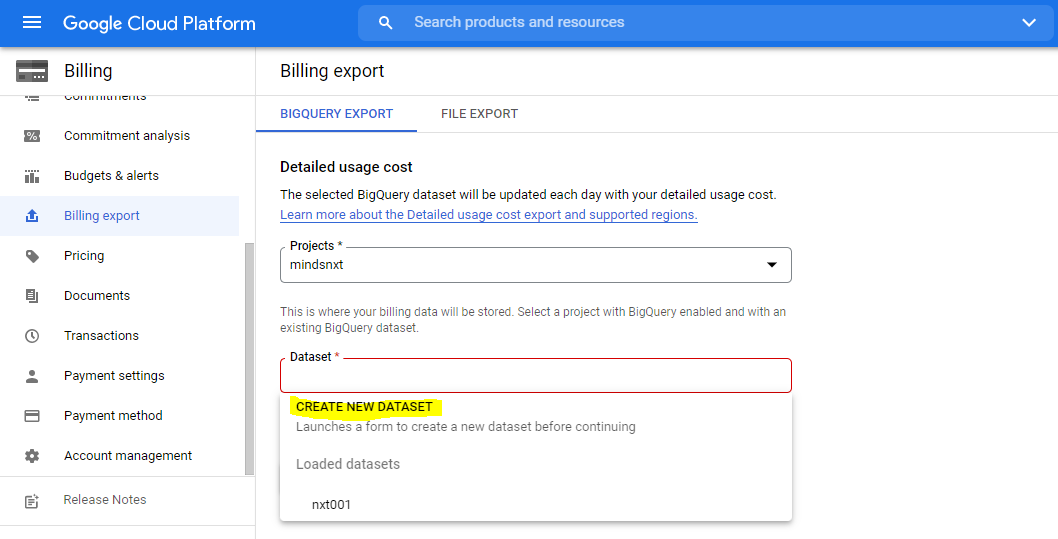
Clicking on Edit navigates to the below page.
-
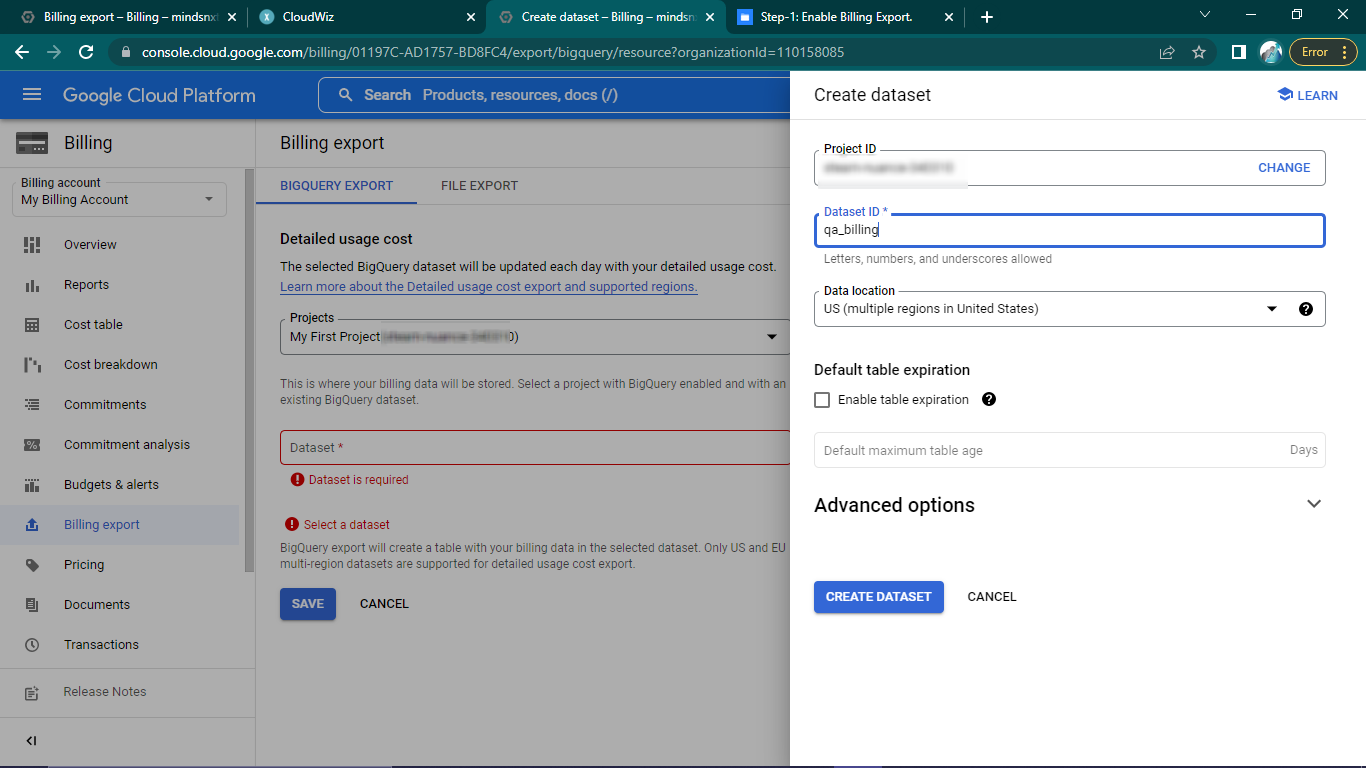
Select the project or it automatically gets selected if there is a single project.
-
Make a note of selected project id which is required in subsequent steps.
-
Click Create Dataset & click Save.
-
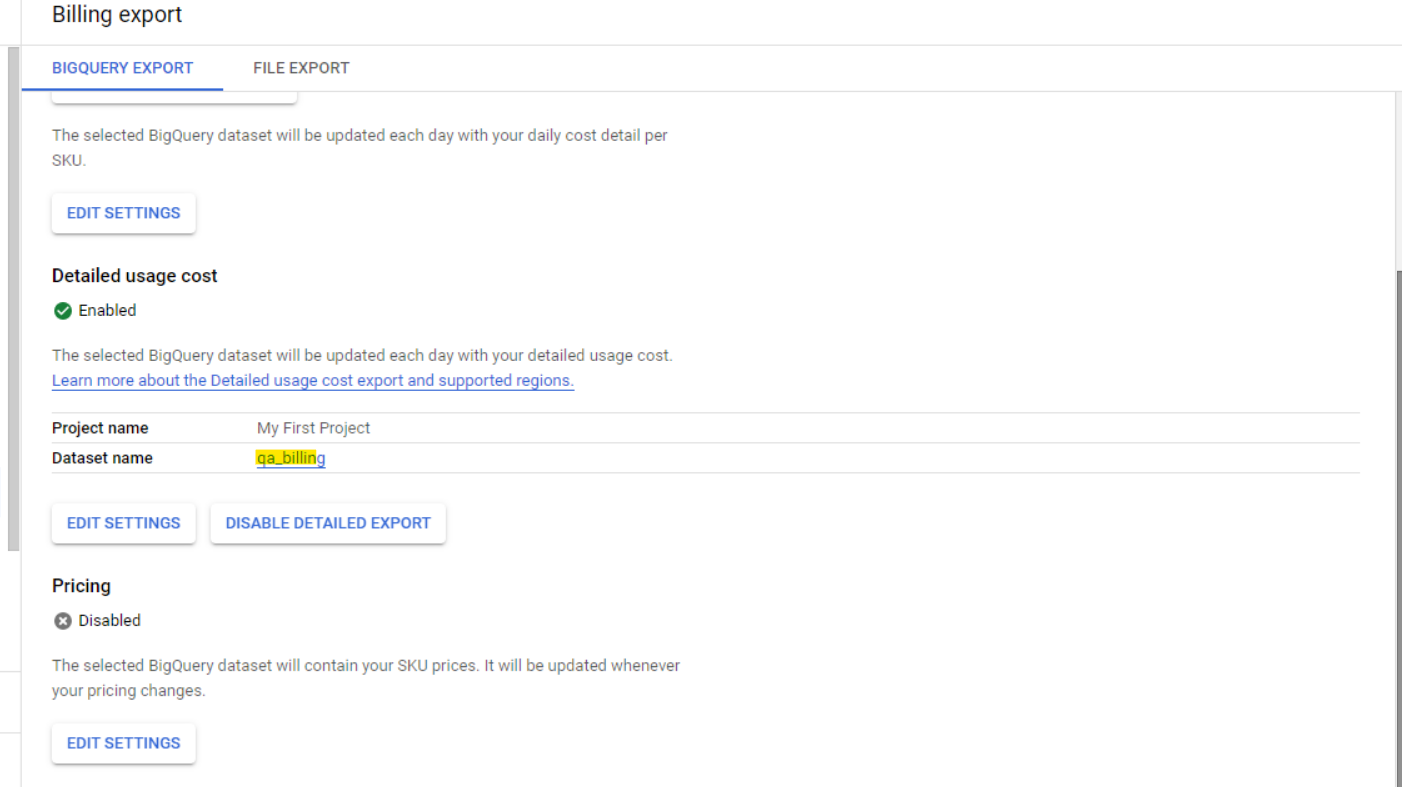
After saving Detailed usage cost is enabled.
-
Make a note of dataset name which is required in subsequent steps.
-
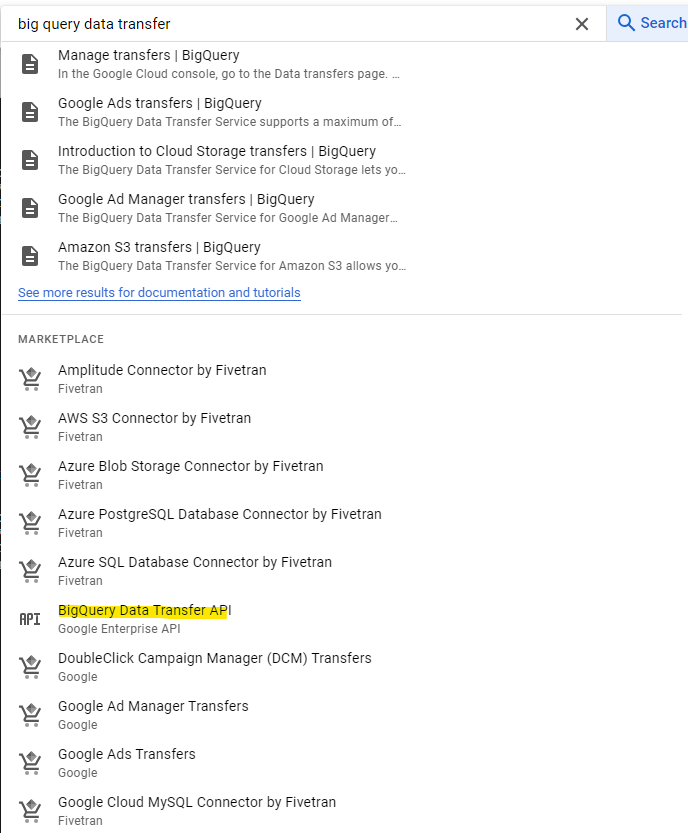
Enable the BigQuery Data Transfer Service API.
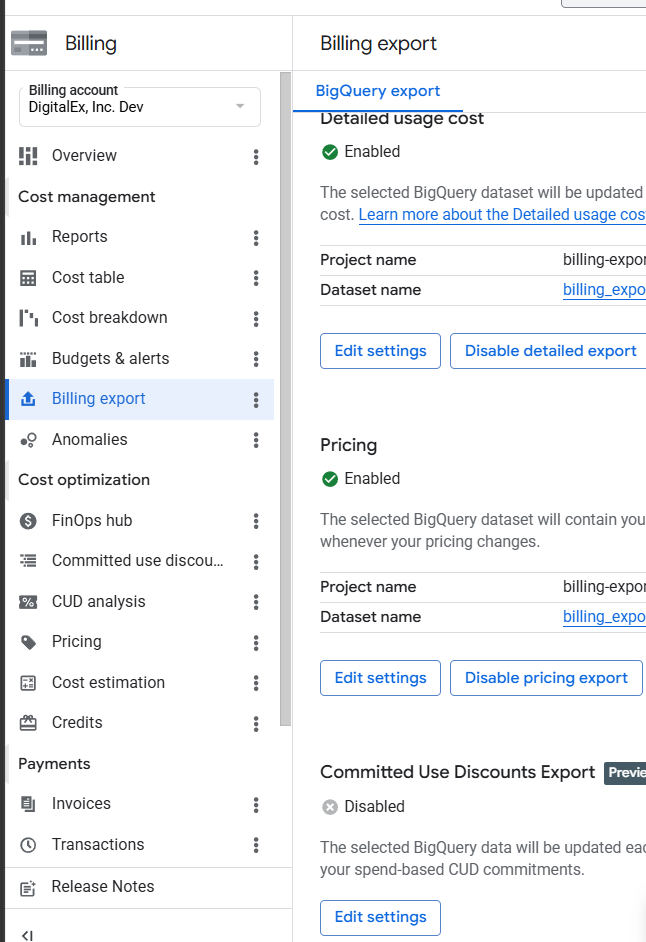
Note: If you want to view commitment metadata, GCP has introduced a separate Committed Use Discounts Export. Follow the below steps to configure it.
-
Scroll down to the Committed Use Discounts Export section and click Edit Settings.
-
Enter Dataset Name & Select Region
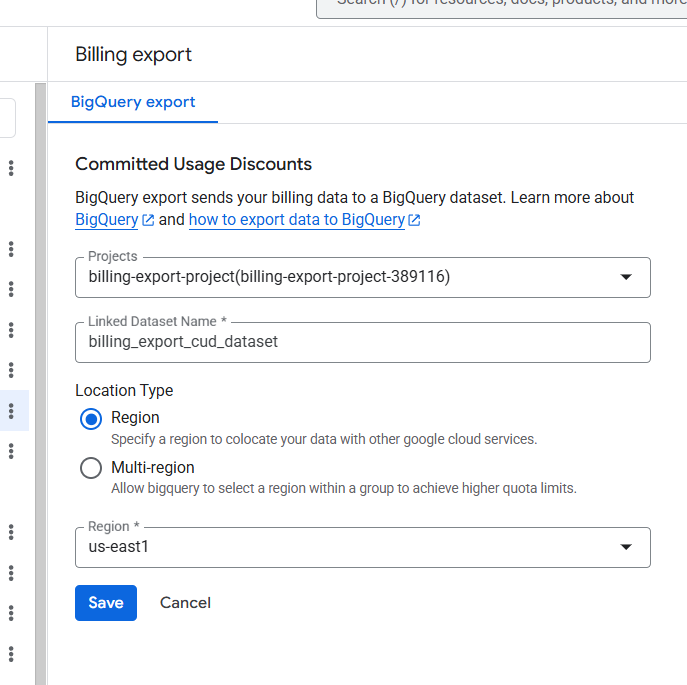
-
Click Save.
-
Make a note of Dataset name which is required in subsequent steps.