.png)
Select Organization Scope.
-
In GCP Console, select the scope dropdown located in the top left navbar, next to Google Cloud logo.
-
Choose "ALL" tab.
-
Choose the top organization.
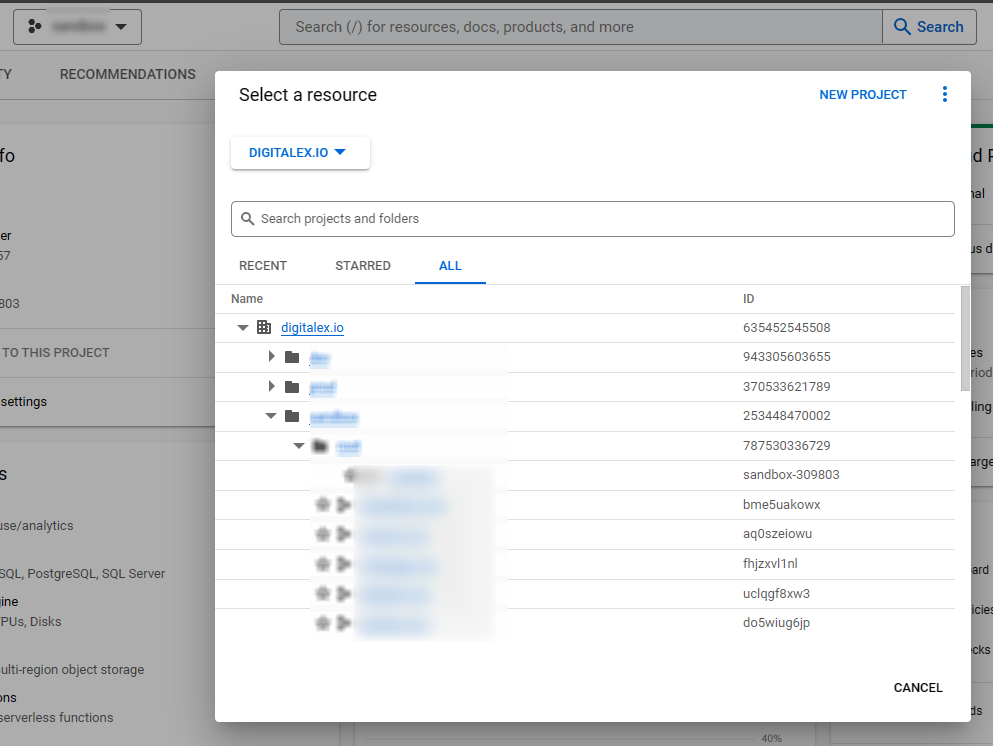
Adding whitelist to Organization Policy.
-
Go to "IAM and admin"
-
From the left side menu, choose "Organization policies."
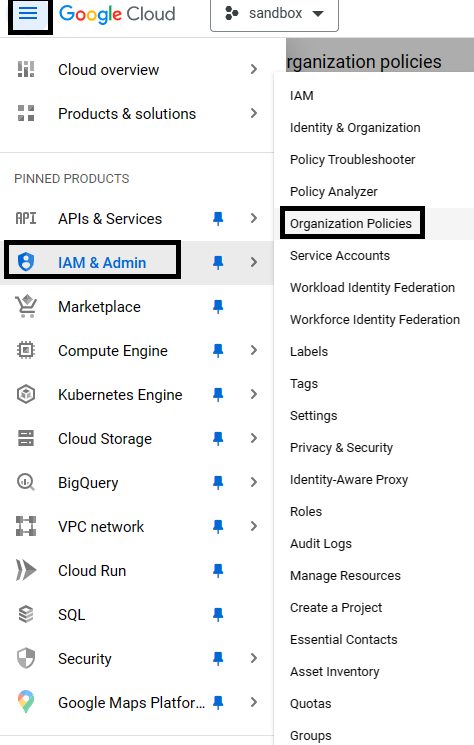
-
Search for: "Domain restricted sharing", click on it.

-
Click on "Manage Policy"
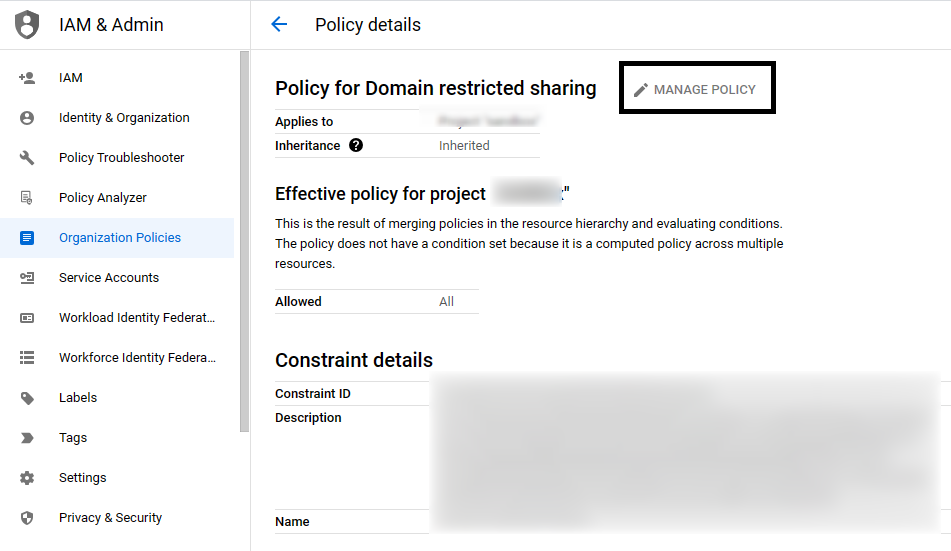
-
Under "Rules", you will see one of the existing rules — expand it.
-
Under "Custom values", there could be some existing values.
-
Click "ADD VALUE", and add following value without quotes: "principalSet://iam.googleapis.com/organizations/635452545508"
-
Click on "SET POLICY"
VPC Service Controls.
-
Go to "Manage VPC Service Controls"
-
Select the access policy.
-
Select perimeter item (which is blocking access to services like cloud asset & storage)
-
Click "EDIT" on the "Ingress policy" section.
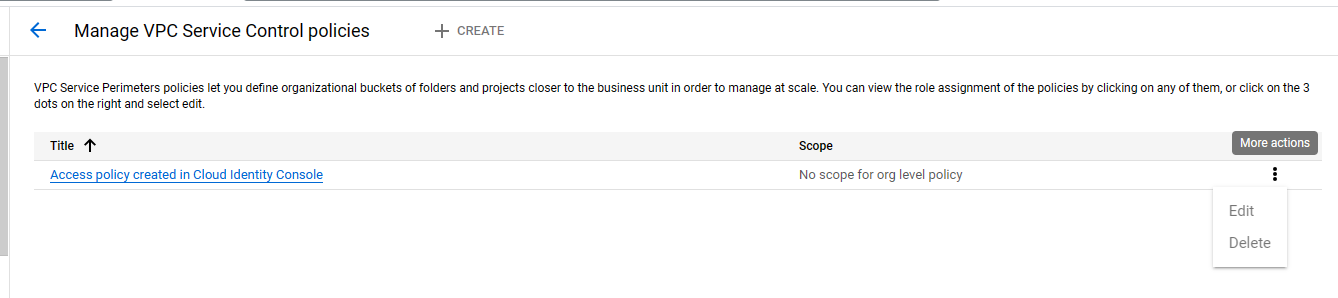
-
Add a new rule using "ADD RULE"
-
For "FROM attributes of the API client":
-
For "Identity", choose "Selected identities", add service account id (To obtain the service account ID, please follow these steps Retrieve the Service Account Id )
-
For "Source", choose "All Sources."
-
For "TO attributes of GCP services/resources":
-
For "Project", choose "All projects."
-
For "All services", choose "All services."
-
Click on "SAVE"