.png)
Why this matters: ChatGPT usage across your organization draws from a shared pool of credits or is billed in dollars, but the total doesn't show who is using it, on which models, or in which product. Connecting your ChatGPT workspace here brings that cost into Mavvrik's AI Assistant dashboards, alongside the rest of your AI spend.
Supported plans: Only workspaces on the ChatGPT Enterprise plan are supported today. The ChatGPT Business plan is not supported.
Before onboarding, make sure you are a workspace Owner and follow the steps below. Owners can create an admin key with custom permissions; admins only get the permission categories available to them.
Configuration steps
Step 1: Get your Organization ID and Workspace ID
Open the ChatGPT Admin Console and copy both IDs. Keep them handy for the Mavvrik onboarding form in Step 3.
-
Organization ID: starts with
org- -
Workspace ID: the ID (a UUID) of the workspace you want to connect
Step 2: Create a read-only admin API key
-
Sign in to the OpenAI Admin Console and select the workspace you want to connect
-
Go to Credentials → Admin keys → Create new admin key
-
Set the name to mavvrik-chatgpt-connector and choose Custom permissions
-
Set these permissions to Read and leave every other category at None:
-
Enterprise analytics API: Read
-
Users: Read
-
Spend controls: Read
-
Directory: Read
-
Codex Enterprise analytics: Read
-
Compliance logs: Costs and Workspace analytics only
-
-
Click Create and copy the key. It starts with
sk-admin-and you will not be able to see it again
|
Permission |
What Mavvrik uses it for |
|---|---|
|
Enterprise analytics API: Read |
Daily credits and cost per user, by model and product |
|
Users: Read |
Member names and emails, so cost shows people instead of IDs |
|
Spend controls: Read |
Each user's monthly spend limit, to show limit utilisation |
|
Directory: Read |
Groups and their members, to break cost down by group |
|
Codex Enterprise analytics: Read |
Codex credits and cost by type of work |
|
Compliance logs: Costs |
OpenAI's organization cost records, to reconcile cost |
|
Compliance logs: Workspace analytics |
Workspace usage activity, for activity dashboards |
Step 3: Onboard in Mavvrik
-
Go to the Menu
-
Click on Admin → Accounts → GenAI Accounts
-
Click the + Account button
-
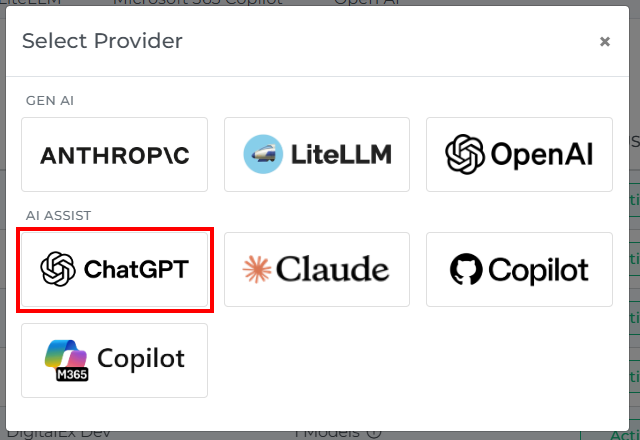
In the Select Provider dialog, under AI Assist, select ChatGPT
-
Choose Plan Enterprise, then enter the Organization ID and Workspace ID from Step 1, an optional Workspace Name, and the Admin API Key from Step 2
-
Click Connect
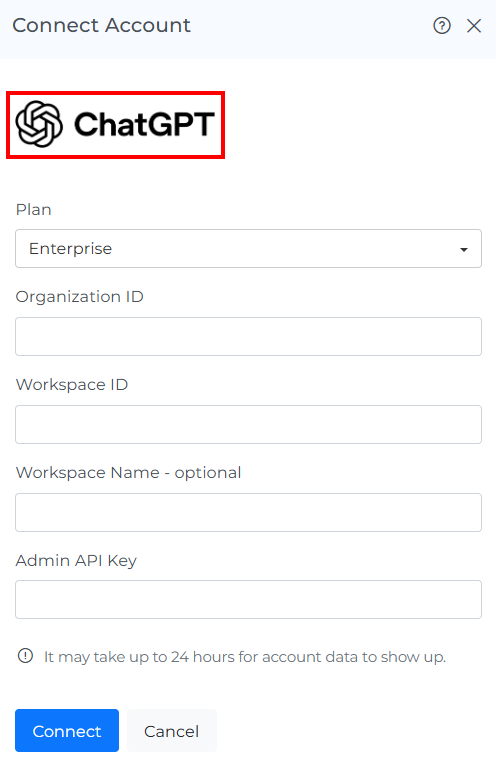
Mavvrik checks each permission separately and tells you exactly which one is missing, if any.
After onboarding is completed, allow up to 24 hours for data ingestion. Once ingestion is complete, cost will be visible under GenAI > Assistants > Cost.
Troubleshooting
-
"The admin API key is invalid or revoked": copy the key again, or create a new one, and make sure it starts with
sk-admin-. -
"Workspace ID not found for this admin key": check the Workspace ID, and make sure the key was created in that workspace's organization.
-
"The admin API key is missing the '…' permission": in the OpenAI Admin Console, edit the key under Credentials → Admin keys and set the named permission to Read.