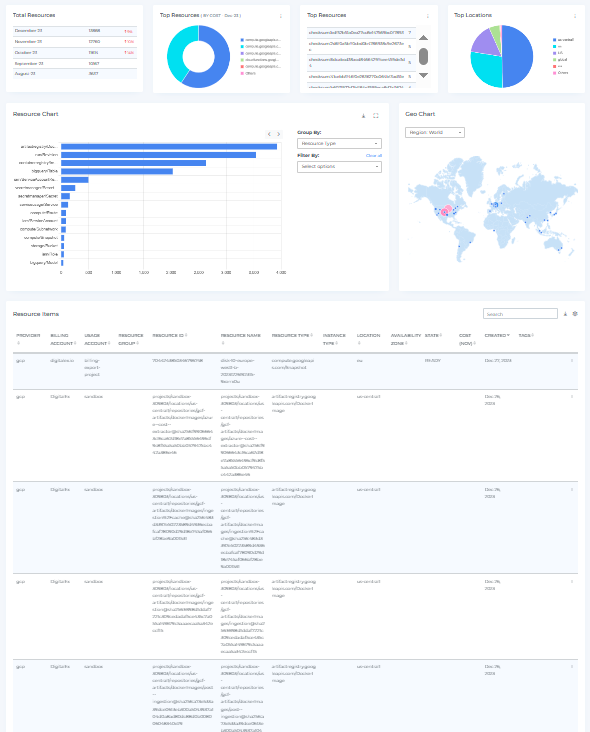
.png)
Steps to Execute the Script from GCP Cloud Shell
-
Copy the script and execute the command provided below from within the GCP Cloud Shell terminal window, which is shown at the bottom part of the GCP Console launched in the earlier step.
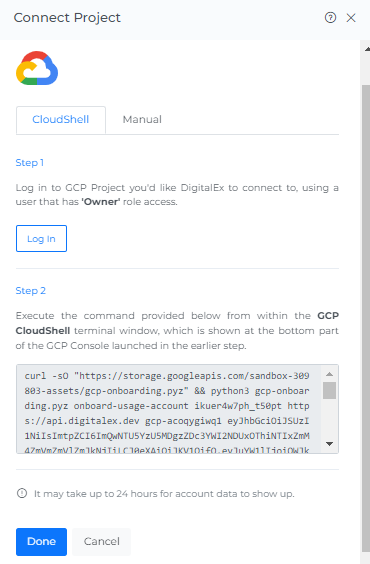
-
Paste the copied Script and click Enter.
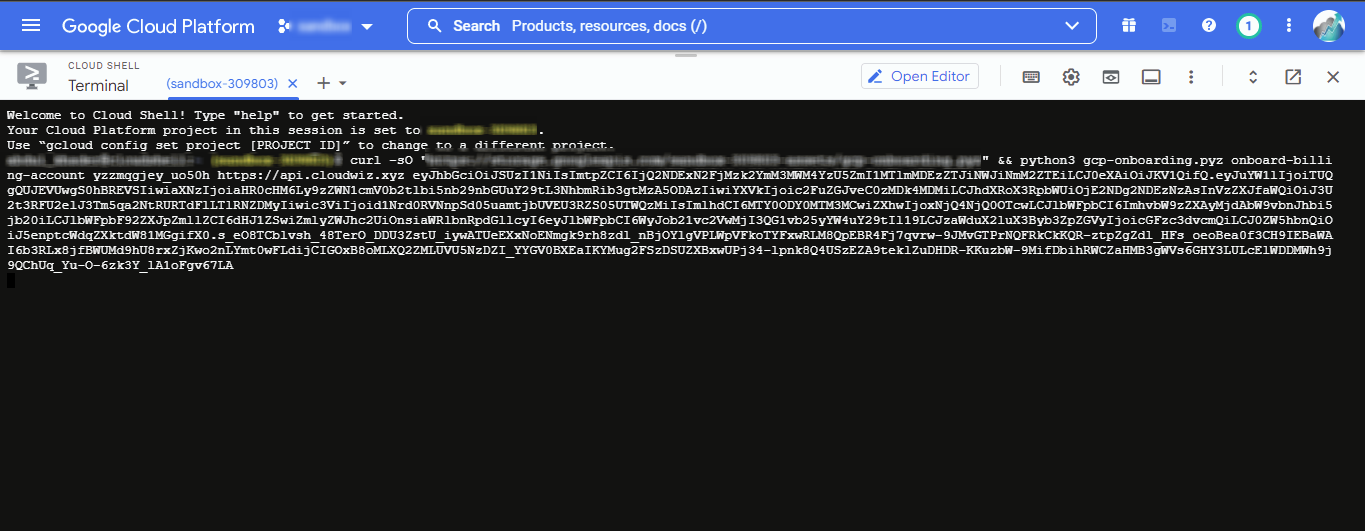
-
Enter 'y' to confirm the project.
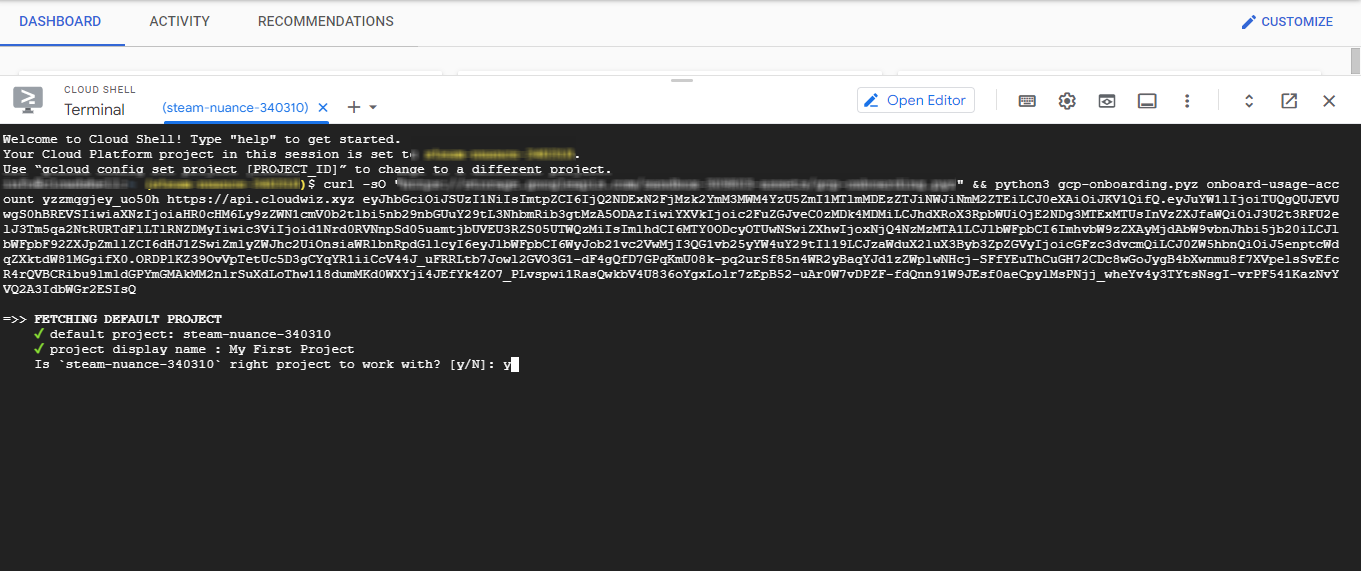
-
Script will run automatically.
Ignore Bad request syntax or unsupported method retrying messages.
If you encounter any error at the time of onboarding, please rerun the script once again.
-
Click on the Done button in Mavvrik, after the script running is successfully completed.
-
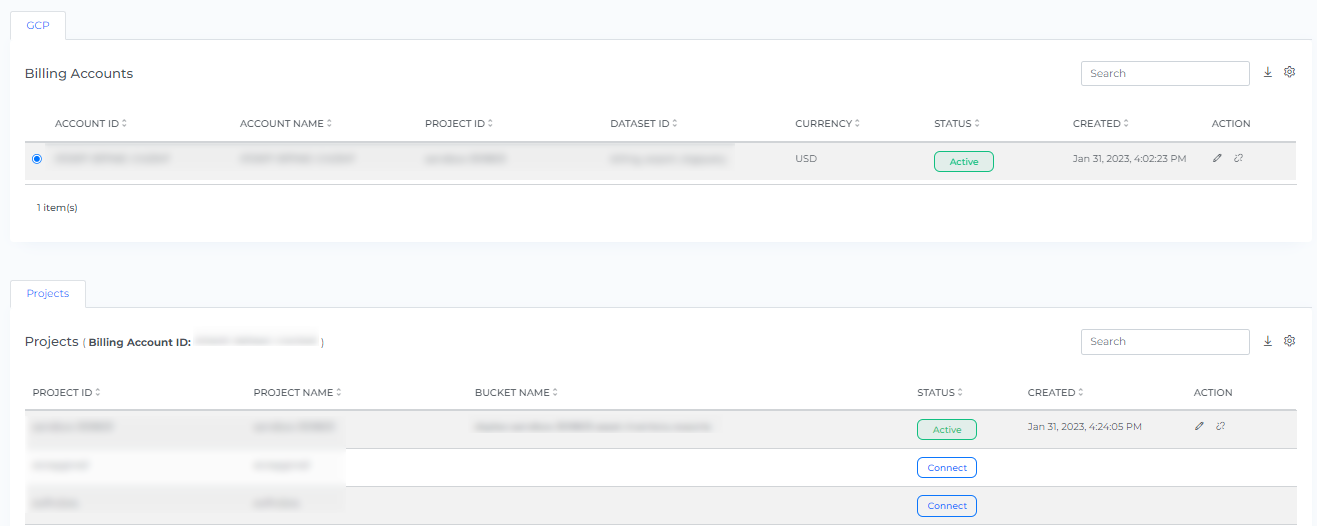
You will be able to see the project is onboarded successfully.
-
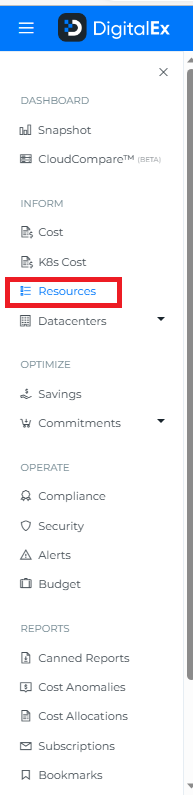
Go to the Menu option and Click Resources.
-
Click on Resources (All the resource data will be displayed)