.png)
-
Download & extract the terraform (https://www.terraform.io/downloads )
-
Go to command prompt /terminal
-
Enter the below command to check that terraform is installed
terraform -version
-
Enter the below command to check that AWS CLI is installed if not install(https://docs.aws.amazon.com/cli/latest/userguide/getting-started-install.html )
aws --version
-
Enter the below command to Configure the AWS
aws configure
-
Enter the access key & secret access key of the user you wish to onboard the account
-
Enter the region (e.g:- us-east-1)
-
Click enter for default output format
-
If you want you can add AWS profiles to ~/.aws/credentials file and onboard multiple accounts
-
Enter the below command to clone the repository
git clone https://github.com/cloudwizio/terraform
-
Open the command prompt /terminal & go to the location where you configured the terraform
-
Enter the below command to initialize the terraform
chmod +x run-terraform.sh
-
Login to Mavvrik
-
Go to Menu & open API page
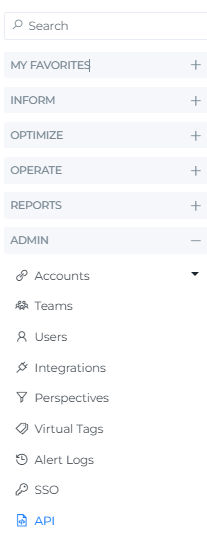
-
Copy tenant id & Paste in command prompt /terminal
-
Copy the JWT & paste the token into the command prompt /terminal
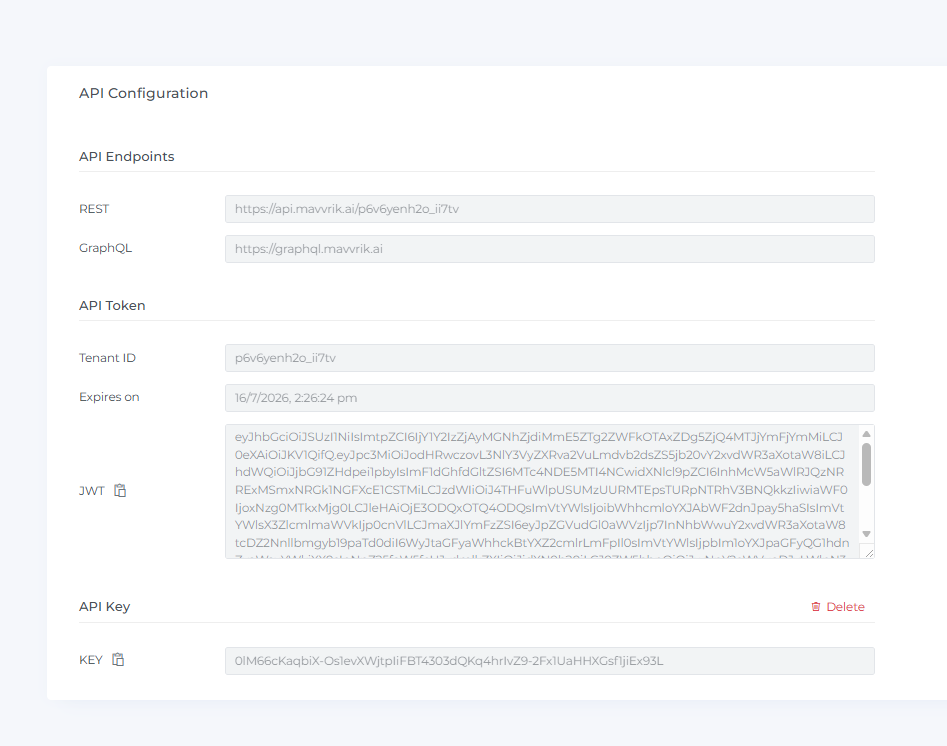
-
Enter the below command to onboard usage account, paste the TENANT_ID and BEARER_TOKEN copied from the above steps, and add aws profile you want to onboard
./run-terraform.sh <MCX_TENANT_ID> <MCX_BEARER_TOKEN> <AWS_PROFILE> [profile2] [profile3] ...
-
Usage account will get onboarded successfully.