.png)
Why this matters: this covers cloud-hosted Kubernetes clusters outside the major managed offerings (EKS/AKS/GKE) that have their own dedicated onboarding paths — the appliance-based approach here works for any cluster where you have kubectl/helm access and a running Prometheus instance, regardless of which cloud is hosting it.
Configuration steps
Step-1: Configure node exporter sidecar to collect instance metadata.
-
Instructions are outlined here Configure Node Exporter Sidecar to Collect Instance Metadata
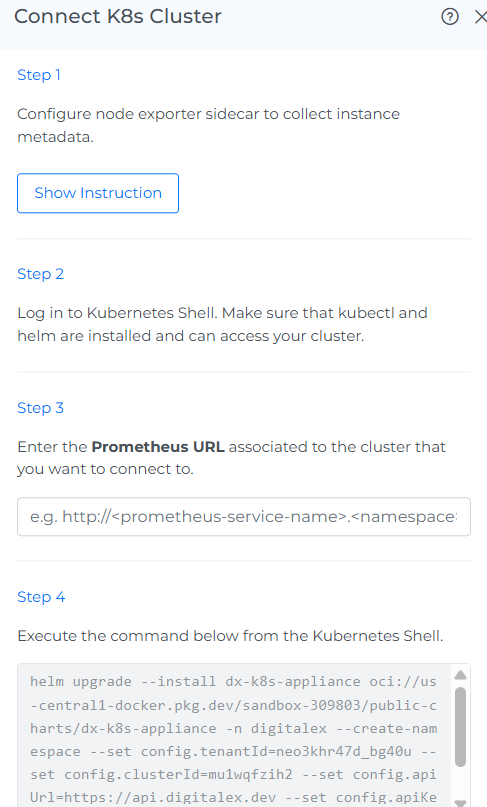
Step-2: Log in to Kubernetes Shell.
-
Ensure that kubectl and helm are installed and can access your cluster.
Step-3: Enter the Prometheus URL in Mavvrik
-
Capture the Prometheus URL associated with the K8s cluster:
a. Enter the following URL in Mavvrik UI
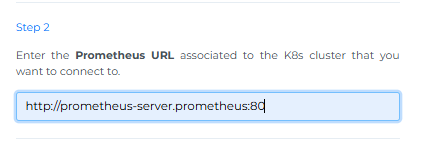
http://<prometheus-server-name>.<namespace>:<prometheus-internal-port>
b. To find the Prometheus service, run the following command in Kubernetes shell
kubectl get svc -n prometheus

-
In URL Replace
prometheus-server-name,namespace&prometheus-internal-portwith your data
Find & Enter the namespace where prometheus service is installed
-
Following screenshot shows the example of URL
Step 4: Execute the script from the Kubernetes Shell
-
Copy the script and execute the command below provided by Mavvrik UI within the Kubernetes Shell terminal window.
-
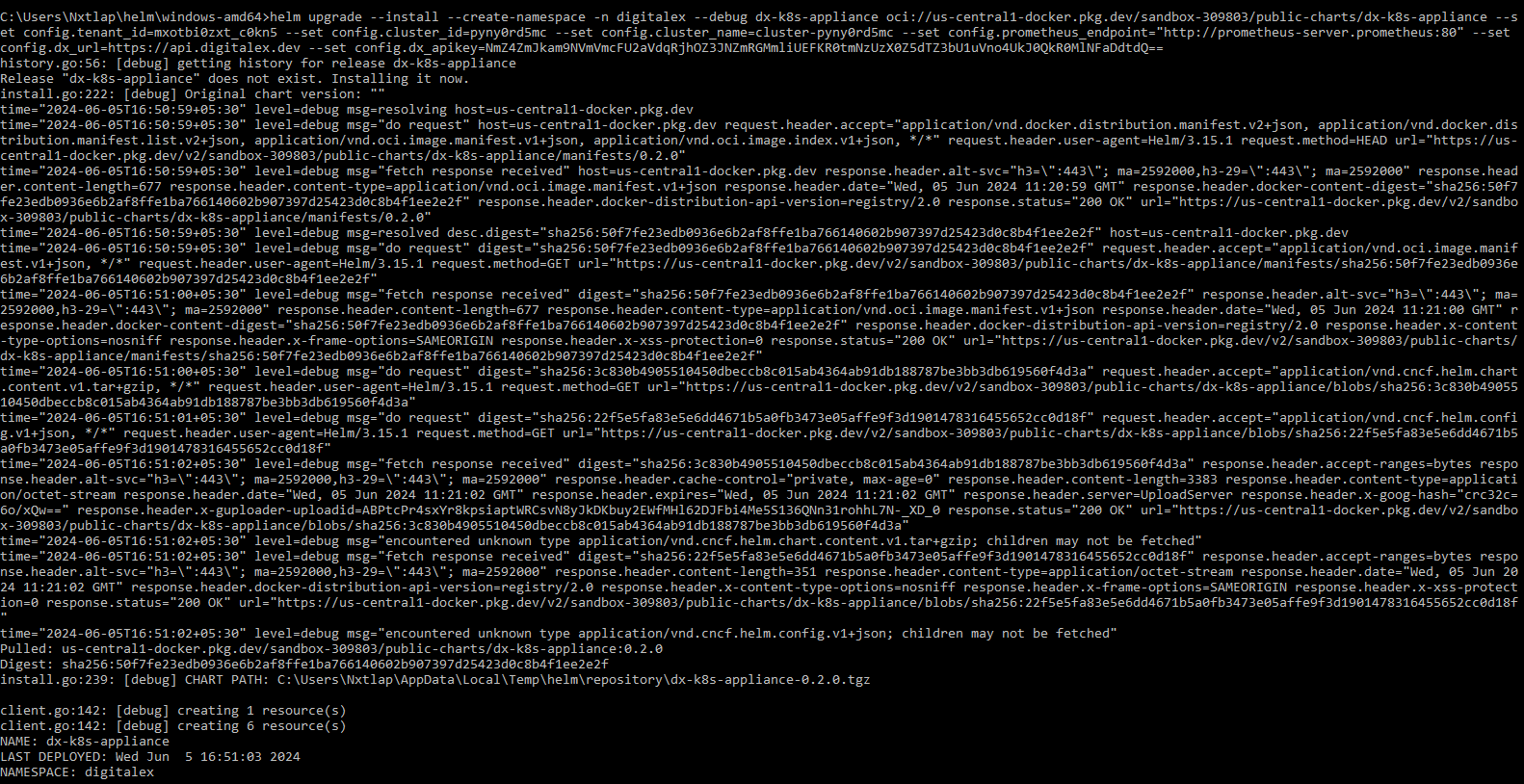
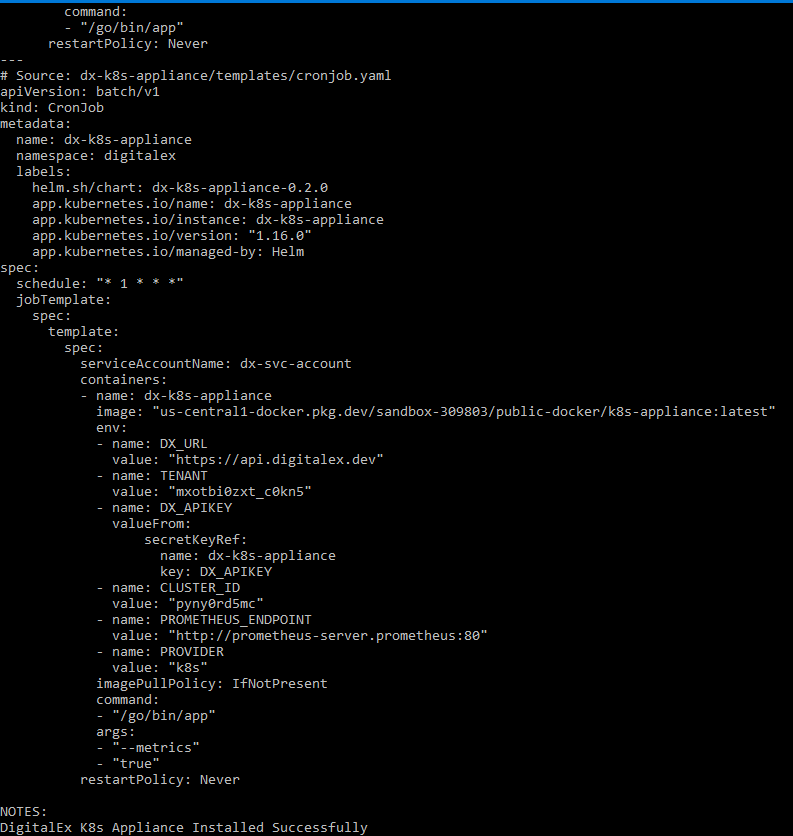
Paste in Kubernetes Shell Editor and click Enter
-
Click on the Connect button in Mavvrik, after the running script is successfully completed.
-
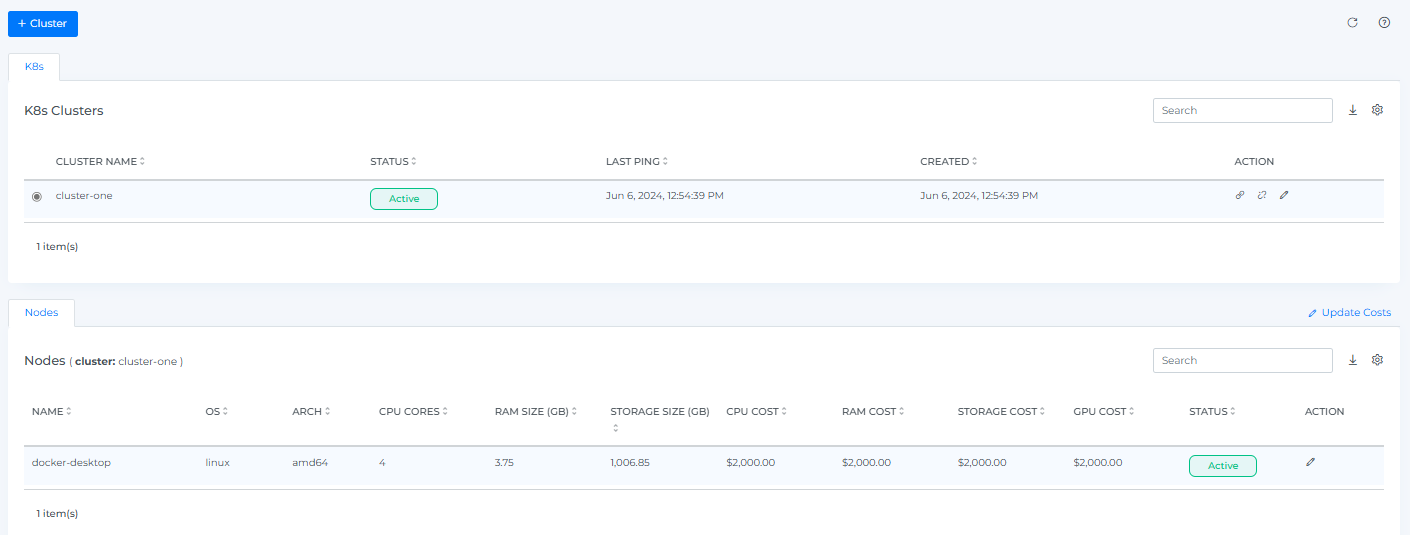
The onboarded K8s Cluster will be displayed with the list of All linked Nodes.
Troubleshooting
-
If you don't know your Prometheus URL, run
kubectl get svc -n prometheusto find the service, then build the URL from the server name, namespace, and internal port shown in that output. -
Confirm kubectl and helm are installed and configured with cluster access before starting — the onboarding script assumes both are already available.
FAQs
Does this work for any cloud-hosted Kubernetes cluster?
Yes — this appliance-based approach works for any cluster where you have kubectl/helm access and a running Prometheus instance, regardless of which cloud is hosting it. EKS, AKS, and GKE have their own dedicated onboarding paths instead.
What do I need in place before starting Step 1?
A node exporter sidecar already configured to collect instance metadata (covered on its own linked page), plus kubectl and helm installed with access to your cluster.