.png)
If you encounter any of the following error please adhere to the following steps to resolve it
Why this matters: most of these errors trace back to one thing — the appliance's stored credentials or config no longer match what vCenter or Mavvrik actually expect (a password rotated, an IP changed, a config drifted). These steps update that stored config directly on the appliance VM, without needing to redeploy it from scratch.
-
Invalid Credentials
-
Error Connecting Server
-
Update Mavvrik Config
-
Unable to connect
Invalid Credentials
-
Turn off the Mavvrik Appliance (VM).
-
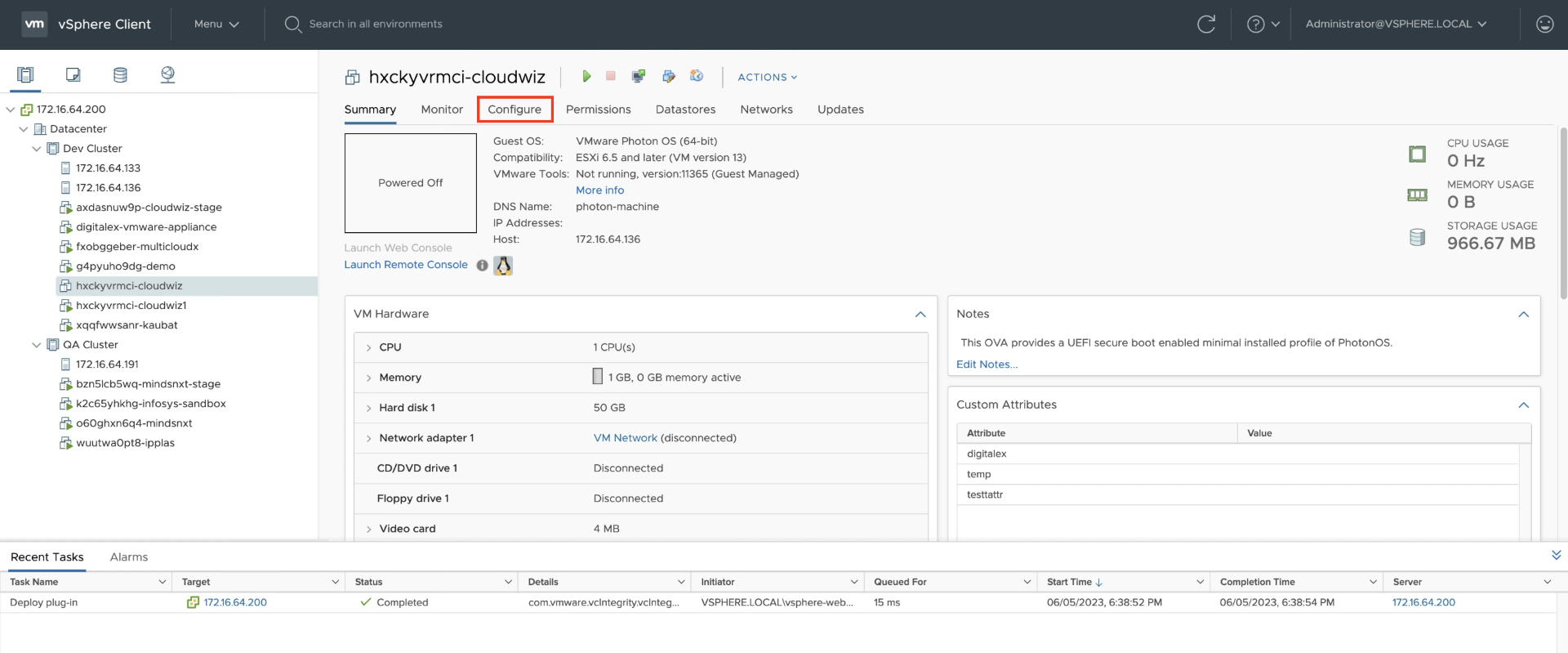
Navigate to Configure Tab.
-
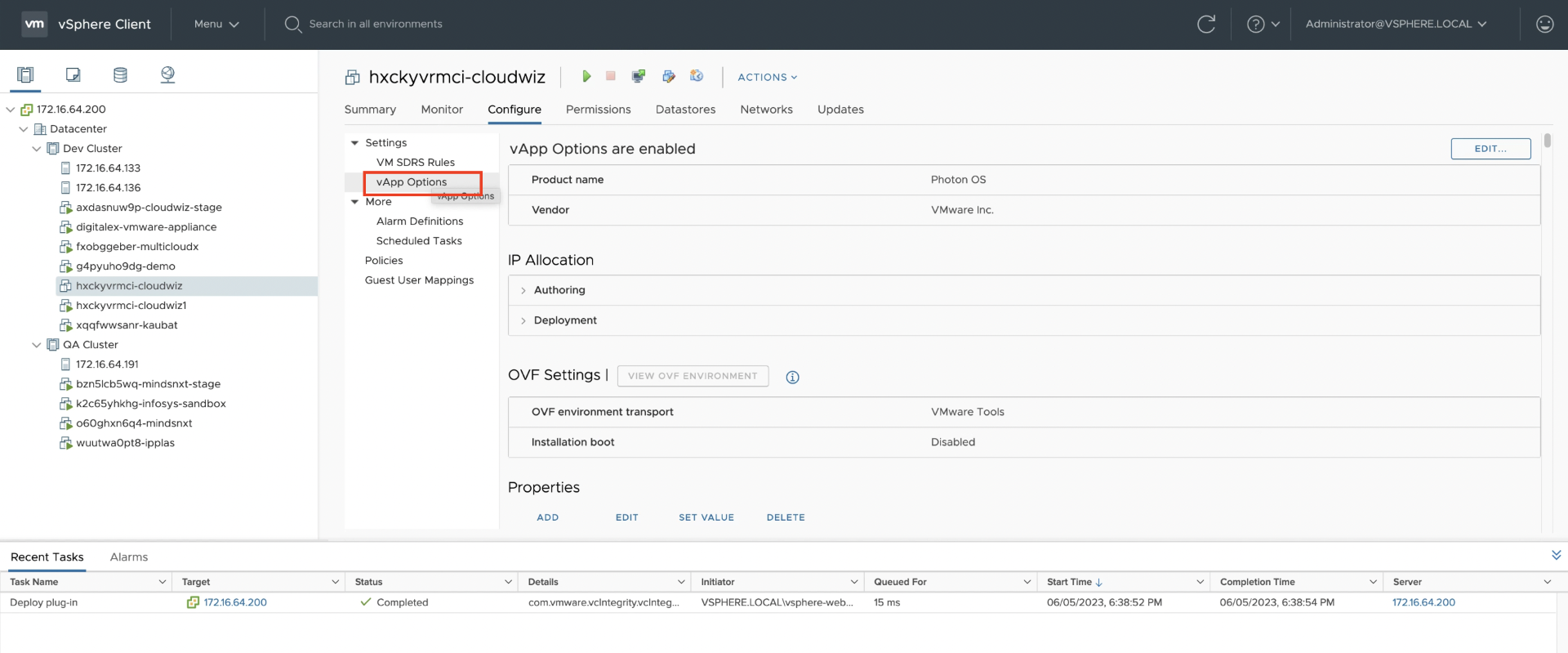
Click on Vapp Options
-
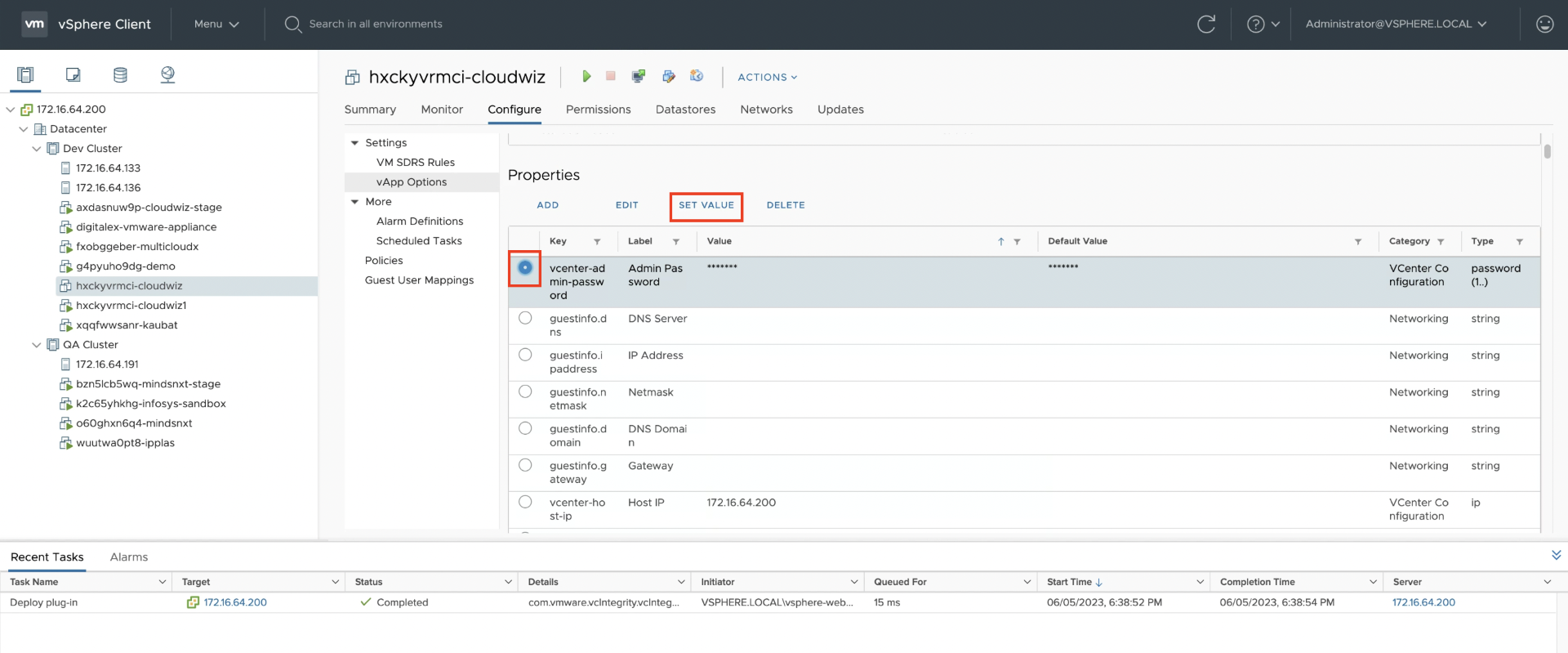
Search of key vCenter-admin-password and select, click on SET VALUE option. (If you are not able to see the key you can sort by key option or scroll through all the keys)
-
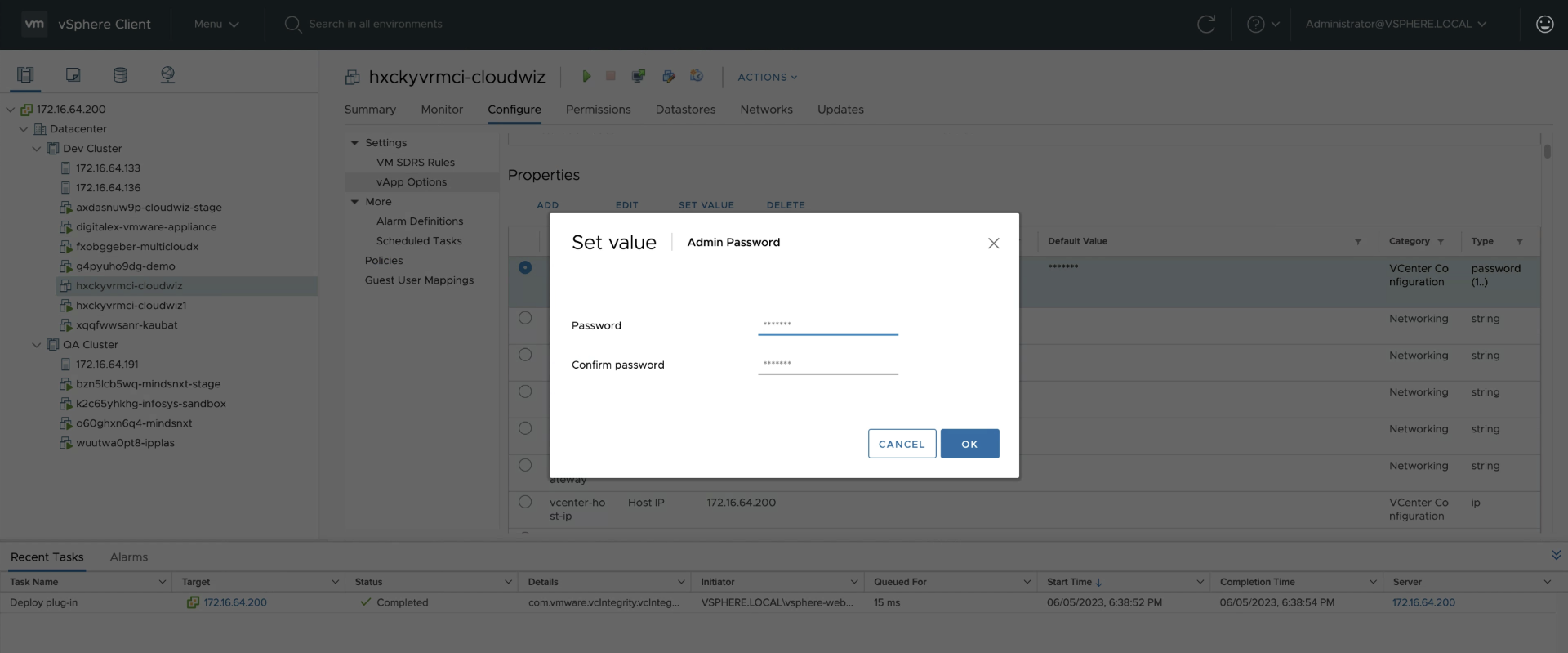
Then update the new password in the pop window.
-
Turn On the Mavvrik Appliance (VM).
Error Connecting Server
-
Turn off the Mavvrik Appliance (VM).
-
Navigate to Configure Tab.
-
Click on Vapp Options
-
Search of key vCenter-host-ip and select, click on SET VALUE option. (If you are not able to see the key you can sort by key option or scroll through all the keys)
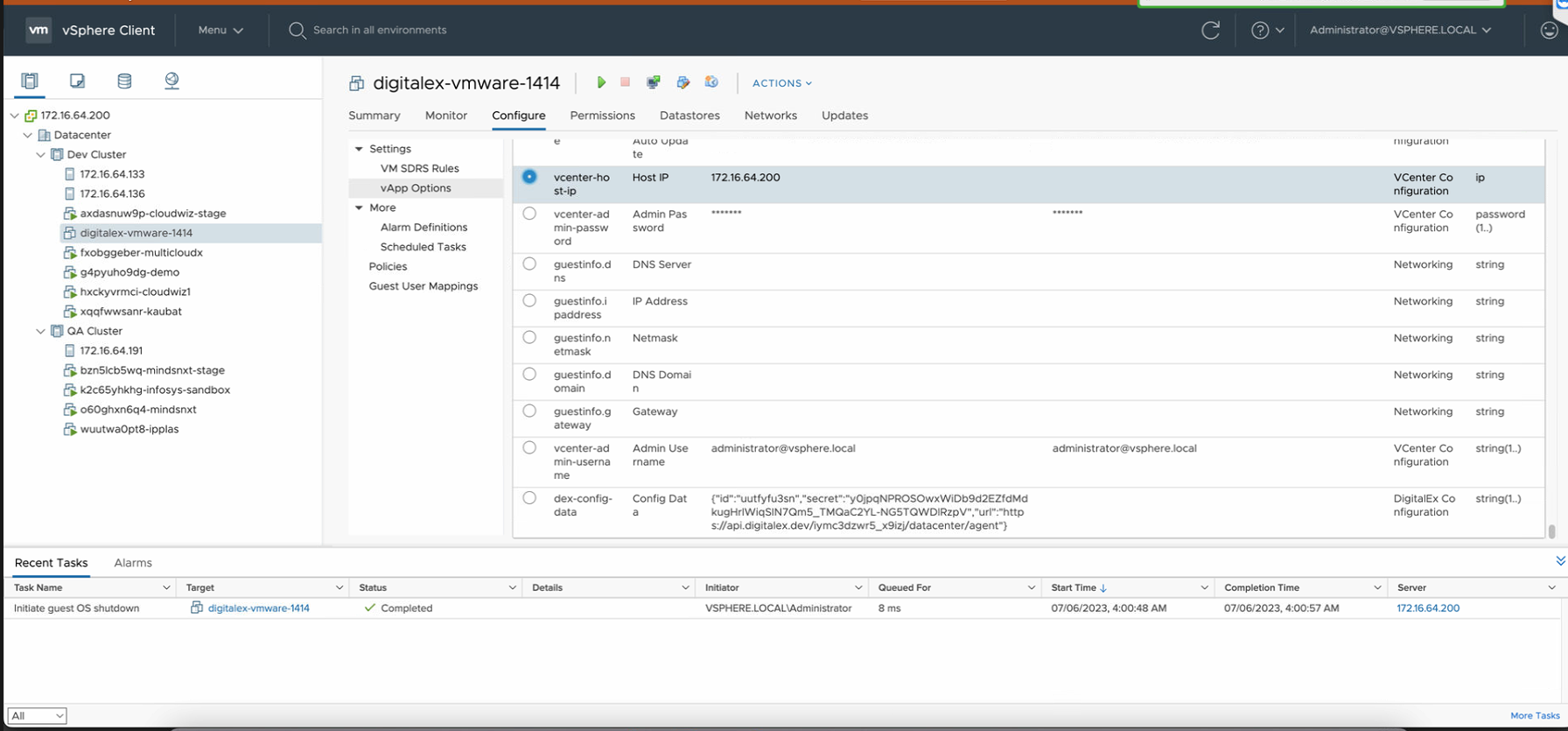
-
Update the new IP in the pop window
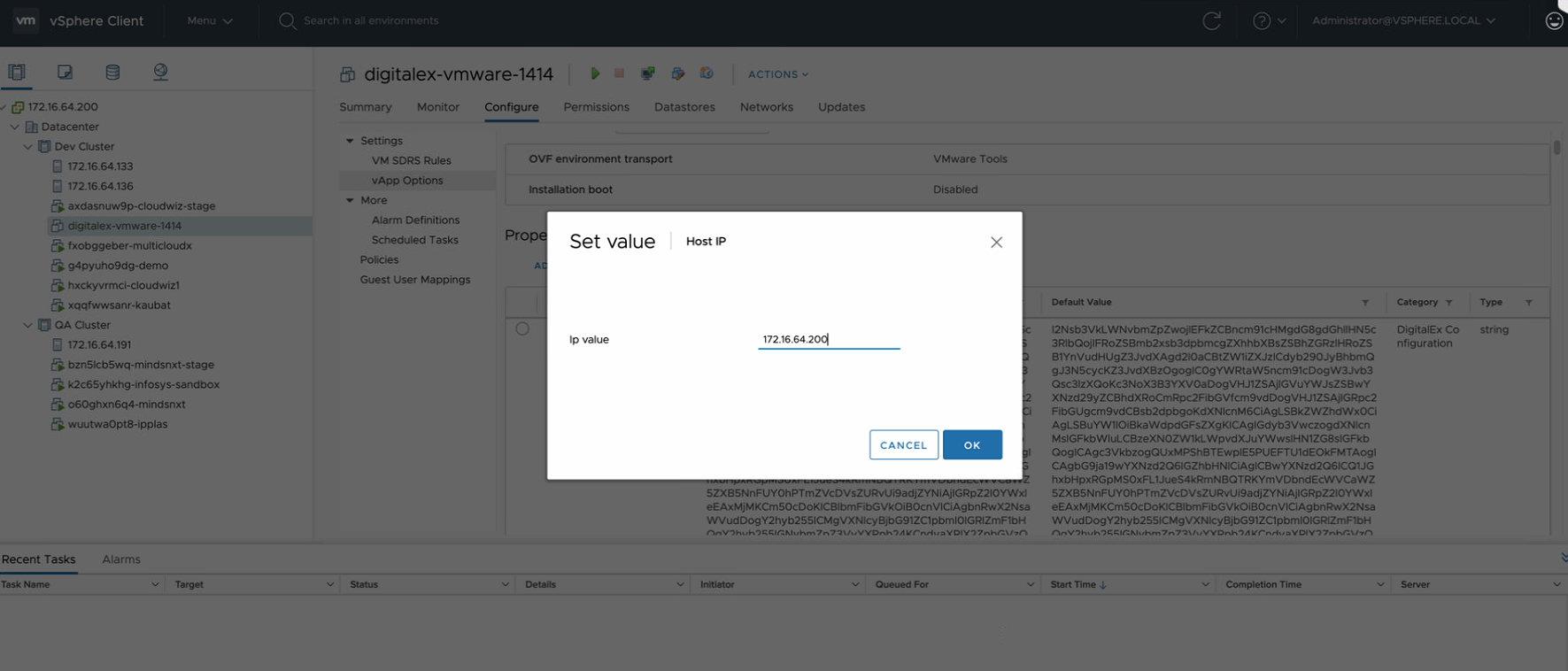
-
Turn On the Mavvrik Appliance (VM).
Update Mavvrik Config
-
Login to Mavvrik Platform > Navigate to Admin > Datacenter
-
Edit the vCenter we want to update, Click on the reconnect button
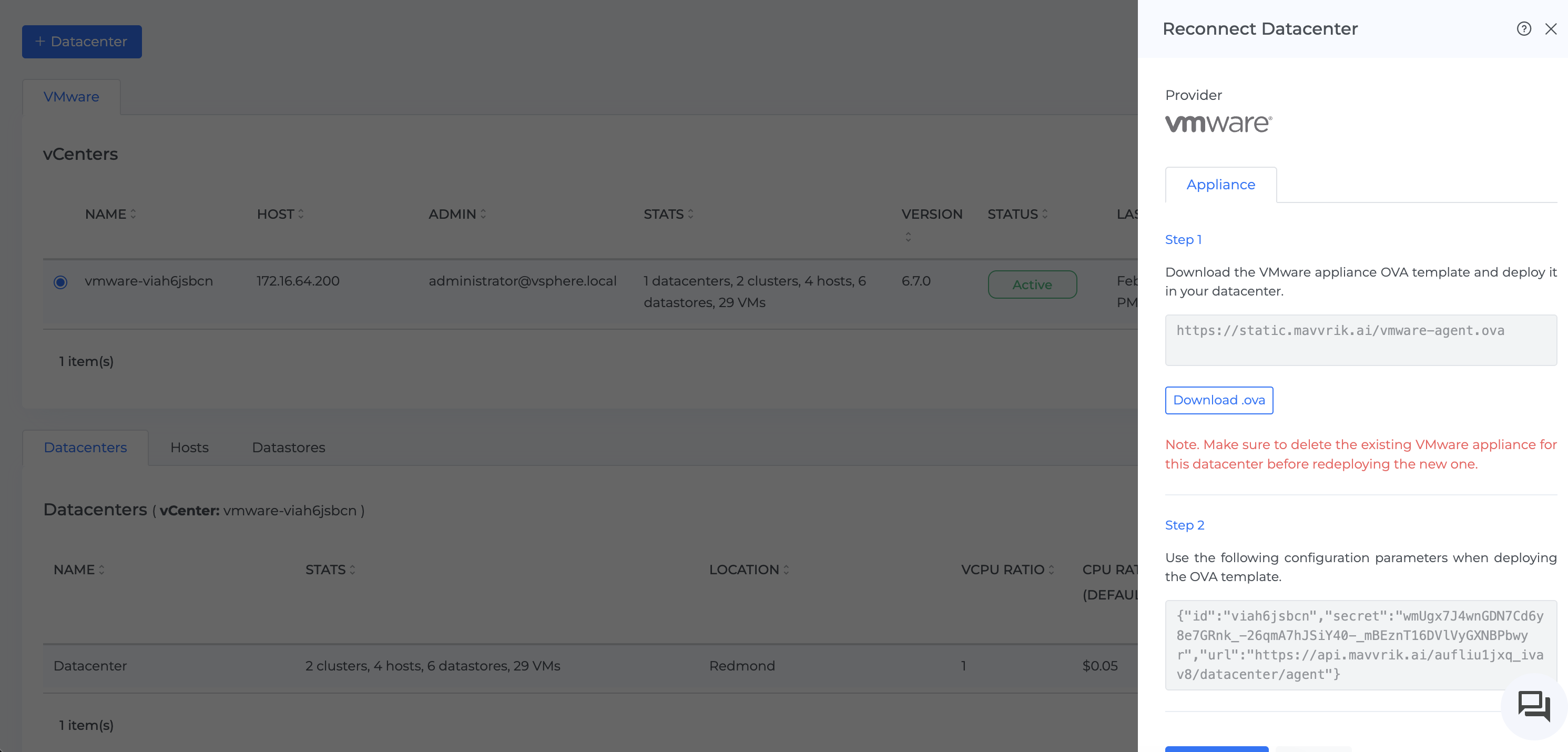
-
Copy the JSON from Step 2
-
Login to vCenter env, select the Mavvrik VM you want to update
-
Turn Off the VM, Click on Configure > vApp options
-
Find the dex-config-data section under Properties> Take a backup of existing value
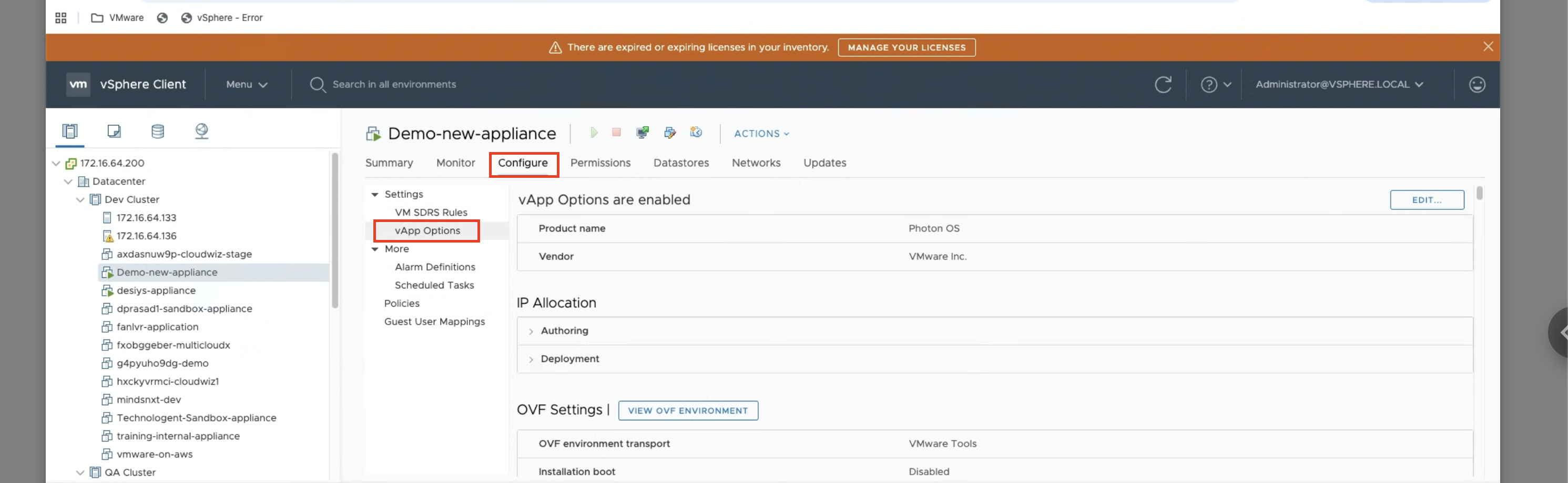
-
Click on Set Value andPaste the JSON copied in Step 2.
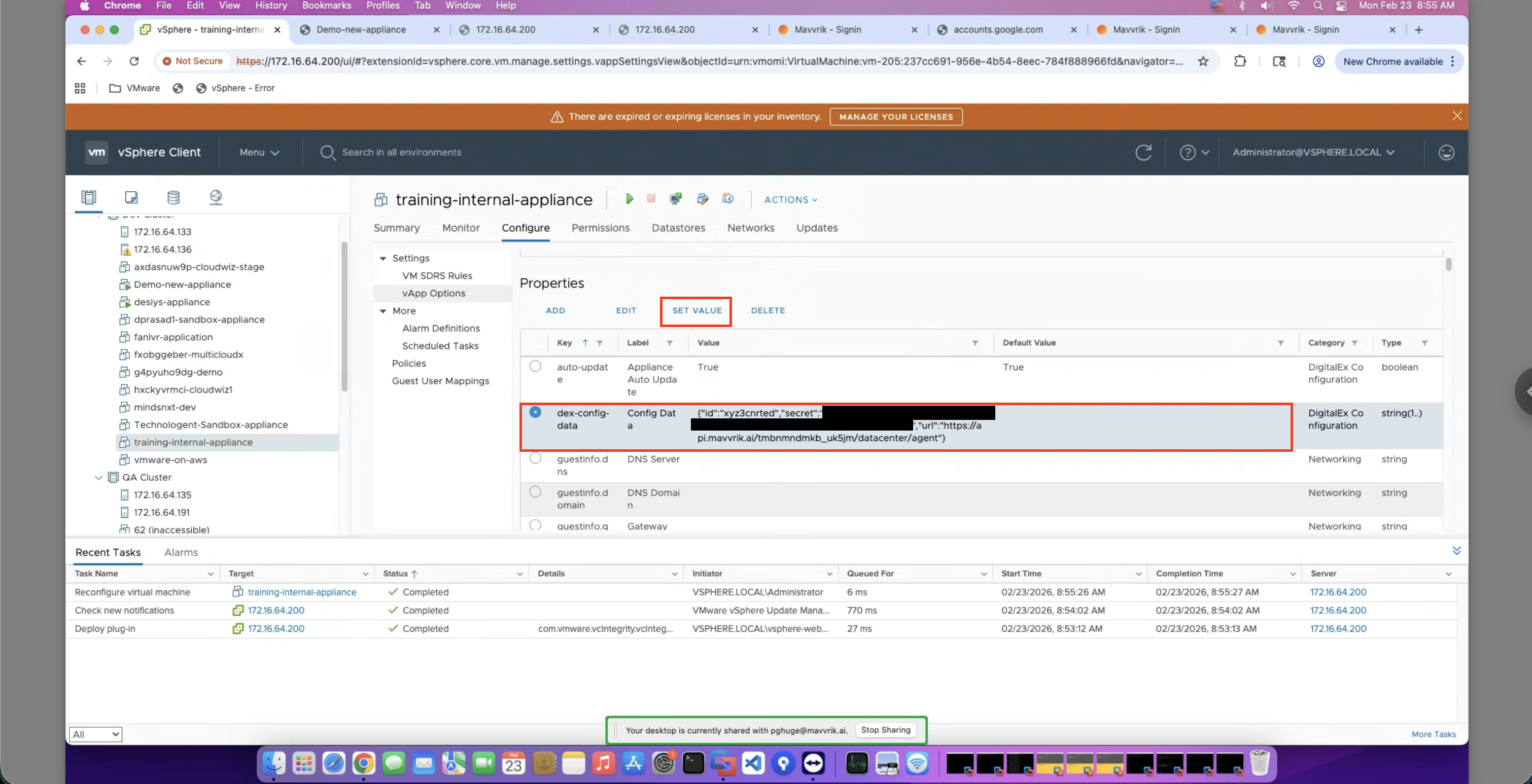
-
Click on OK, as shown below:
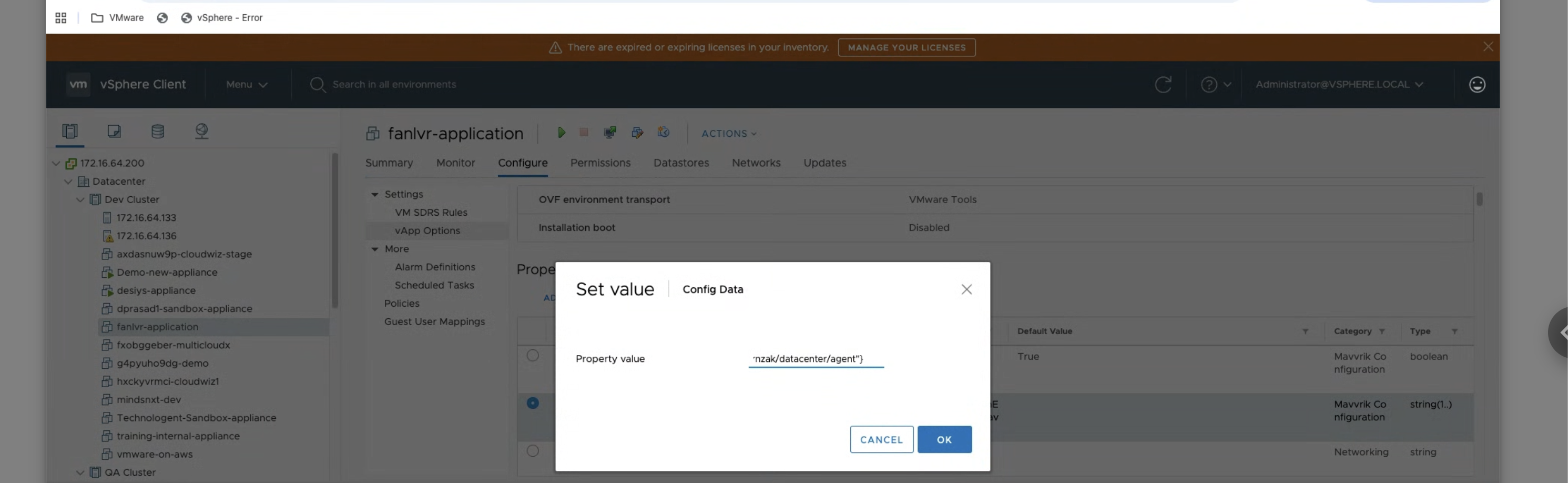
-
Turn On the VM
-
Validate vCenter status in Mavvrik Platform
In Case of “Inactive” or “Unable to Connect “ You need to contact Mavvrik support Team