.png)
-
User should be Log In as Billing Admin or Project admin.
-
If User is Onboarding the Account from the Setup page both Billing & Usage Account gets Onboarded.
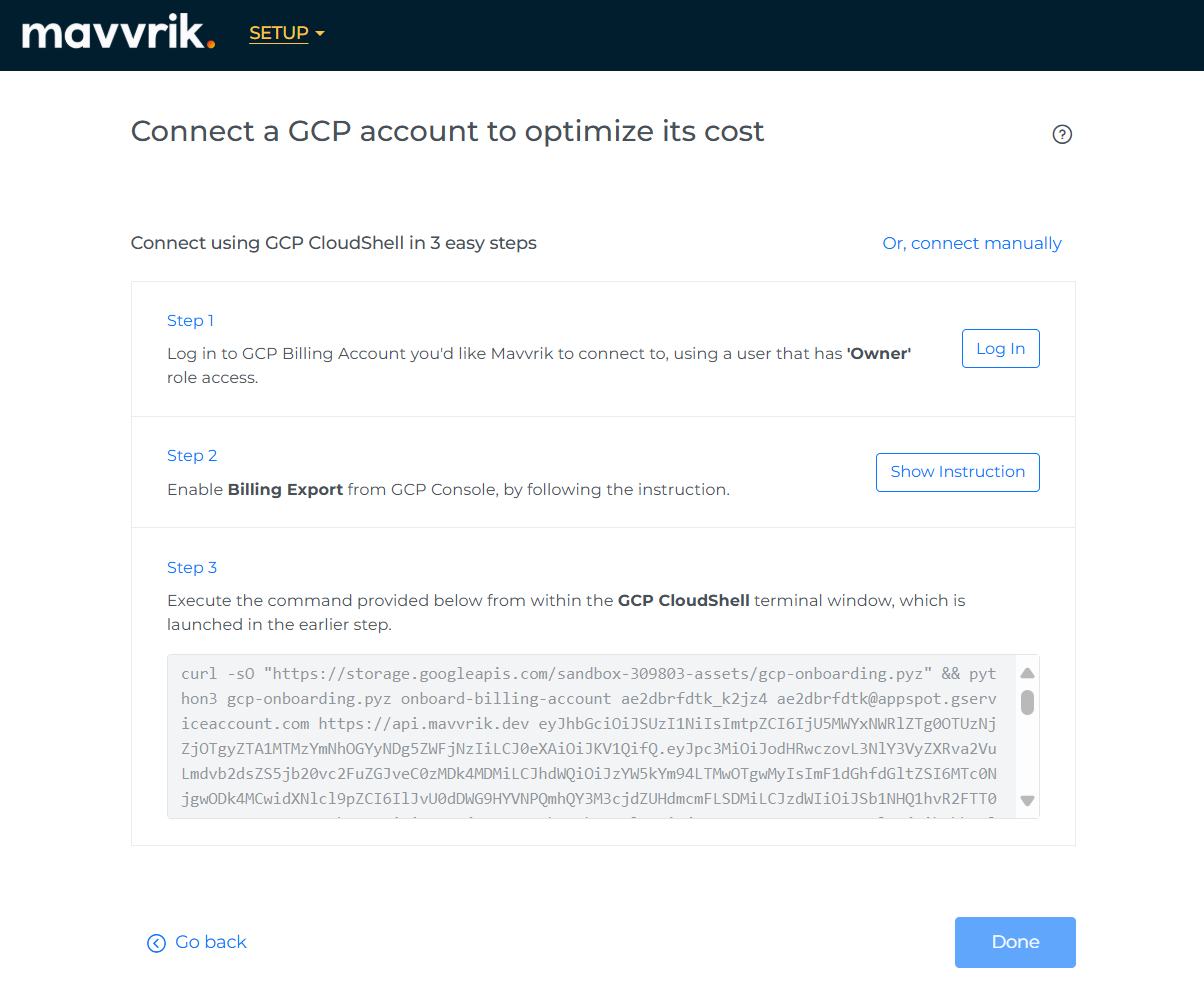
Below are the steps that need to be performed if the user registers for the first time, the below page is displayed.
-
Click on Login button and Login to GCP
-
Page is navigated to the GCP login page where the user needs to enter GCP credentials. After successful login into the GCP account, the user should come back to Mavvrik
-
Enable Billing Export from GCP Console, by clicking Show Instruction you will get the steps to follow.
-
Copy the script
-
Paste in Cloud Shell Editor & Click Enter
-
Click Authorize
-
Enter 'y' to confirm the project
-
Enter 'y' to confirm cloud billing export (After Completing the Script Execution user should come back to Mavvrik)
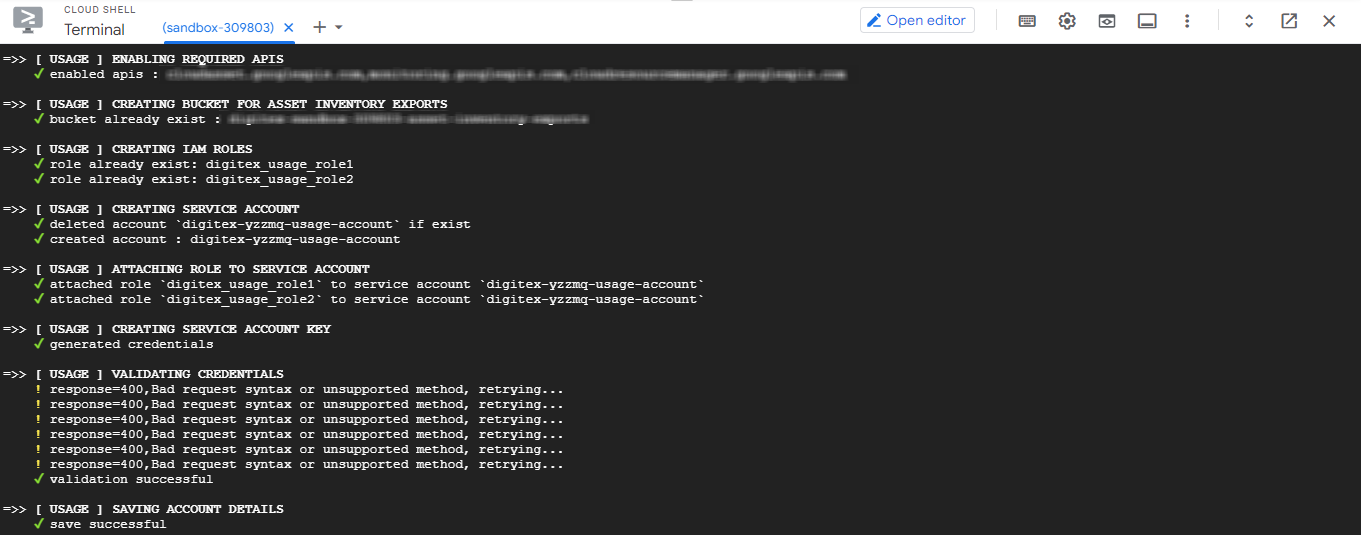
Ignore Bad request syntax or unsupported method retrying messages.
If you encounter any error at the time of onboarding, please rerun the script once again.
-
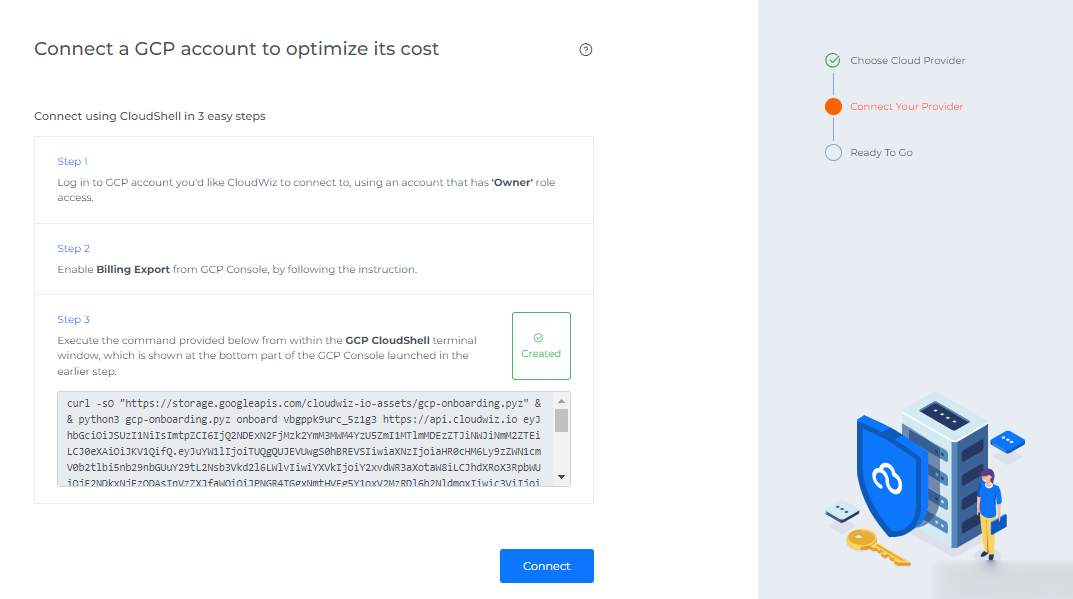
Click on Connect.
-
Click Skip waiting or wait for 24hrs to display the data.
Below are the steps that need to be performed if a user onboarded other providers and Logged into the Application
-
Login to Mavvrik
-
Click on Menu Icon at the top left corner
-
Click on Admin > Public Clouds
-
Click on +Account
-
Select GCP Provider
-
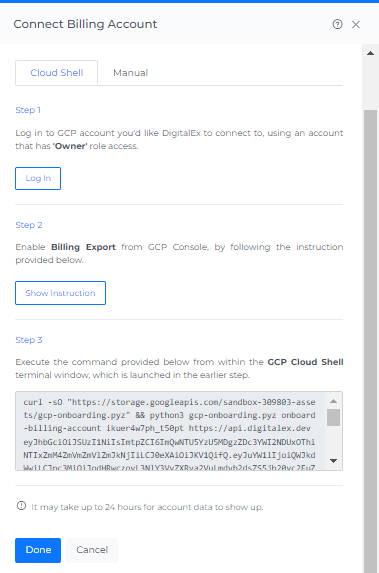
Click on Cloud Shell
-
Click on the Login button as shown in the above image
Page is navigated to the GCP login page where the user needs to enter GCP credentials. After successful login into the GCP account, the user should come back to Mavvrik to follow the next steps.