.png)
Onboard CSV Connector Accounts
Not every vendor is supported yet, and some costs still live in internal systems. With Mavvrik's CSV upload, you can bring those costs into Mavvrik alongside your existing SaaS spend.
Upload a CSV, map the fields once, and your costs will flow into dashboards, allocations, and reports just like any other spend in Mavvrik.
Before you start: you'll need Admin access to SaaS accounts, and a CSV export from whatever system currently holds the cost data (an internal tool, a vendor without a native Mavvrik connector, etc.) in the column format described below.
Create New Provider and Add Account
-
Go to Mavvrik portal and click on admin and then SaaS
-
Click on +Account and then select CSV
-
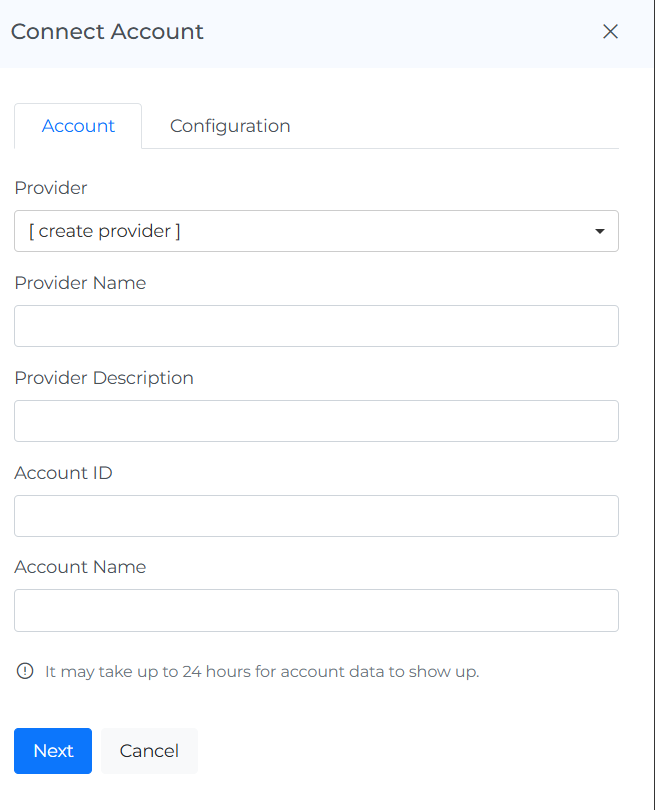
Select Provider as Create Provider
-
Enter the details
-
Click Next
Enter the account id same as in the csv
-
Upload CSV Cost File, format should be cost-yyyymm
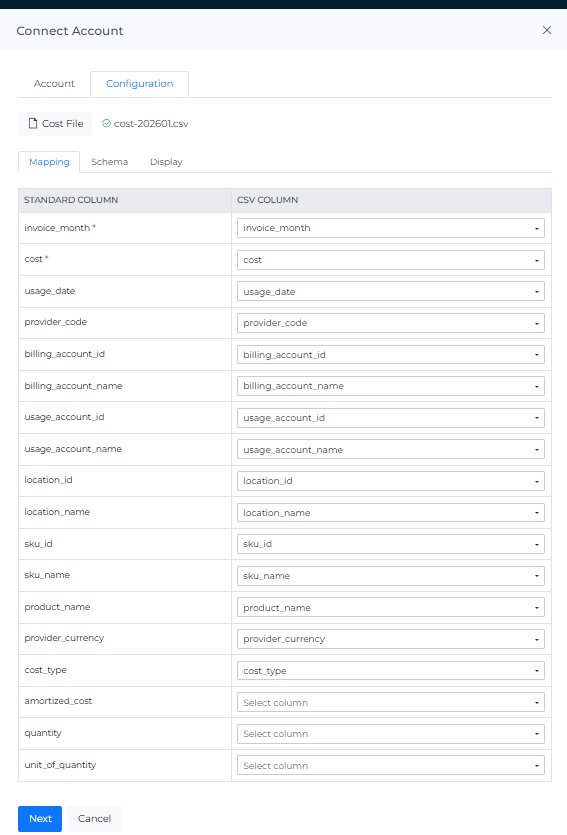
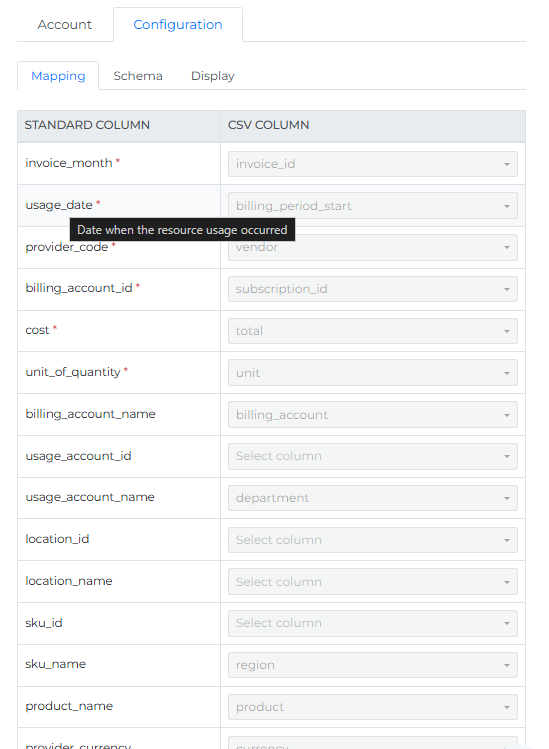
After the CSV is uploaded, Mavvrik needs to know which column in your CSV matches each Standard Column used for reporting.
You'll see a table with:
-
STANDARD COLUMN (Mavvrik's predefined fields) . Hover on the labels to see the description
-
CSV COLUMN (a dropdown where you select the matching CSV header)
|
Standard column |
Required |
Explanation (what Mavvrik expects) |
Expected format |
Example |
|---|---|---|---|---|
|
|
✅ |
Billing month the charge belongs to (monthly reporting grouping). |
|
|
|
|
✅ |
Date the cost/usage occurred (daily trends + allocations). |
|
|
|
|
✅ |
Vendor/provider identifier (consistent code per SaaS). |
text |
|
|
|
✅ |
Stable ID for the billed subscription/account. |
text |
|
|
|
✅ |
Final cost amount for the row/line item. |
number |
|
|
|
✅ |
Unit that describes what the quantity represents. |
text |
|
|
|
|
Friendly name for the billing account. |
text |
|
|
|
|
Sub-account/workspace/department ID under billing account (if applicable). |
text |
|
|
|
|
Friendly label for the usage account (team/department/workspace). |
text |
|
|
|
|
Location identifier (region/site code). |
text |
|
|
|
|
Friendly location label. |
text |
|
|
|
|
Vendor SKU/plan identifier. |
text |
|
|
|
|
Vendor SKU/plan name (if no stable SKU ID exists). |
text |
|
|
|
|
High-level product family for grouping. |
text |
|
|
|
|
Currency code for the cost values. |
ISO currency code |
|
|
|
|
Category/type of charge. |
text |
|
|
|
|
Amortized version of cost (spread across term), if used. |
number |
|
|
|
|
Number of units billed (pairs with |
number |
|
Required Fields (Must Be Mapped)
Any Standard Column with a * is required. These must have a CSV column selected before data can be processed.
-
invoice_month*
-
usage_date*
-
provider_code*
-
billing_account_id*
-
cost*
-
unit_of_quantity*
✅ For each required row:
-
Click the dropdown in the CSV COLUMN column.
-
Select the CSV header that matches the meaning of the Standard Column.
-
Repeat until all required fields are mapped.
Optional Fields (Map If Available)
These fields are optional, but mapping them improves reporting, filtering, and allocations:
-
billing_account_name
-
usage_account_id
-
usage_account_name
-
location_id / location_name
-
sku_id / sku_name
-
product_name
-
provider_currency
-
cost_type
If your CSV doesn't have one of these, you can leave it as Select column.
-
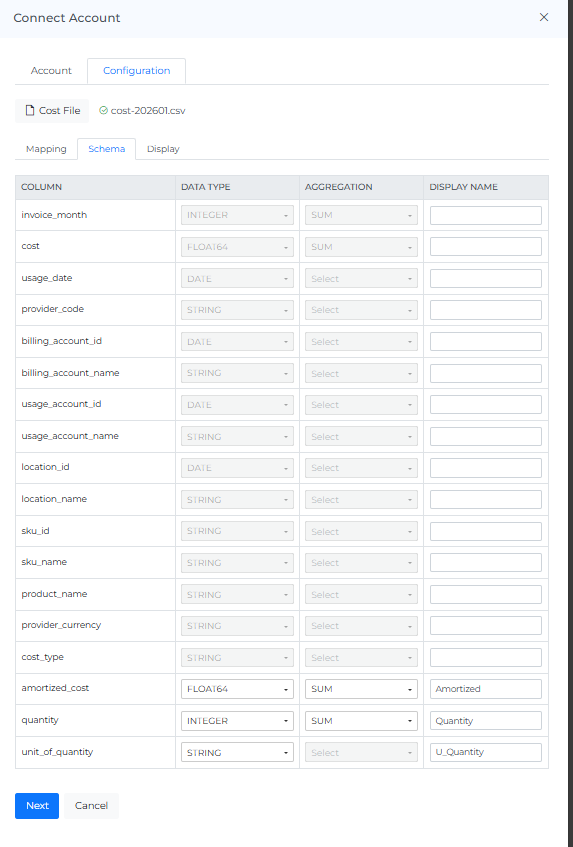
Enter the display name and select a schema for column that has not been mapped.
-
Click Next
-
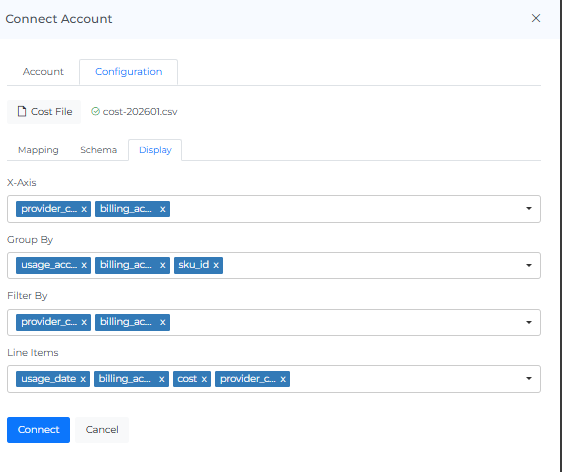
Select X-axis, Group By, Filter By, Line Items to Display on SaaS dashboard
-
Click Connect
-
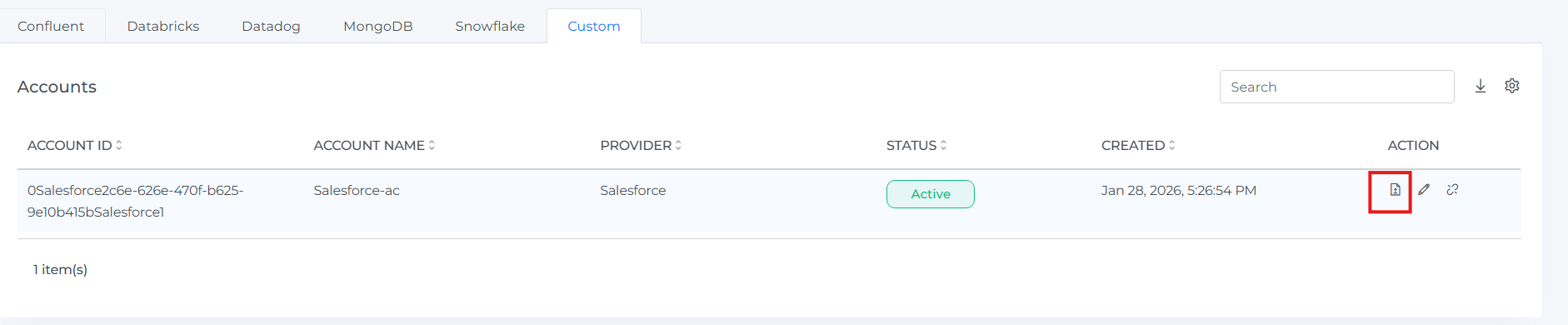
After connecting, you will be able to see that the account has been onboarded successfully.
-
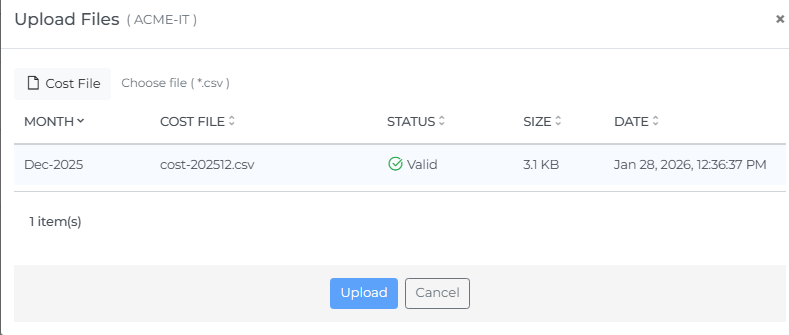
Click on Upload files icon and check the status of file if its valid or not. If there are any errors, fix the file and upload it again
-
Same way upload the multiple files for different months
Add New Account to an Existing Provider
-
Go to Mavvrik portal and click on admin and then SaaS
-
Click on +Account and then select CSV
-
Select Existing Provider
-
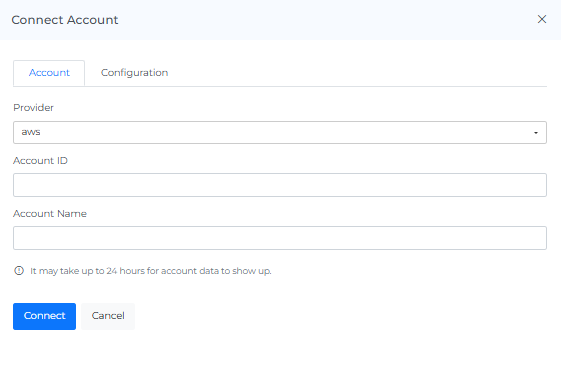
Enter the details
-
Account ID
-
Account Name
-
-
Click Connect
-
Upload the csv files for the new provider
Troubleshooting
-
If the file cannot be processed, confirm that the date and cost columns use supported values and that every required field is mapped.
-
If data is assigned incorrectly, review the column mappings before uploading the file again.
FAQs
Which fields are required in the CSV, and which are optional?
invoice_month, usage_date, provider_code, billing_account_id, cost, and unit_of_quantity are required. Everything else (billing_account_name, usage_account_id/name, location, SKU, product_name, currency, cost_type, amortized_cost, quantity) is optional and only improves reporting and filtering if mapped.
What should the uploaded file be named?
cost-yyyymm, matching the billing month the file covers.