.png)
Why this matters: Datadog usage (hosts, custom metrics, log ingestion) is billed on its own schedule, separate from any cloud provider invoice, and tends to grow quietly as more services get instrumented. Without connecting it here, that spend either lives in Datadog's own billing view that nobody checks regularly, or shows up as a surprise on the invoice. Connecting it means Datadog costs show up in Mavvrik's SaaS dashboards, with the same allocation and reporting tools available for your cloud spend.
This shows up differently depending on your role:
-
FinOps managers use this to catch Datadog cost growth (host count, custom metrics, log volume) before it's a large invoice surprise.
-
Platform/observability teams do the actual onboarding: enabling usage attribution and creating the read-only role and service account.
-
Finance leaders use this for chargeback when Datadog usage is shared across multiple teams.
Configuration steps
Step 1 : Enable usage attribution
Before you see the option or enable it, make sure:
-
Your Datadog account is on an Enterprise plan. Usage Attribution is an advanced feature.
-
You have either Administrator privileges or at least the Usage Read permission.
If your plan is not Enterprise, you may need to contact your Datadog account representative or success@datadoghq.com to enable it.
Steps to Enable Usage Attribution in Datadog
-
Log in to your Datadog account with an Administrator or a user that has Usage Read permissions.
-
In the left-hand menu, click on your username / account menu (bottom left corner).
-
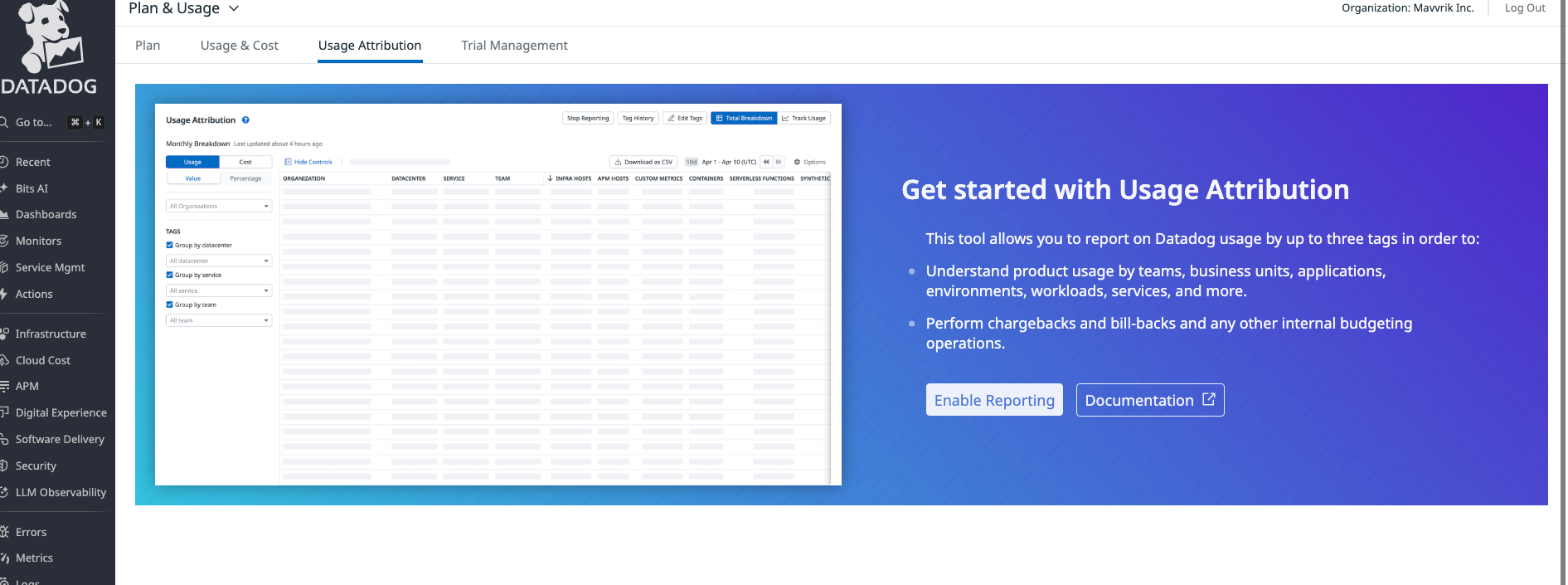
Select Plan & Usage, then navigate to the Usage Attribution tab.
-
Click Enable Reporting
Step 2 : Log in to Datadog and Create a Reader Role
-
Log in to Datadog as an admin:
https://<region>.datadoghq.com/ -
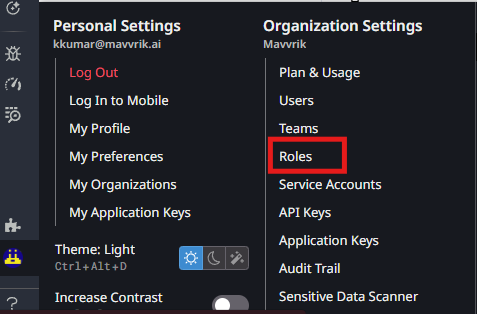
Click on the profile icon (bottom-left corner) → Roles.
-
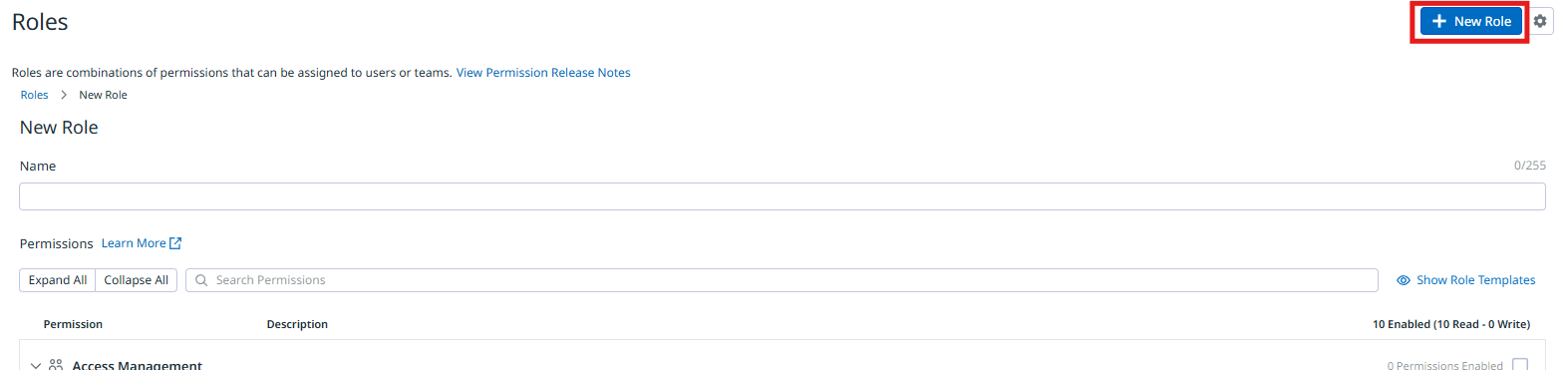
Click on New Role
-
Enter the role name. (Recommended: Mavvrik Reader Role)
-
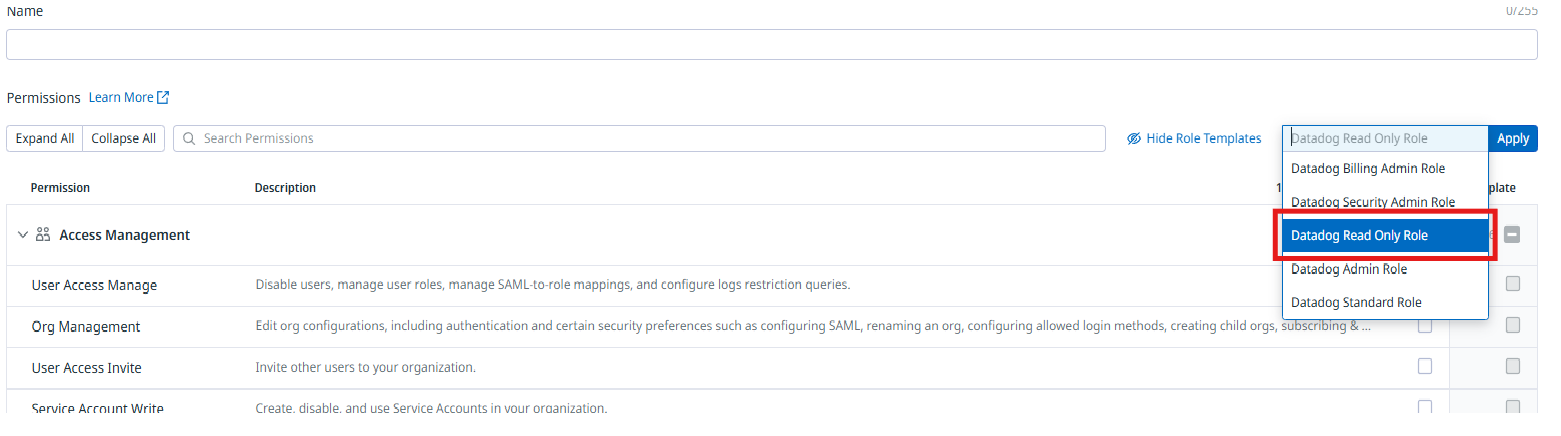
Click Show Role Templates

-
From the dropdown, select Datadog Read Only Role.
-
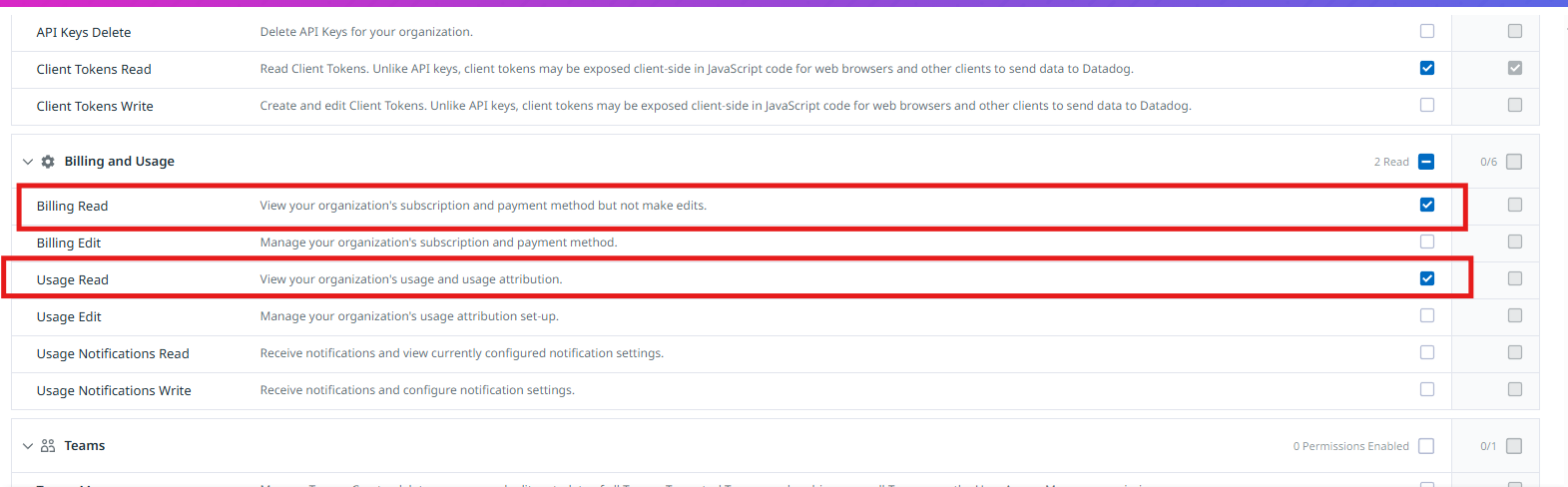
In the Billing and Usage section, select below custom roles:
-
Billing Read
-
Usage Read
-
-
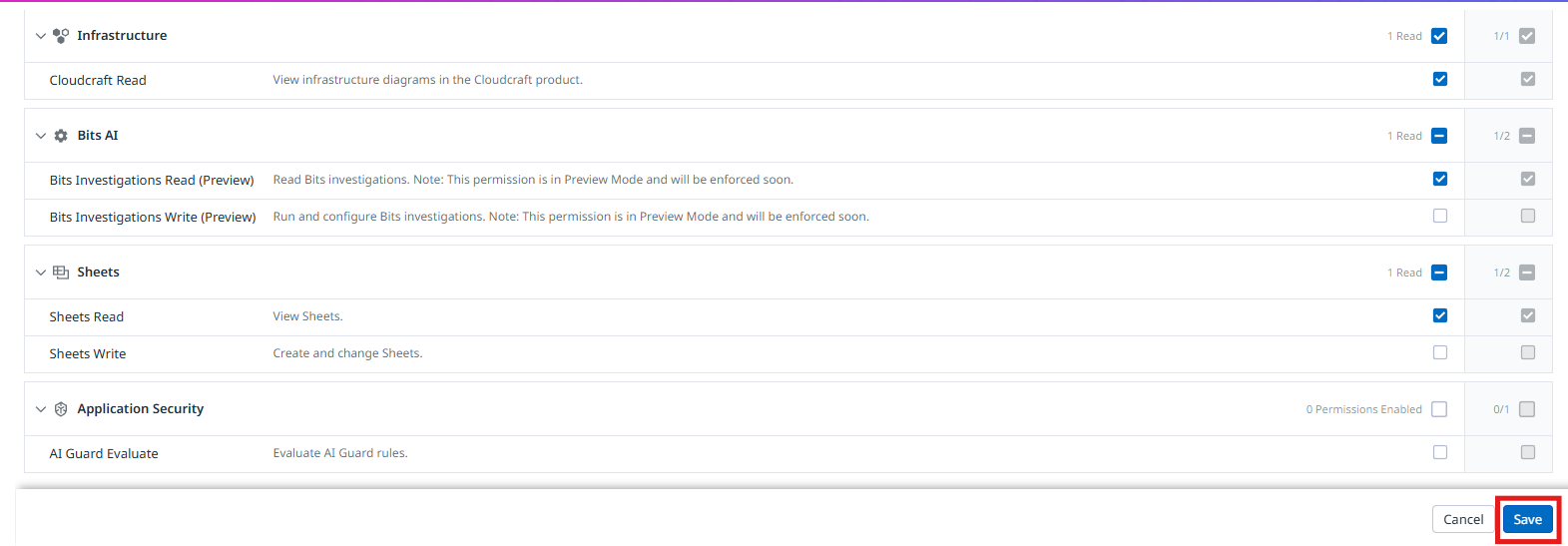
Click Save.
-
The new role will now appear in the list.
-

Step 3 : Create Service Account
-
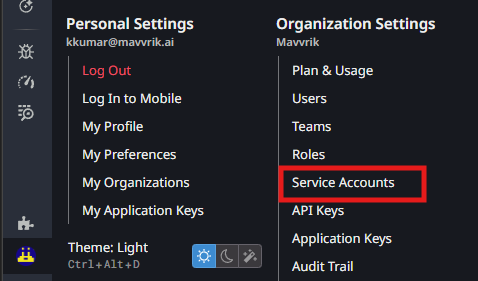
From the profile icon, select Service Accounts
-
Click New Service Account

-
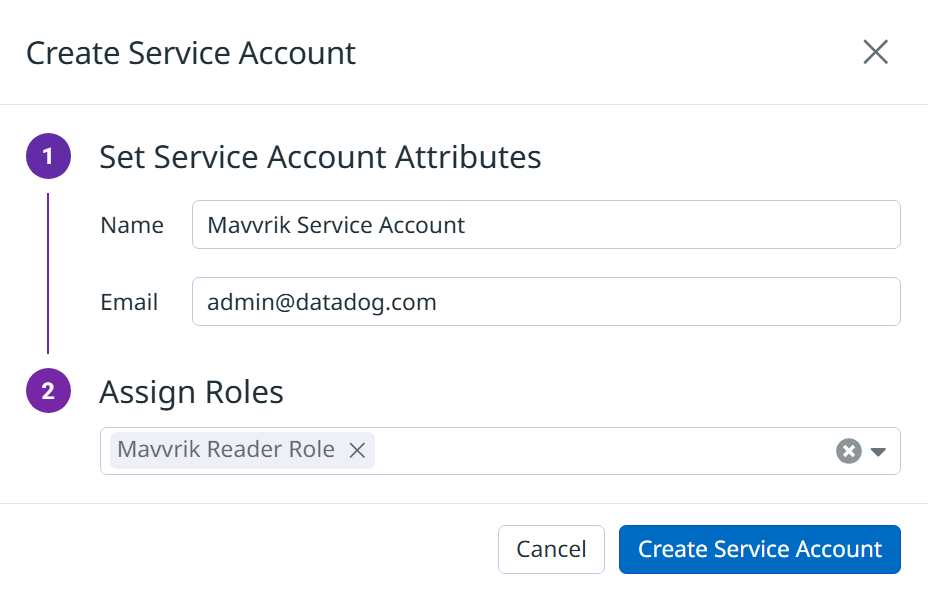
Enter the Name and Email
-
We recommend using the a Datadog admin role email.
-
-
Assign Mavvrik Reader Role created in Step 1
-
Click Create Service Account
-
Click on the created service account → click + New Key.
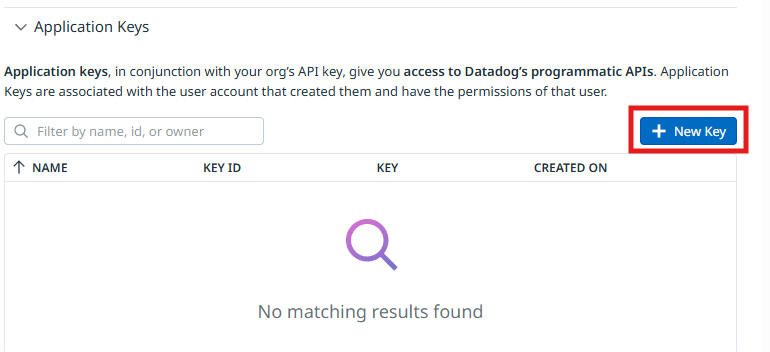
-
Enter the Application Key Name → click Create Key.
-
Copy the key as it will be used in subsequent steps
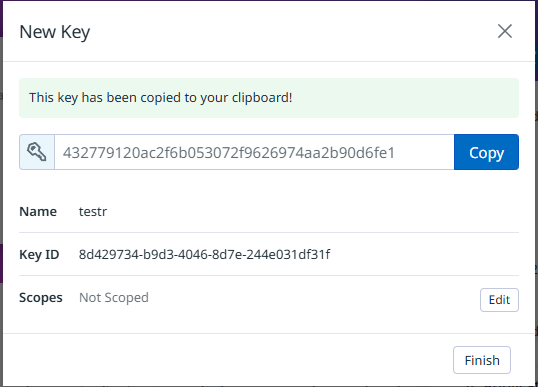
Step 4 : Create an API key
-
From the profile icon, select API Keys
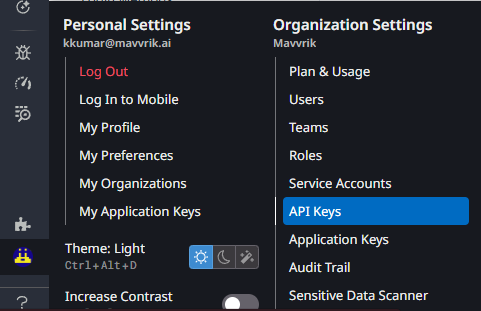
-
Click + New Key.

-
Enter a name → click Create Key.
-
Copy the api key as it will be used in subsequent steps
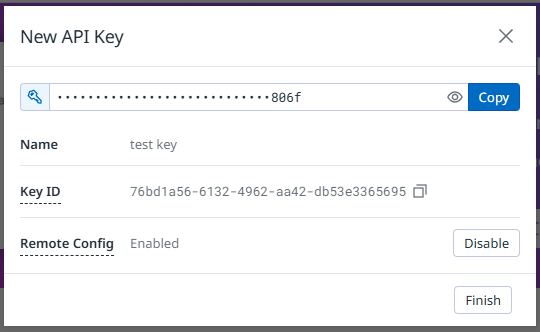
Step 5 : Capture Region
-
Identify the region from your Datadog URL.
Example: https://us5.datadoghq.com/ → region is us5.
Step 6 : Integrate into Mavvrik portal
-
Log in to the Mavvrik portal.
-
Navigate to Admin → SaaS.
-
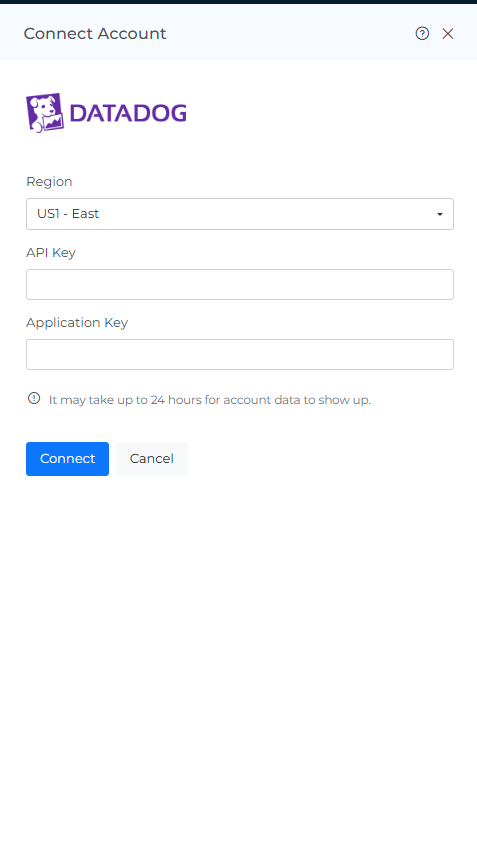
Click + Account → select Datadog.
-
Enter the following details:
-
API Key
-
Region
-
Application Key
-
-
Click Connect.
Troubleshooting
-
If the account does not connect, verify the API key, application credentials, and Datadog region entered in Mavvrik.
-
If a permission error appears, confirm that the reader role and service account were configured as described above.
FAQs
Does this work on a non-Enterprise Datadog plan?
No, Usage Attribution is an Enterprise-plan feature. If you're not on Enterprise, contact your Datadog account representative or success@datadoghq.com to enable it.
What access does Mavvrik get to my Datadog account?
Only what's granted to the Mavvrik Reader role (Datadog's built-in read-only role plus the Billing Read and Usage Read permissions) via a dedicated service account and application key.