
Why this matters: onboarding is where a VMware Cloud environment actually starts flowing into Mavvrik's cost dashboards, and where the individual cost-configuration steps below (per datacenter, host, and datastore) determine whether the numbers you see reflect your actual infrastructure costs or just a generic default.
Before you start: you'll need Admin access in Mavvrik, and the gateway firewall already configured for your environment (see the note below).
Before you onboard VMware on cloud, we recommend you to configure gateway for VMware on cloud by following this doc “Datacenter Gateway Firewall Configuration ”
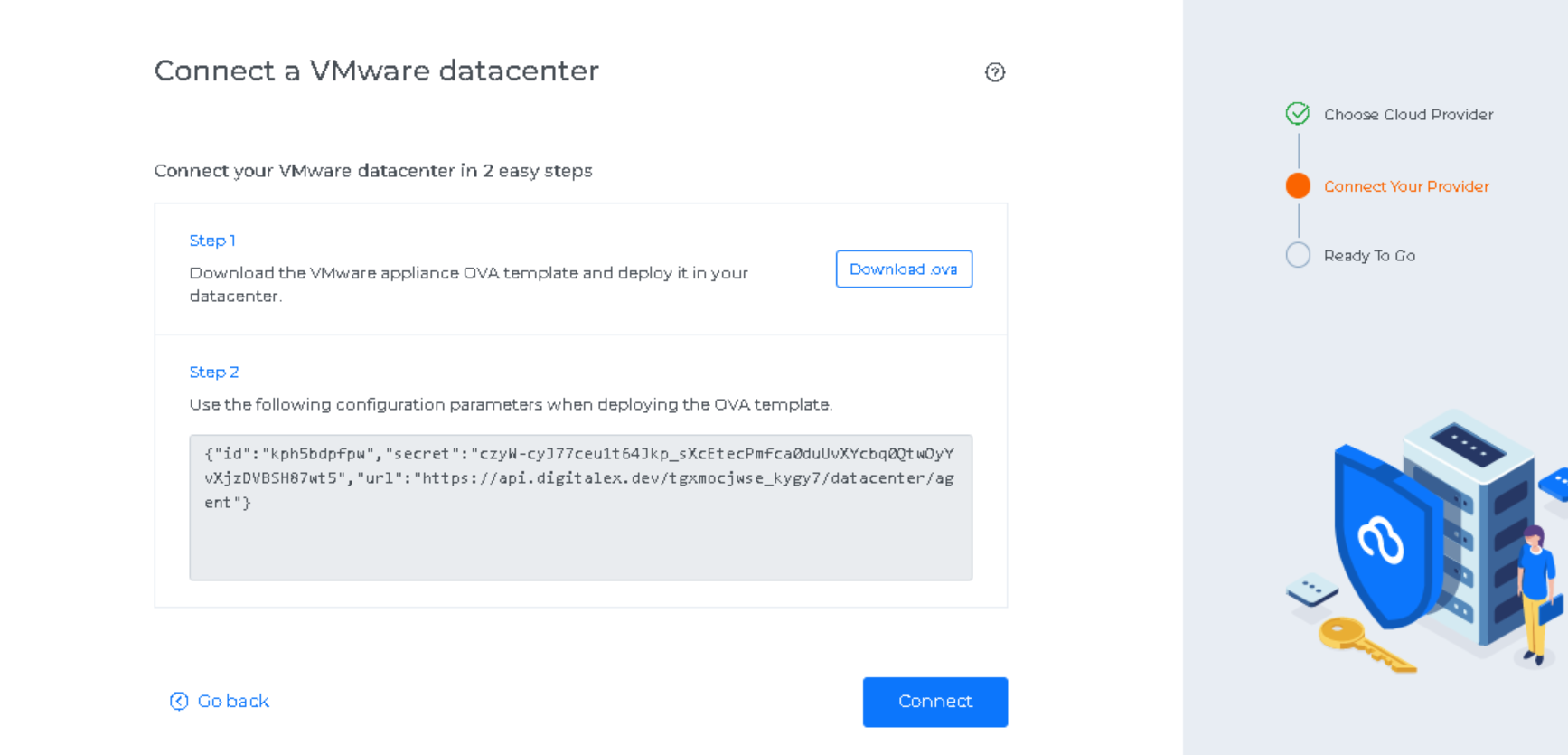
If you are registering for the first time, the page below is displayed.
-
Copy the JSON provided in Step 2 in the Mavvrik UI.
-
Download the VMware appliance OVA template and deploy it in your datacenter, following vCenter Appliance Installation on Cloud. Paste the copied JSON into the Config Data field when prompted.
-
Turn on the VM and wait for some time for Datacenter data to show up. Once successful, it will start showing up on the Datacenter page.
Below are the steps to create a VMware datacenter in Mavvrik :
-
Login to Mavvrik
-
Click on Menu
-
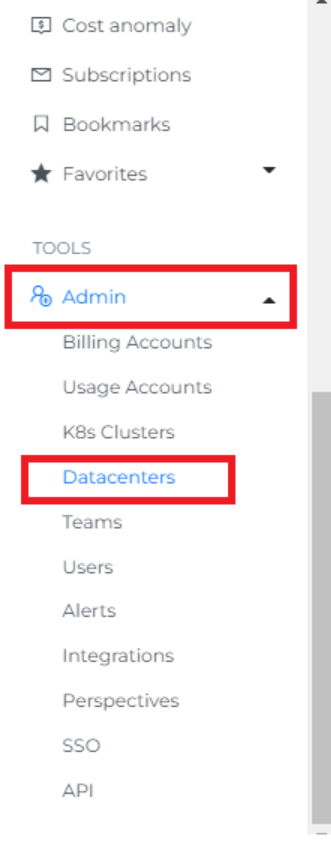
Click on Admin
-
Click on Accounts, then click on Datacenters
-
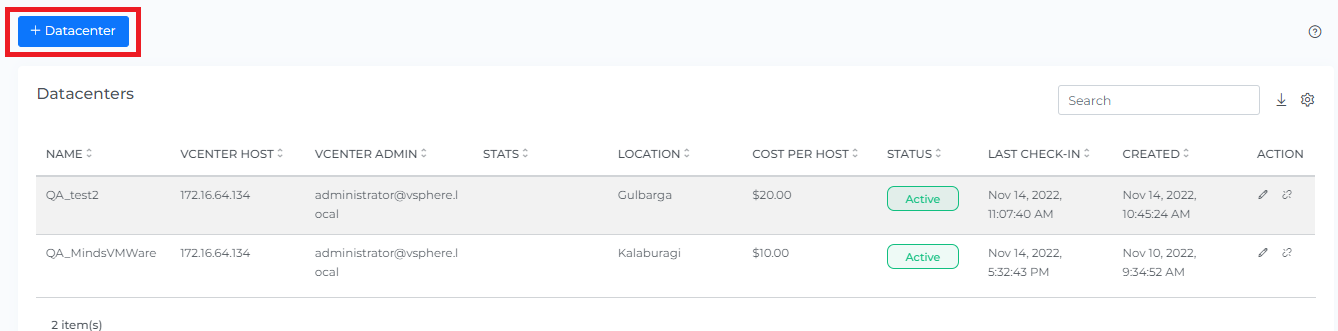
Click on +Datacenters in the left top corner
-
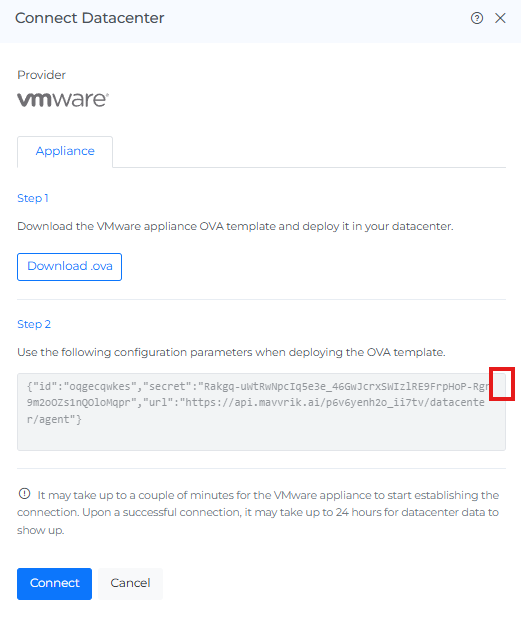
Follow the three onboarding steps above: copy the JSON provided in Step 2 in the Mavvrik UI, deploy the VMware appliance OVA template (see vCenter Appliance Installation on Cloud), and turn on the VM.
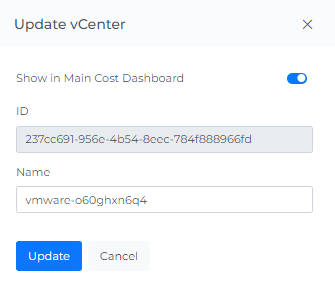
Below are the steps to edit a VMware Datacenter in Mavvrik :
-
Click on the edit button

-
Update the name(default name will get generated)/Enable the Cost dashboard
-
Click on Update
Below are the steps to reconnect a VMware Datacenter in Mavvrik :
-
Click on Reconnect button

-
To re-onboard the VMware Datacenter, repeat the three onboarding steps under "If you are registering for the first time" above.
Make sure to delete the existing VMware appliance for this datacenter before redeploying the new one.
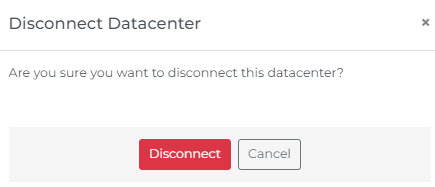
Below are the steps to disconnect a VMware account in Mavvrik :
-
Click on the disconnect button

-
Click on Disconnect
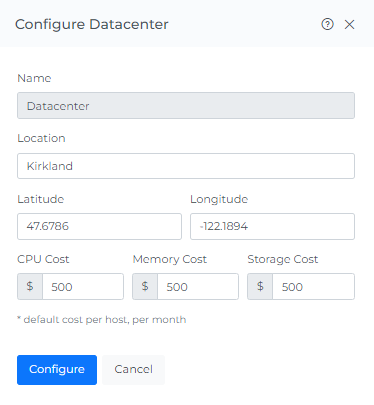
Note: Upon onboarding VMware, datacenters, and hosts, a default cost is displayed instantly for CPU, memory and storage. You can adjust the cost by following the configuration steps provided below.
Configure the Datacenters
-
Click on the Datacenters tab
-
Click on Configure Button

-
Update the changes & click on Configure button
Configure the Hosts
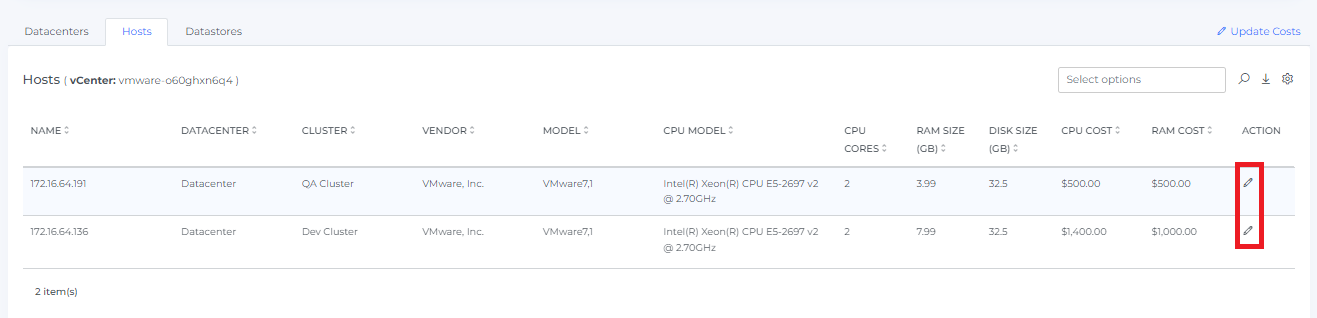
Configure individual Cost
-
Click on the Hosts tab
-
Click on Configure Button
-
Update the changes & click on Configure
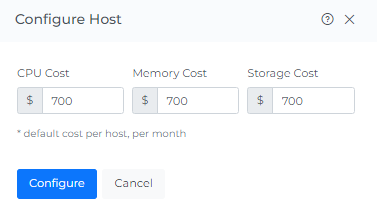
Configure Complete Host Cost
-
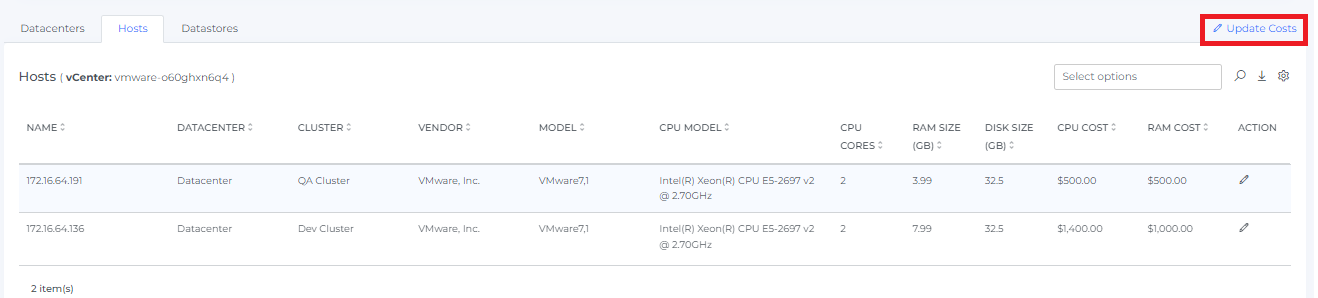
Click on the Hosts tab
-
Click on Update Cost
-
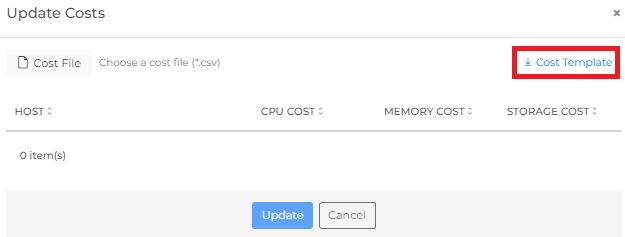
Click on Cost Template(File will get downloaded )
-
Update the Cost in the downloaded file
-
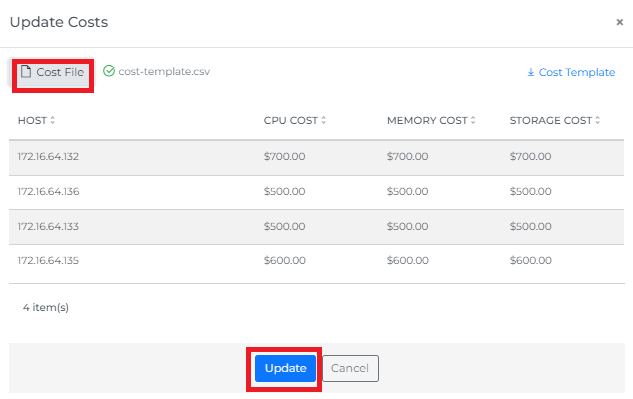
Click on Cost File
-
Select your updated cost file
-
Click on the Update button
Configure the Datastore
Configure individual Cost
-
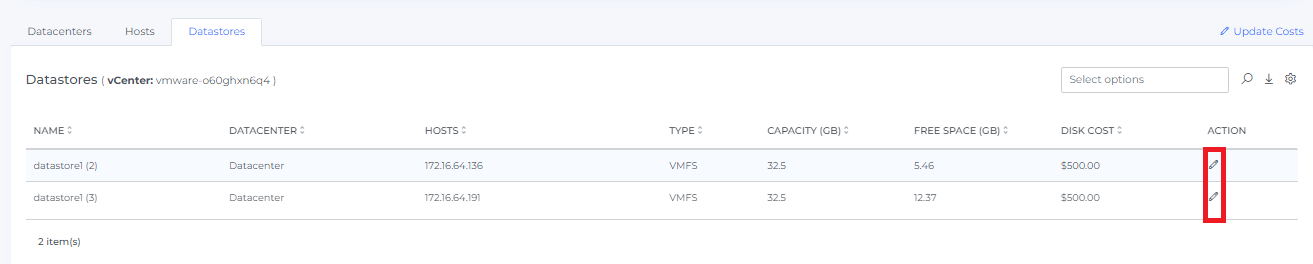
Click on the Datastores tab
-
Click on Configure Button
-
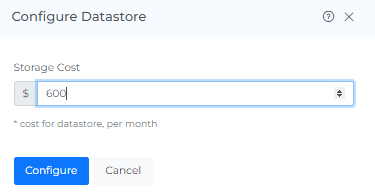
Update the changes & click on Configure
Configure Complete Datastores Cost
-
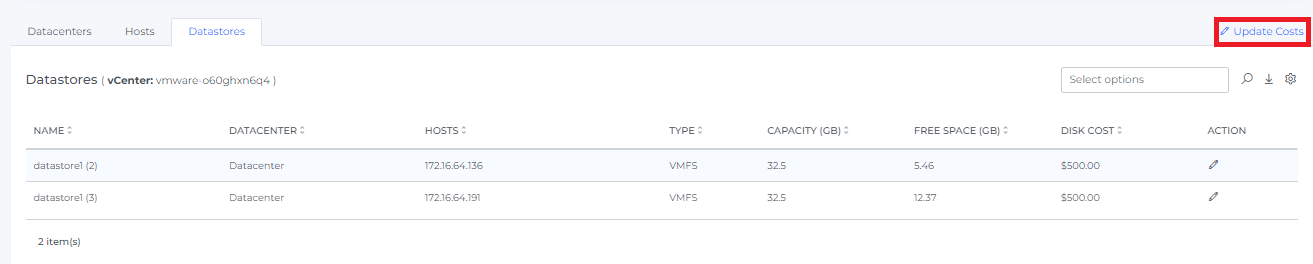
Click on the Datastores tab
-
Click on Update Cost
-
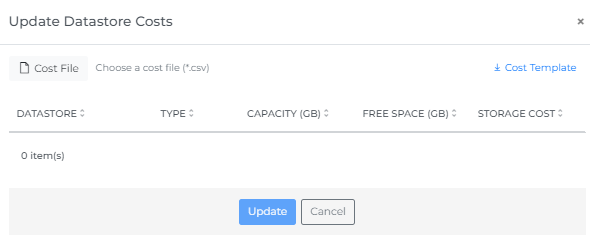
Click on Cost Template(File will get downloaded )
-
Update the Cost in the downloaded file
-
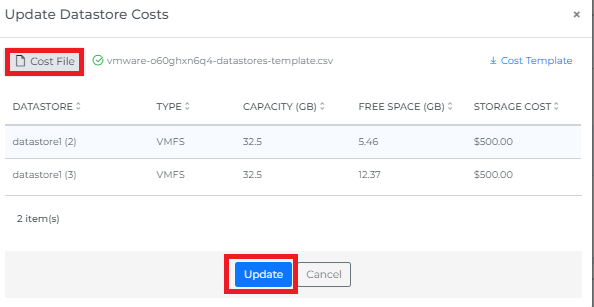
Click on Cost File
-
Select your updated cost file
-
Click on the Update button
Troubleshooting
-
If the datacenter does not connect, verify the appliance configuration and the connection details copied from Mavvrik.
-
If inventory is unavailable, confirm that the vCenter user has the required read-only permissions and that the appliance can reach vCenter.