.png)
In Datacenter Gateway firewall Configuration we are adding two rules, they are
-
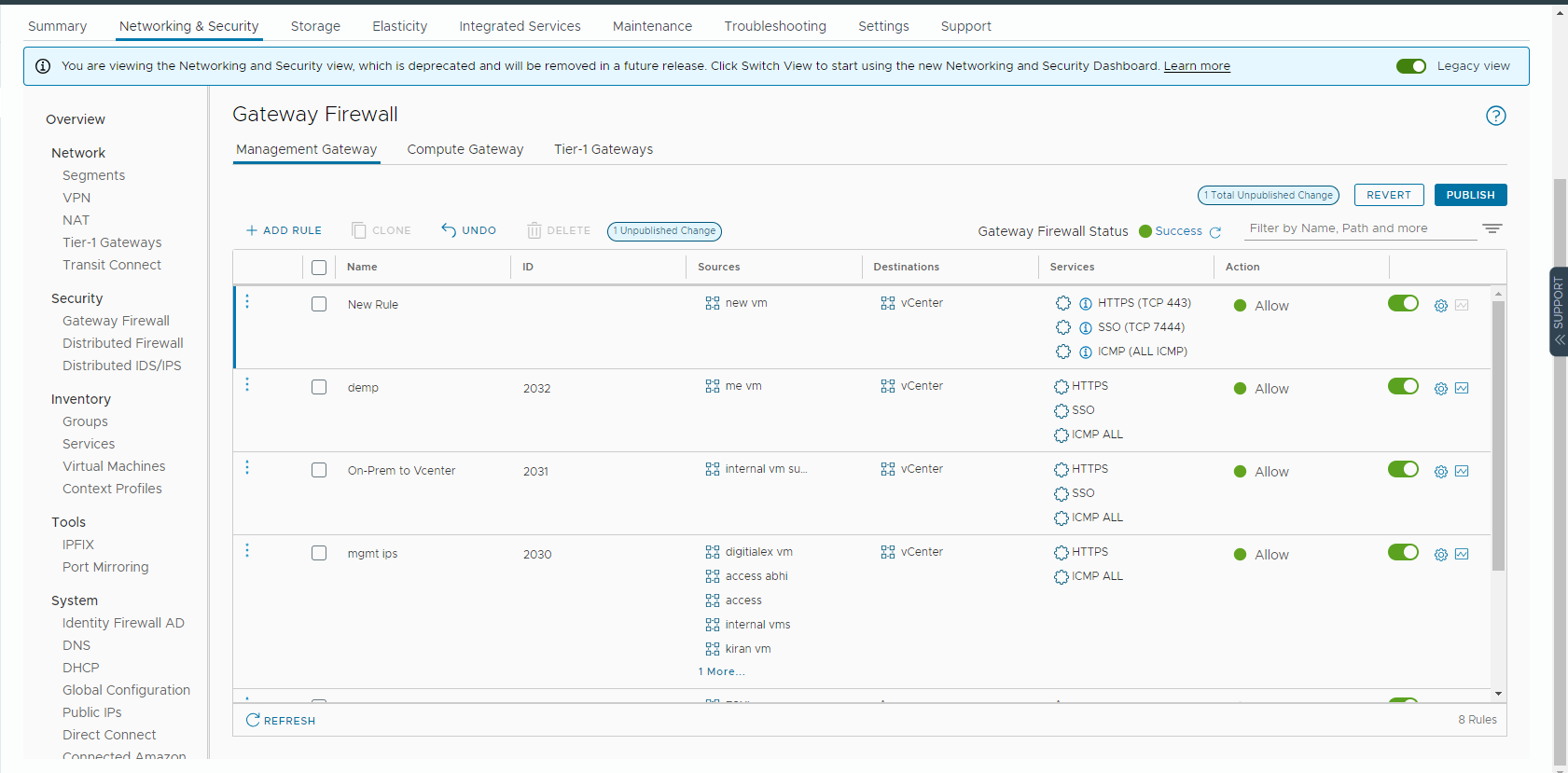
Management Gateway for (appliance access to vCenter)
-
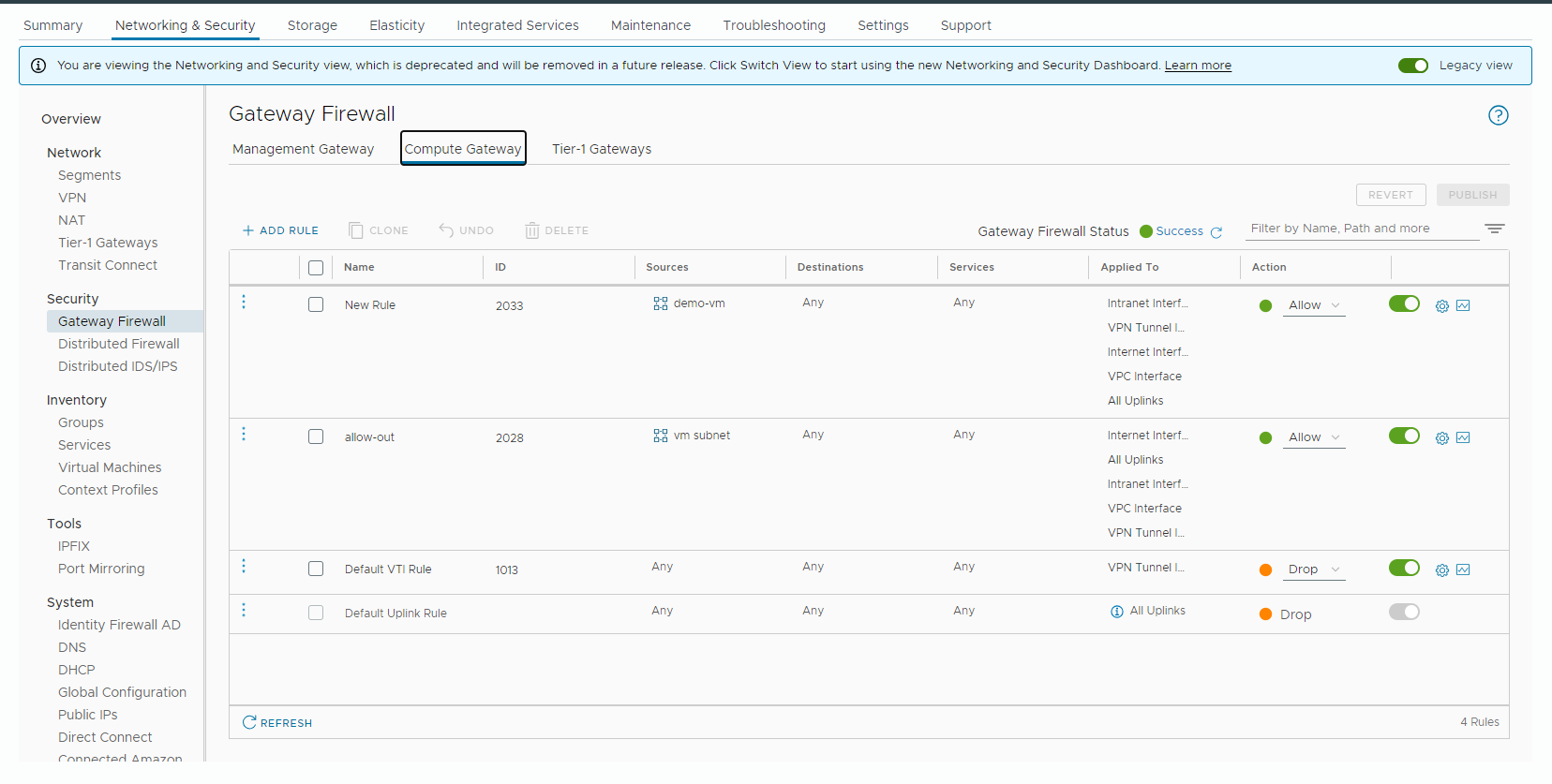
Compute Gateway for (appliance access to internet for access to Mavvrik API via internet)
Why this matters: the appliance needs two things to work: it has to reach vCenter (Management Gateway), and it has to reach Mavvrik's API over the internet (Compute Gateway). Miss either rule and the appliance either can't read your environment or can't send the data anywhere — getting both configured correctly here avoids a confusing "it's deployed but nothing's showing up" troubleshooting session later.
Before you start: you'll need admin access to your VMware Cloud console's networking and security section.
Below are the steps for configuring the gateway firewall
-
Login to VMware on cloud console and navigate to VMware cloud Tab under the Menu section
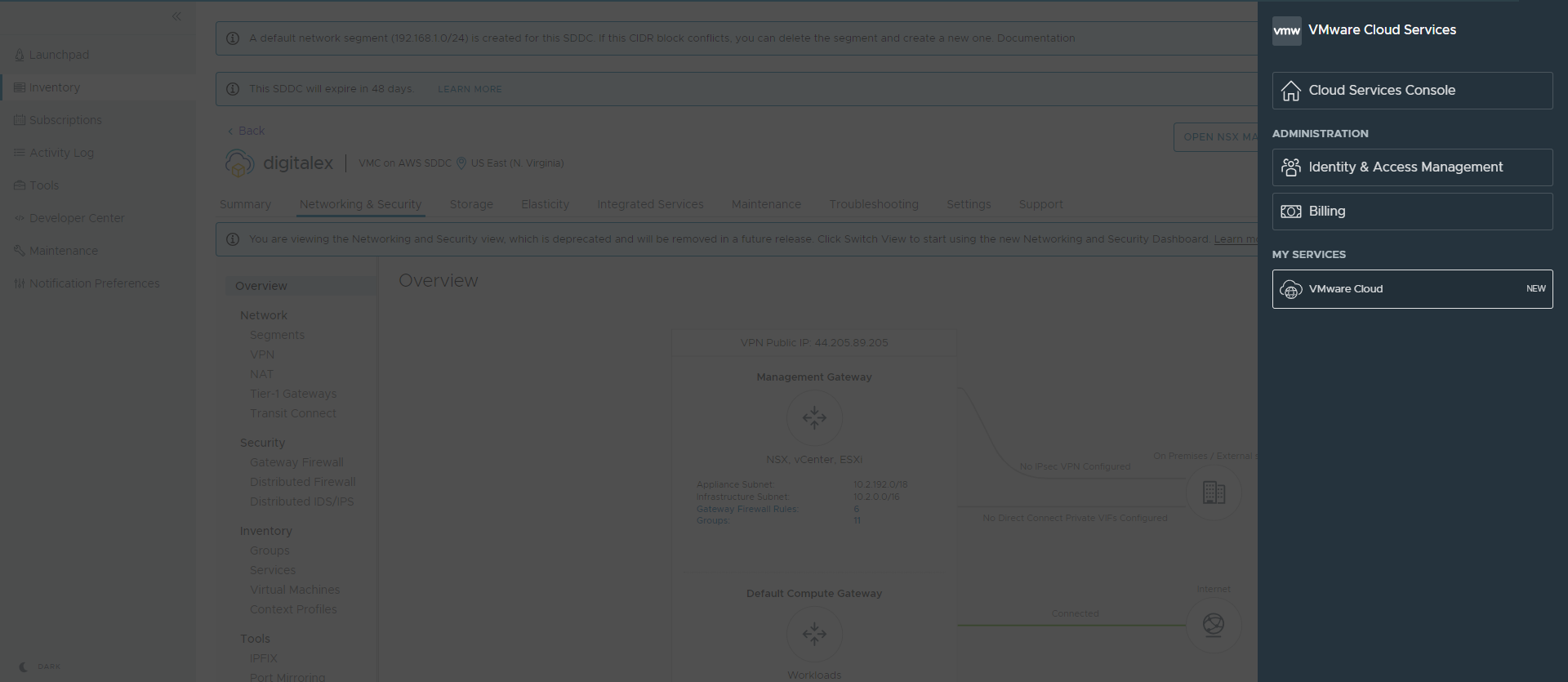
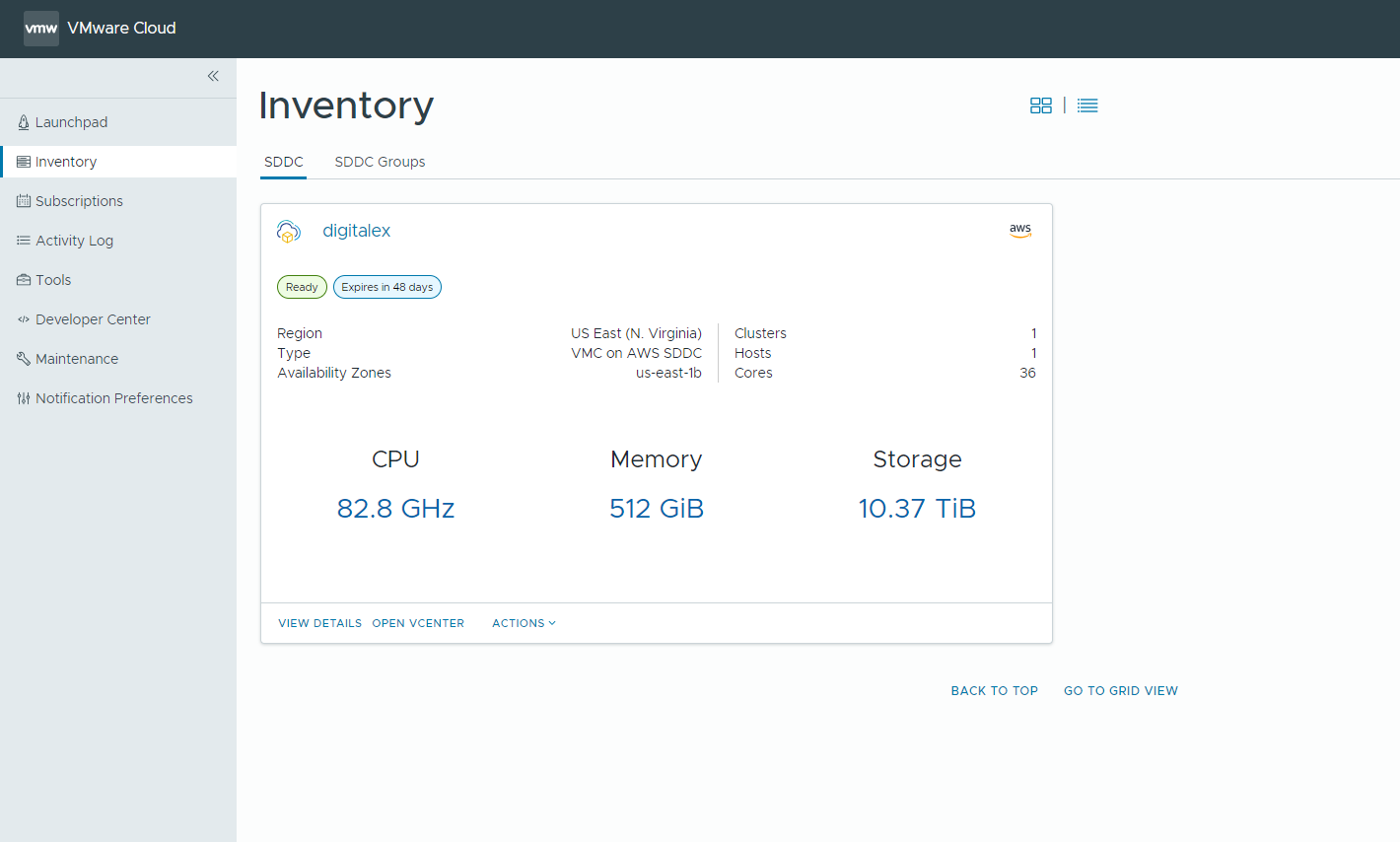
Under Left side nav bar > inventory > View details > Networking and security
Management Gateway
-
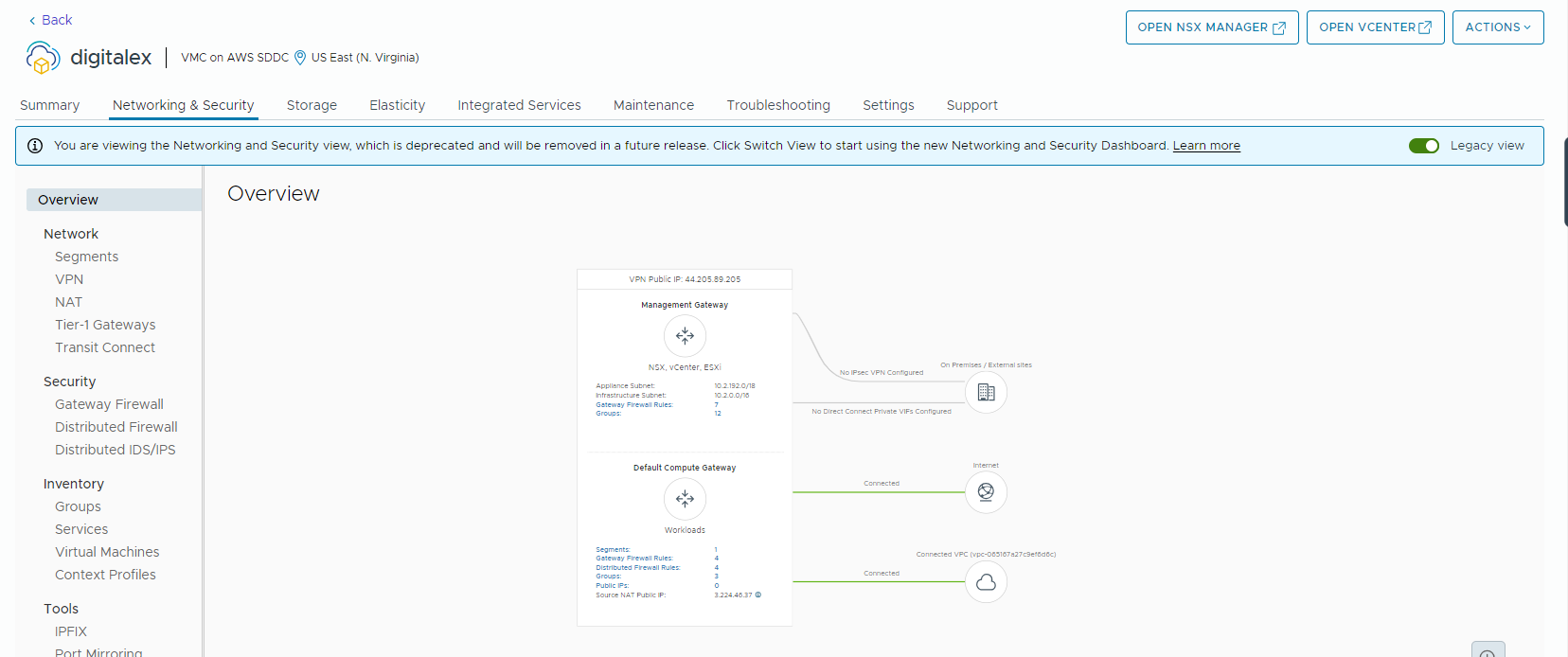
In networking and security click on Legacy View
-
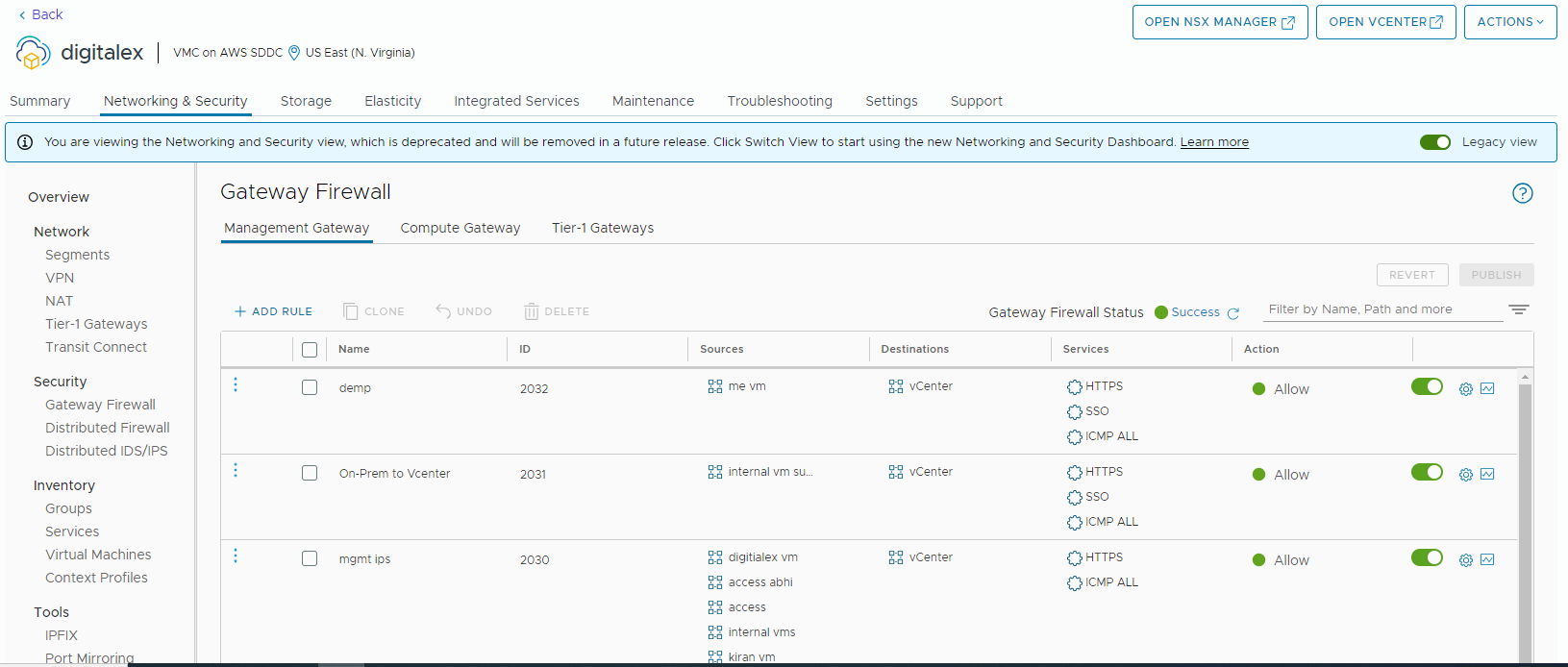
On Security > Click on Gateway firewall > Management Gateway > Enter all the required details
-
Then Click on Add rule. Then:
-
Enter the rule name
-
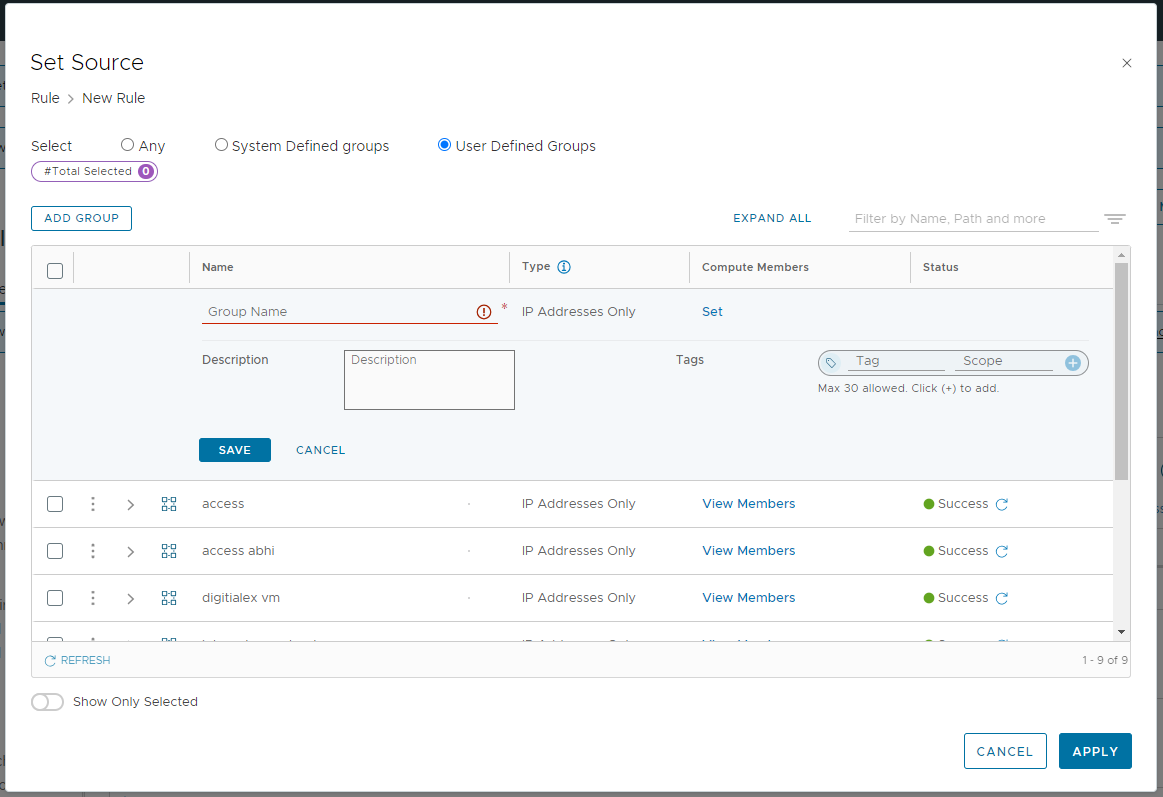
In the Source section click on edit icon > user-defined Group > Add Group
-
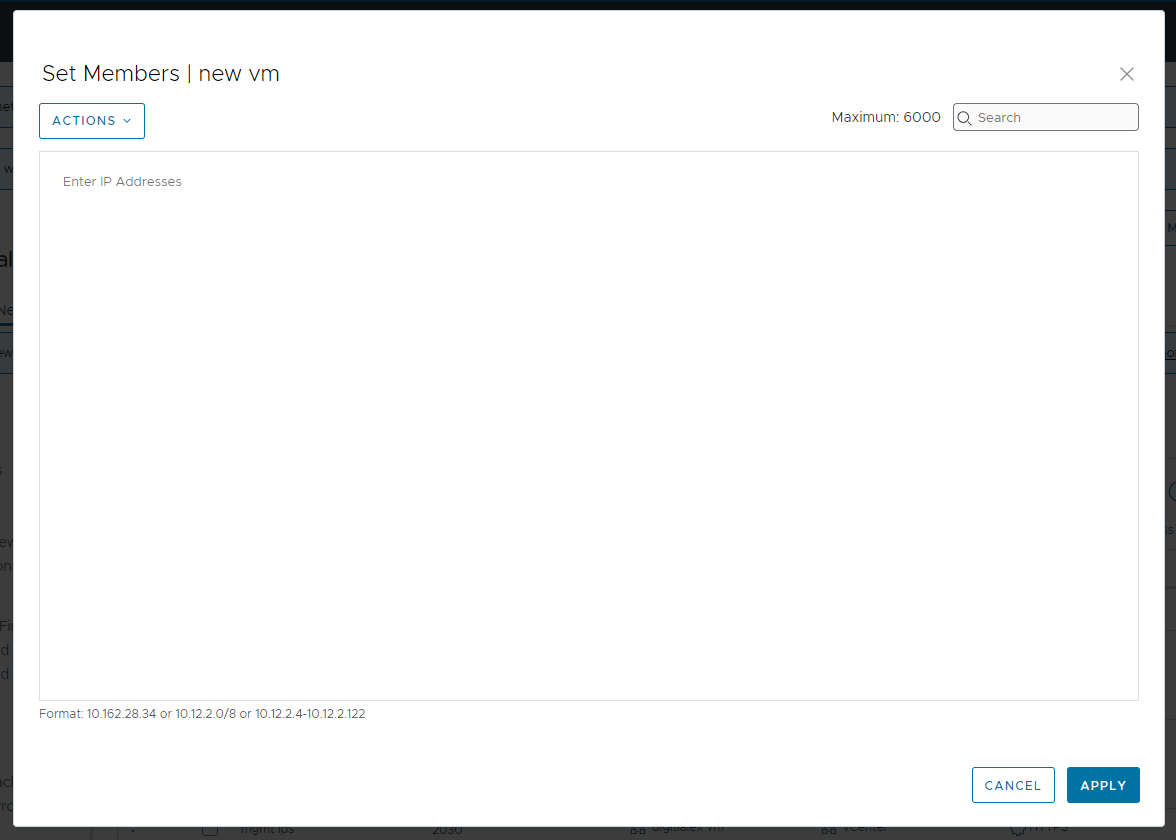
Add Group name and click on set link and enter the IP
eg. 192.168.0.1 your network Ip and then click on apply
-
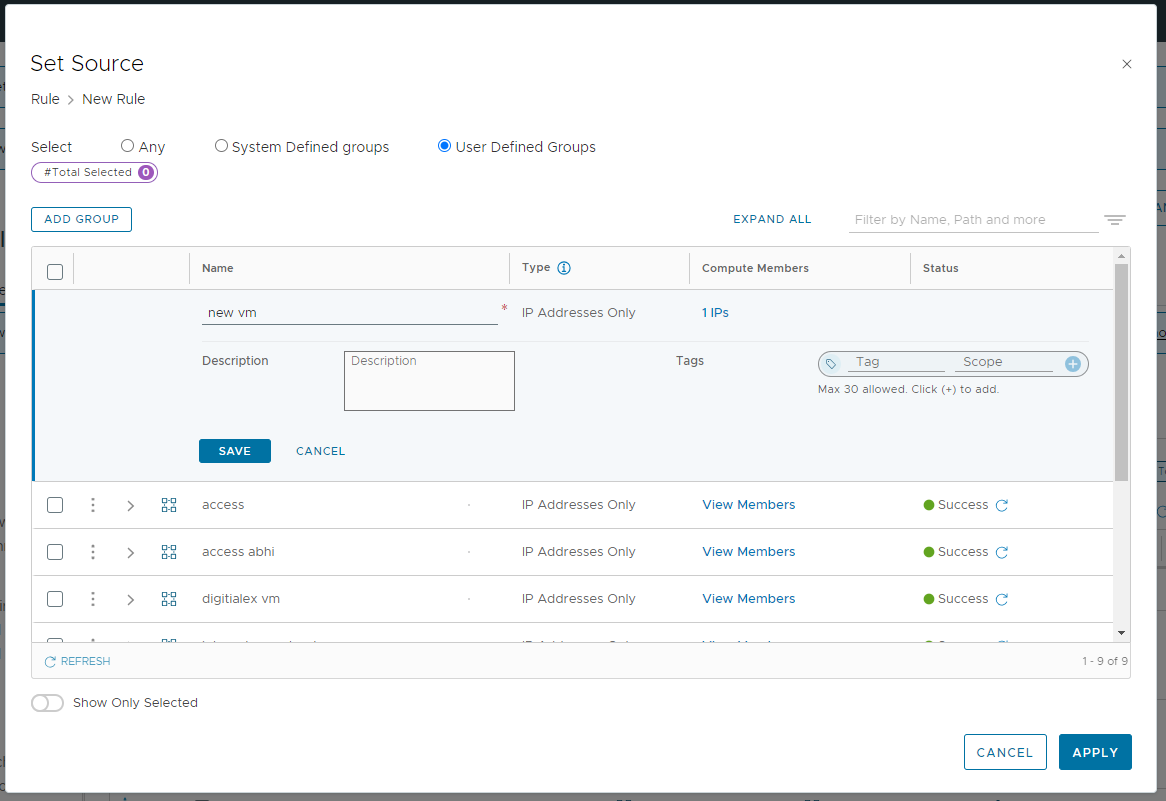
After setting up the Ip click on Save and then Apply
-
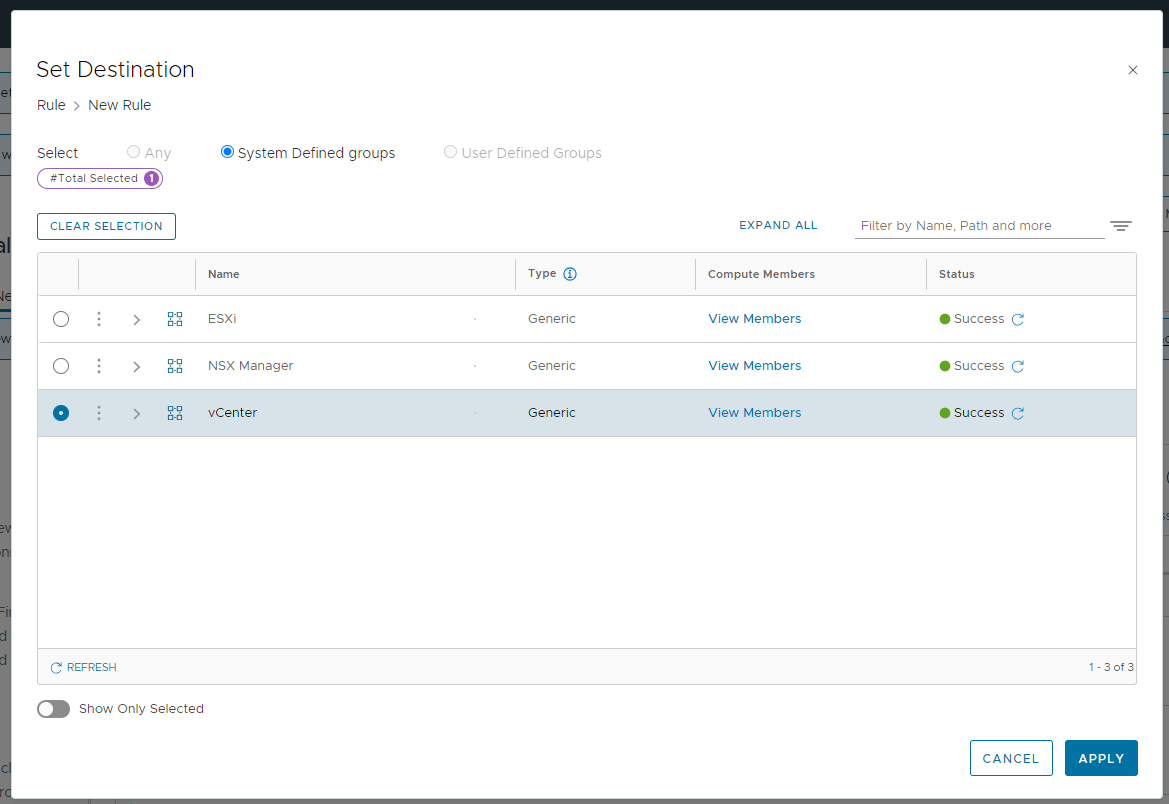
Then on the Destination column click on edit icon
-
Then select vCenter from the list and click on apply
-
Then on the service column click on edit icon
-
Select “HTTPS”, “SSO”, “ICMP All” and click on Publish
For mavvrik appliances having internet access to connect to Mavvrik APIs
Compute Gateway
-
On Security > Click on Gateway firewall > Compute Gateway > Enter all the required details
-
Then click on Add rule. Then:
-
Enter the rule name
-
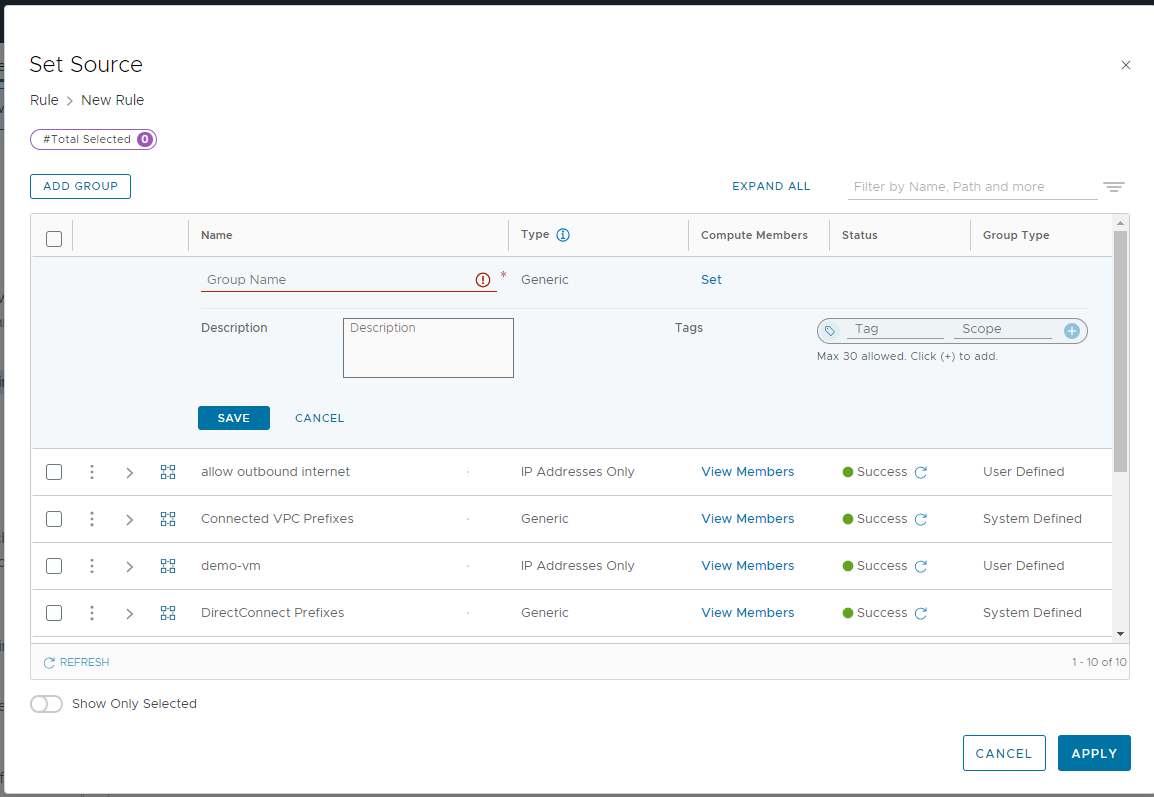
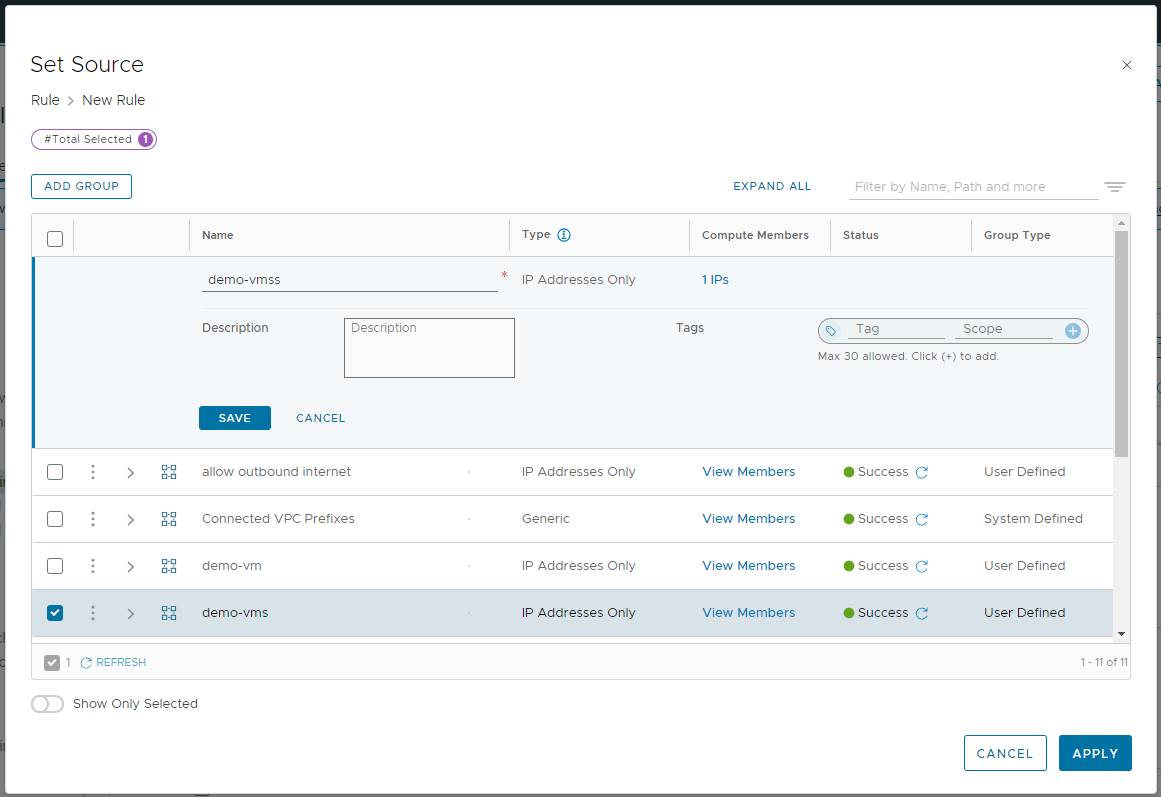
In the Source section click on edit icon > user-defined Group > Add Group
-
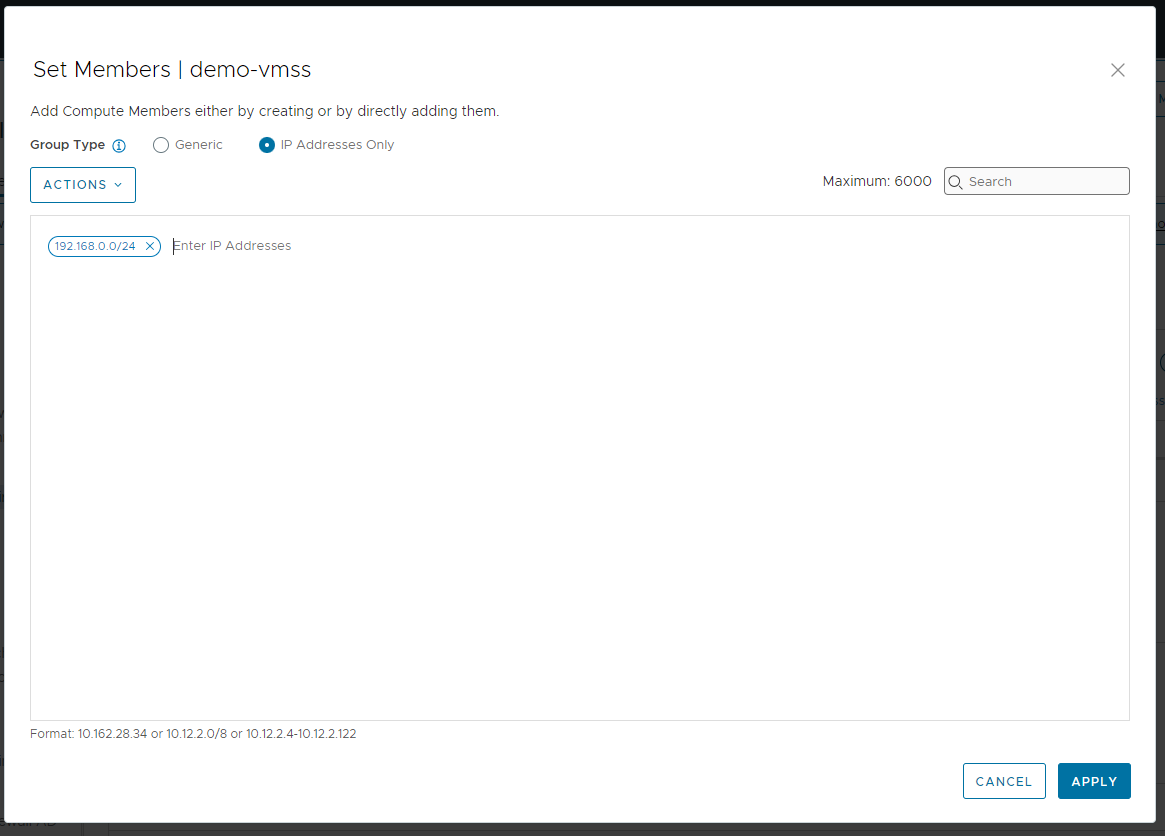
Add Group name and click on set link and then click on ip address only and enter the IP
eg. 192.168.0.0/24 your network Ip and then click on apply
-
After setting up the Ip click on Save and then Apply
-
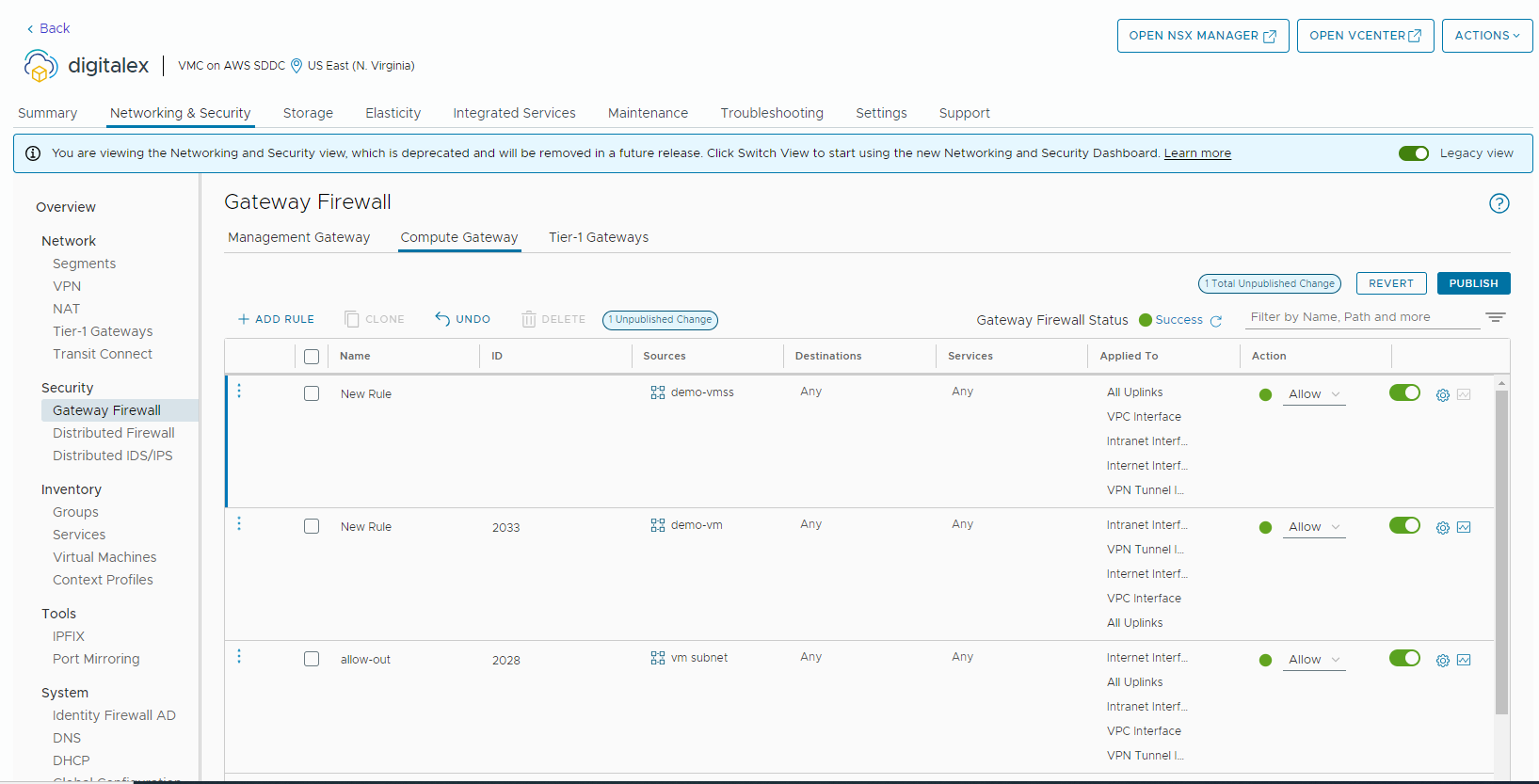
Then on the Applied to column click on edit icon
-
Select “All Uplinks”, “VPC Interface”, “Intranet Interface”, “Internet Interface“, “VPN Tunnel Interface” and click on Publish
Troubleshooting
The appliance cannot reach vCenter
-
Review the Management Gateway rule, which covers appliance access to vCenter.
-
Confirm that the source group contains the intended appliance source address and that the destination is the intended vCenter.
-
Check the services against the Management Gateway configuration in this guide, and confirm that the rule was published.
The appliance cannot send data to Mavvrik
-
Review the Compute Gateway rule, which covers appliance internet access to the Mavvrik API.
-
Confirm that the source group covers the appliance's network.
-
Check the rule's Applied to interfaces against the Compute Gateway setup above, and confirm that the rule was published.
-
Check both gateway configurations separately: appliance access to vCenter does not by itself establish its outbound path to Mavvrik.