
Manage report templates
The Custom Report page (Reports > Default Reports) lists the report templates available in your account. From here you can preview a report for a month you choose, download it, rename a template, and review the report bookmarks and subscriptions that exist in your account.
Why this matters: teams often need the same report every month, for example a cost breakdown by tenant for finance. A report template keeps that definition in one place, so each month's report is produced the same way instead of being rebuilt by hand.
The Report Templates list
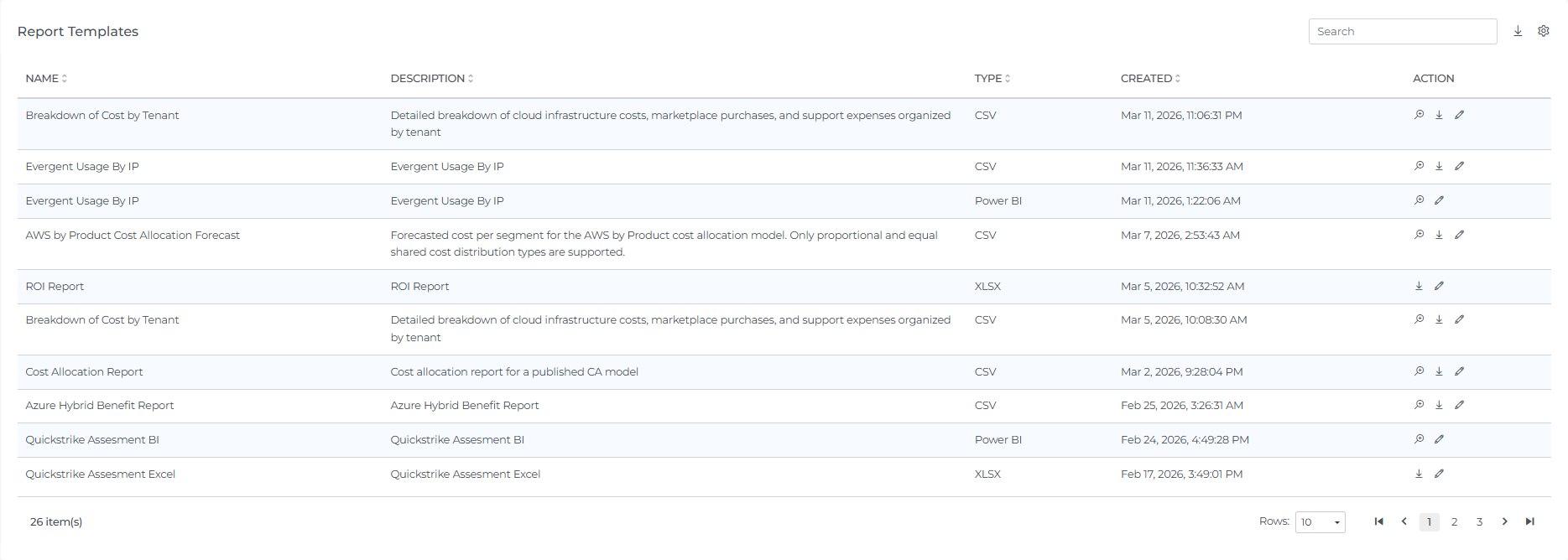
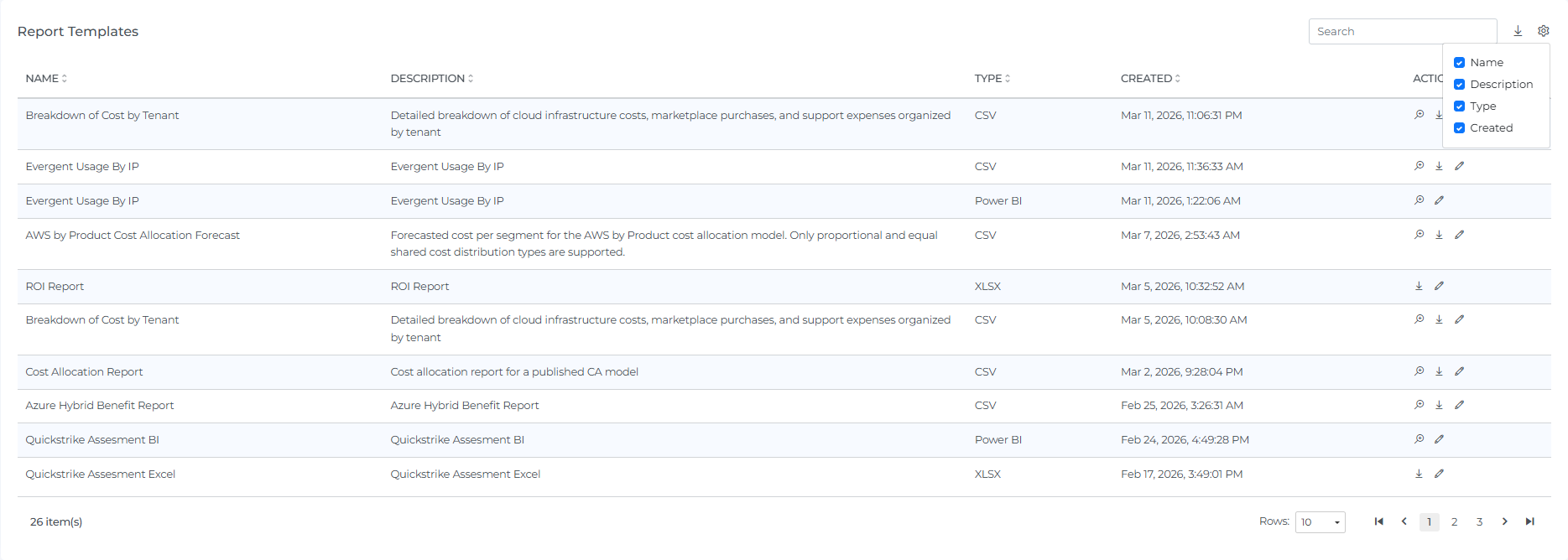
The list table's columns are: Name, Description, Type (CSV, XLSX or Power BI), Created, and Action. Use the search box above the table to find a template by name, and select a column heading to sort by it. The table shows 10 templates per page, and the total number of templates is shown at the bottom left.
Steps to Preview a Report:
-
Login to Mavvrik.
-
Click on Menu Icon at the top left corner.
-
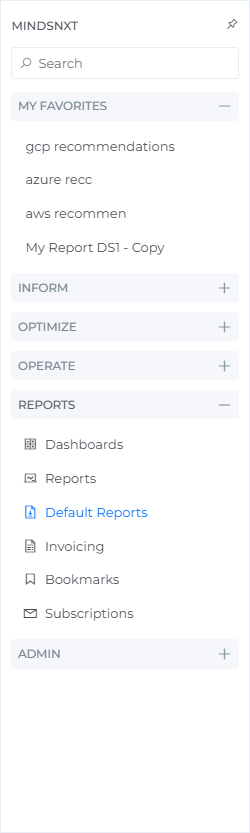
Click on Reports, then click on Default Reports.
-
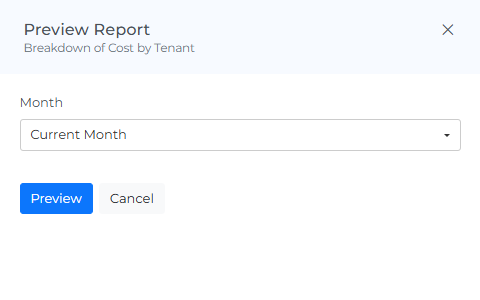
On the Report Templates tab, click on the Preview icon for the template you want. The Preview Report panel opens with the template name at the top.
-
In the Month field, choose Current Month, Previous Month, Two Months Prior, Three Months Prior, Six Months Prior or Custom.
-
Click on the Preview button. Click on Cancel or the X icon to close the panel without running it.
Download a Report
CSV and XLSX templates have a Download icon. Power BI templates do not.
Steps to Download a Report:
-
Login to Mavvrik.
-
Click on Menu Icon at the top left corner.
-
Click on Reports, then click on Default Reports.
-
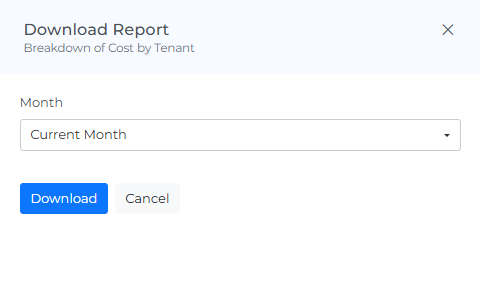
Click on the Download icon for the template you want. The Download Report panel opens with the template name at the top.
-
In the Month field, choose the month you want.
-
Click on the Download button. Click on Cancel to close the panel without downloading.
Edit Template
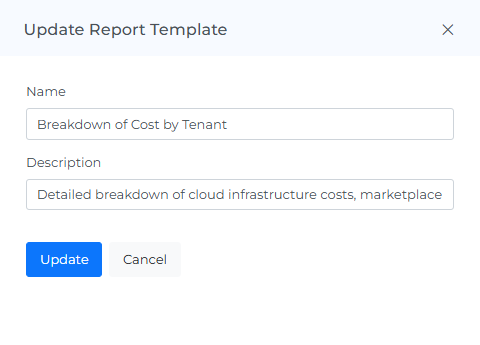
You can change the name and description of a template. You cannot change the report type or what the report contains.
Steps to Edit a Template:
-
Login to Mavvrik.
-
Click on Menu Icon at the top left corner.
-
Click on Reports, then click on Default Reports.
-
Click on the Edit icon for the template you want to change. The Update Report Template panel opens.
-
Update the Name or the Description.
-
Click on the Update button. Click on Cancel to leave the template as it is.
Choose Columns and Download the List
Click on the gear icon above the table to open a list of columns (Name, Description, Type and Created). Clear a checkbox to hide that column. Click on the Download CSV icon next to it to export the list of templates.
Bookmarks and Subscriptions
The Bookmarks tab (Report Bookmarks) lists saved report bookmarks. Its columns are: Name, Description, Template, Owner, Users, Created, and Action.

The Subscriptions tab (Report Subscriptions) lists report subscriptions. Its columns are: Name, Description, Template, Owner, Users, Schedule, Created, and Action.

Both tabs have a search box, a Download CSV icon and a gear icon for choosing columns. A tab shows 0 item(s) until a bookmark or subscription exists.
Troubleshooting
-
If a template has no Preview icon or no Download icon, that is expected. Which actions appear depends on the report type.
-
If you want to change what a report contains, Edit will not do it. Edit changes only the name and description of the template.
-
If the Bookmarks or Subscriptions tab shows 0 item(s), no report bookmarks or subscriptions have been saved in your account yet.
-
If a column you expect is missing from the table, click on the gear icon above the table and make sure its checkbox is selected.
FAQs
Why does a template have no Preview or no Download icon?
The actions depend on the report type. XLSX templates show Download and Edit, Power BI templates show Preview and Edit, and CSV templates show Preview, Download and Edit.
Can I change the report type or contents from Edit?
No. Edit lets you change only the name and description of the template.
Why do the Bookmarks or Subscriptions tabs show 0 items?
A tab shows 0 item(s) when no report bookmarks or subscriptions have been saved in your account yet.
Can I hide columns I do not need?
Yes. Click on the gear icon above the table and clear the checkbox for the column you want to hide.