.png)
Manage Tickets from Backlogs
The backlog features refers to a catalog of tickets awaiting resolution or completed. This support ticket backlog encompasses tickets generated as a result of reported issues related to recommendations across modules (e.g. Savings, Cost Anomaly, Tag Explorer). These reported tickets needs to be addressed.
All recommendation-related tickets are displayed on the backlog page to allow users to monitor their progress. Moreover, you can initiate the creation of tickets directly from the backlog page by following the steps below.
Why this matters: a savings or security recommendation is only useful if someone actually acts on it — otherwise it's just a number on a dashboard nobody follows up on. Turning a recommendation into a ticket, and tracking it here alongside every other recommendation ticket, is what closes that loop and gives you a single place to see what's actually been remediated versus what's still sitting open.
You have the option to create a ticket using either method.
The Backlogs list
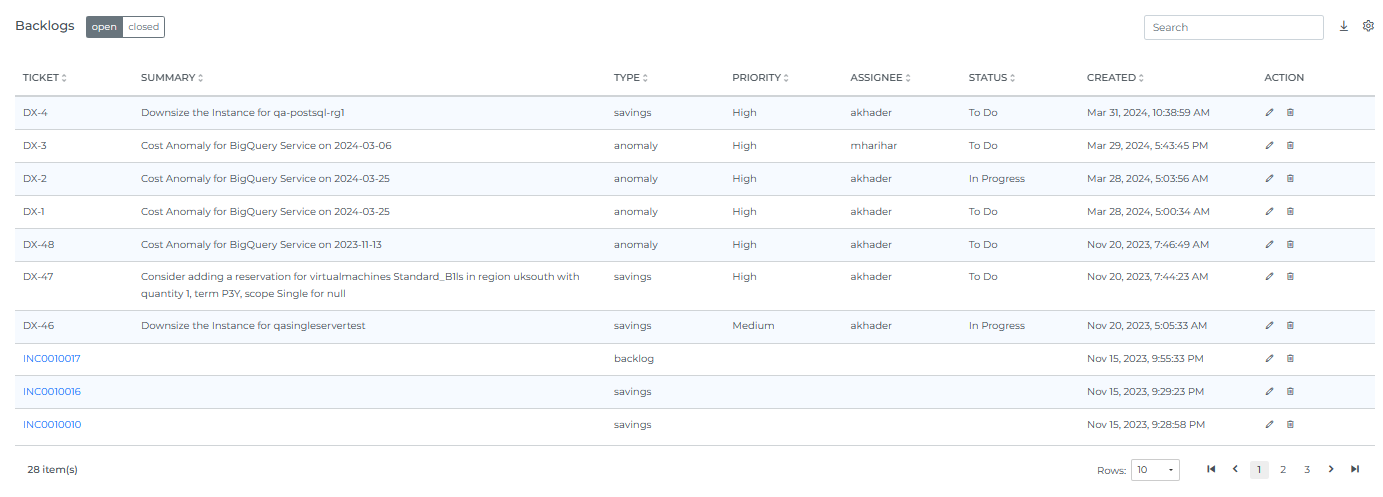
At the top of the list, an open / closed toggle switches between your open tickets and ones that have been resolved/closed.
The list table's columns are: Ticket (links to the ticket in its own system, if it's synced to one), Summary, Type (which module the ticket came from, e.g. savings, anomaly, tag), Priority, Assignee, Status, Created, Reporter, and Action (Edit/Delete).
Create a Ticket from Backlogs
-
Login to Mavvrik
-
Navigate to Backlogs under Operate section
-
Click Create Ticket button
-
Enter the required details:
-
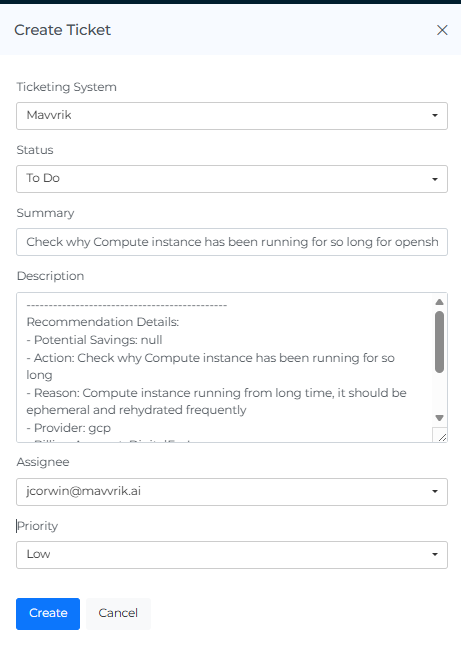
Ticketing System — choose Mavvrik to keep the ticket purely internal with no external sync, or choose one of your tenant's configured ticketing integrations. This list reflects whatever your organization has actually connected — it isn't limited to any fixed set of systems; if you've integrated PagerDuty, for example, it shows up here alongside any Jira, ServiceNow, or Azure DevOps integrations you've set up.
-
Status
-
Summary
-
Description
-
Assignee
-
Priority
-
When a ticket is generated through an integrated ticketing system, it will also be visible in that system's own portal.
Create a Ticket from Recommendations
Steps to Create a Ticket
-
Login to Mavvrik
-
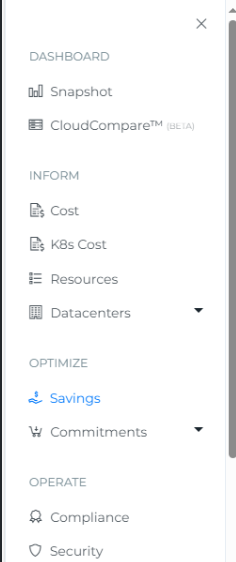
Click on Menu
-
Click on the module for which you want to create a ticket (e.g;-Savings)
-
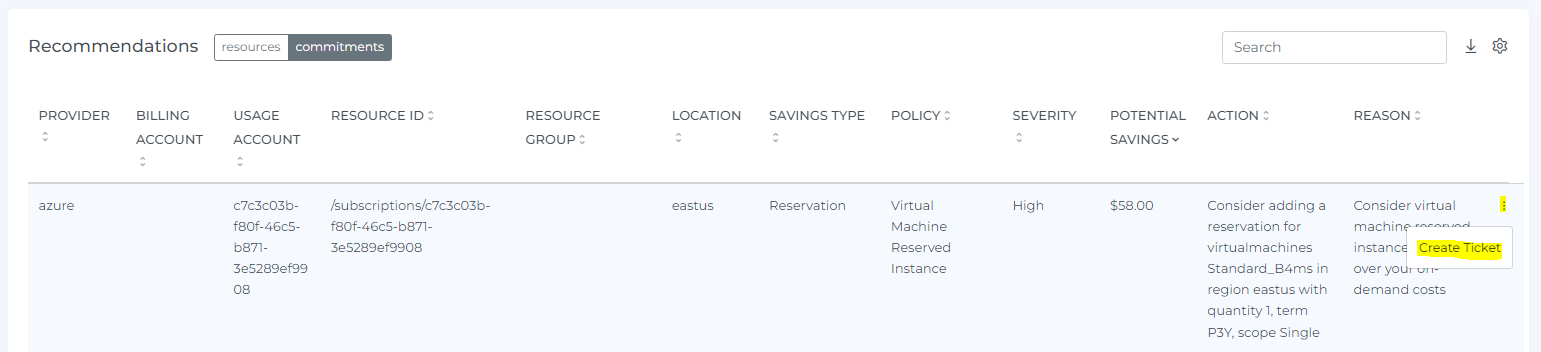
Go to Recommendations Resources /Commitments
-
Click on ':' three dots.
-
Click on Create Ticket (Ticket Page will be open)
-
The details will capture automatically. (You can edit the ticket details as per your choices)
-
Click on Create button.
-
The ticket will get created.
-
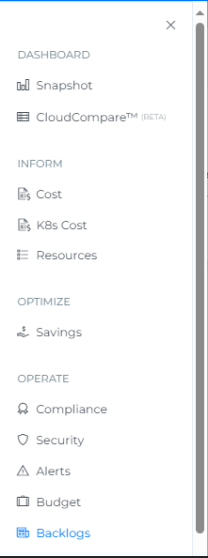
To view the tickets, Go to Menu → Backlog.
-
The Created tickets will be displayed as below under Backlogs module. When you select the number of rows, you will be able to view that same quantity of rows on the page.
Edit a Ticket
Steps to Edit a Ticket
-
Login to Marvvrik
-
Click on Menu Icon at the top left corner.
-
Click on Backlogs under Operate
-
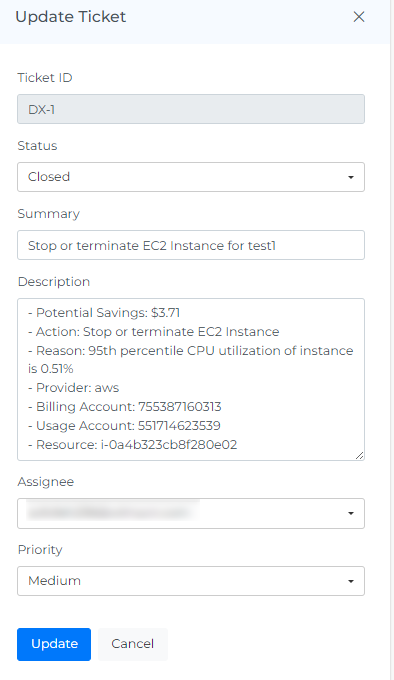
Click on the edit icon of the Backlog ticket which you want to edit (Update Ticket page will be opened)

-
Update anything you want to update.
-
Click on Update Button
Delete a Ticket
Steps to Delete a Ticket
-
Login to Mavvrik
-
Click on Menu Icon at the top left corner.
-
Click on Backlogs under Operate
-
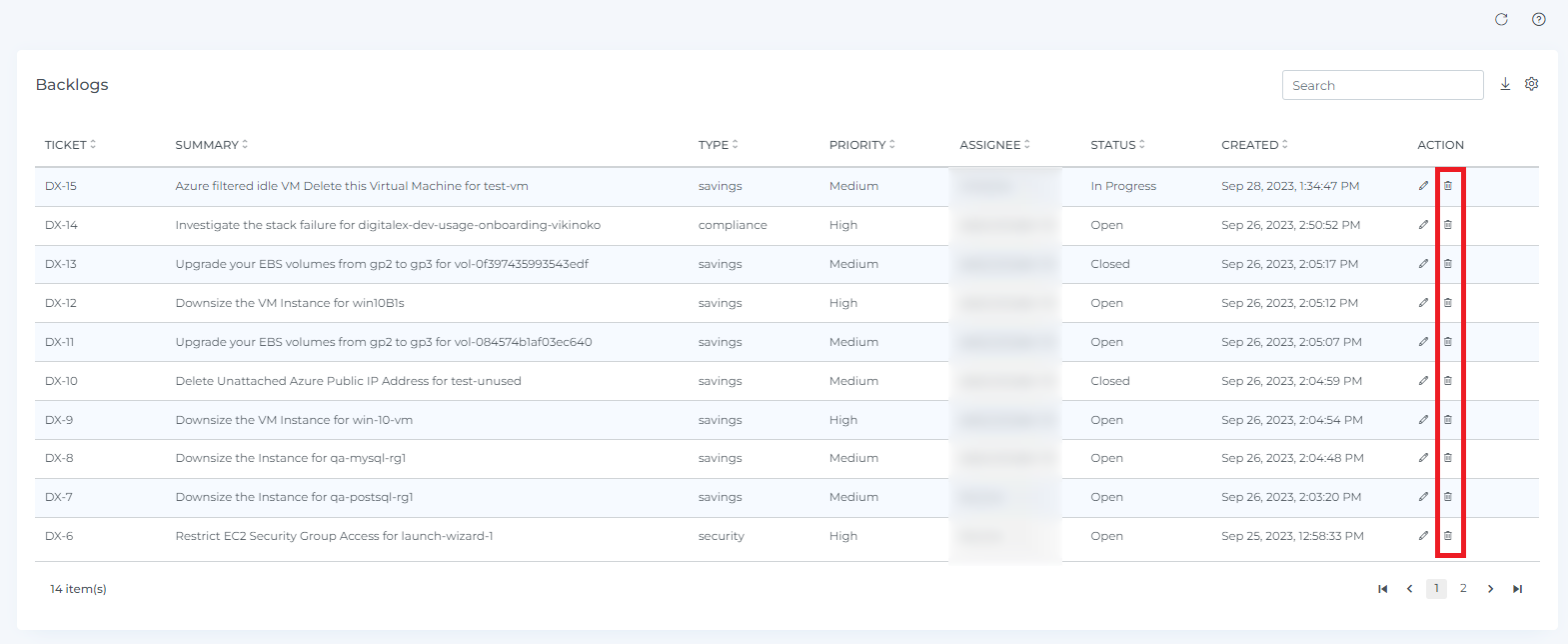
Click on the delete icon of the Backlog ticket which you want to delete.
-
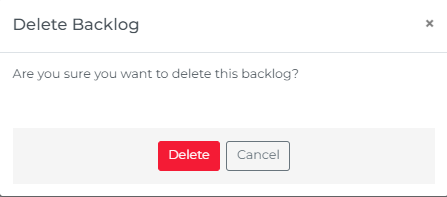
Click on Delete Button from pop-up (Click on the Cancel or X icon to close the pop-up)
-
Backlog is deleted from the List.
-
When a ticket is deleted from the backlog page, all backlogs belonging to that user will also be deleted from their respective backlog pages.
Troubleshooting
-
If a ticket created from a recommendation doesn't appear in your integrated ticketing system's portal, confirm that integration is still connected — tickets created here only sync to a system if it was selected and is active.
-
If a ticket seems to be missing from your Backlogs list, check whether it was created by, or shared to, a different user — visibility here follows the same per-user pattern as deletion. Also check the open/closed toggle at the top of the list — a resolved ticket won't show under "open".
FAQs
If a ticket is created through an integrated ticketing system, do I also need to check Mavvrik's Backlogs page separately?
Both stay in sync — a ticket created via a connected ticketing integration is also visible in that system's own portal, so you can track it from either place.
What happens when I delete a ticket from Backlogs?
It's removed from the list, and any other backlog entries tied to that same user's own backlog page are removed too.