.png)
Introduction
Mavvrik's budget feature allows you to track and be alerted of your organization's spending on resources based on the set strategic budget amount. You can check the progress of your budgets from the dashboard. By setting up alerts, users will be kept updated on budget progress. The budget performance for the past 12 months can also be checked by clicking 'History' from the actions menu
Why this matters: a budget number only matters if you find out you're off track while there's still time to course-correct — checking in at month-end tells you what already happened, not what you can still change. Setting a threshold alert here means you get notified as spend approaches the limit, with enough runway left in the month to actually do something about it.
This shows up differently depending on your role:
-
FinOps managers use Budgets as the enforcement layer on top of Perspectives — scoping a budget to a specific team or environment and getting notified before that scope overspends, rather than discovering it at month-end reconciliation.
-
Finance leaders use budget-vs-actual history to validate forecasts and spot which teams consistently run over, informing next quarter's planning.
-
Engineering leads use their team's budget threshold alerts as an early warning to investigate a spend spike (a runaway job, an oversized cluster) before it becomes a bigger problem.
Budget Calculation and Alerts
-
Budget period:
-
If a start date and end date are set, the budget amount will be calculated and checked against the threshold for that specific period on a daily basis.
-
If no start/end dates are set, the system will instead use the most recent budget update date. From that date, it will consider the 4 months prior up to the current month (to date).
-
-
Daily check and alerts:
This runs once per day. If the budget amount crosses the defined threshold, an alert will be triggered.
Budget Workflows
The Budgets list
This is the page you land on before creating a budget. Alongside the "+ Budget" button, the page header also has Share, Bookmark, Subscription, Screenshot, Info, Reload, and Help icons.
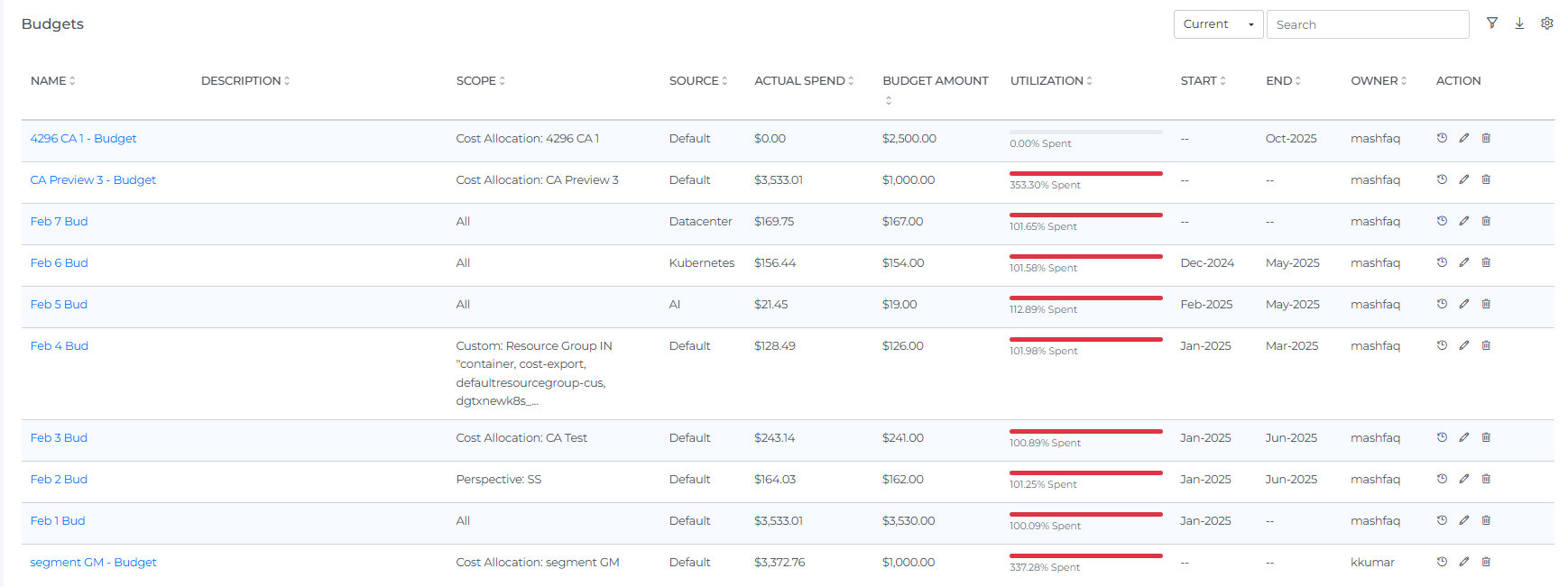
The list table's columns are:
-
Name — clicking it takes you directly to the page the budget's scope applies to (Cost, AI Assist, a specific Cost Allocation, etc.), with the same cost options pre-applied.
-
Description
-
Scope —
All,Perspective: <name>, orCost Allocation: <name>. -
Source — the Data Source, e.g. Cloud, AI Assist.
-
Actual — actual spend so far against the budget.
-
Budget — the budget amount.
-
Utilization — a progress bar showing % spent (can exceed 100% if over budget).
-
Start / End
-
Owner
-
Created
-
Action — History, Clone, Edit, and Delete icons.
Tip: clicking a budget's Name jumps straight to the page its scope applies to, with the same cost options already applied — a quick way to look at what a budget is actually tracking.
Steps to create a Budget
-
Login with user roles as Owner/Editor
-
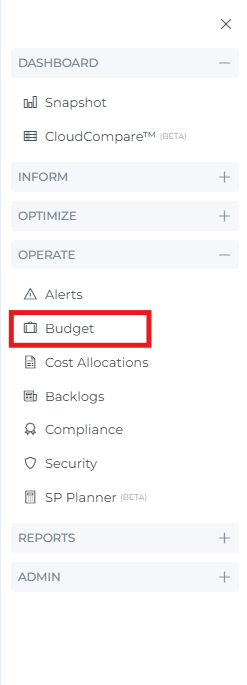
Click on Menu
-
Click on Budget
-
Click on +Budget
-
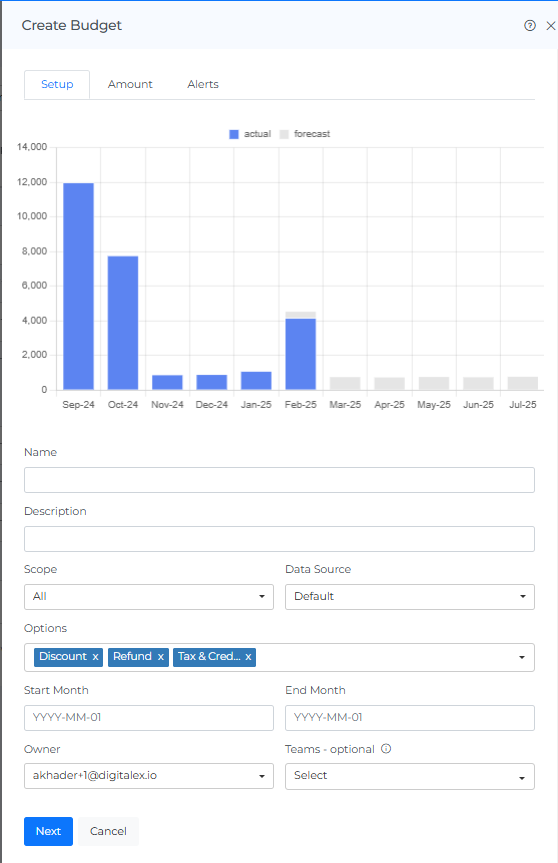
Enter Name & Description
-
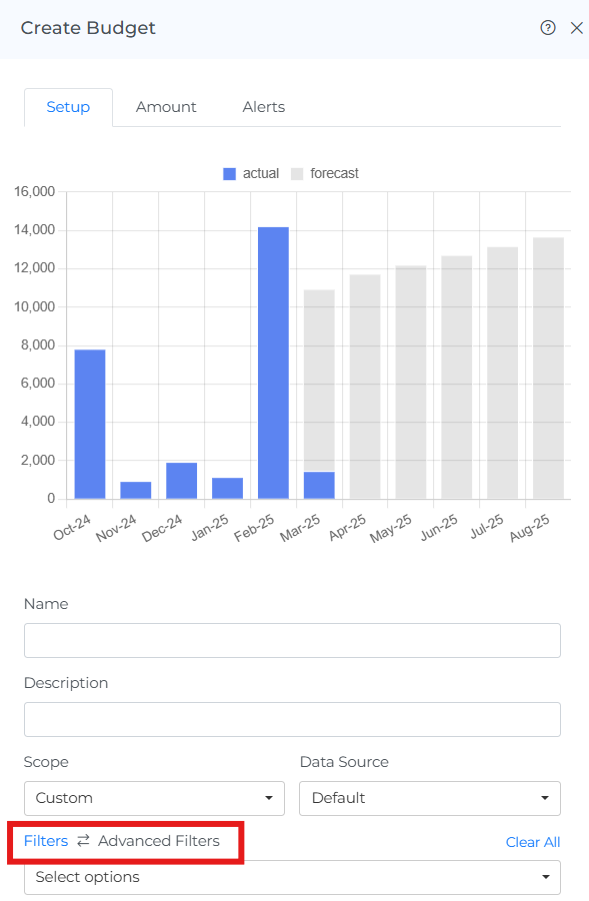
Select Budget Scope: All, Perspective, Custom, or Cost Allocation
-
All (default): all resource costs will be tracked for the budget.
-
Perspective: select perspectives which are already created (Perspectives ) & that perspective's filters will be applied to the budget..(Perspectives)
-
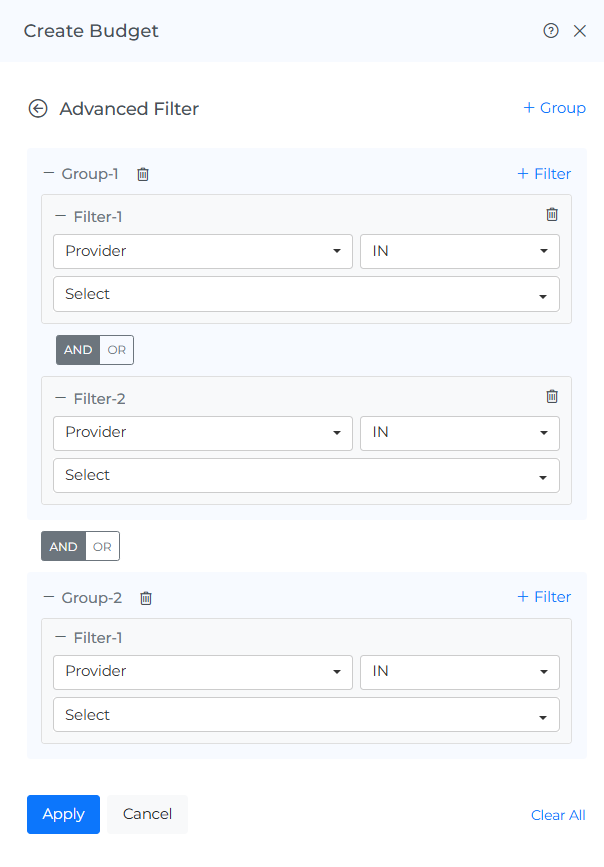
Custom: create your own custom filters using basic or advanced filter for budget
-
Cost Allocation: scope the budget directly to one of your existing Cost Allocations — you can create a budget for an allocation at any level (business, segment, unit, or shared cost). This is its own Scope option, not a variant of Custom.
-
-
Select Data Source: Cloud/AI/Kubernetes/Datacenter/SaaS
-
Cloud: All public cloud accounts cost will be tracked for the budget.
-
AI: All AI accounts cost will be tracked for the budget.
-
Kubernetes: All Kubernetes accounts cost will be tracked for the budget.
-
Datacenter: All Datacenter accounts cost will be tracked for the budget.
-
SaaS: Select the SaaS like Databricks,MongoDB etc which you onboarded
-
-
Configure how the cost is calculated:
-
Cost Field — a dropdown for Actual, Net Actual, Amortized, or Net Amortized, the same cost-field choice used on the Cost dashboards.
-
Options — Discount / Refund / Tax & Credit toggle chips, all included by default; click the "x" on any of them to exclude that component from the budget's cost calculation.
-
-
Enter the start Month and end Month.
-
select the owner of the budget
Best practice: the budget owner is typically the person who set it up, but that person can leave the team or the company while the budget itself keeps running and alerting. If the owner's access is later deactivated, alerts tied to them may stop reaching anyone. Reassign ownership when a team changes hands, rather than leaving a budget pointed at someone who's no longer there to act on it.
-
you can select the team also
-
Click on Next — this moves you to the Amount tab
The Amount tab
-
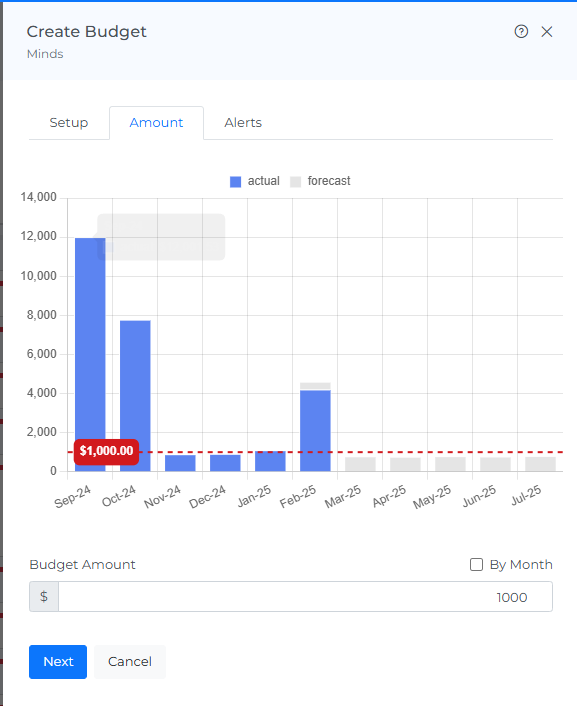
Enter the Budget Amount ($) — this is the total budget for the whole period you set in step 9.
By Month: check this box to replace the single total with a full month-by-month table (spanning roughly two years, past and future) where you set a different budget amount for each individual calendar month instead of one flat total for the whole period. Useful when spend is expected to ramp up or down across the year rather than stay flat.
-
Click on Next — this moves you to the Alerts tab
(If you want to add the Alerts then follow the following Steps otherwise jump to Step 19)
-
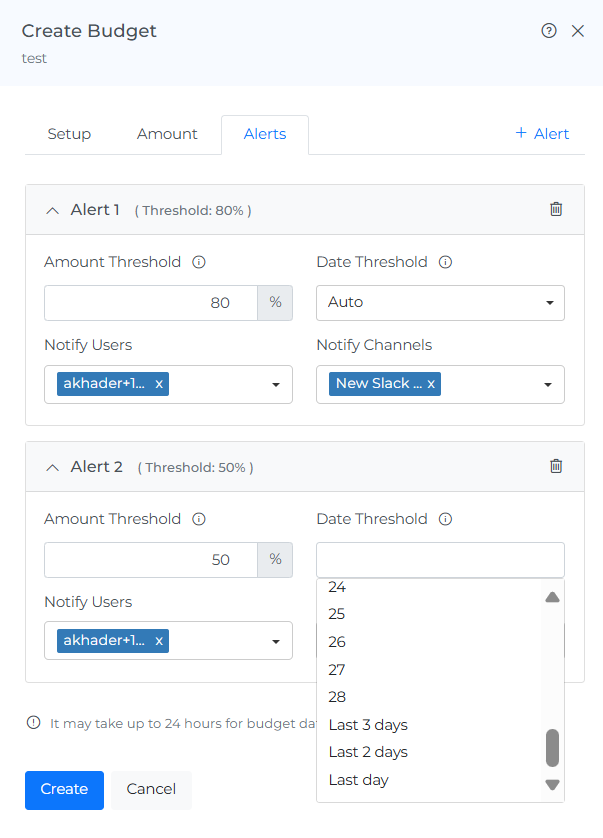
Enter % of the budget as a threshold. So you will be notified once the budget amount reached the threshold value.
-
Auto: don't trigger alert if it's a 'natural' cost progress in the month, e.g. for alert with threshold 90%, and if this month has 30 days - only alert if the actual cost exceeds 90% of the budget amount before the 27th of the month.
-
Set Date, e.g. for alert with threshold 75% and date-threshold is set to 20 - only alert if the actual cost exceeds 75% of the budget amount before the 20th of the month.
-
Note. fix date is only provided for 1st to 28th … for the remainder date of the month, use 'Last 3 days', 'Last 2 days' and 'Last day' options.
-
Select the users to Notify ( You can select multiple users)
-
Select channels to Notify ( You can select Multiple Channels)
Note:
-
To be notified through channels, you need to create different channels from the Integration moduleIntegrations
-
A maximum of 5 alerts can be added
-
Click on Create
-
New Budget is created and displayed as shown below.
When you select the number of rows, you will be able to view that same quantity of rows on the page.
-
After creating the budget, it may take up to 24 hours for the system to discover the data. Currently, only monthly budgets are supported.
-
Users can view specific notifications if they are added as notified users for a specific alert."
Steps to view the Budget History
-
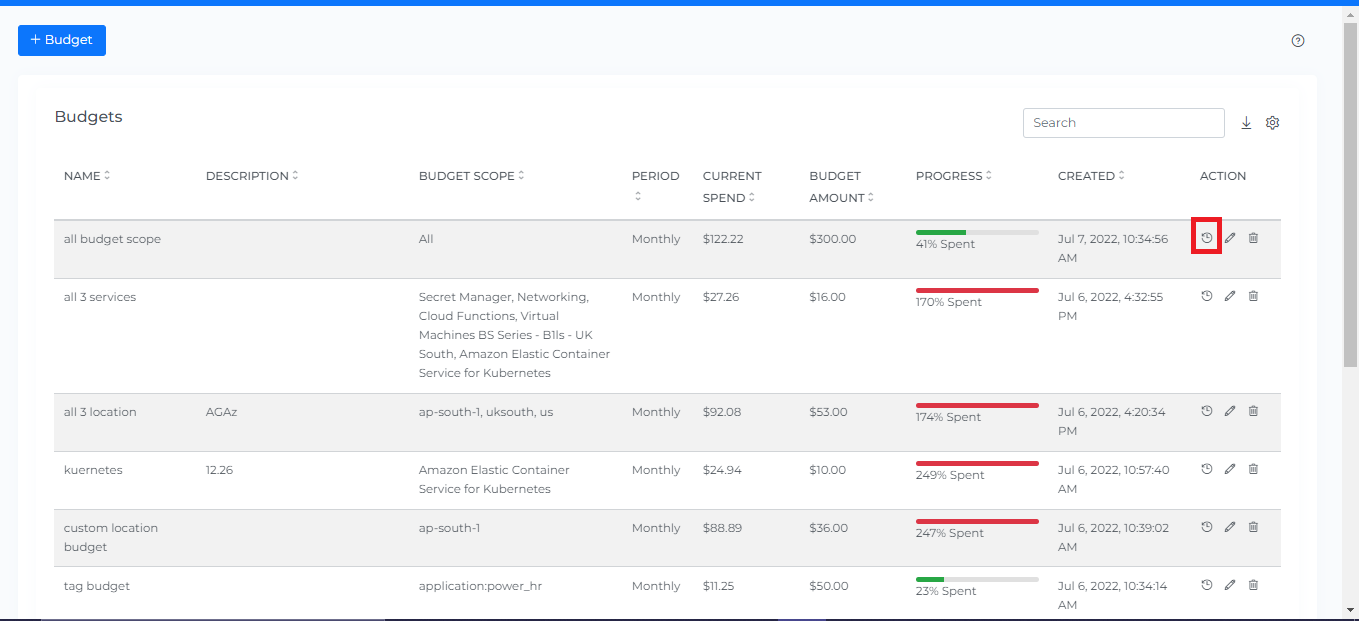
Click on the History icon
-
The history of budgets will be displayed as follows (the forecast can be viewed on the hovering grey bar chart)
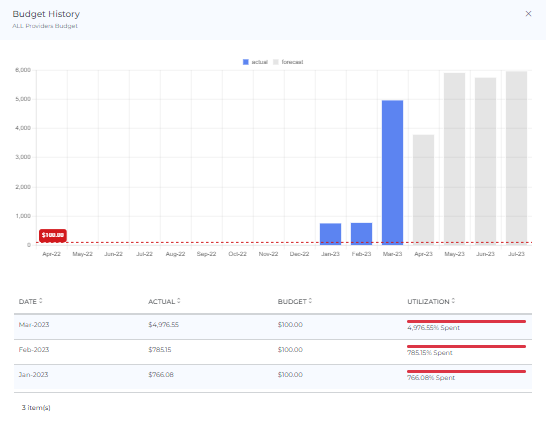
Note: Budget history begins on the budget creation date and up to 12 months of history will be displayed
Steps to edit Budget
-
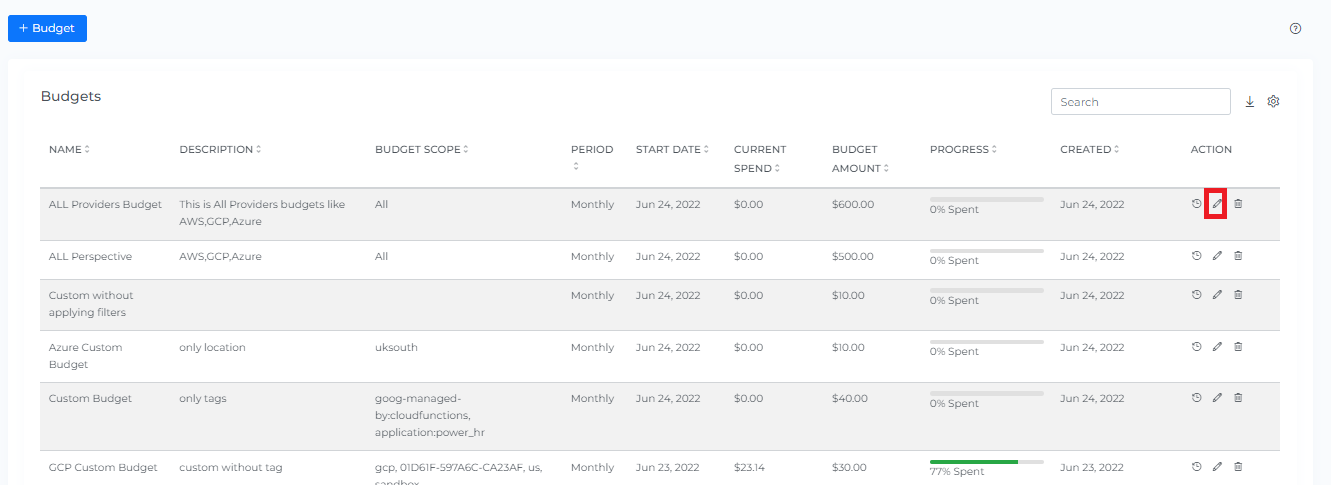
Click on the Edit icon
-
Change the Amount
-
Click Update
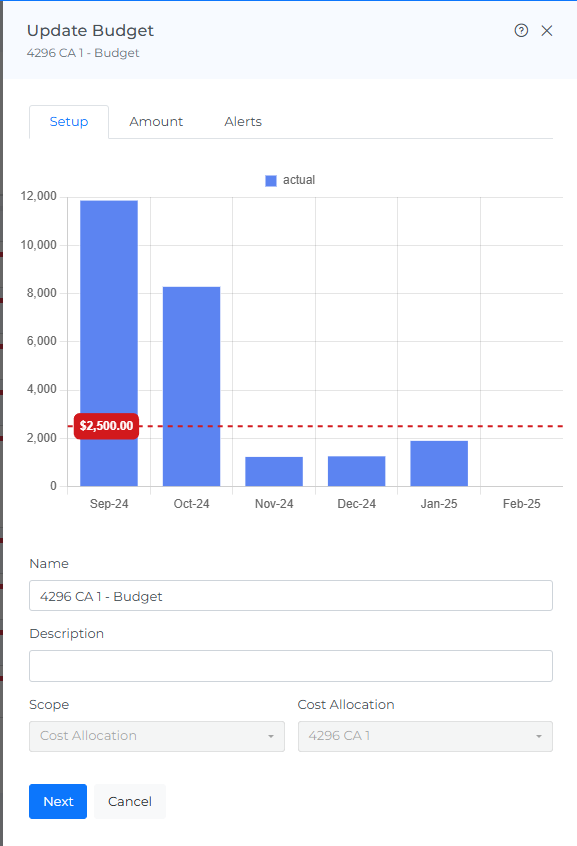
Note: The scope and filters cannot be changed.
Steps to Delete Budget
-
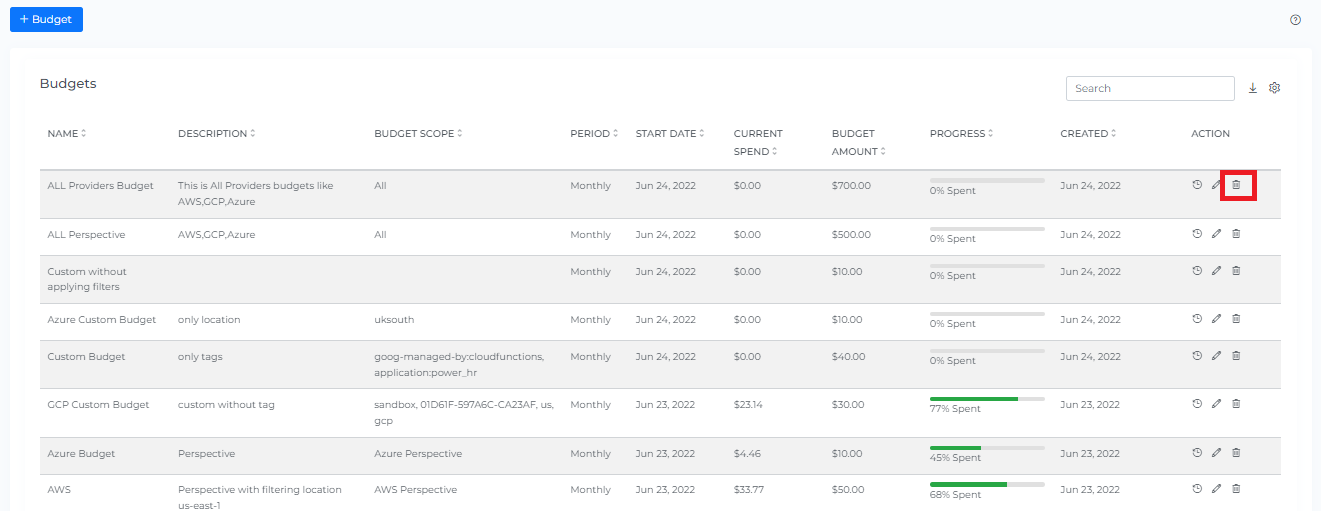
Click on the Delete icon
-
Click Delete from the pop-up
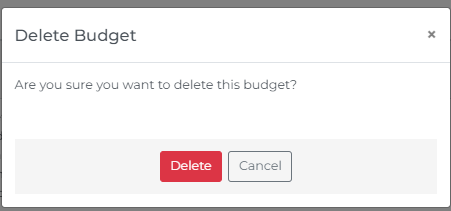
Note: Deleting a budget will permanently delete it and its history
Clone Budget
Clone an existing budget to quickly create a new one with the same setup already in place.
This is useful when you need a similar view for another team, business unit, environment, or customer use case.
Instead of rebuilding filters and structure from scratch, you can start with a copied version and make only the needed changes.
The cloned budget is independent, so updates to it do not affect the original.
-
Login with user roles as Owner/Editor
-
Click on Menu
-
Click on Budget under Admin

-
Click on the Clone icon (You can see same filtered options selected)
-
Edit the required filters
-
Click Next → Next → Create
Page Tools
Header Icons

Share
If you click on the "share" link, a link to the current page will be copied to your clipboard. You can then share this link with other team members, allowing them to access the same data and filters as you. This can be useful for collaborating with others and sharing information about your Budgets.
Bookmark and Subscription
The header also includes Bookmark and Subscription icons. See Subscriptions for how the Subscription feature works.
Screenshot
If you click on the camera icon, you can take a screenshot of the current page and download it as a PDF file. This can be useful for saving a copy of the data or for sharing it with others.
Reload Option
The "reset" option allows you to clear all filters and selections from the page, returning it to the default view. This can be useful if you want to start over or view the data in its original form.
Info
The "last updated" date and time stamp show when the data on the page was last refreshed. This can be useful for understanding the age of the data and determining if it is up to date.
Help
If you click on the "?" icon, you can access the help documentation for the page. This can provide you with additional information and guidance on using the page and its features.
Troubleshooting
-
If a newly created budget shows no data yet, this is expected — it can take up to 24 hours for the system to discover and populate data after creation.
-
If budget alerts stop arriving, check whether the budget owner or notified users are still active accounts — an alert tied to a deactivated user will stop reaching anyone.
-
If you need to change a budget's scope or filters and can't find the option, that's expected — scope and filters are locked after creation. Clone the budget to start a new one with a different scope instead.
FAQs
What happens if actual spend exceeds the budget amount?
Nothing is blocked or stopped automatically — a budget in Mavvrik is a tracking and alerting tool, not a hard spending cap. Exceeding it triggers whatever threshold alerts you've configured; it doesn't prevent further spend. The Utilization column can show more than 100% Spent when this happens.
Can I change a budget's scope after creating it?
No — the scope and filters are locked once a budget is created (only the amount can be edited afterward). If the scope needs to change, clone the budget and create a new one with the corrected scope instead.
Can I set a different budget amount for each month instead of one flat total?
Yes — on the Amount tab, check "By Month" to replace the single Budget Amount field with a month-by-month table where you set each calendar month's amount individually.
Can I scope a budget directly to a Cost Allocation?
Yes — Cost Allocation is one of the four Scope options (alongside All, Perspective, and Custom), letting you track a budget against a specific allocation at any level (business, segment, unit, or shared cost).