.png)
Manage bookmarks
Bookmarks allow you to save customized configurations, such as chart type, filters, and page filters, on pages for future reference. You can view or modify created bookmarks from the bookmarks page at any time. Favorites allow you to quickly access your most important configured bookmarks.
Why this matters: if you regularly check the same filtered view — a specific provider, a specific team's costs, a specific date range — rebuilding those filters every time you visit the page is friction that adds up. A bookmark saves that exact configuration once, so getting back to it is one click instead of reconstructing it from scratch.
-
Logged In user can not create bookmarks on his user id. By default bookmarks created by the logged-in user are displayed under bookmarks.
Which pages support Bookmarks: this isn't limited to a fixed set of modules — it's available on most dashboard-style pages across Mavvrik (Cost, Resources, Commitments, Budget, Cost Anomaly, Virtual Tags, Perspectives, and others). The reliable way to check is to look for the Bookmark icon in that page's own header; if it's there, you can bookmark that page.
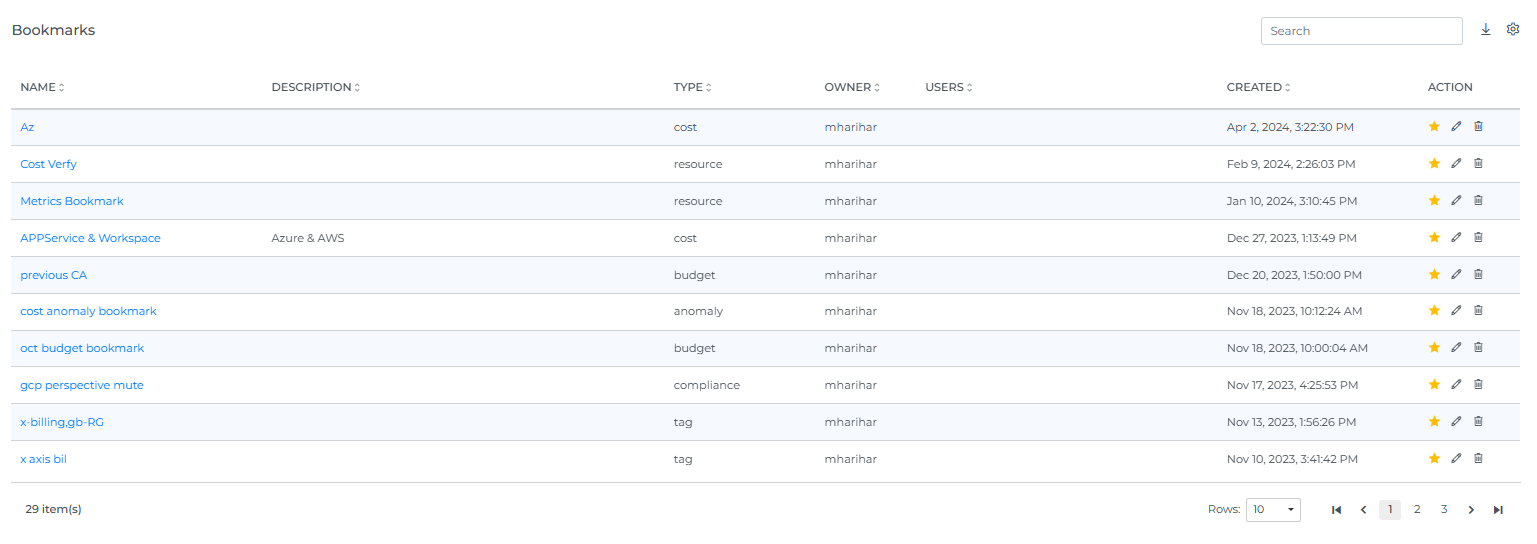
The Bookmarks list
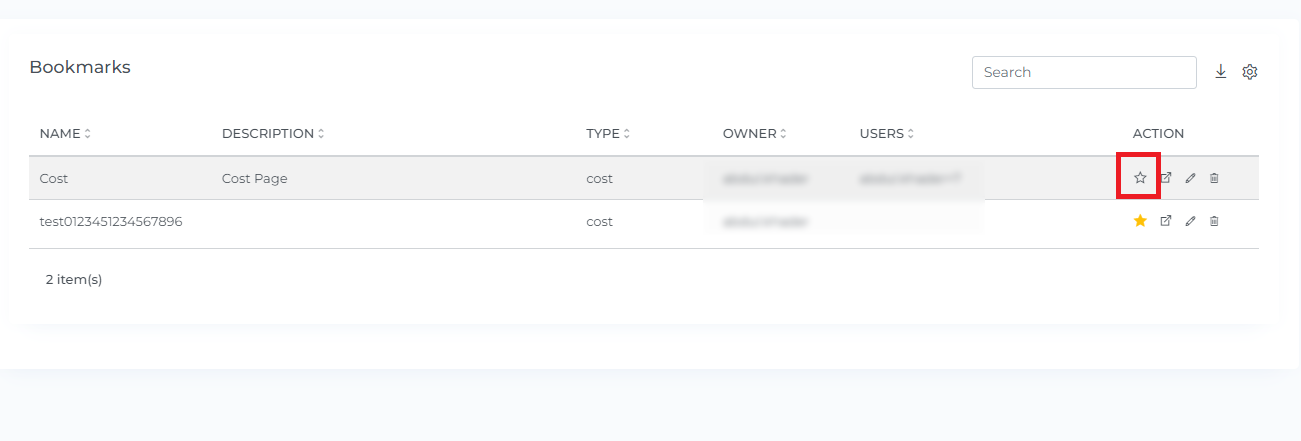
The list table's columns are: Name, Description, Type (the module the bookmark is from), Owner, Users (who it's shared with), Created, and Action.
Steps to Create Bookmarks:
-
Login to Mavvrik.
-
Click on Menu Icon at the top left corner.
-
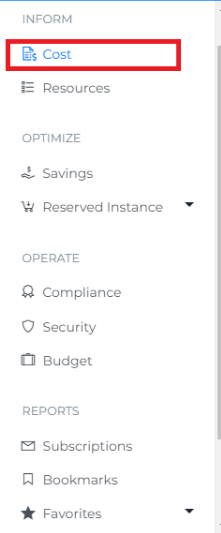
Click on the module for which you want to bookmark (e.g;-Cost)
[Bookmarks are available on most dashboard-style modules — look for the Bookmark icon in that page's header]
-
If you want to create bookmarks without customizing the dashboard and filtering the cost chart, you can follow below steps
-
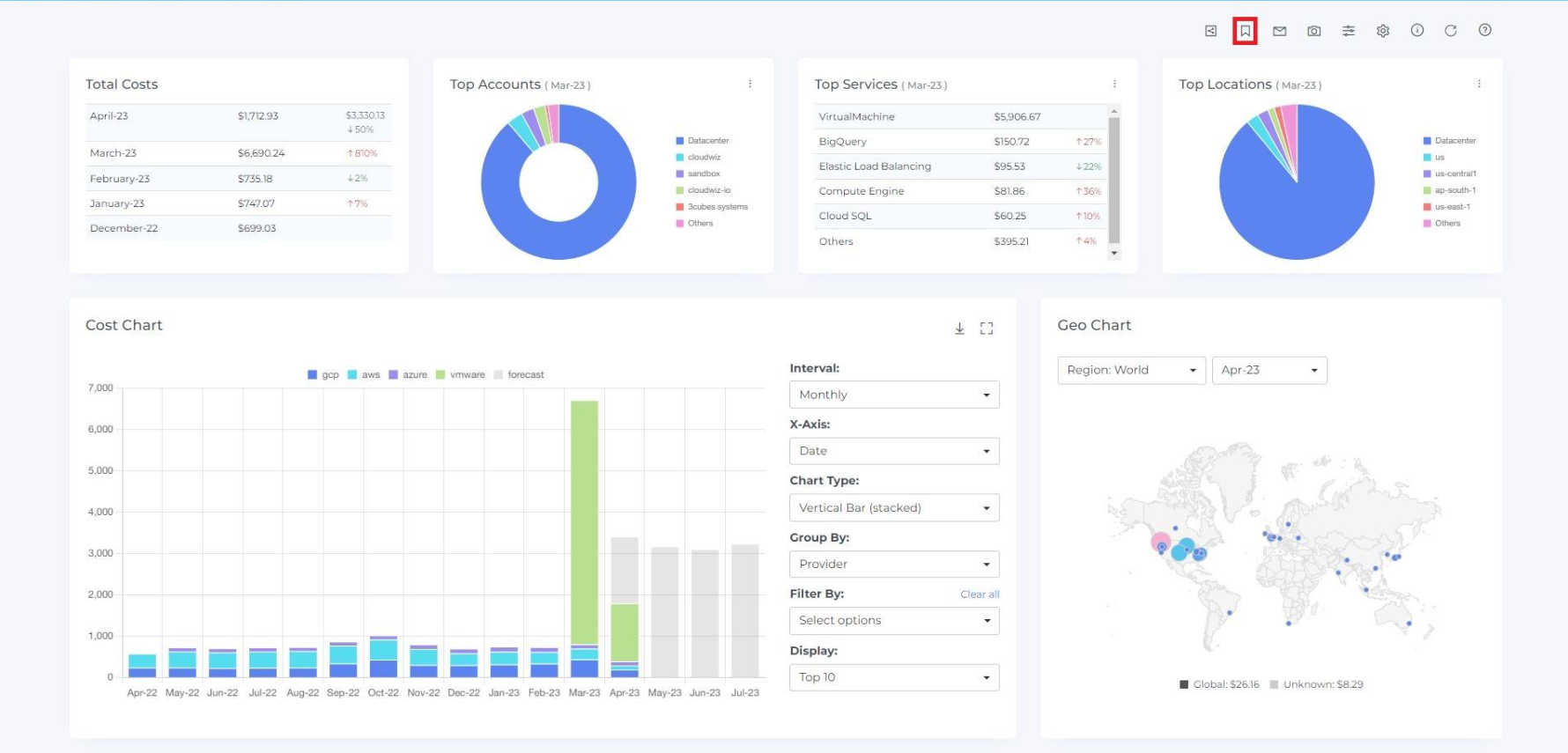
If you want to create bookmarks by customizing the dashboard and filtering the cost chart (e.g. selecting a particular interval, provider, service, or location), you can customize the dashboard and filter the cost chart before following these steps
-
Click on the Bookmark icon at the top right corner.
-
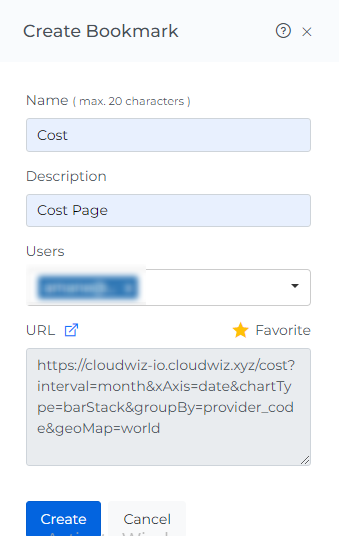
Enter the Name and Description of the Bookmark
-
Select the users to whom you want to share this bookmark.
-
If you want to mark this bookmark as a favorite (which will display directly in the side menu), click on the star icon
-
Verify your configuration by clicking on link icon.
Edit Bookmark
You can edit any aspect of the bookmark except for the configuration (i.e. URL). If you want to change the configuration, you will need to delete the bookmark and create a new one
-
"Only the user who creates a bookmark can edit it."
Steps to Edit Bookmarks:
-
Login to Mavvrik
-
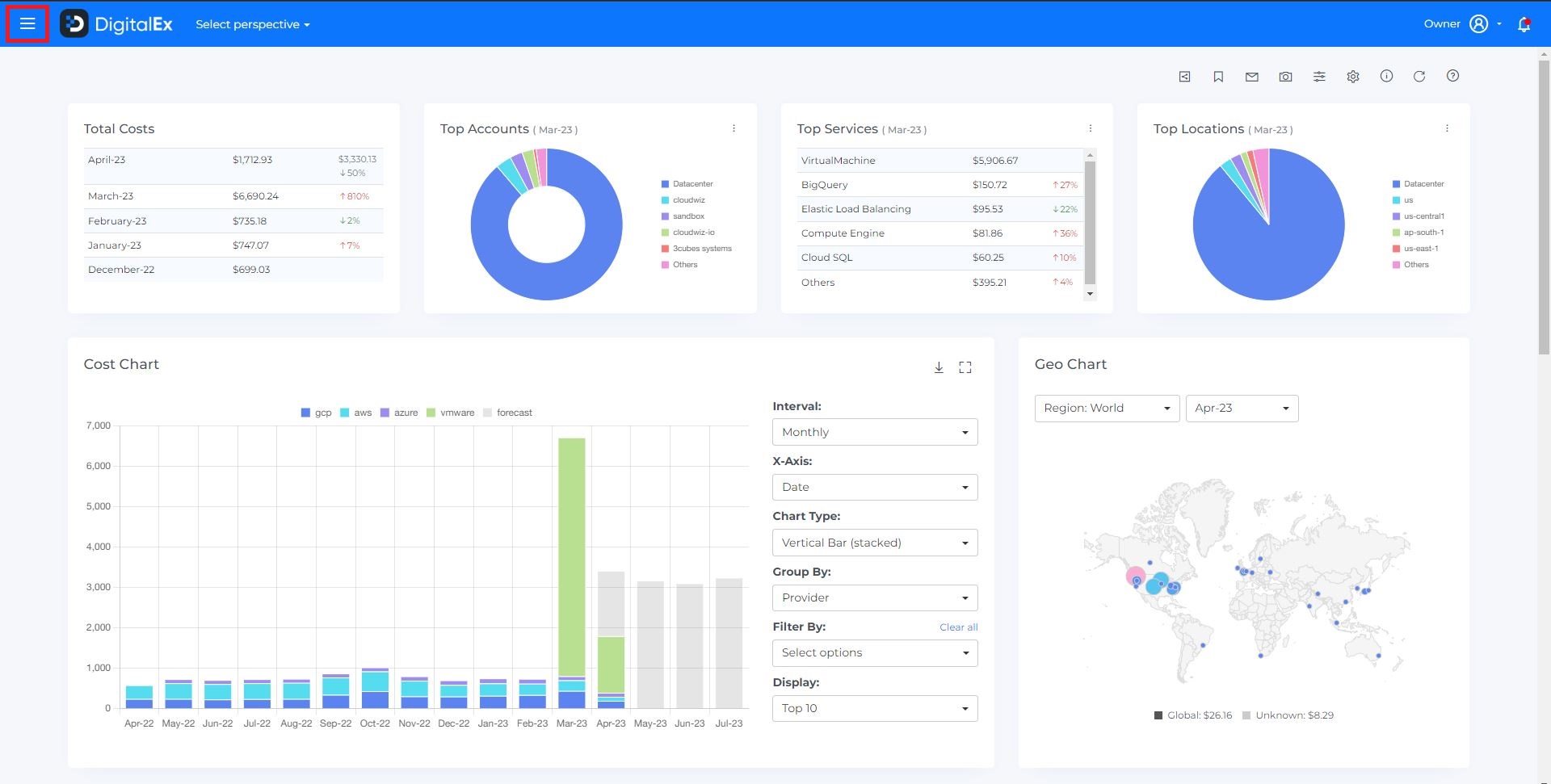
Click on Menu Icon at the top left corner
-
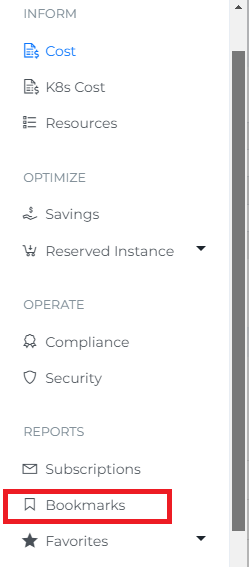
Click on Bookmarks
-
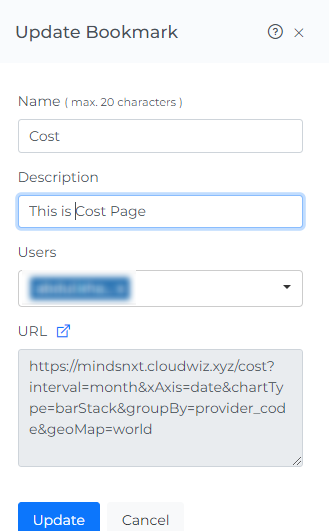
To edit a bookmark, click on the edit icon for that bookmark (which will open the update bookmarks page)

-
Update anything you want to update
-
Click on the Update Button
Delete Bookmark
-
If the user who created a bookmark chooses to delete it, the bookmark will be deleted for that user and will also be removed from the bookmark lists of all other users
-
"If a user who has been added to a bookmark chooses to delete it, the bookmark will only be deleted for that user. However, the user who created the bookmark will be notified of the change."
Steps to Delete Bookmarks:
-
Login to Mavvrik
-
Click on Menu Icon at the top left corner
-
Click on Bookmarks
-
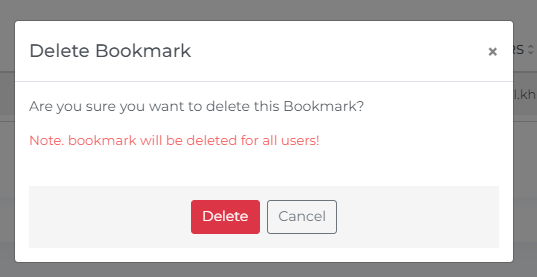
Click on the delete icon of the bookmarks which you want to Delete.

-
Click on Delete
-
Bookmark is deleted from the List
-
Click on the Cancel or X icon to close the pop-up
Note: Only the user who created a bookmark is allowed to see which users are included in that bookmark.
Favorites
Add Favorites
-
You can only add favorites for your own account.
Steps to Add in Favorites:
-
Login to Mavvrik
-
Click on Menu Icon at the top left corner
-
Click on Bookmarks
-
To add a bookmark to your favorites, click on the star icon (which will turn yellow to indicate that it has been added to your favorites)
View Favorites
-
"You can only view your own account's favorites."
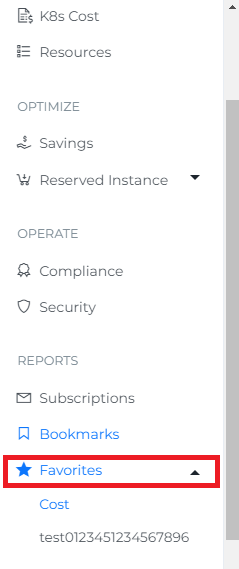
Steps to View Favorites:
-
Again click on Menu Icon at the top left corner
-
Click on Favorites
-
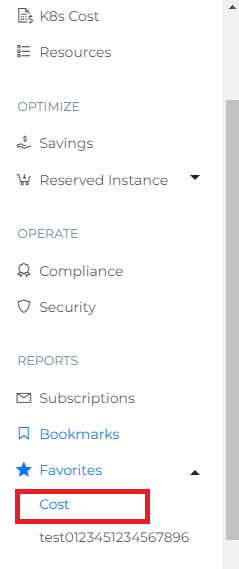
"You will be able to see the favorite bookmark page listed in the favorites section."
-
Click on your favorite bookmark
-
You will be able to see the pages that you have bookmarked as favorites.
When you select the number of rows, you will be able to view that same quantity of rows on the page.
Remove Favorites
-
"You can only remove favorites from your own account."
Steps to Remove from Favorites:
-
Login to Mavvrik
-
Click on Menu Icon at the top left corner
-
Click on Bookmarks
-
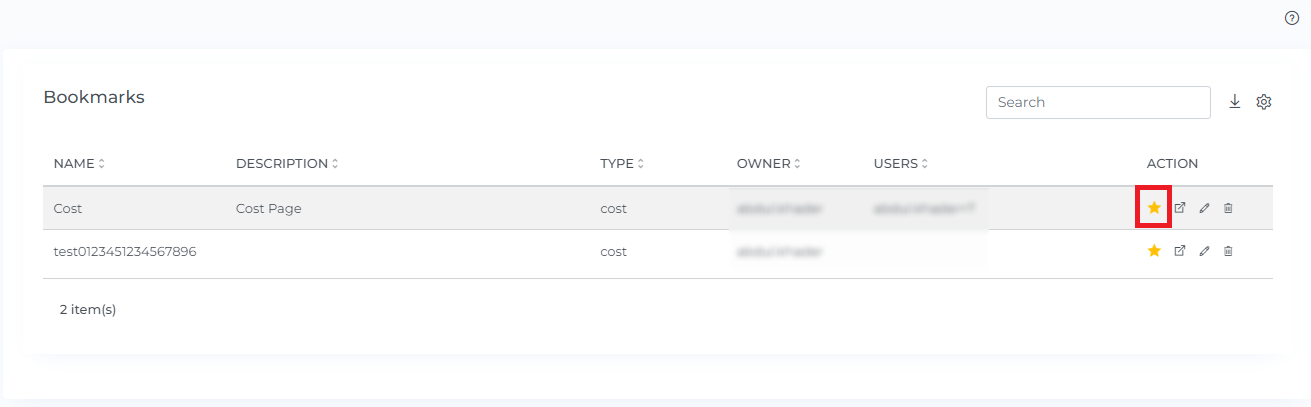
To remove a bookmark from your favorites, click on the star icon (which will turn white to indicate that it has been removed from your favorites)
Troubleshooting
-
If you can't edit a bookmark, confirm you're the original creator — only the person who created a bookmark can edit it, even if it's been shared with you.
-
If a bookmark you expect to see is missing, check whether it was created by someone else and shared with you versus being your own creation — either way it should appear in the list, but only the creator can see the full sharing details.
-
If a page doesn't seem to support Bookmarks, check its header for the Bookmark icon — if it's not there, that page doesn't support this feature.
FAQs
What happens to a shared bookmark if I delete it?
It depends who deletes it. If the person who originally created the bookmark deletes it, it's removed for everyone it was shared with. If someone it was shared with deletes it, it's only removed for that person — the creator is notified, but their own bookmark stays intact.
Can I change a bookmark's filters after creating it?
No — only the name, description, and sharing can be edited afterward. If you need to change the underlying configuration (filters, chart type, etc.), delete the bookmark and create a new one with the updated settings.
Which pages can I create a Bookmark from?
Most dashboard-style pages across Mavvrik support it — it's not limited to a specific short list of modules. Look for the Bookmark icon in that page's header; if it's there, you can bookmark it.