.png)
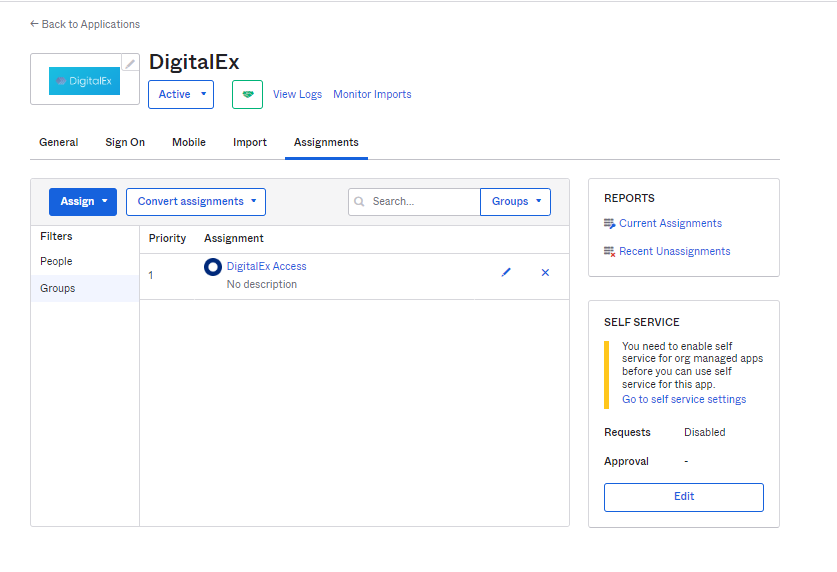
Below is the description of the steps to assign users to an app
-
Click on Applications > Applications
-
Click on the Application that you have created.
-
Click Assignments.
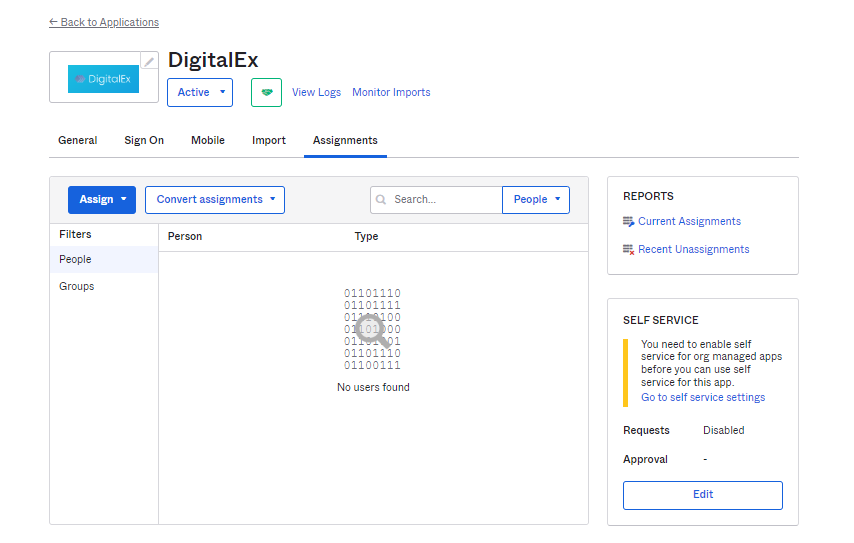
-
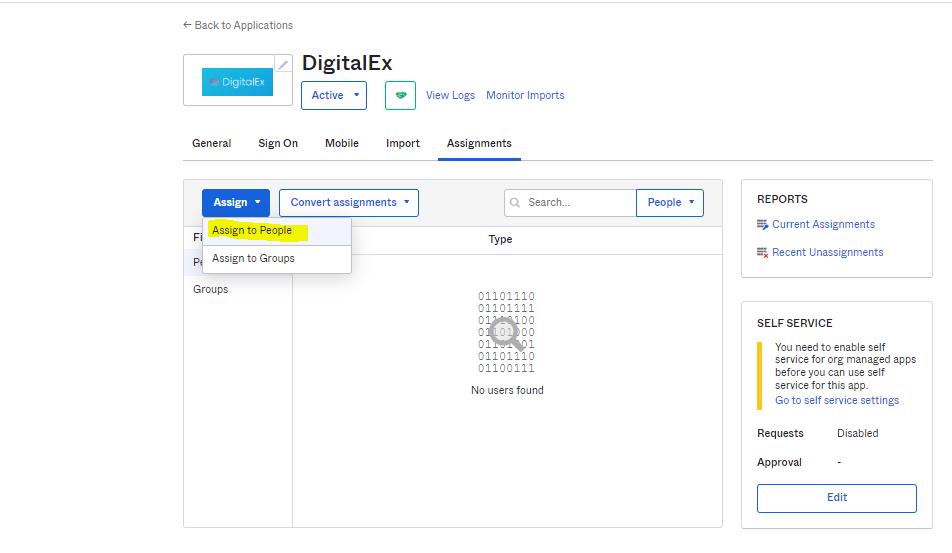
Click on Assign > Assign to People
-
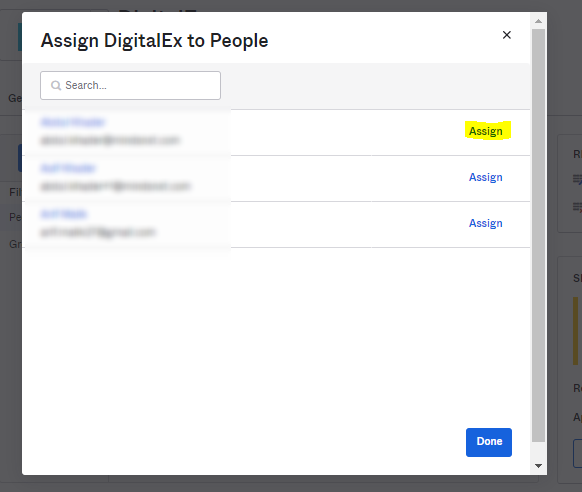
Click on Assign to whom you want to give access to an Application.
-
Click Save and go back
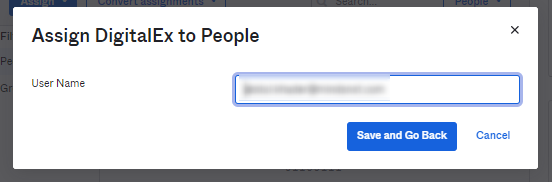
-
Status gets changed to assigned.
-
You can assign multiple users to the application by repeating above steps.
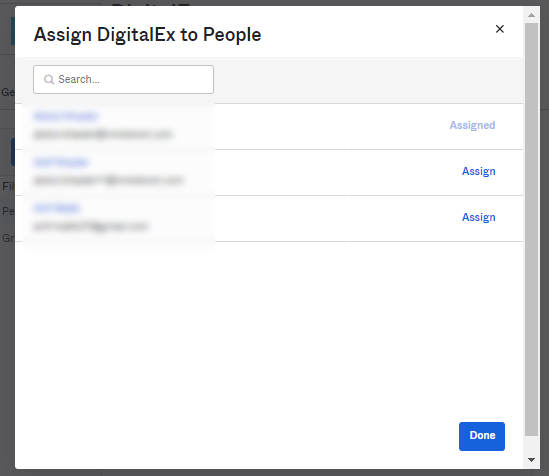
-
Click on Done. Users are assigned successfully to an application as shown below
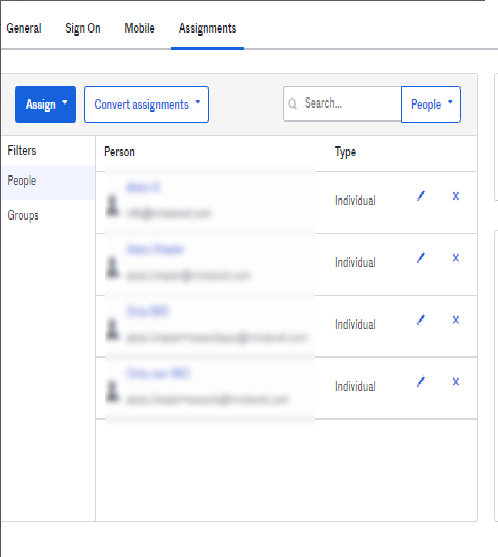
-
Alternatively you can also assign a group of users if you have already created a group.
-
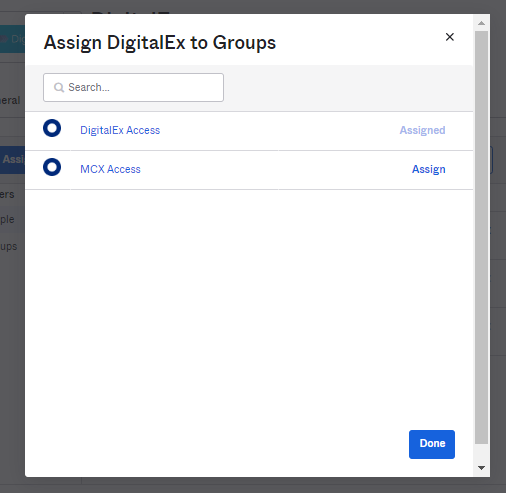
Click Assign > Assign to Groups.
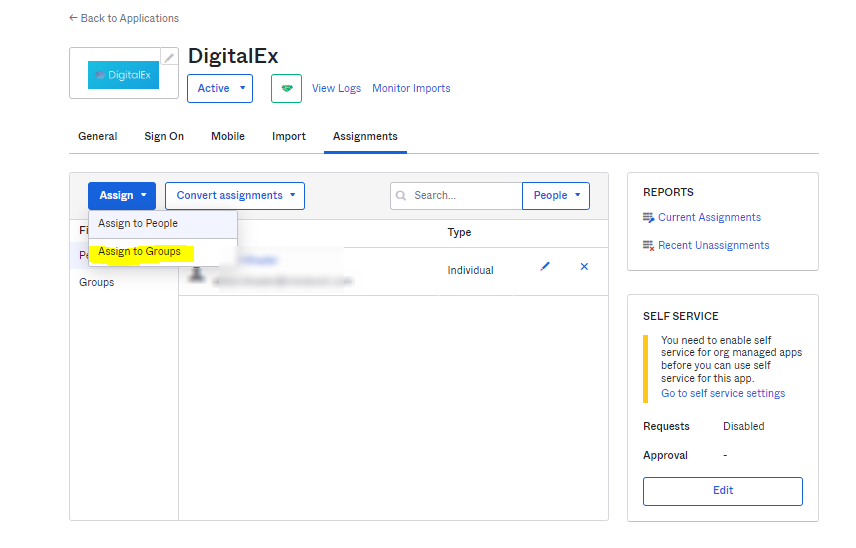
-
Click Assign for which group of user you want to give access to this application.
-
Click Done
-
Group is assigned to an Application as shown below.