.png)
Note: Mavvrik does not support IDP-initiated flow for single sign-on (SSO). In order to use SSO with Mavvrik, you will need to initiate the SSO process from Mavvrik
Here are the steps to create a SAML app in Okta:
-
Log in to Okta admin console
-
Click on Applications from left menu bar under Applications.
-
Click on Create App Integration and select SAML 2.0 as Sign on method.
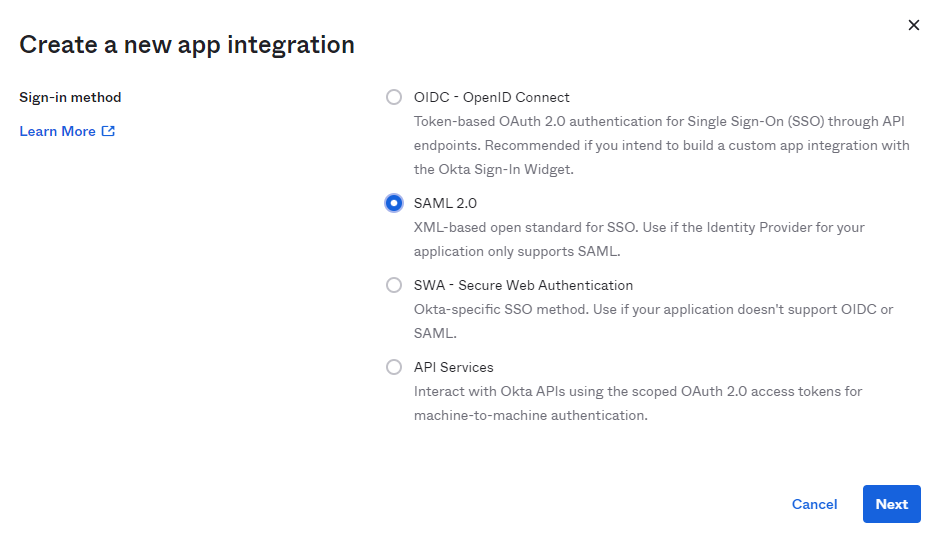
-
Enter the App name and Click Next
Under Configure SAML
-
Enter the Single sign-on URL (SP ACS URL) that you have copied from the Mavvrik Application in Step 1
-
Enter Audience URI(SP Entity ID) which you have copied from the Mavvrik Application in Step-1.
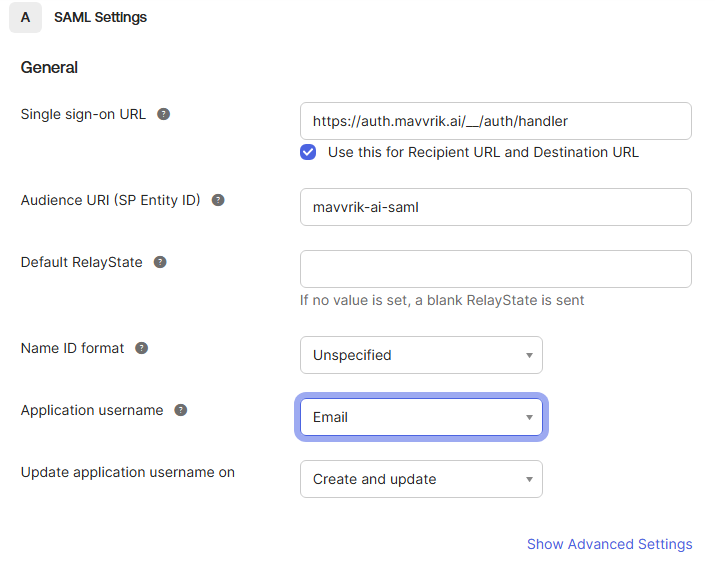
7 Select the Application username name as email
-
Don’t change other default values and leave other fields as it is.
-
Scroll down & click Next from the bottom of the page
-
Click Finish.