.png)
Mavvrik supports both types of AWS authentication:
Role-based access is generally considered to be more secure than user-based access, as it allows organizations to control access to resources and functions based on defined roles and responsibilities. We recommend using roles over individual users
Roles
-
Login to AWS Member account you're trying to onboard as an Administrator if not already logged in. And navigate to
IAMservice using AWS search bar. -
On the
IAMConsole, SelectRolesfrom the left menu, and clickCreate role. -
Select
Custom trust policy -
Copy the JSON
{ "Version": "2012-10-17", "Statement": [ { "Effect": "Allow", "Action": ["sts:AssumeRole"], "Principal": { "AWS": [ "arn:aws:iam::911403356698:user/global-user-for-assume-role", "arn:aws:iam::911403356698:user/mavvrik-svc-user", "arn:aws:iam::911403356698:role/mavvrik-svc-role" ] }, "Condition": { "StringEquals": { "sts:ExternalId": "<TENANT-ID>" } } } ] } -
Paste the copied JSON in Custom trust policy editor
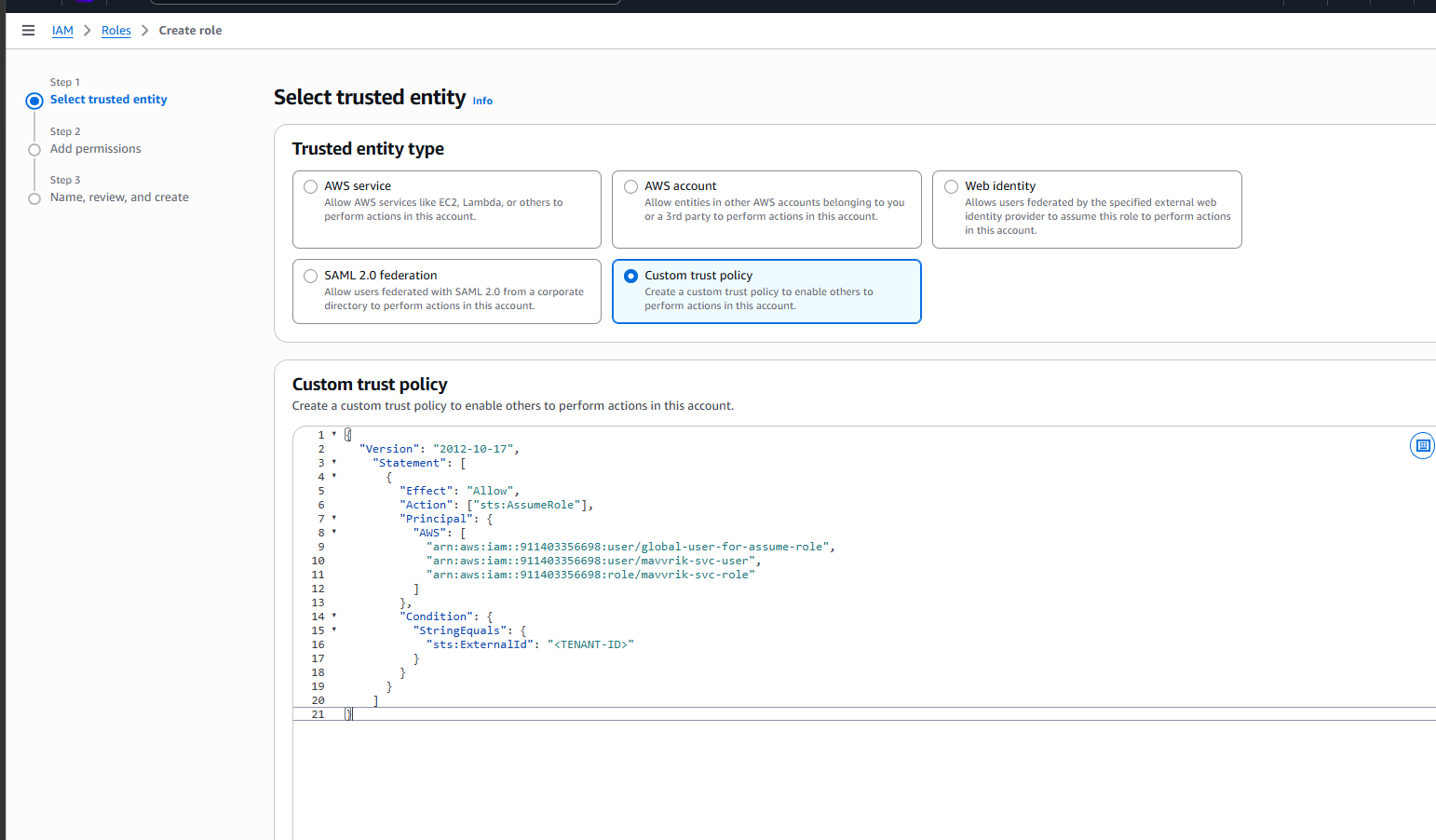
Paste the custom trust policy JSON -
Remove <TENANT-ID>

-
Enter your tenant id as shown image. To get the tenant id to follow instructions,
-
-
Login to Mavvrik
-
From the side menu, select
APIunder theAdminsection -
Capture the Tenant ID
-
-
Click
Next, on next screen for permissions, Choose 'AWS Managed - job function' in the filter. Search and select the listed policies below.-
ReadOnlyAccess -
ViewOnlyAccess
-
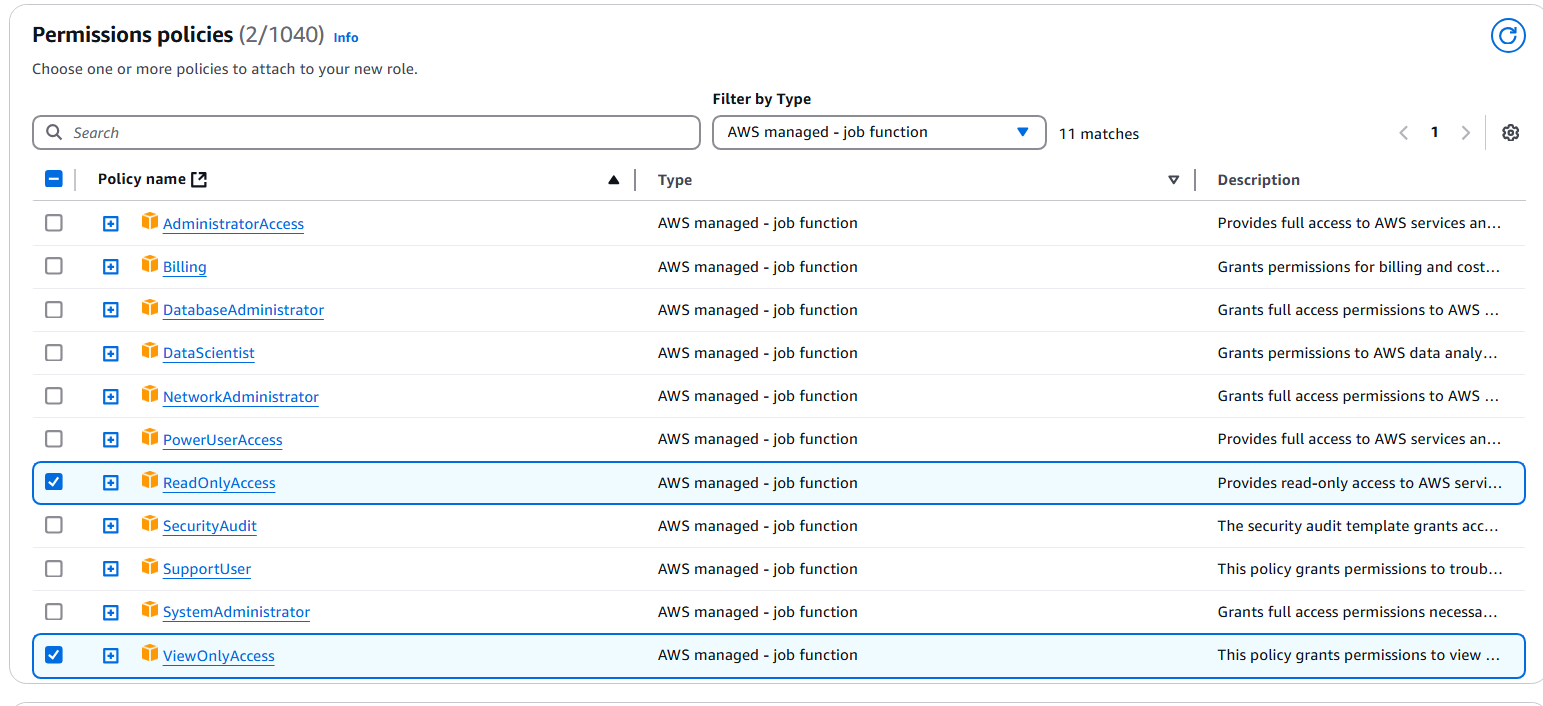
Choose 'AWS Managed in the filter. Search and select the listed policies below.
-
IAMReadOnlyAccess -
CloudWatchReadOnlyAccess -
ComputeOptimizerReadOnlyAccess -
AWSOrganizationsReadOnlyAccess
or use the policy https://digitalexio.atlassian.net/wiki/spaces/MCX/pages/262144009/Step-2+Create+an+IAM+role+for+Mavvrik#OR-use-below-permissions-and-create-a-inline-policy-for-the-newly-created-role if you don't wish to use IAMReadOnlyAccess
-
Click
Nextagain & on a final page, enter a name to the role & clickCreate role -
Search for the newly created role
-
Click on Add permissions → Create inline policy.
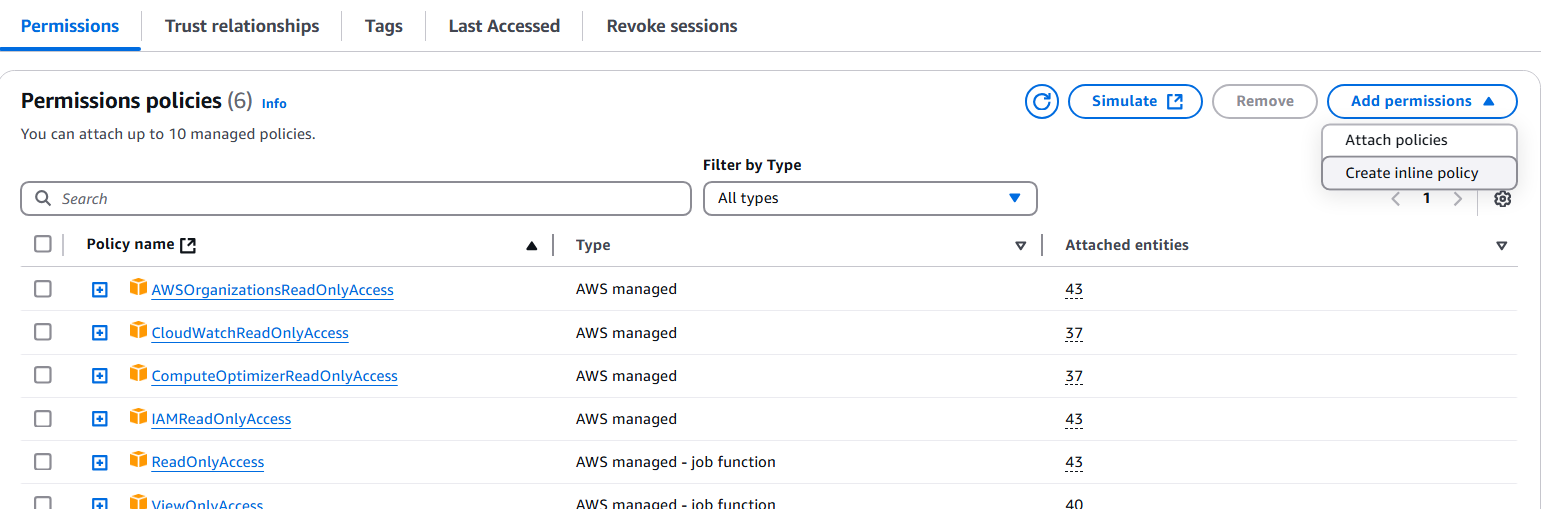
-
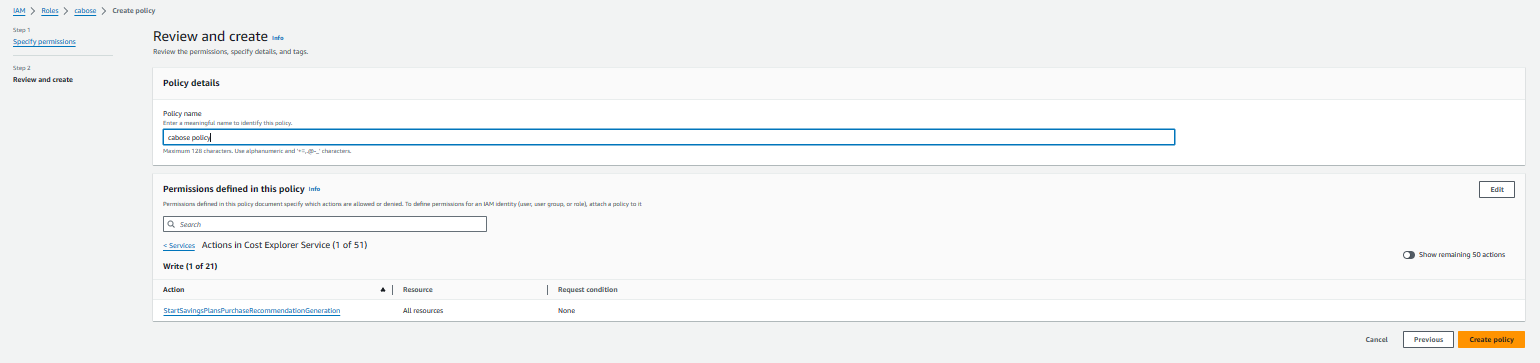
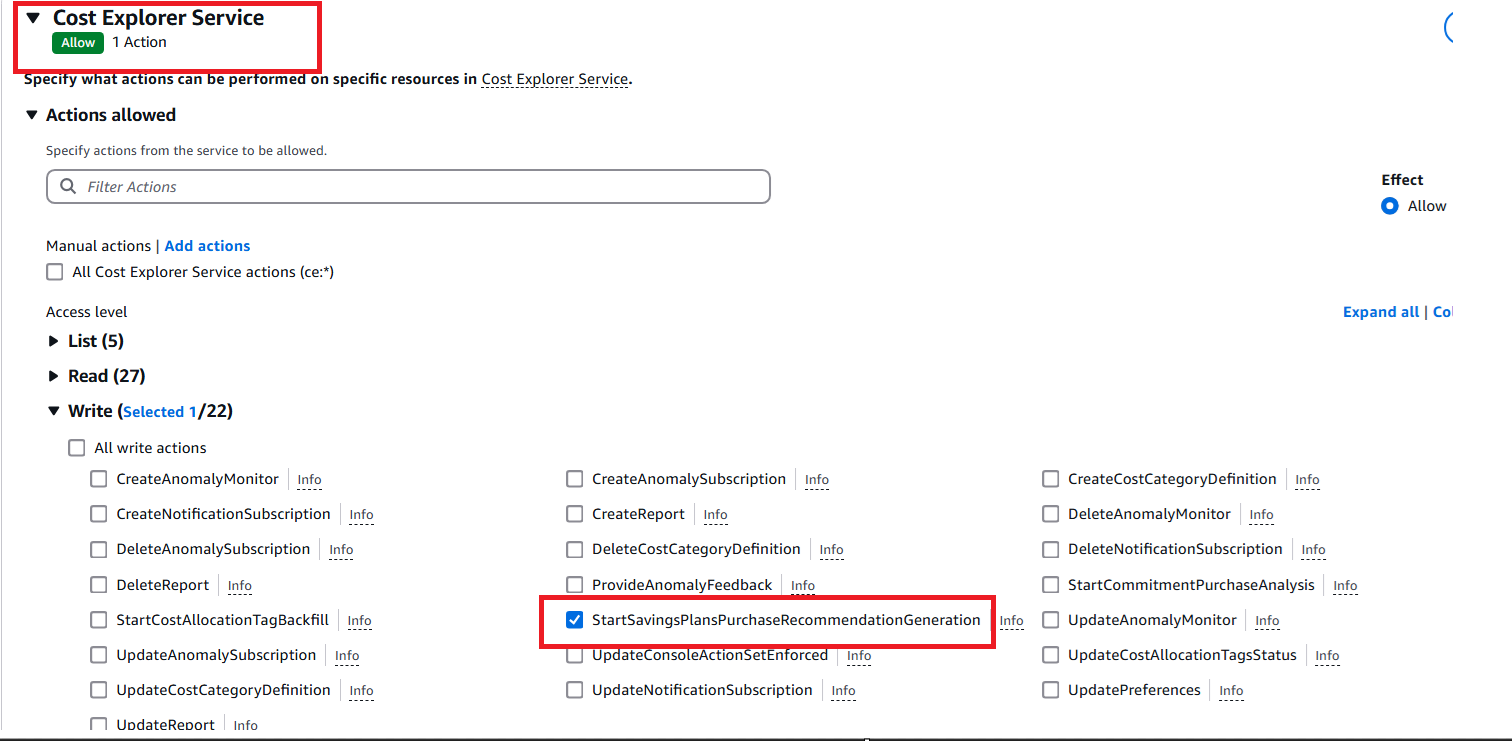
Search for Cost Explorer Service
-
Click on Write → StartSavingsPlansPurchaseRecommendationGeneration →
Next
-
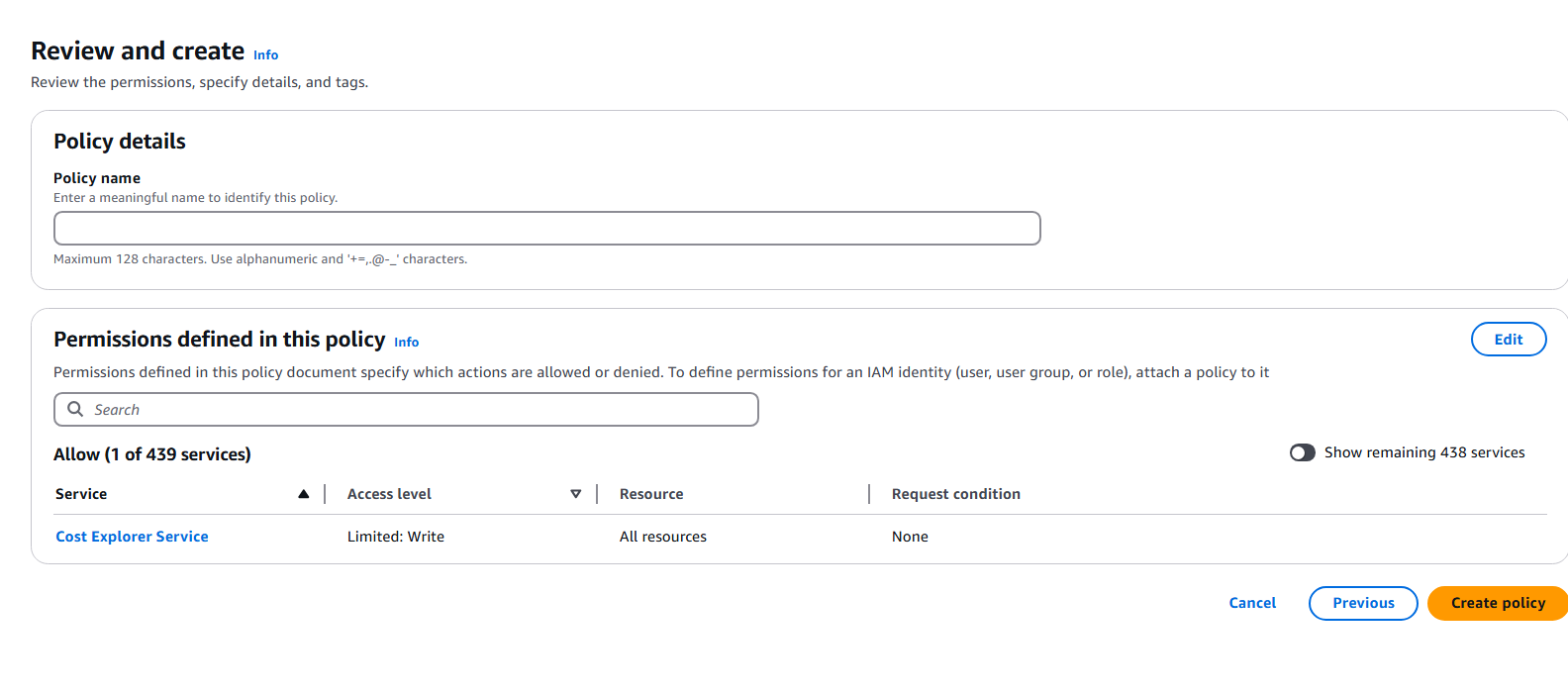
Enter the policy name.
-
Click on
Create policy.
-
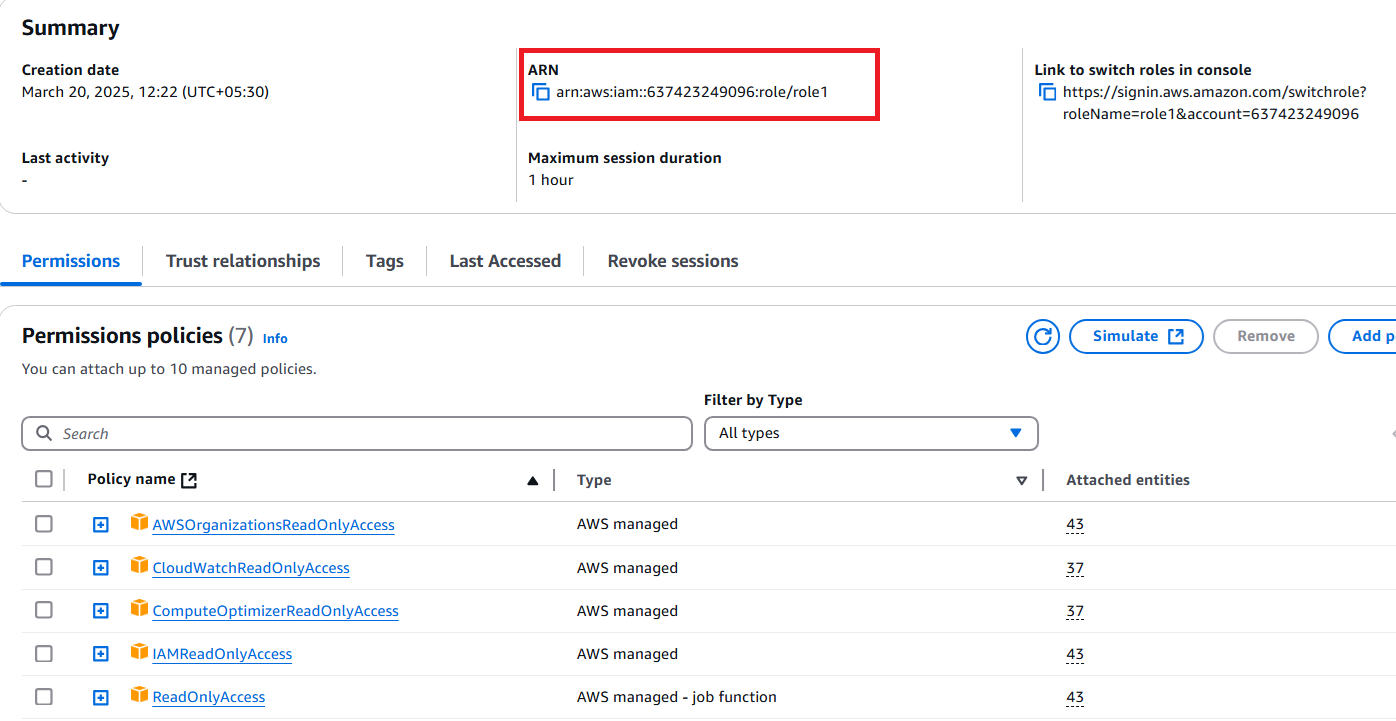
Once the role is created, please note the ARN of a role, which will be required in the next step.
OR use below permissions and create an inline policy for the newly created role
ReadOnlyAccess
ViewOnlyAccess
CloudWatchReadOnlyAccess
ComputeOptimizerReadOnlyAccess
AWSOrganizationsReadOnlyAccess
{
    "Version": "2012-10-17",
    "Statement": [
        {
            "Sid": "AllowIAMReadOnlyActions",
            "Effect": "Allow",
            "Action": [
                "iam:SimulatePrincipalPolicy",
                "iam:GetAccountSummary"
            ],
            "Resource": "arn:aws:iam::<ACCOUNT_ID>:role/<ROLE_NAME>"
        },
        {
            "Sid": "DenyAllOtherIAMActions",
            "Effect": "Deny",
            "NotAction": [
                "iam:SimulatePrincipalPolicy",
                "iam:GetAccountSummary"
            ],
            "Resource": "arn:*:iam::*:*"
        }
    ]
}
Users
-
Login to AWS Member account you're trying to onboard as an Administrator if not already logged in. And navigate to
IAMservice using AWS search bar. -
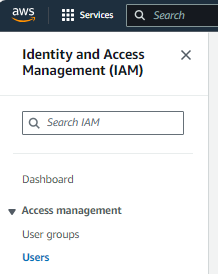
On the
IAMConsole, SelectUsersfrom the left menu
-
Click on Create User

-
Enter the Username & click Next.
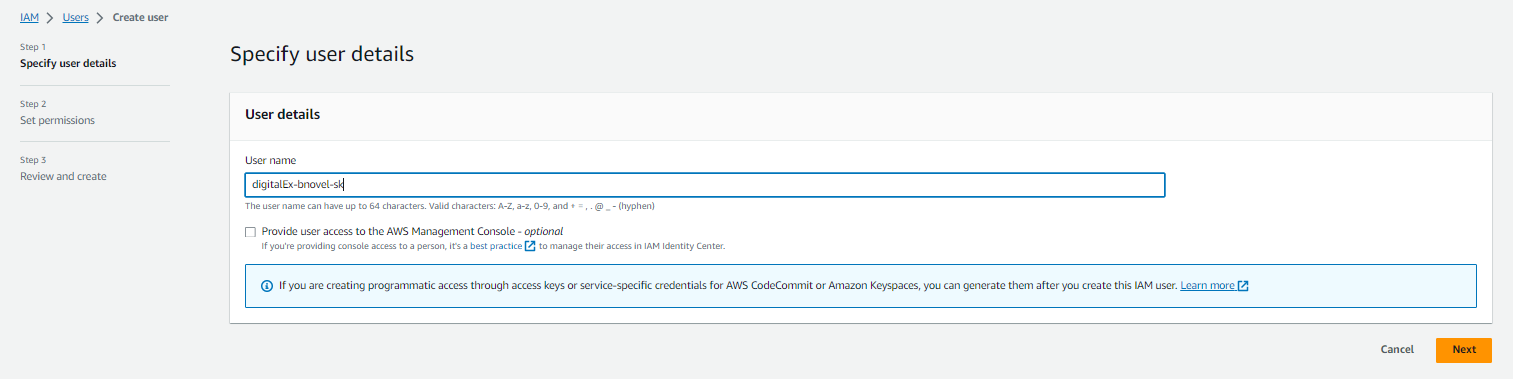
-
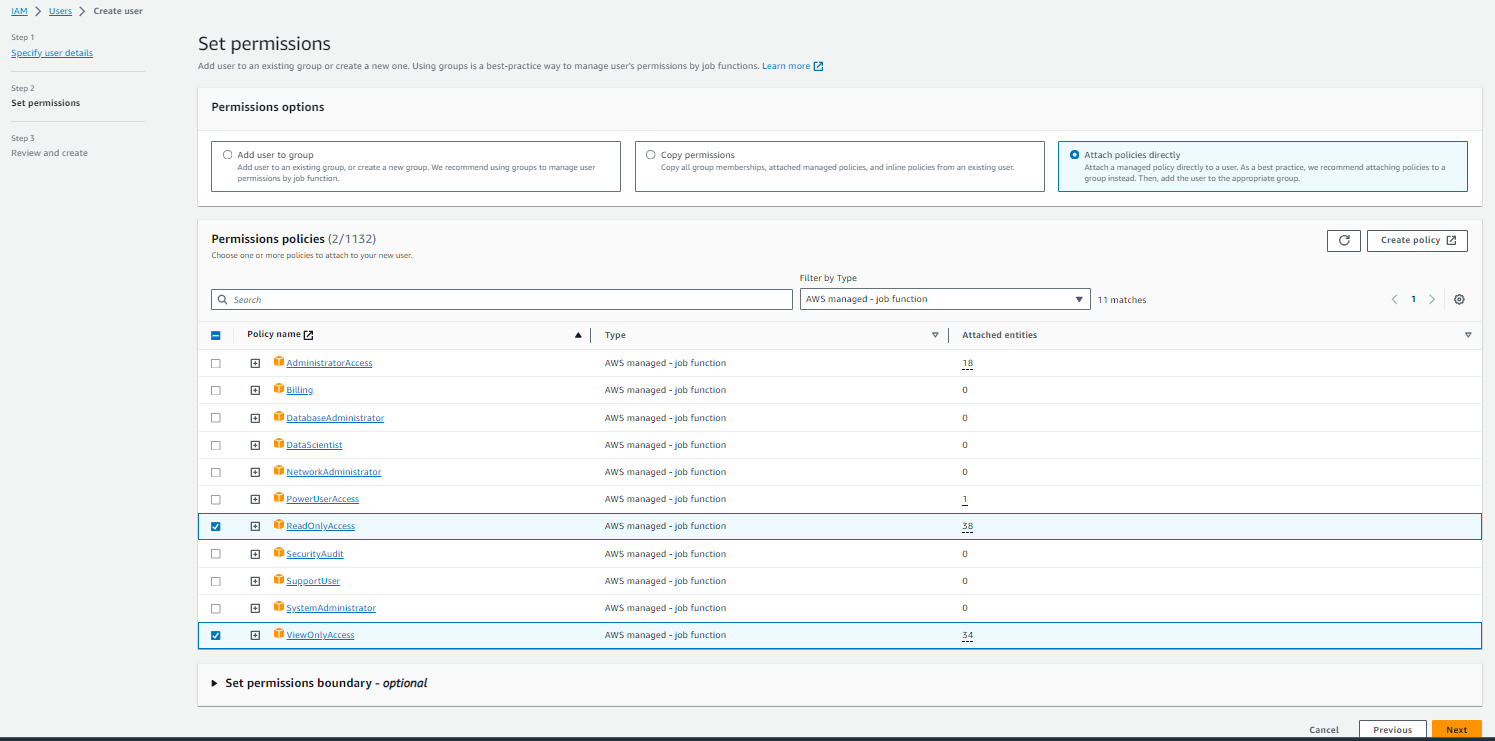
Select Attach policies directly, on next screen for permissions, please choose 'All Types' in the filter and select the listed policies below.
-
ReadOnlyAccess -
ViewOnlyAccess -
IAMReadOnlyAccess -
CloudWatchReadOnlyAccess -
ComputeOptimizerReadOnlyAccess -
AWSOrganizationsReadOnlyAccess
-
or you can use below policies
ViewOnlyAccess
CloudWatchReadOnlyAccess
ComputeOptimizerReadOnlyAccess
AWSOrganizationsReadOnlyAccess
-
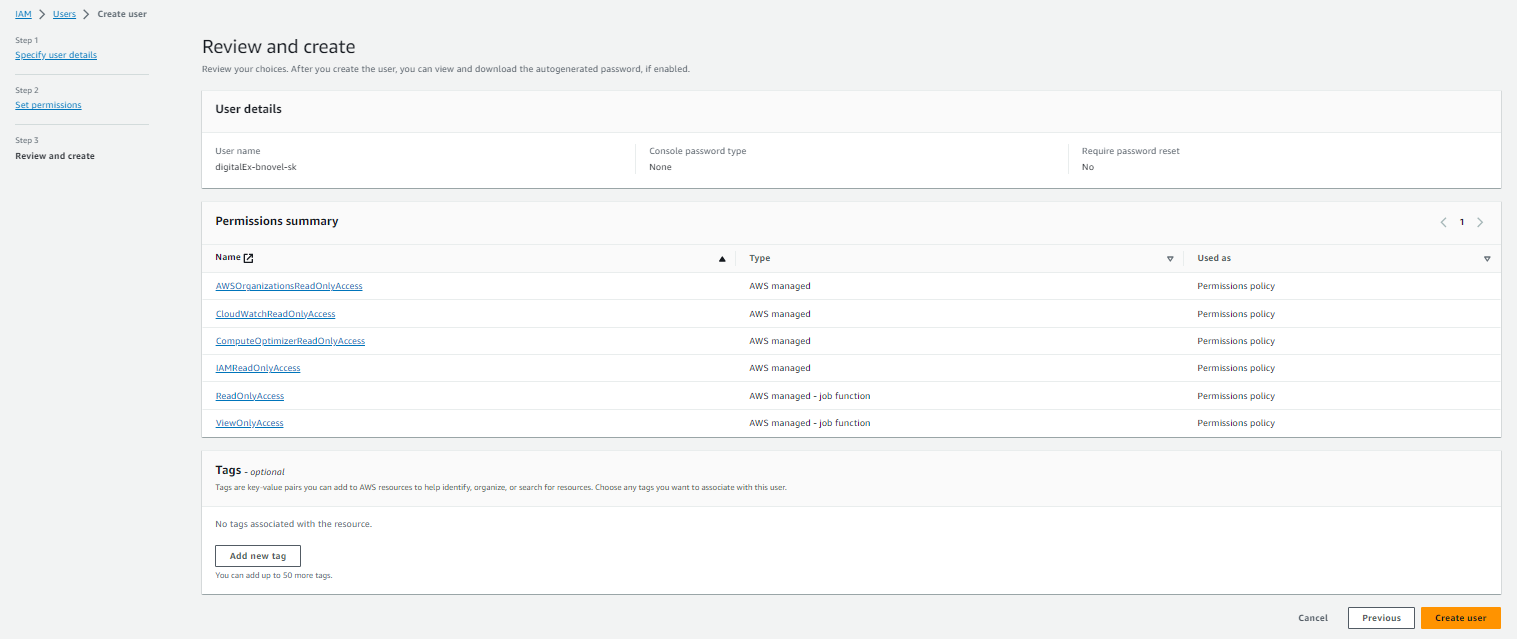
Click
Nextagain & on a final page, give a name to the role & clickCreate user
-
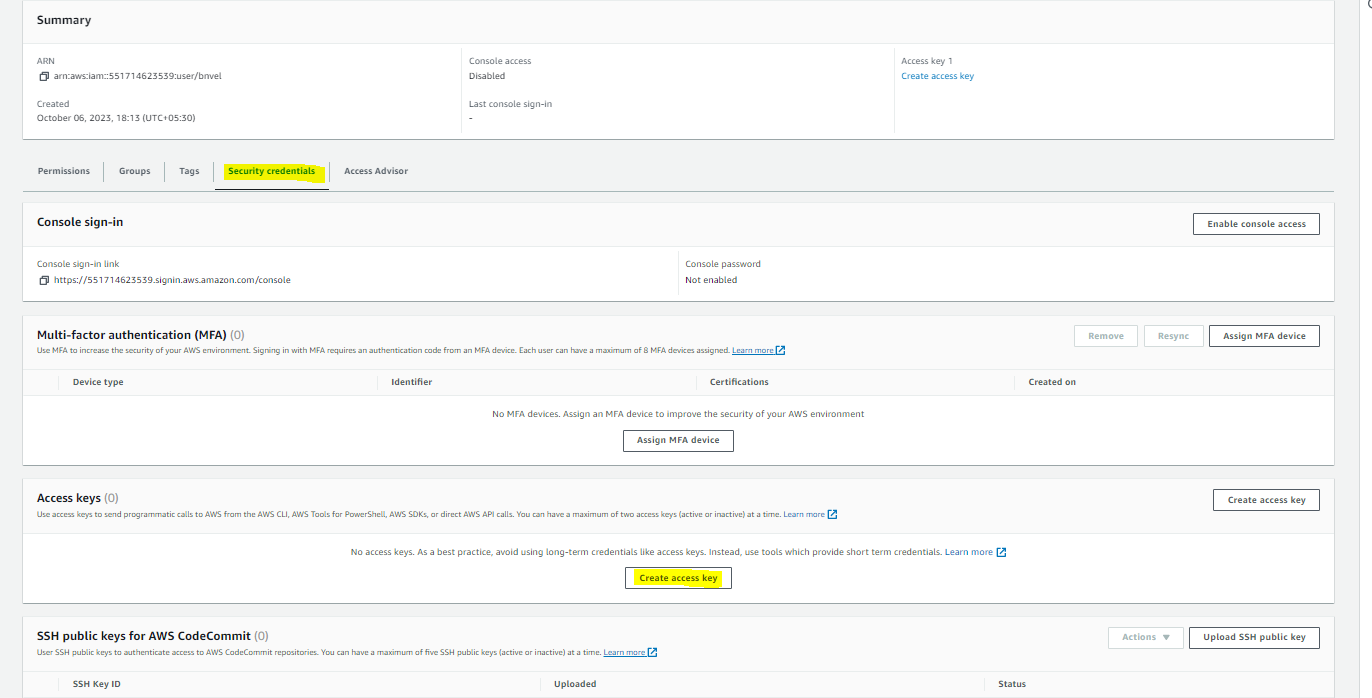
Once the user is created, please click on the user to create a Secret Key
-
Go to Security Credentials tab & Click on Create Access Key
-
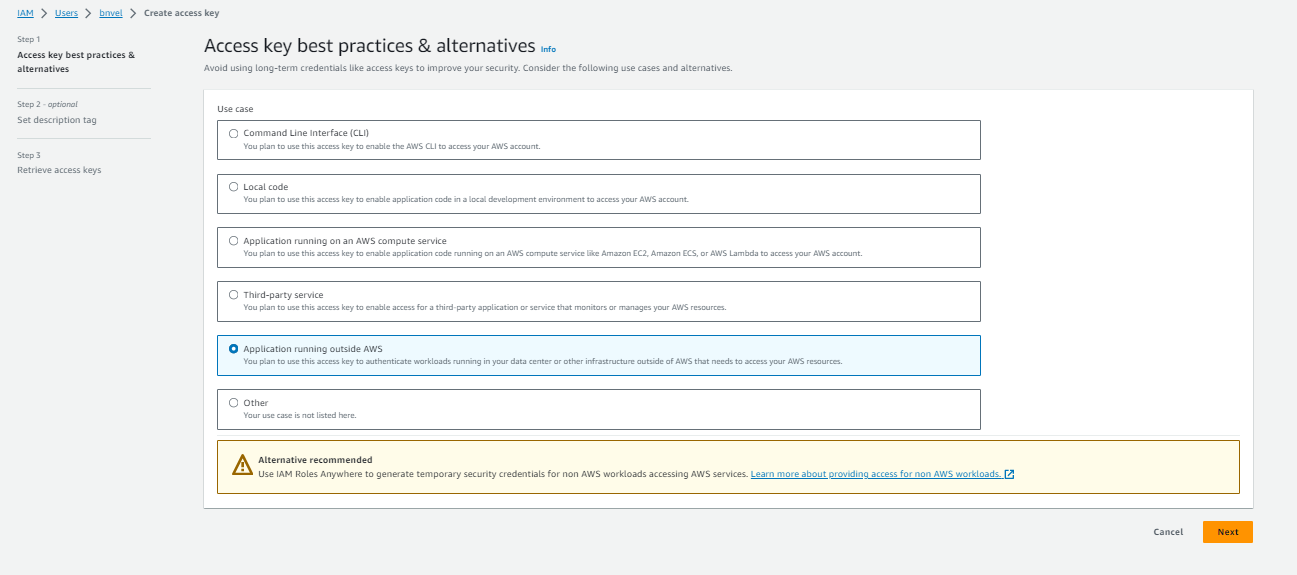
Select Application running outside AWS & Click on Next
-
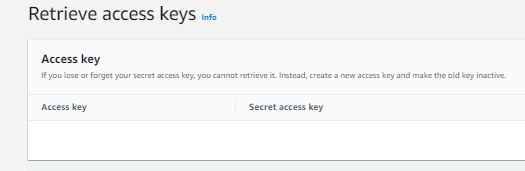
Click on Create access key.

-
Secret Key will get generated.
-
Copy the Access Key & Secret Key which will be required in the next step.
-
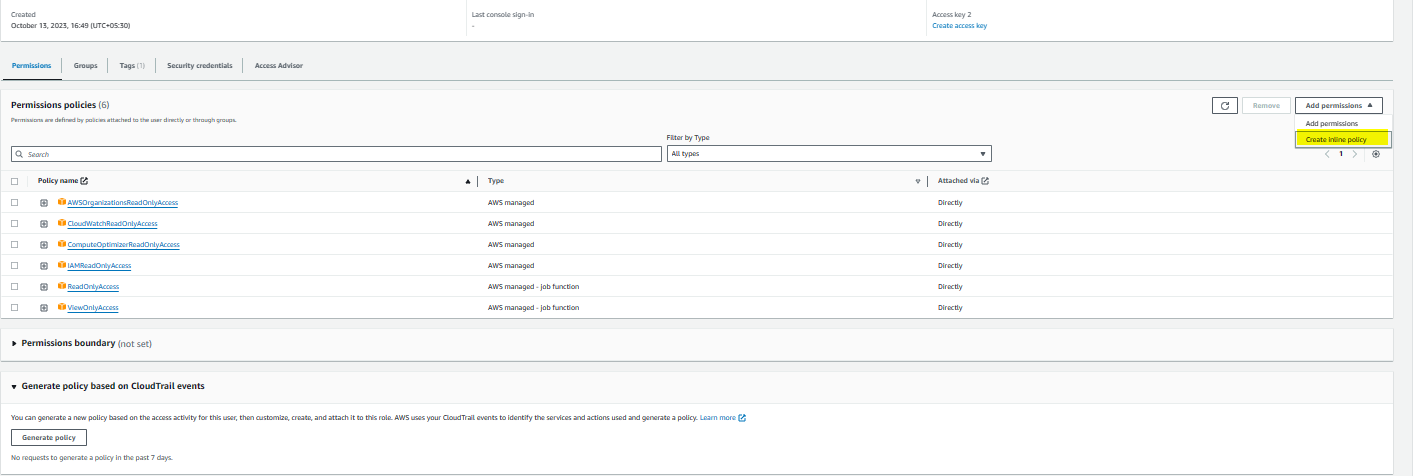
Open newly created user
-
Click on Add permissions → Create inline policy.
-
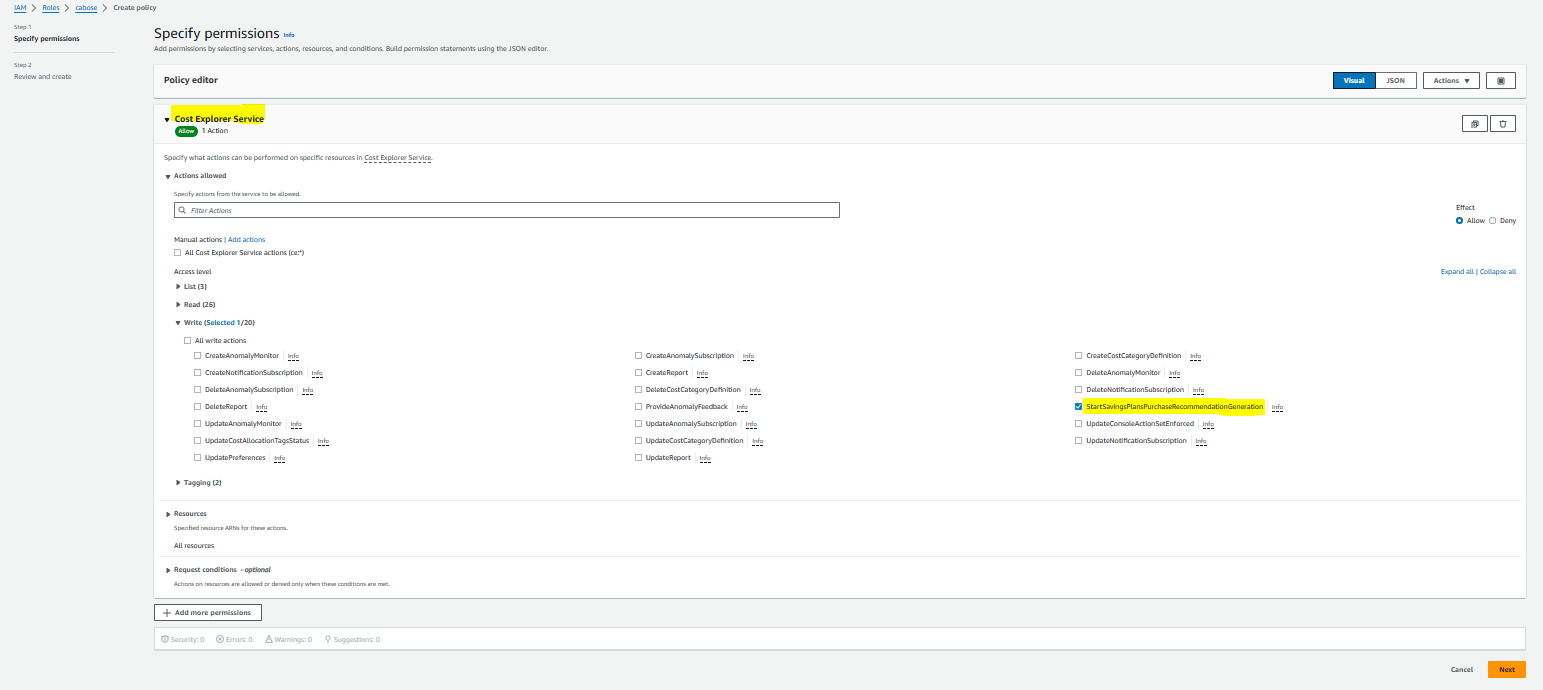
Search for Cost Explorer Service
-
Click on Write → StartSavingsPlansPurchaseRecommendationGeneration →
Next
-
Enter the policy name.
-
Click on
Create policy.