
SaaS Savings
SaaS Savings shows recommendations that can lower your SaaS spend, with an estimate of the monthly saving for each one. It supports two providers: Databricks and Snowflake. Use it to find idle or unused compute, wasteful queries and jobs, unused data and storage, and over-provisioned services, then track the work as tickets.
Where to find it: INFORM > SaaS Cost > Savings (the SaaS view).
Choose a provider: use the provider list at the top left of the page and select Databricks or Snowflake. The savings widgets, recommendations, filters and policies all change to match the provider you pick. Provider-specific details come first on this page, followed by everything that works the same for both providers.
Databricks
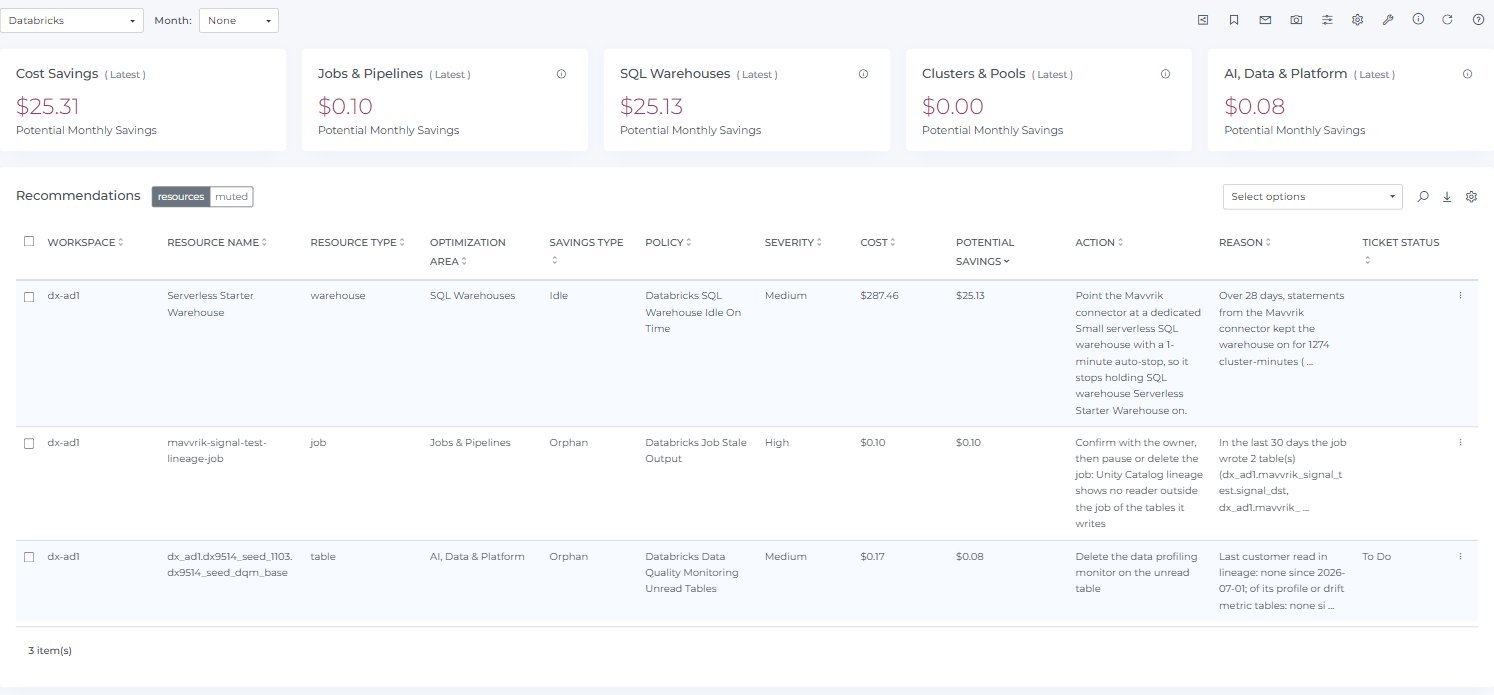
Savings summary (Databricks)
The widgets at the top of the page show the potential monthly savings, in total and by area. They update when you change filters or the month.
|
Widget |
What it covers |
|---|---|
|
Cost Savings |
The total potential monthly savings across all areas. |
|
Jobs & Pipelines |
Savings from scheduled jobs and data pipelines: failed or unnecessary runs, pipelines that run more often than needed, and compute of the wrong type or size for the work. |
|
SQL Warehouses |
Savings from SQL warehouses that stay on when idle, go unused, or are larger or more numerous than their queries need. |
|
Clusters & Pools |
Savings from all-purpose clusters and instance pools that stay on when idle, are larger than needed, or could use cheaper node types. |
|
AI, Data & Platform |
Savings from model serving and AI services, apps, and data and workspace services that are idle, unused or over-provisioned. |
Databricks recommendations
-
The first column of the table is Workspace, the Databricks workspace the resource belongs to. The resource can be a warehouse, job, cluster, table or other Databricks resource.
-
Example policies: "Databricks SQL Warehouse Idle On Time" and "SaaS Job Stale Output". Other policies cover unread data-quality monitors, cluster auto-termination, jobs running on all-purpose compute, node-type right-sizing and spot workers.
-
You can add columns such as Owner or Monthly DBUs in the table Settings (gear icon).
Databricks filters
On the Basic tab of the Filters panel you can choose values for Account, Workspace, Cloud, Resource Type, Owner, SKU, Type, Policy and Severity. Where a recommendation has a ticket, a Ticket Status filter also appears.
Snowflake
Savings summary (Snowflake)
The widgets show the potential monthly savings for your Snowflake accounts, in total and by area. They update when you change filters or the month.
|
Widget |
What it covers |
|---|---|
|
Cost Savings |
The total potential monthly savings across all areas. |
|
Warehouses |
Savings from warehouses that stay on when idle, could be merged, or are sized or configured beyond what their queries need. |
|
Queries & Jobs |
Savings from queries, loads and tasks that fail, run more often than needed, or do more work than needed: inefficient joins, filters and scans, small load files and single-row changes. |
|
Tables & Storage |
Savings from tables and storage that go unread, keep more history than needed, or pay for clustering, search optimization, materialized views or refreshes that bring little benefit. |
|
Account & Services |
Savings from account-level services: AI (Cortex) usage, container compute pools, serverless features, Postgres, cloud services, cross-region data transfer and commitments. |
Snowflake recommendations
-
The first column of the table is Account, the Snowflake account the resource belongs to (Databricks shows Workspace here).
-
The resource can be a warehouse, query, task, table, materialized view, dynamic table, compute pool or other Snowflake service.
-
Recommendations are advice only. Mavvrik does not change anything in your Snowflake environment; you act on a recommendation yourself.
Snowflake policies
Recommendations come from these policies, grouped by the widget they count toward. You can turn each one on or off in Savings Settings (see Savings Settings and policies).
|
Area |
Policies |
|---|---|
|
Warehouses |
|
|
Queries & Jobs |
|
|
Tables & Storage |
|
|
Account & Services |
|
Snowflake filters
On the Basic tab of the Filters panel you can choose values for Organization, Account, Region, Warehouse, Service Type, Resource Type, Type, Policy and Severity. Where a recommendation has a ticket, a Ticket Status filter also appears.
Common to both providers
Recommendations table
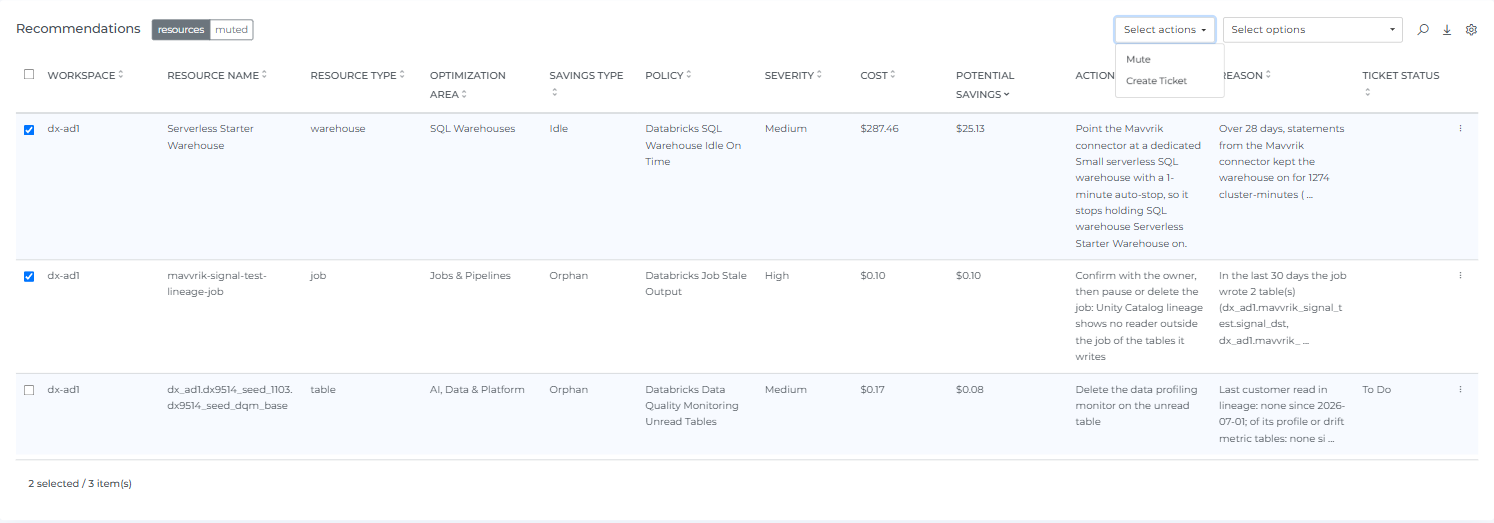
Each row is one recommendation. By default the table shows:
|
Column |
Meaning |
|---|---|
|
Workspace (Databricks) / Account (Snowflake) |
The workspace or account the resource belongs to. |
|
Resource Name / Resource Type |
The resource, such as a warehouse, job, cluster, query or table, and its type. |
|
Optimization Area |
The widget the recommendation counts toward (for example SQL Warehouses or Tables & Storage). |
|
Savings Type |
The kind of saving, for example Idle (running while not needed) or Orphan (no longer used). |
|
Policy |
The rule that produced the recommendation. |
|
Severity |
Medium or High. |
|
Cost |
The resource's monthly cost. |
|
Potential Savings |
The estimated monthly saving if you act on the recommendation. |
|
Action |
What to do. |
|
Reason |
Why the recommendation was made, with the supporting numbers. |
|
Ticket Status |
The status of a linked ticket, if you created one. |
Select a column heading to sort. Use the search icon to find rows by any text, including resource and policy names. The footer shows the number of items. Select the information icon on a widget to read its description. The Info button in the page toolbar shows when the data was last updated.
Add or remove columns: open the table Settings (gear icon) and tick the columns you want.
Savings Settings and policies
Select Savings Settings (wrench icon) in the page toolbar. On the Policies tab, policies are grouped by the same areas as the widgets. Turn a policy on or off, then select Save. Changes can take up to 24 hours to take effect. The Settings tab has a Savings Threshold ($) for the settings that support it. Settings are kept separately for each provider.
Filter recommendations
Filters panel
Select Filters in the page toolbar. The fields on the Basic tab depend on the provider (see above).
-
Basic tab: choose values for the fields. Different fields combine with AND. Several values in one field combine with OR.
-
Dynamic Filter: turn it on and the other lists narrow to the values that still apply after each choice.
-
Advanced tab: build conditions with the operators IN, NOT IN, CONTAINS, NOT CONTAINS, STARTS WITH, ENDS WITH, IS EMPTY and REGEX MATCH. Advanced adds a Resource ID field. Enter a value for every condition before you select Apply.
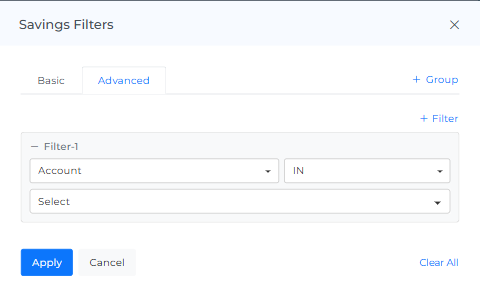
Select Apply to filter. Both the table and the savings widgets update. Clear All removes every filter.
Quick filters
Select Select options above the table and tick a field, such as Severity. A dropdown for that field appears next to the search icon, so you can filter the table without opening the Filters panel.
Month
Use Month at the top of the page. None shows the latest data. Current and Previous show the current and previous month, and you can also pick a specific month. A month with no recommendations shows zero.
Work with recommendations
Mute a recommendation
Open the row menu (View Menu) and select Mute. Add a note if you like. To hide it only for a while, tick Snooze Until and choose a date from tomorrow onward.
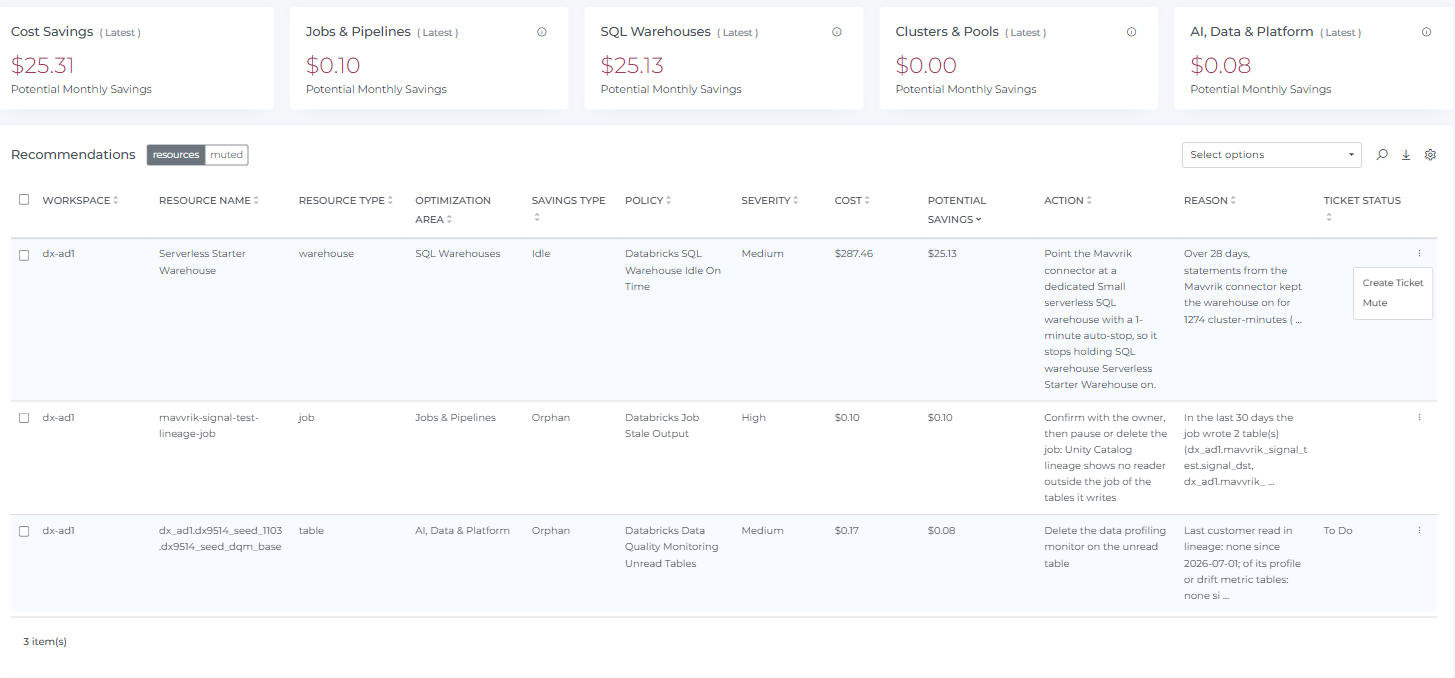
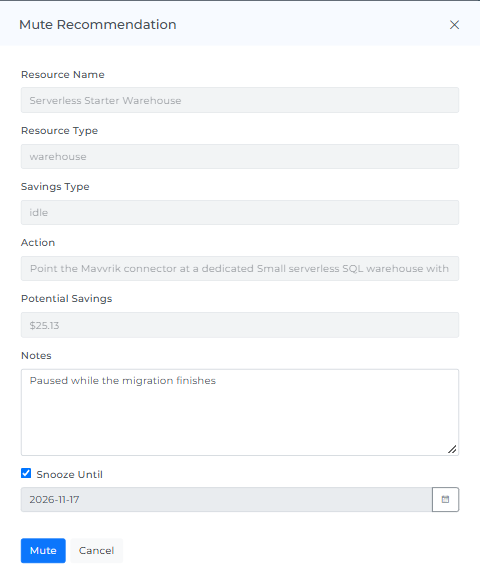
Muted recommendations leave the table and the widgets, and appear under the muted tab with your note. In the muted tab, use the row menu to see Mute Details or Unmute.
Create a ticket
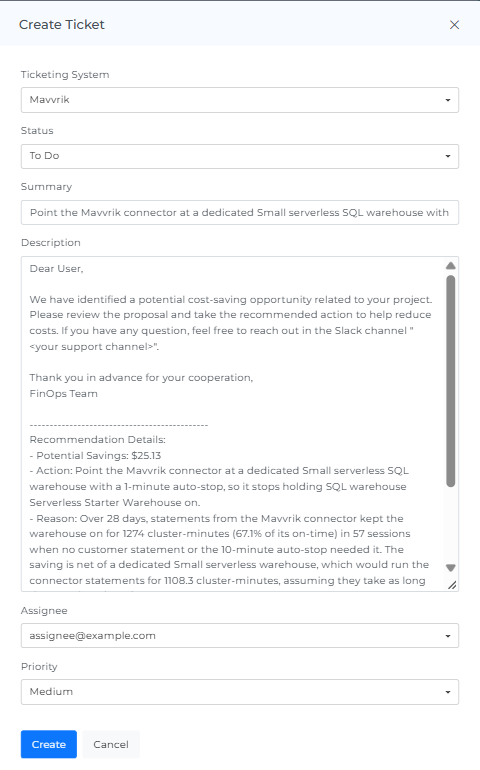
Open the row menu and select Create Ticket. The ticket form is filled in with the recommendation details (savings, action, reason, provider, account, workspace and resource). Review it and select Create. The row then shows the ticket status, and the menu offers Update Ticket instead of Create Ticket.
Act on several rows
Tick the checkbox at the left of each row, or the heading checkbox to select all. The footer shows how many are selected, and Select actions offers Mute (and Create Ticket when none of the selected rows already has a ticket). In the muted tab, Select actions offers Unmute.
Share and keep your view
|
Option |
What it does |
|---|---|
|
Bookmark |
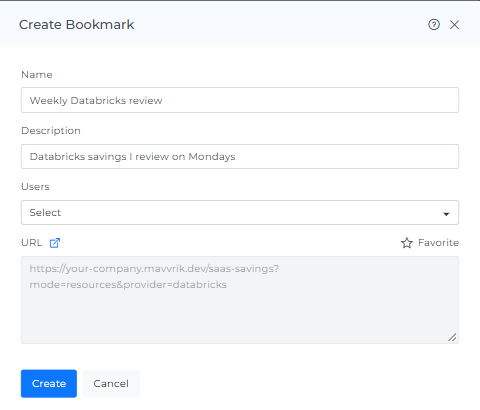
Saves the page, including any filters and the month you have set, with a name and description. You can share it with other users and mark it as a favorite. Find it under REPORTS > Bookmarks. |
|
Share |
Copies a link to the page ("Link copied!"). |
|
Subscription |
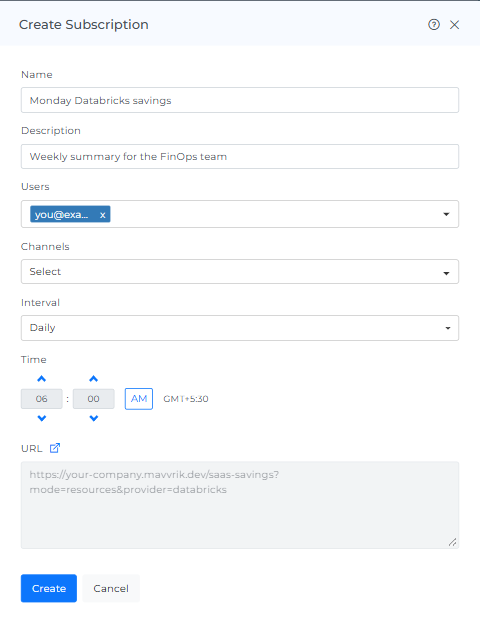
Emails the page to chosen users on a schedule (for example daily at a set time). Manage subscriptions under REPORTS > Subscriptions. |
|
Screenshot |
Downloads the page as a PDF. |
|
Download CSV |
Downloads the recommendations in the table as a CSV file. If filters are applied, only the filtered rows are exported. |
|
Reload |
Refreshes the data on the page. |
Cost options
Cost Options shows which cost figure the page uses. By default both the Cost Field and the Savings Field are set to Actual.
Notes
-
Potential savings are estimates based on recent usage. Review each recommendation's Reason before acting.
-
Which recommendations appear depends on your usage. An account or workspace with no matching activity shows few or none, and the widgets show $0.00.
-
Recommendations are produced by policies. A recommendation only appears when your data meets a policy's conditions.
-
Recommendations are not applied automatically. You decide whether and when to act on each one.