.png)
Why this matters: Claude is often where FinOps and engineering work already happens — this connector means you don't have to leave that conversation to check a number in Mavvrik. Ask the cost question directly, get an answer grounded in your actual tenant data, and keep working.
Connect from Claude Web or Claude Desktop
Mavvrik MCP connects Claude to Mavvrik through a sign-in and authorization flow.
The connection uses the Mavvrik tenant associated with your authenticated Mavvrik user account. After you connect, Mavvrik MCP becomes available inside Claude, and you can ask cost intelligence questions in a normal conversation.
Before setup
Before you set up Mavvrik MCP, make sure you have:
-
Access to a Mavvrik tenant
-
Access to Claude Web or Claude Desktop
-
Permission to add or use connectors in Claude
-
Mavvrik sign-in credentials for your tenant
In some Claude workspaces, a Claude administrator may need to add and publish the Mavvrik MCP connector before you can connect to it. Once the connector is available, you can complete the Mavvrik sign-in and authorization flow from Claude.
Claude Web login: https://claude.ai/
Download Claude Desktop: https://claude.com/download
Admin setup
If you are a Claude administrator, you can add Mavvrik MCP as a custom connector for your workspace.
-
Open Claude Web.
-
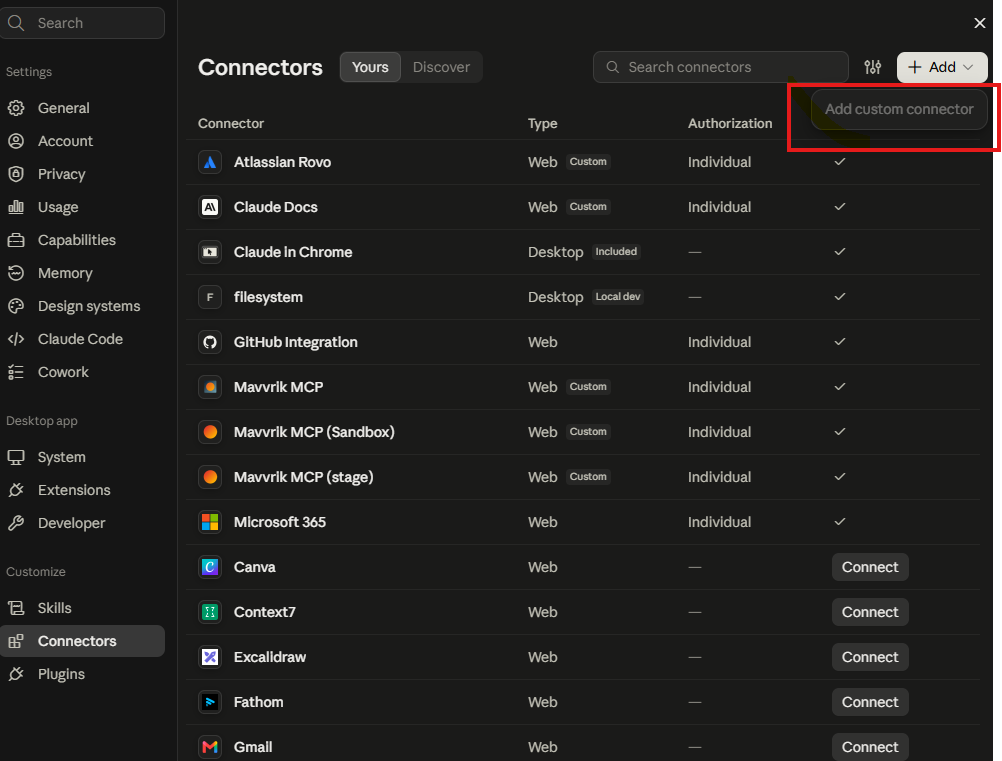
Open Claude admin → Organizational Settings → Connectors.
-
Click Add connector
-
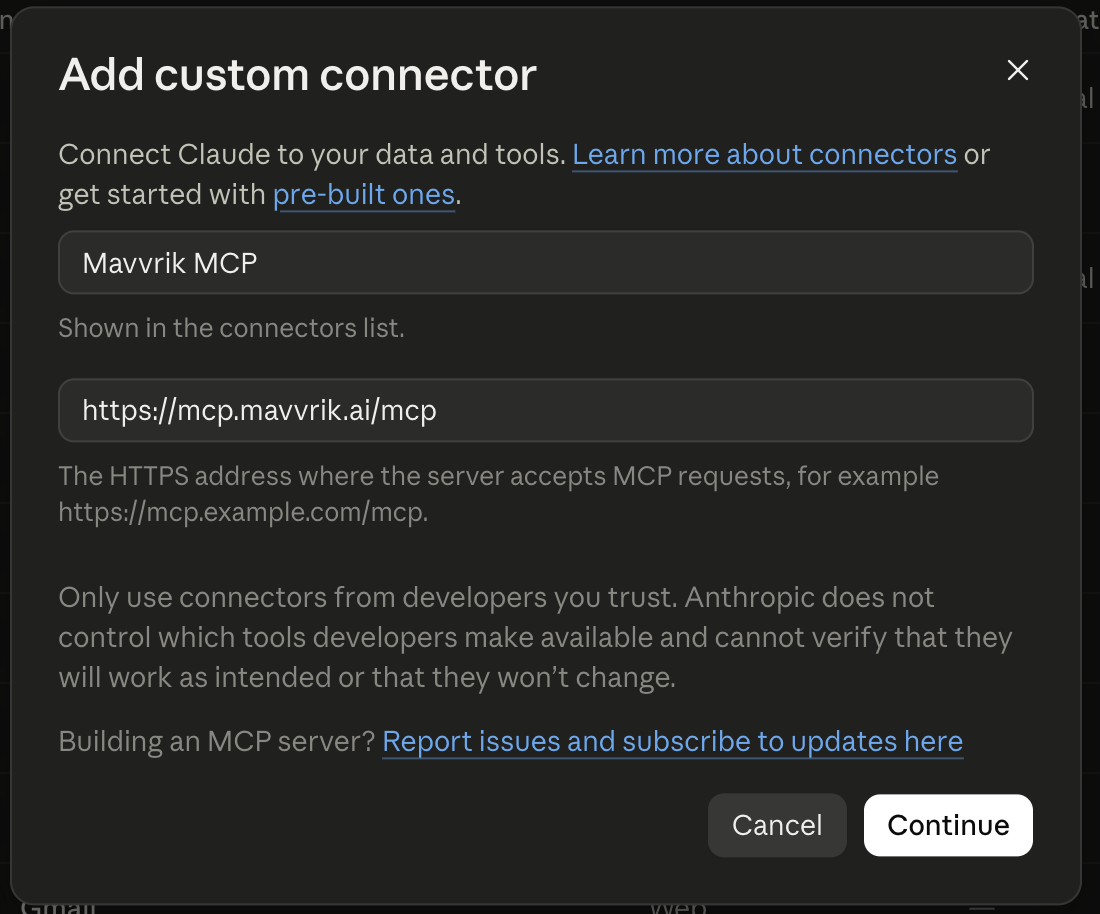
Set the connector name to Mavvrik MCP.
-
Enter the Mavvrik MCP endpoint:
https://mcp.mavvrik.ai/mcp. -
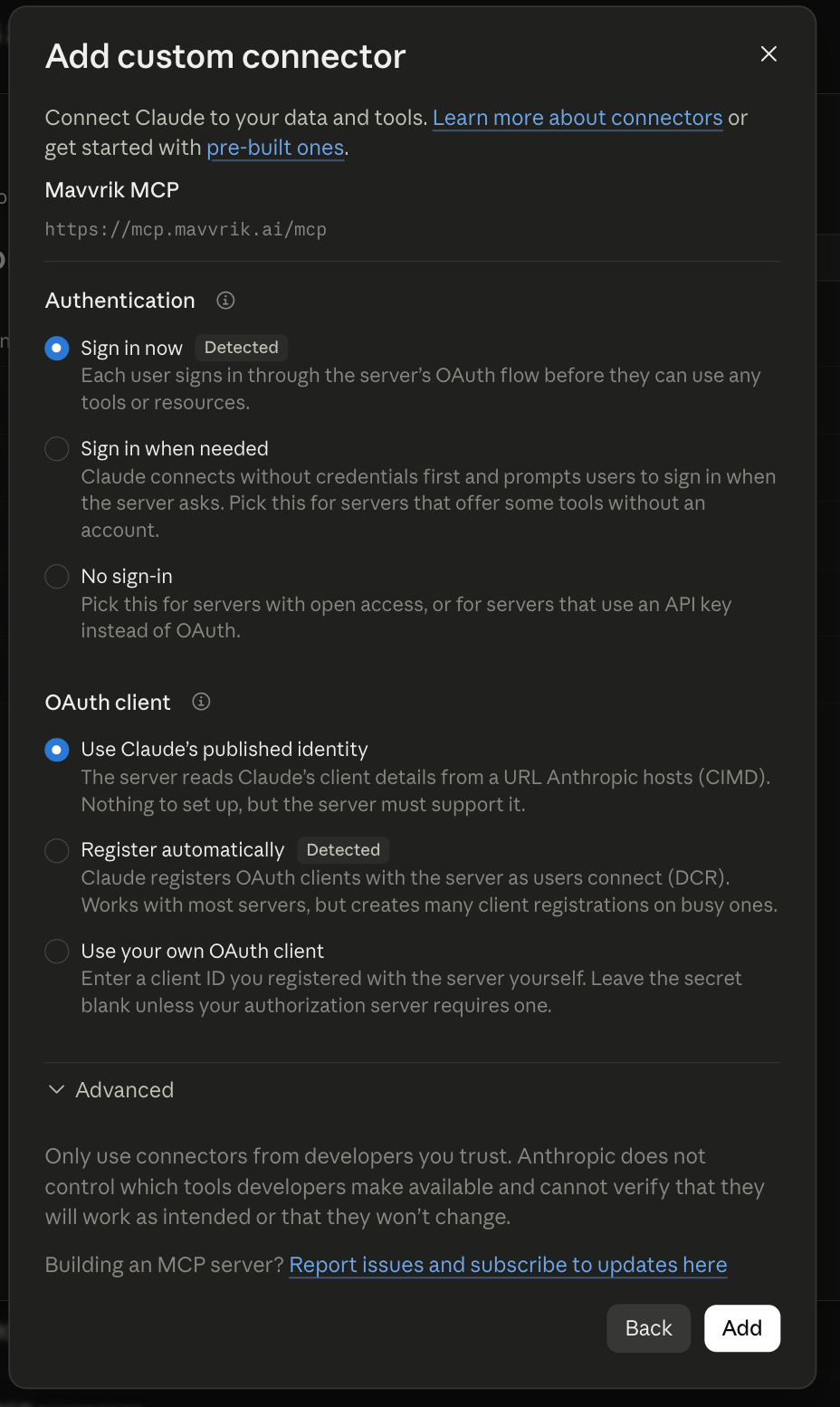
Click Continue and Add
-
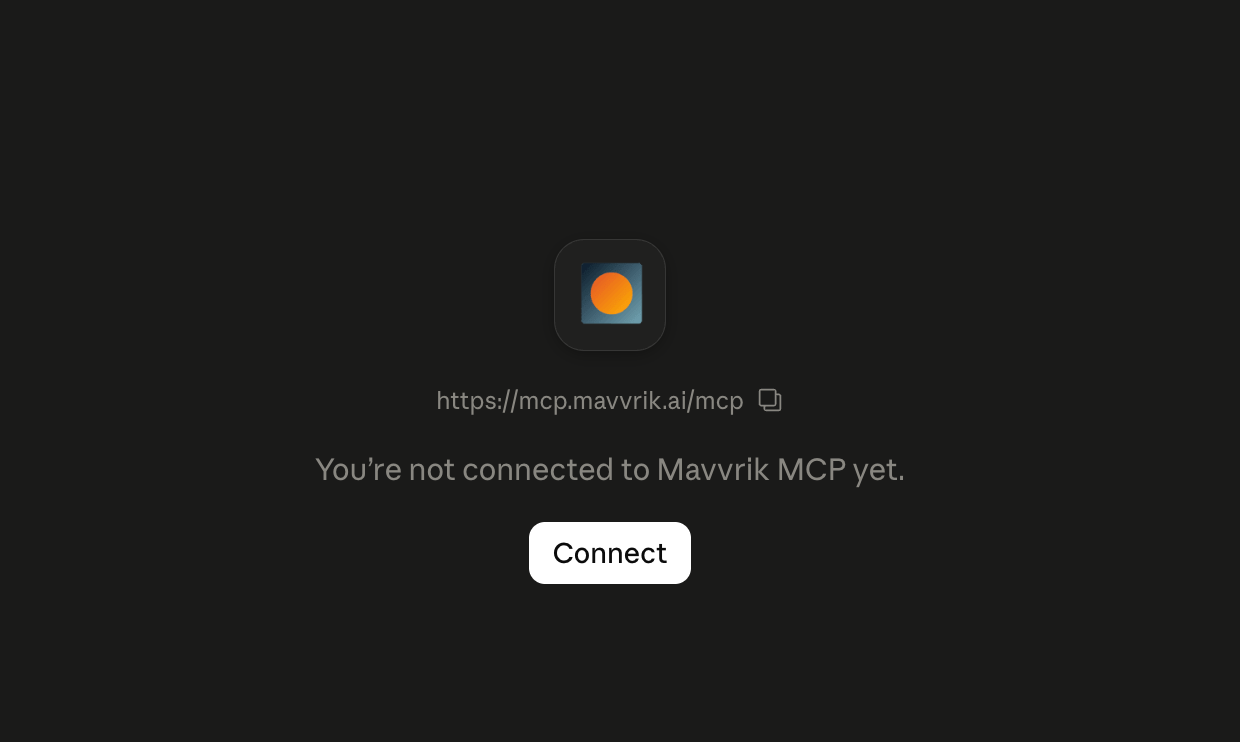
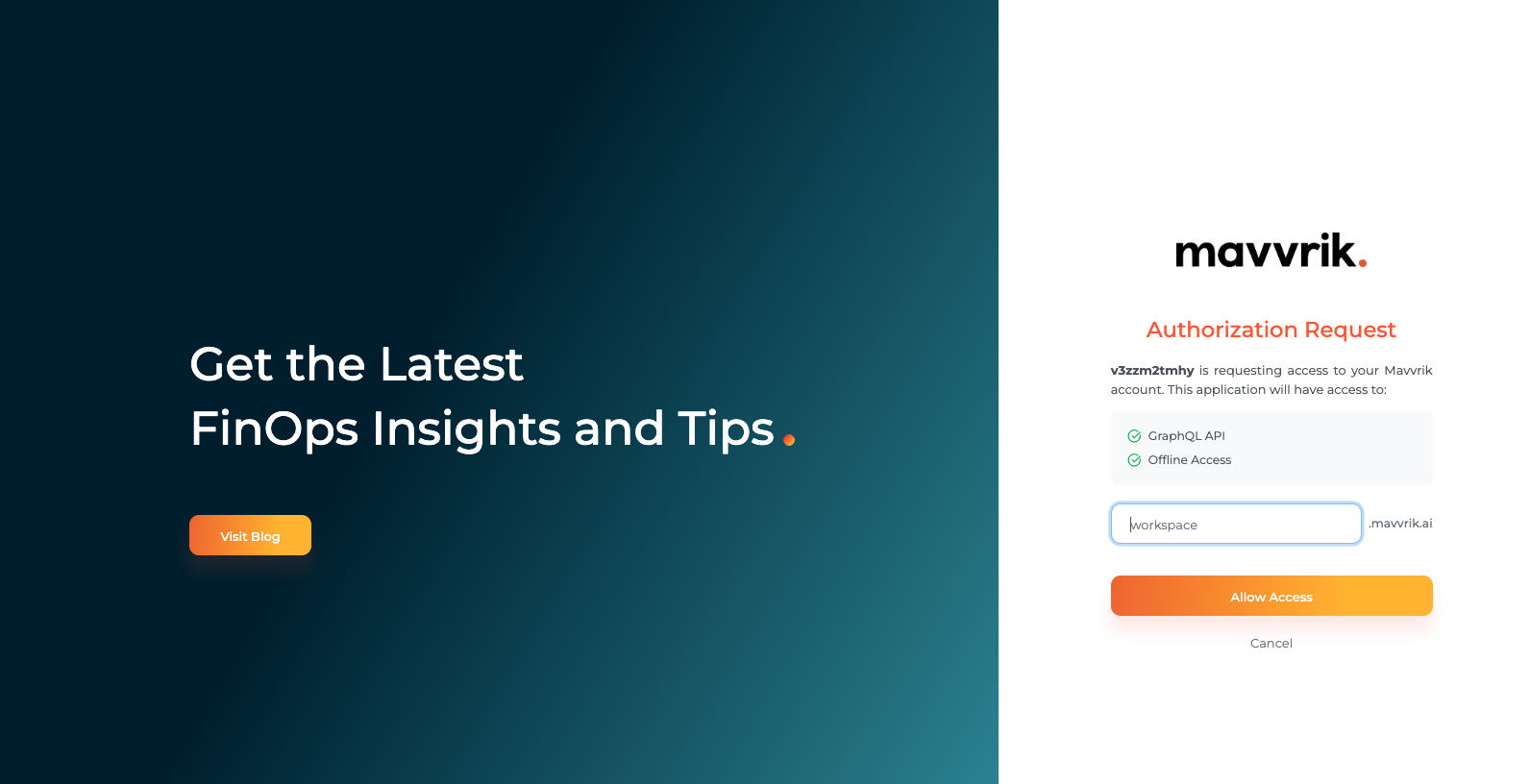
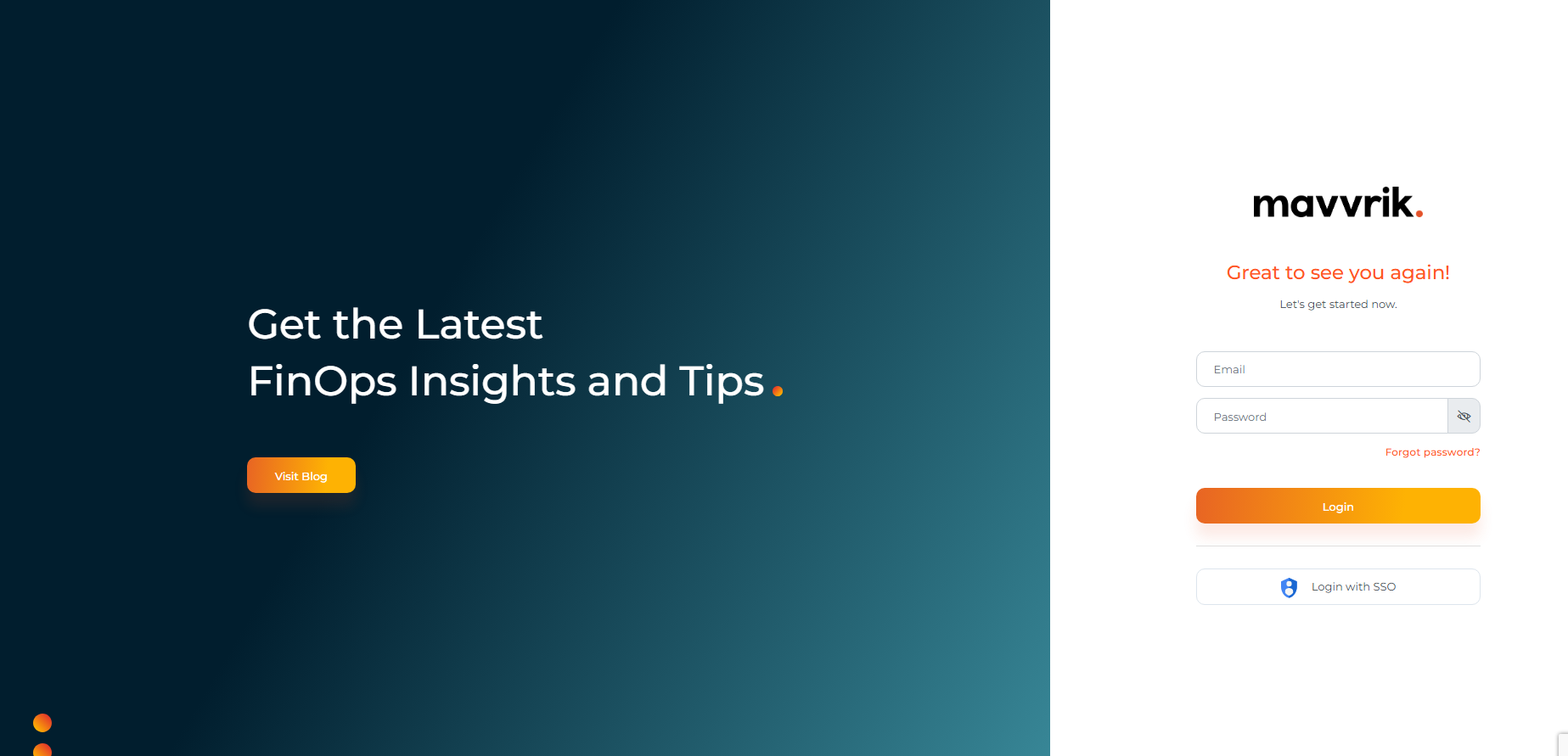
Complete the Mavvrik sign-in and authorization flow. Enter your tenant domain name on workspace field, and select "allow access" and proceed with your Mavvrik login credentials.
-
Publish or enable the connector for your Claude workspace.
-
After the connector is published, users in your Claude workspace can connect Mavvrik MCP from their own Claude accounts.
User connection
Once the connector is available in Claude, you can connect it from your Claude account.
-
Open Claude Web.
-
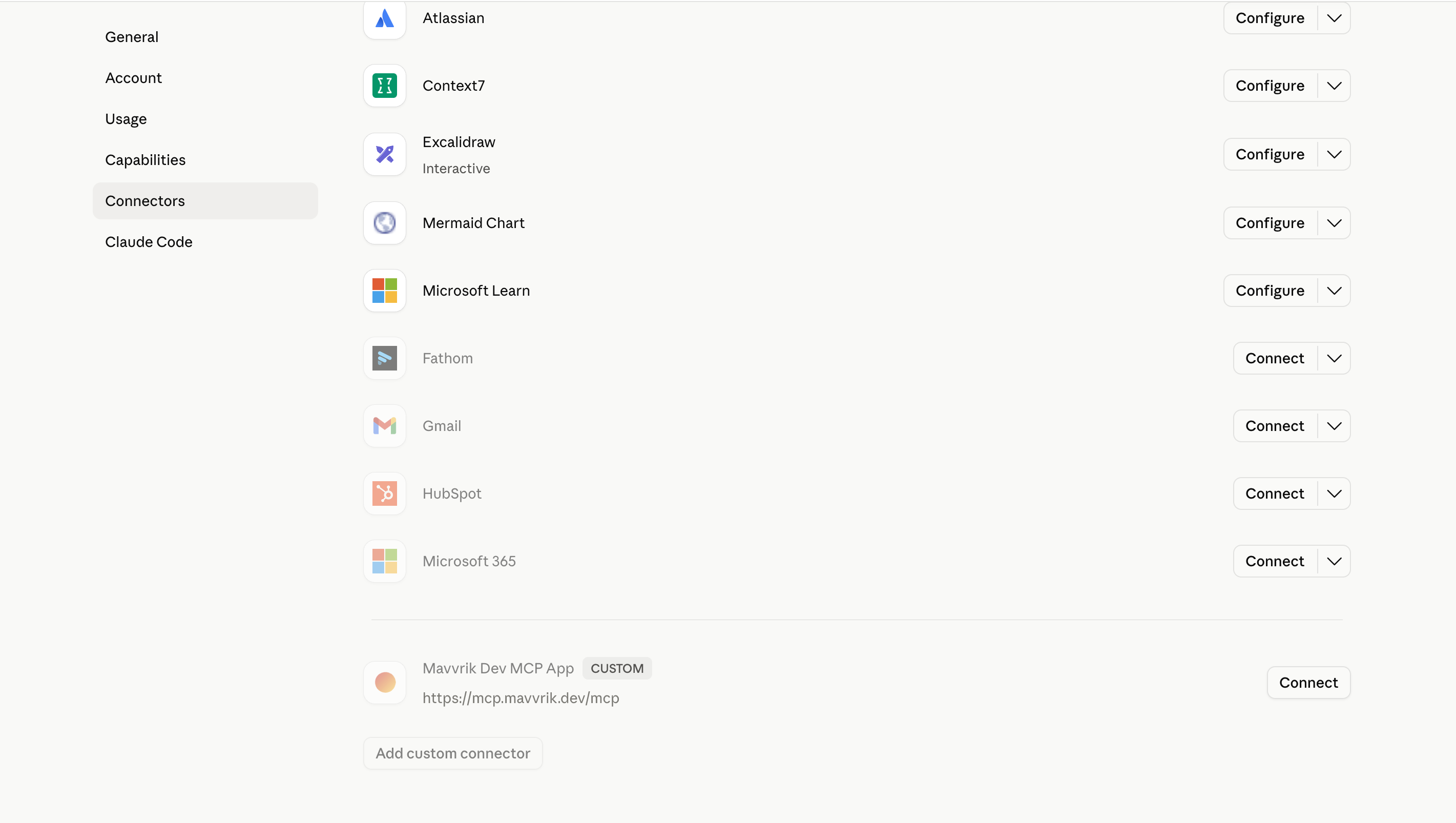
Open Settings → Connections.
-
Scroll down and select Mavvrik MCP.
-
Click Connect and start the connection flow.
-
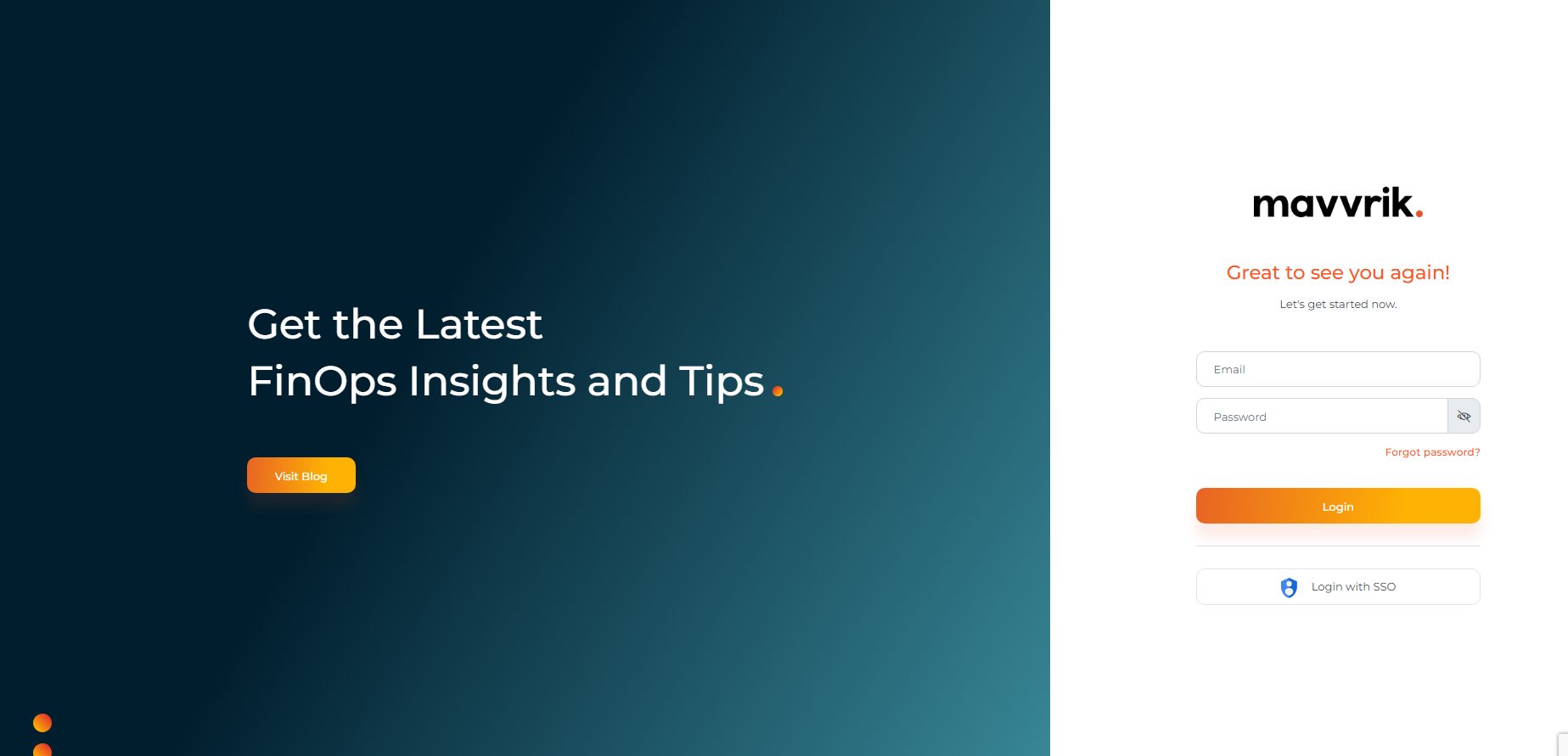
Complete the Mavvrik sign-in and authorization flow.
-
Confirm that Mavvrik MCP appears as connected.
-
After the connection is complete, you can ask Mavvrik cost intelligence questions in Claude conversations.
Verify the connection
A successful connection means Claude can access Mavvrik MCP and answer supported questions using data from your connected Mavvrik tenant.
To verify the connection:
-
Confirm that Mavvrik MCP appears as connected in Claude.
-
Open a new Claude conversation.
-
Ask a supported Mavvrik cost question.
-
Confirm that the response is based on your Mavvrik tenant data.
A good first test question is:
"What drove cloud spend last week?"
If data is available for the requested period, Claude should return a cost-focused answer using your Mavvrik data. If the response is empty, limited, or generic, the issue may be related to tenant access, available data, date range, connector state, or current MCP coverage.
Security and access
Mavvrik MCP uses Mavvrik sign-in and authorization for Claude Web and Claude Desktop. During setup, the user signs in through Mavvrik and authorizes the connection.
Mavvrik MCP does not give Claude direct access to cloud provider accounts or infrastructure. It answers supported questions using data already available in Mavvrik.
Access depends on the connected Mavvrik tenant and the authenticated Mavvrik user. If a user does not have access to certain data in Mavvrik, Mavvrik MCP responses may be limited accordingly.
Access can be removed by disconnecting Mavvrik MCP from Claude. Mavvrik records MCP activity for troubleshooting and auditability.
Troubleshooting
|
Issue |
Likely cause |
Suggested action |
|---|---|---|
|
Mavvrik MCP does not appear in Claude |
The connector may not have been added, published, or enabled for the workspace |
Confirm that the connector has been added and made available in Claude |
|
Sign-in does not complete |
The Mavvrik sign-in or authorization flow may not have completed successfully |
Restart the connection flow and sign in again |
|
Claude shows Mavvrik MCP as unavailable |
The connector session may be stale or expired |
Disconnect and reconnect Mavvrik MCP |
|
Response is empty or limited |
The question may be outside current coverage, or no matching data may exist for the requested period |
Retry with a supported example question and a clear date range |
|
Permission error |
The authenticated Mavvrik user may not have access to the requested data |
Confirm the user's access in the Mavvrik tenant |
|
Results look different from expected |
The prompt may use a date range, service name, account, or filter that does not match available Mavvrik data |
Rephrase the question with a specific time period and cost area |
|
Issue persists |
Additional investigation may be required |
Contact Mavvrik support with the Claude client used, timestamp, screenshot, and sample question |
Support
For setup or usage issues, contact the Mavvrik account team or Mavvrik support.
When reporting an issue, include:
-
Claude client used: Claude Web or Claude Desktop
-
Timestamp of the issue
-
Mavvrik tenant name or tenant identifier
-
Screenshot of the connector state or error message
-
The question asked in Claude
-
Whether the issue occurred during setup, sign-in, verification, or normal use
FAQs
Does Claude get direct access to my cloud accounts or infrastructure?
No — Mavvrik MCP does not give Claude direct access to cloud provider accounts or infrastructure. It only answers supported questions using data already available in Mavvrik.
Can I disconnect Mavvrik MCP from Claude if needed?
Yes — access can be removed at any time by disconnecting Mavvrik MCP from Claude.