.png)
Why this matters: Cursor is where a lot of engineering work already happens; connecting Mavvrik here means an engineer can ask "what's this service costing us" without switching to a dashboard, right in the same tool they're already coding in.
Mavvrik MCP connects Cursor to Mavvrik through a secure sign-in and authorization flow.
The connection uses the Mavvrik tenant associated with your authenticated Mavvrik user account. After authorization is complete, Mavvrik MCP becomes available inside Cursor, allowing you to ask cloud cost intelligence questions directly in a natural conversation.
To enable this experience, connect Cursor to the Mavvrik MCP server.
Cursor can connect to Mavvrik in two ways:
Connector flow (Recommended)
Sign in with OAuth through Cursor's built-in MCP UI. This secure authorization flow ties access to your authenticated Mavvrik account and associated tenant.
Manual configuration
Add the Mavvrik MCP server directly via Cursor's MCP management screen, then authenticate with OAuth. This option is useful when you prefer to configure the connection manually, need to scope it to a specific workspace, or want to manage MCP settings outside the quick-add flow.
Connect using Cursor's MCP UI (Recommended)
-
Go to cursor
-
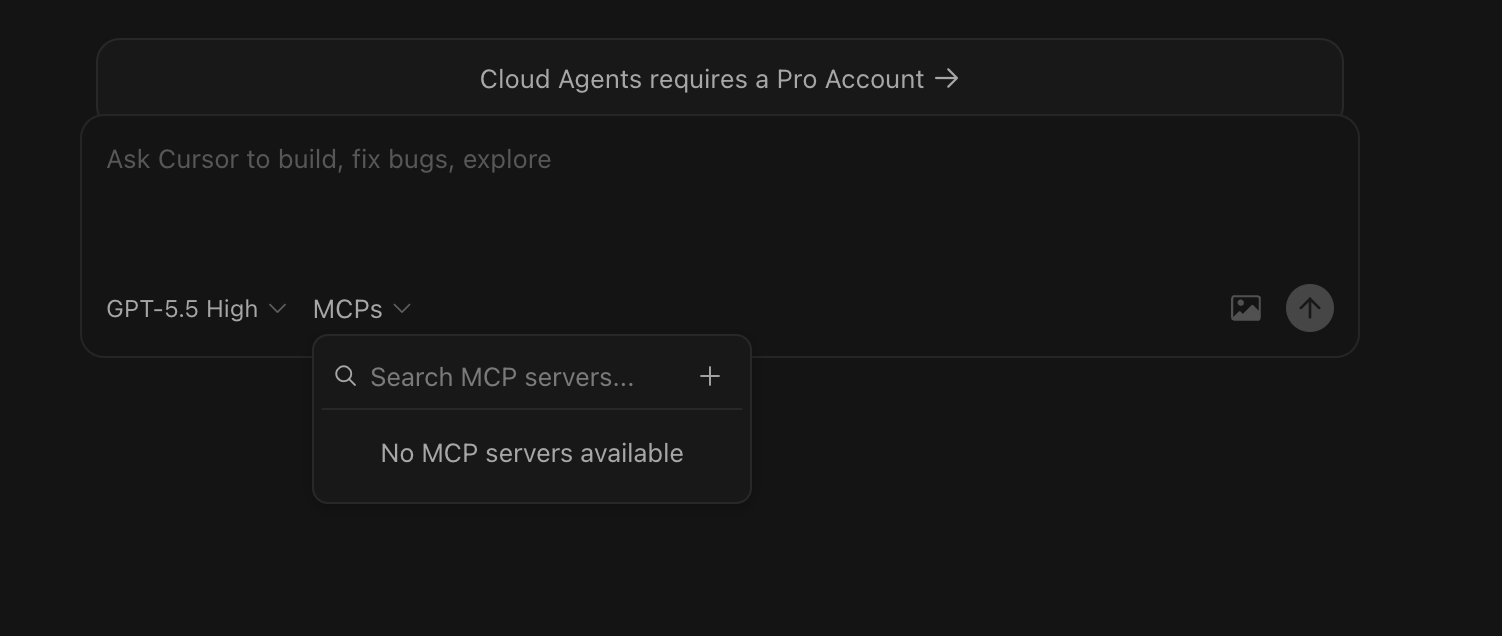
Click MCP and click Add +
-
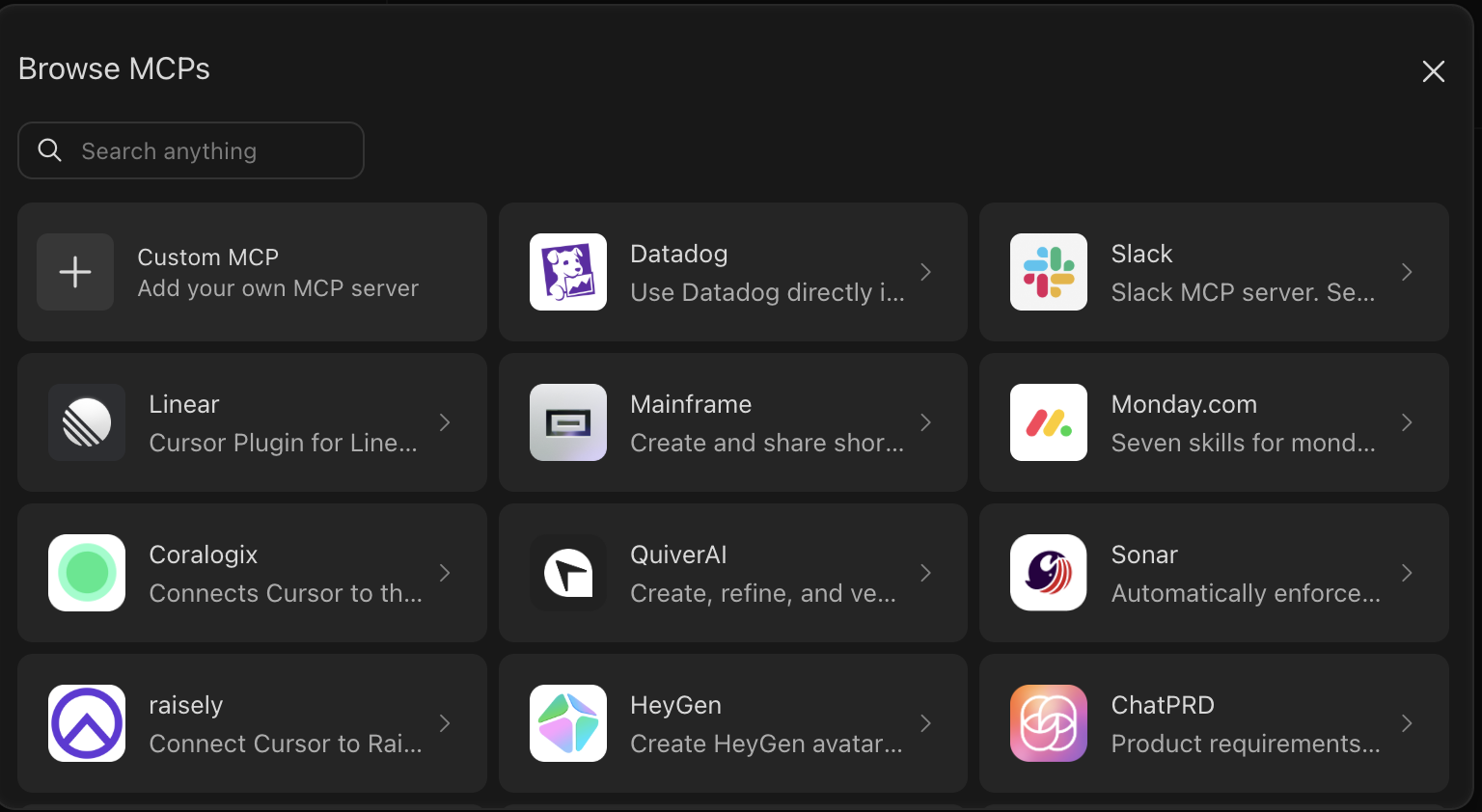
Choose Add custom MCP
-
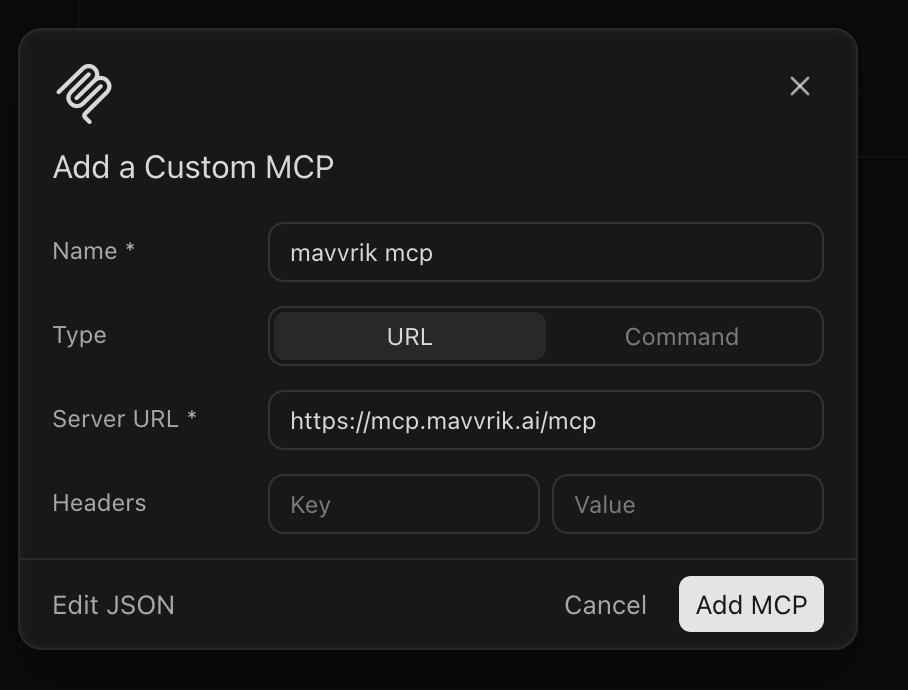
Enter the Mavvrik MCP details.
-
Enter
https://mcp.mavvrik.ai/mcpfor server URL
-
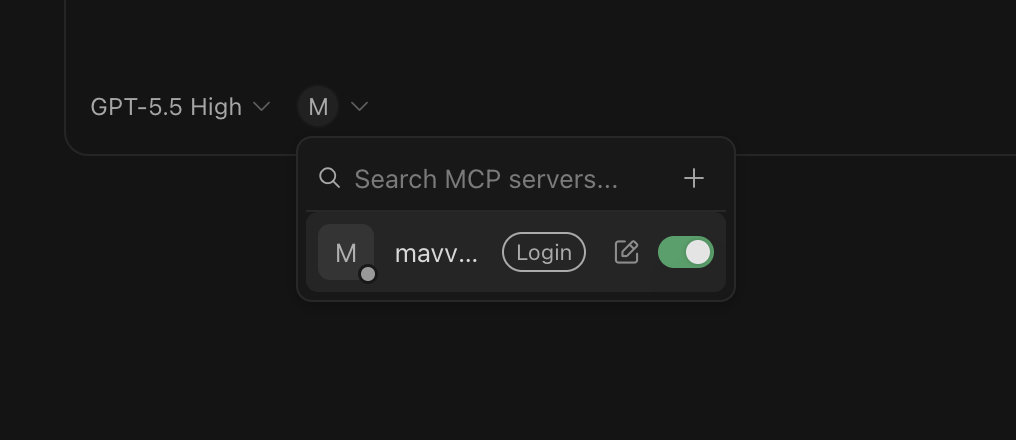
Click Login to start the Mavvrik sign-in flow
-
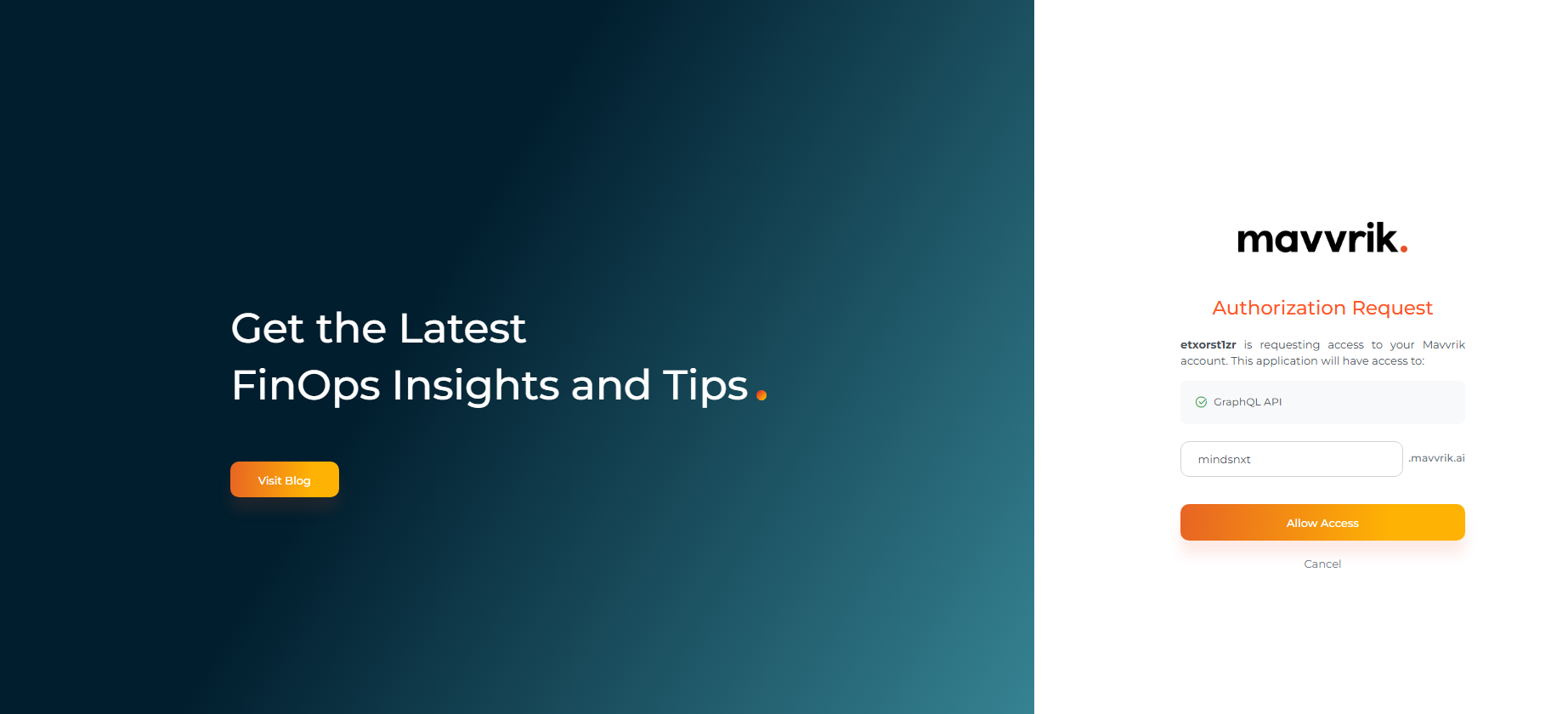
Complete the login flow (tenant subdomain → Firebase authentication).
-
Enter your tenant domain URL, allow access, and then enter your Mavvrik login credentials.
-
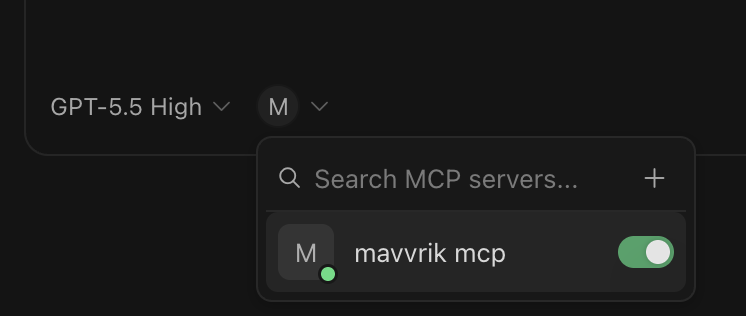
The Mavvrik tools are now available; start using the MCP.
-
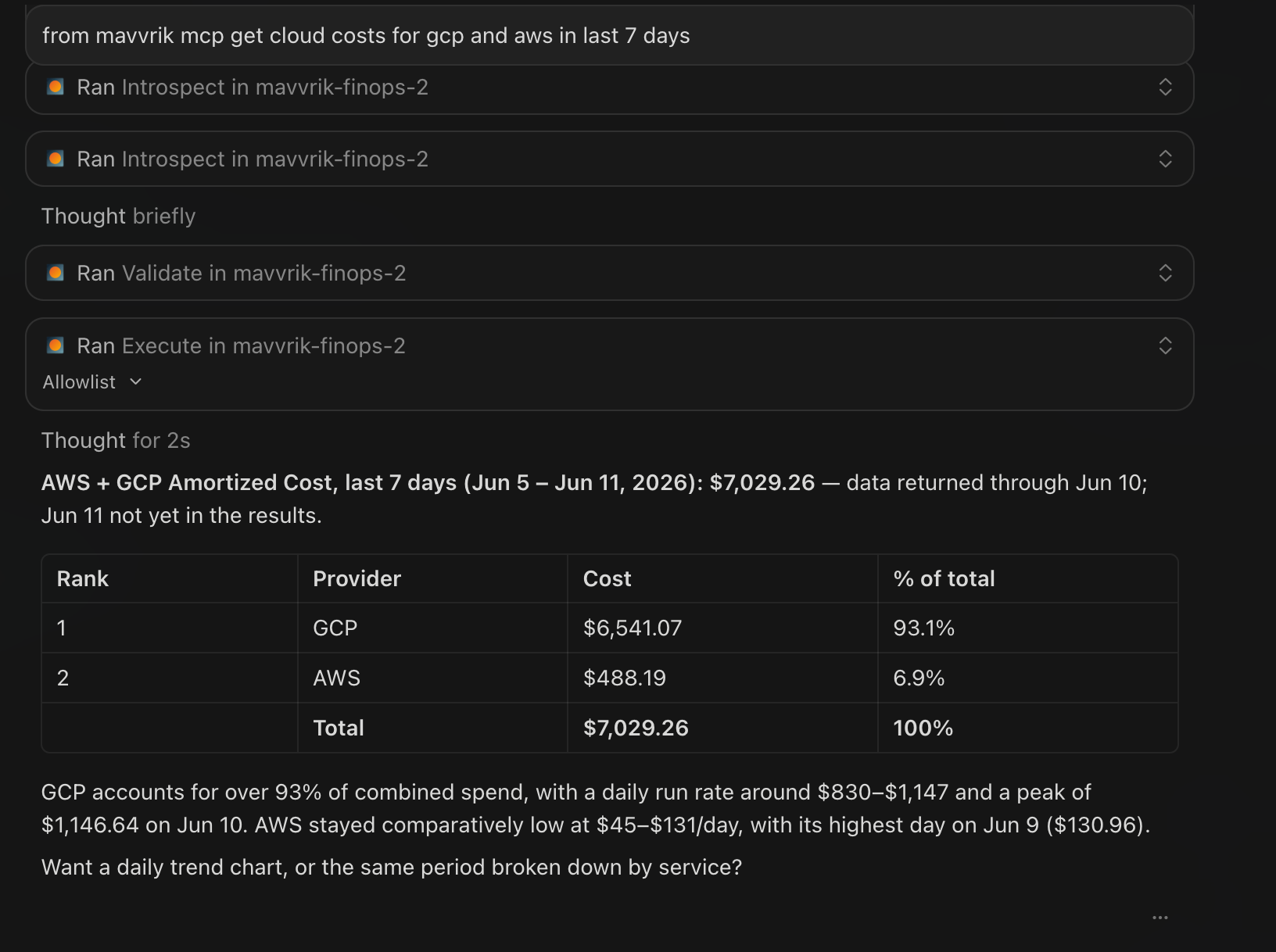
Run a prompt such as: from mavvrik mcp Get my cloud costs for AWS and GCP for the last 7 days.
Connect manually via Cursor's MCP management screen
-
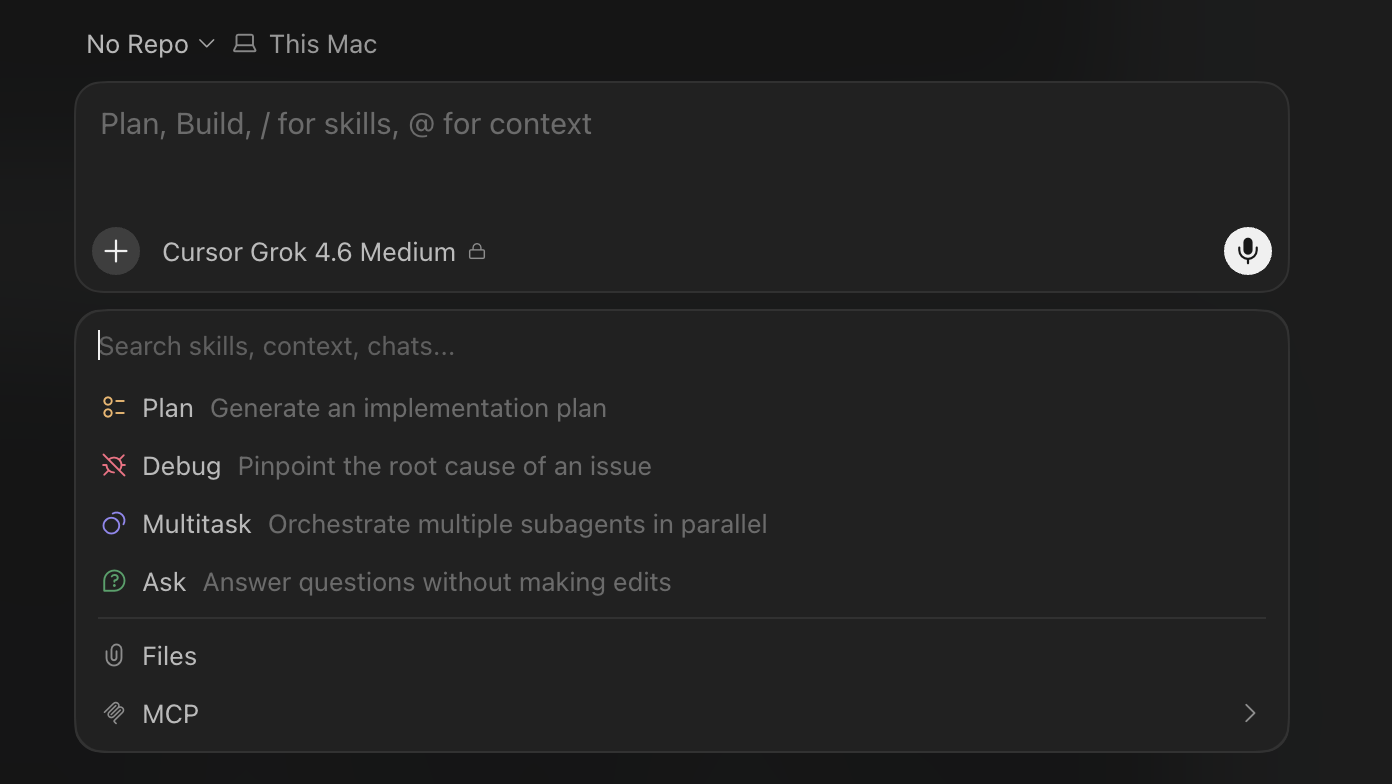
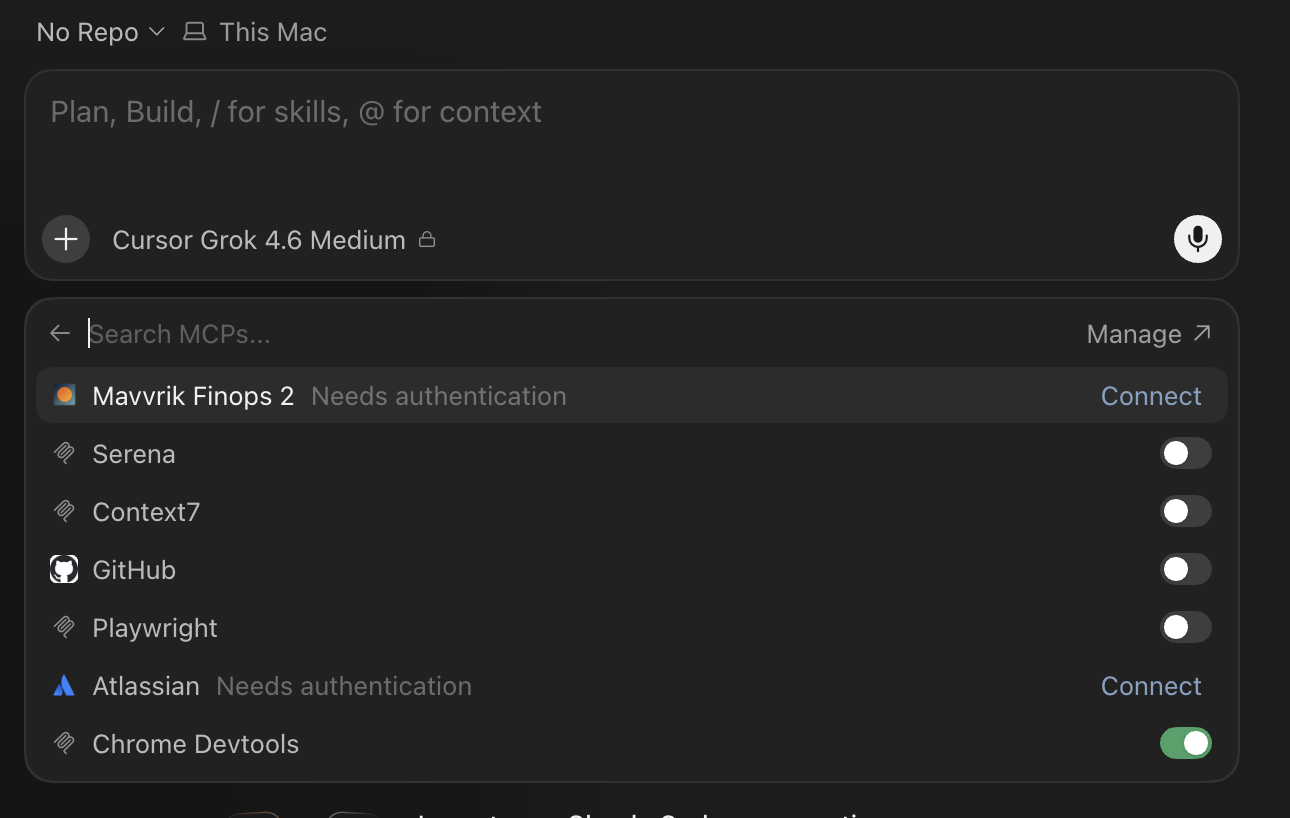
In Cursor, click +
-
Click MCP
-
Click Manage
-
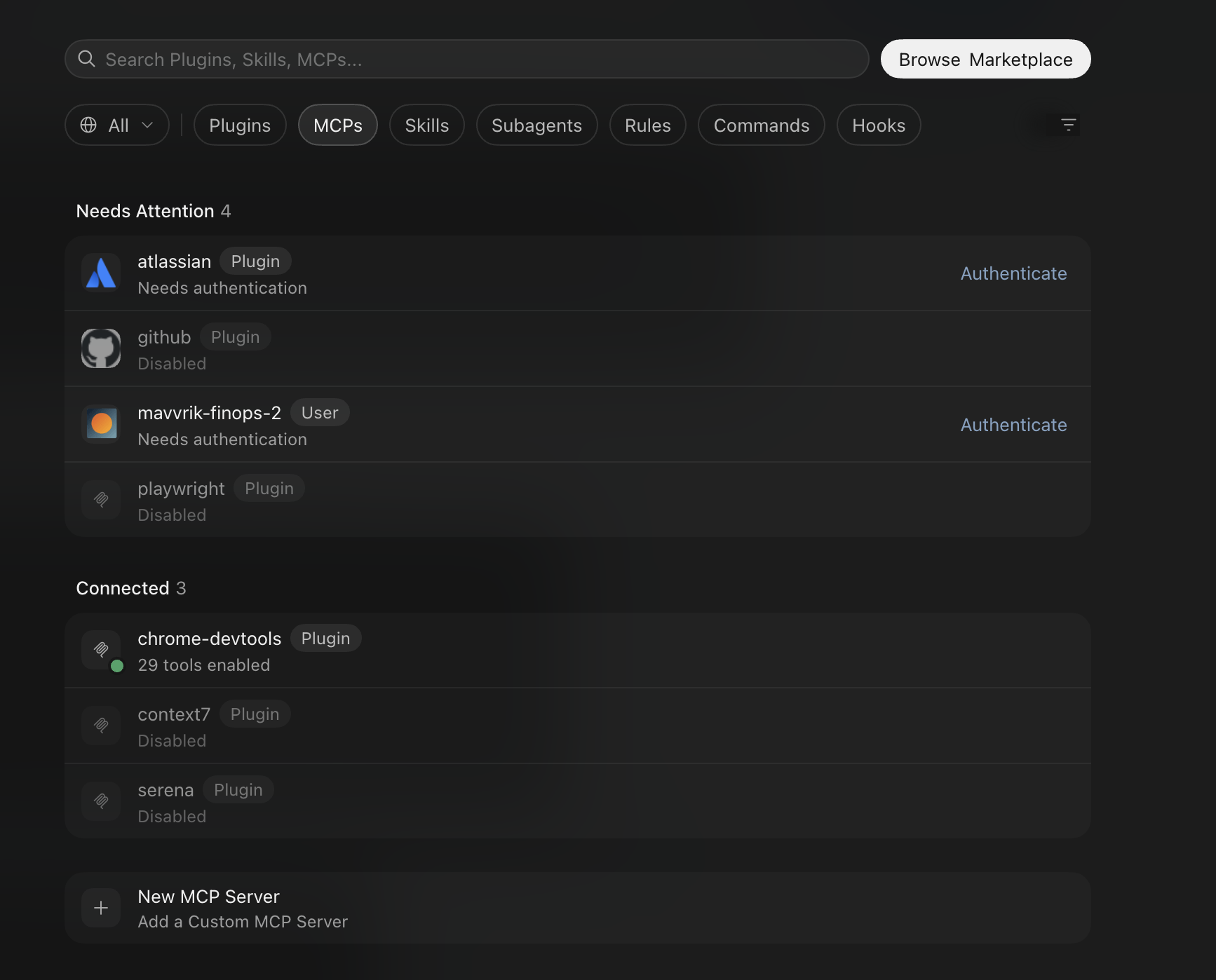
Click New MCP Server
-
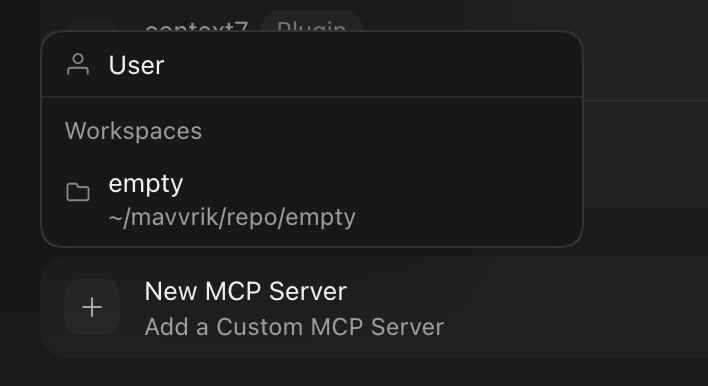
Choose the scope: User or Workspace
-
Fill in the configuration JSON:
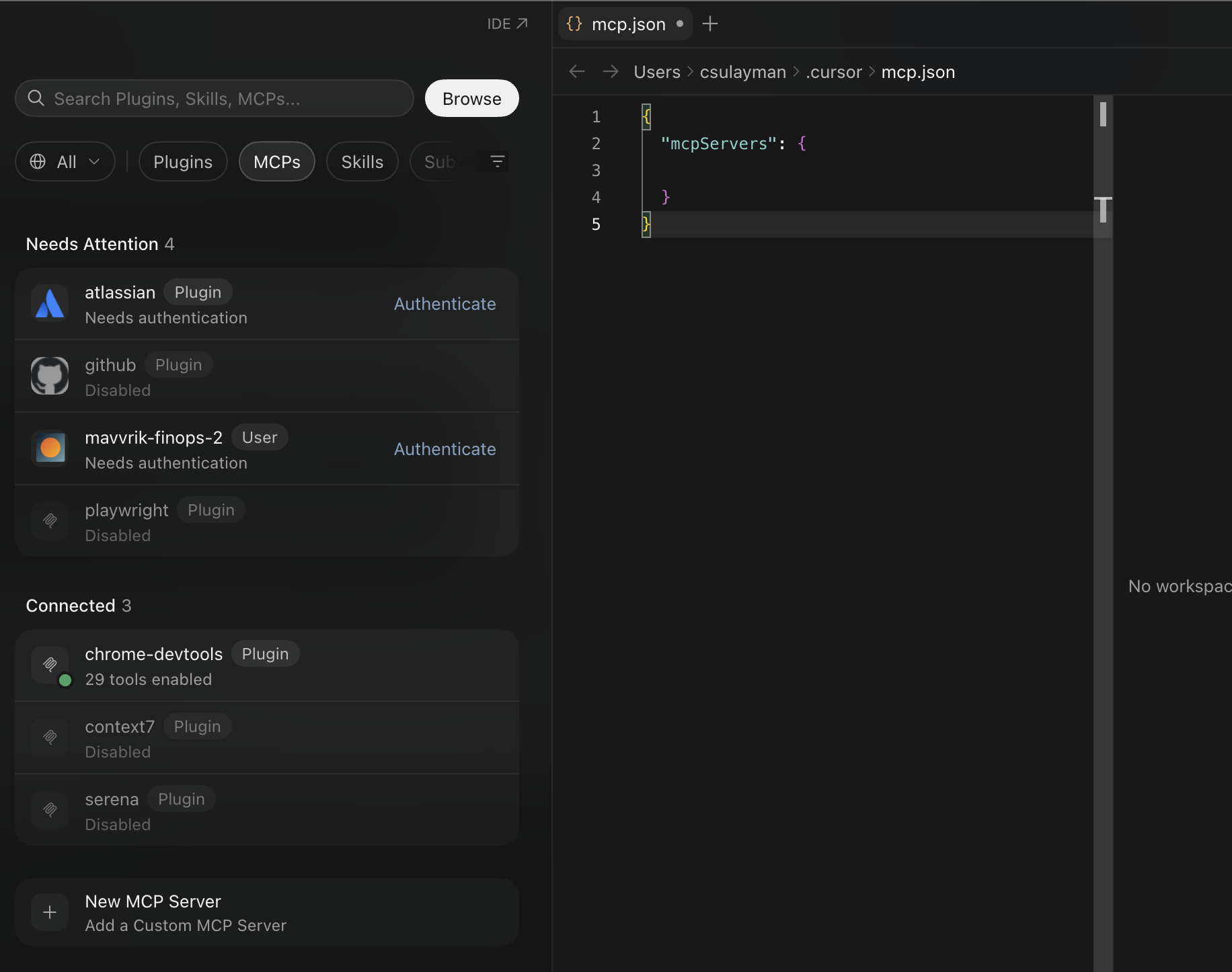
{
  "mcpServers": {
    "mavvrik-mcp": {
      "type": "streamable-http",
      "url": "https://mcp.mavvrik.ai/mcp"
    }
  }
}
-
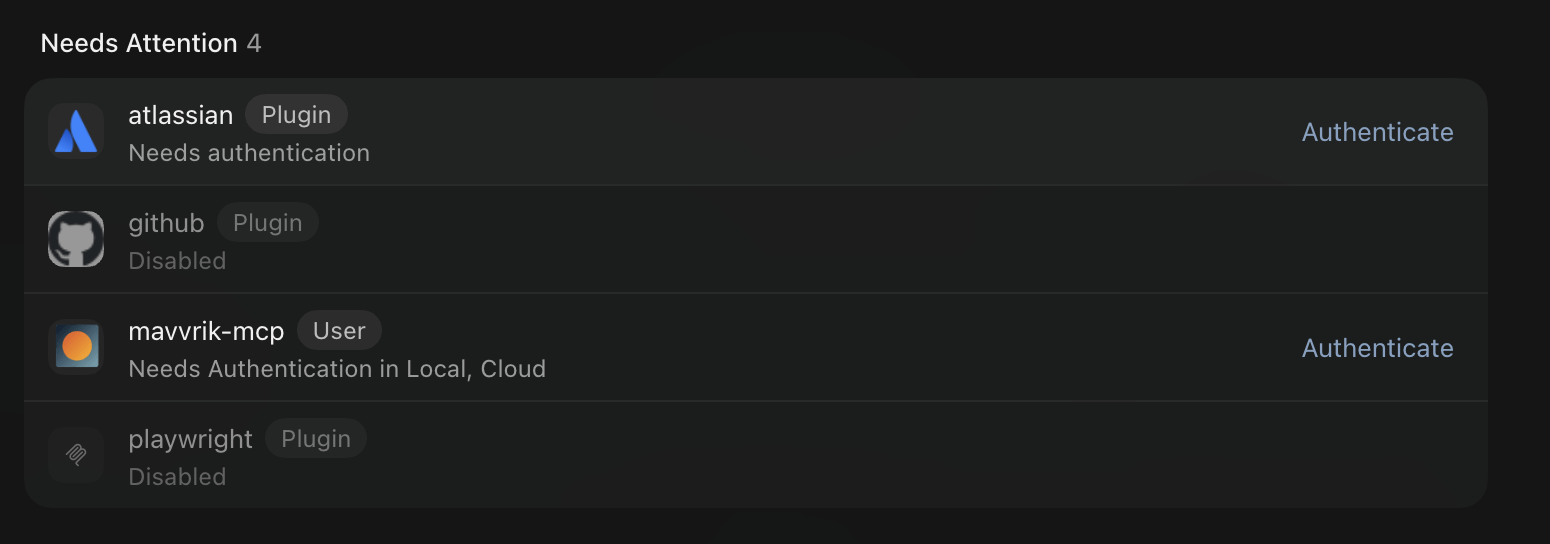
Click Authenticate
-
Complete the OAuth flow; the MCP is now ready to use.
Troubleshooting
-
If the connector doesn't authenticate, confirm the server URL is exactly
https://mcp.mavvrik.ai/mcpand retry the sign-in flow. -
If Mavvrik tools don't appear in Cursor after connecting, disconnect and reconnect the MCP server, or restart Cursor.
FAQs
Which method should I use, Connector flow or manual configuration?
Connector flow is recommended for most people; it's a guided OAuth sign-in through Cursor's own MCP UI. Use the manual method only if you specifically need to scope the connection to a User or Workspace level, or prefer to manage MCP settings through Cursor's MCP management screen directly.
Does the manual method need an API key or tenant ID?
No, both the Connector flow and the manual method authenticate via OAuth. The manual method's config JSON only needs the server type and URL; you authenticate afterward by clicking Authenticate and completing the OAuth flow, the same as the Connector flow.