.png)
Why this matters: Copilot is where a lot of Microsoft 365 users already work. Connecting Mavvrik here means a cost question can get answered right inside that environment, without switching to a separate dashboard.
Mavvrik MCP connects Copilot to Mavvrik through a secure sign-in and authorization (OAuth) flow. Once set up, everyone in your organization can find and use the Mavvrik agent inside Microsoft 365 Copilot; each person still signs in with their own Mavvrik account the first time they use it, so results are always scoped to their own tenant and permissions.
This integration has two parts:
|
Who |
What they do |
One-time or per-user? |
|---|---|---|
|
One admin or champion |
Builds the agent once and rolls it out to the org |
One-time |
|
Every end user |
Opens the agent from the Agent Store and signs in to Mavvrik |
Per-user, first use only |
Part 1: Roll out Mavvrik org-wide (one admin, one time)
Who can do this
|
Role |
Needed for |
|---|---|
|
Copilot Studio maker (any user with a Copilot Studio environment) |
Building and publishing the agent (Steps 1–10) |
|
Teams Administrator or Global Administrator |
Approving the agent for the whole organization (Step 11) |
You can be both, or hand off Step 11 to whoever holds the admin role.
Prerequisites
-
Users in your organization have a Microsoft 365 Copilot license (or access to Copilot Chat).
-
Your organization allows Power Platform apps in Teams. If this is off, ask your Teams admin to enable it (see https://learn.microsoft.com/en-us/microsoftteams/manage-power-platform-apps).
-
You have a Copilot Studio maker license/environment to build the agent.
Steps
-
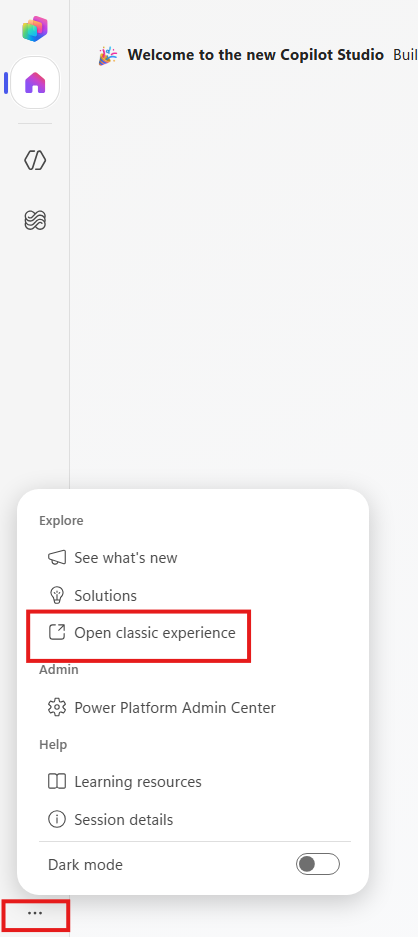
Sign in to https://copilotstudio.microsoft.com and click Open classic experience from bottom
-
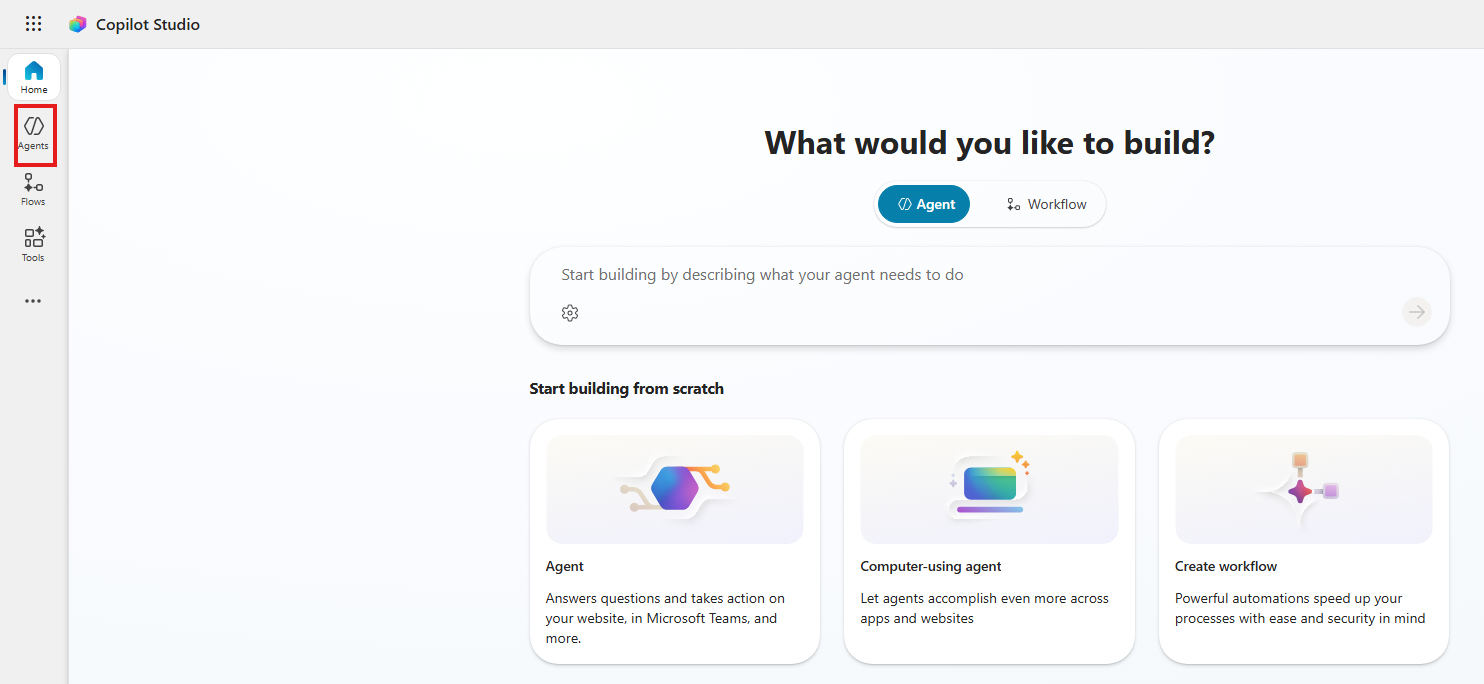
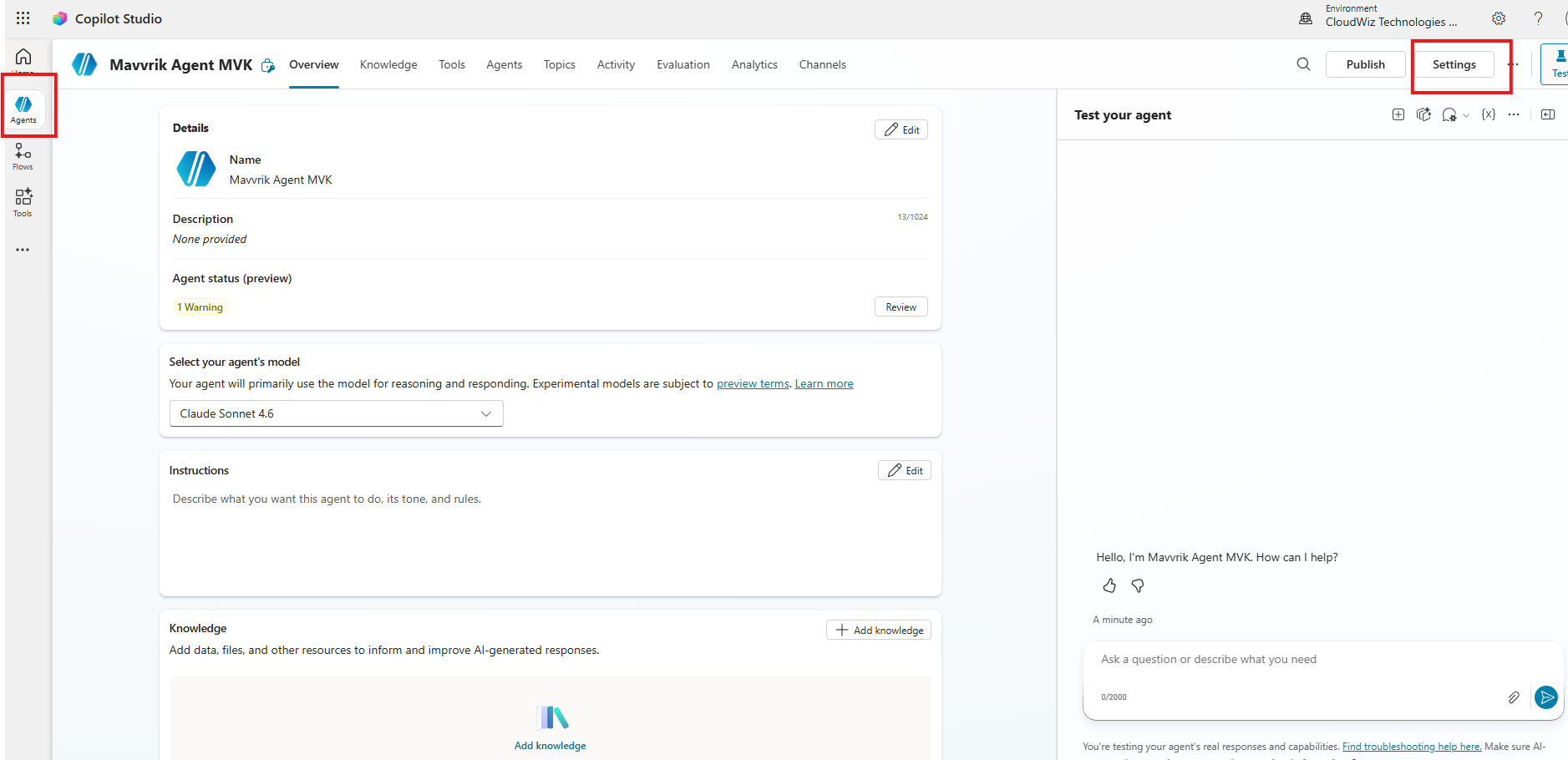
Select Agents.
-
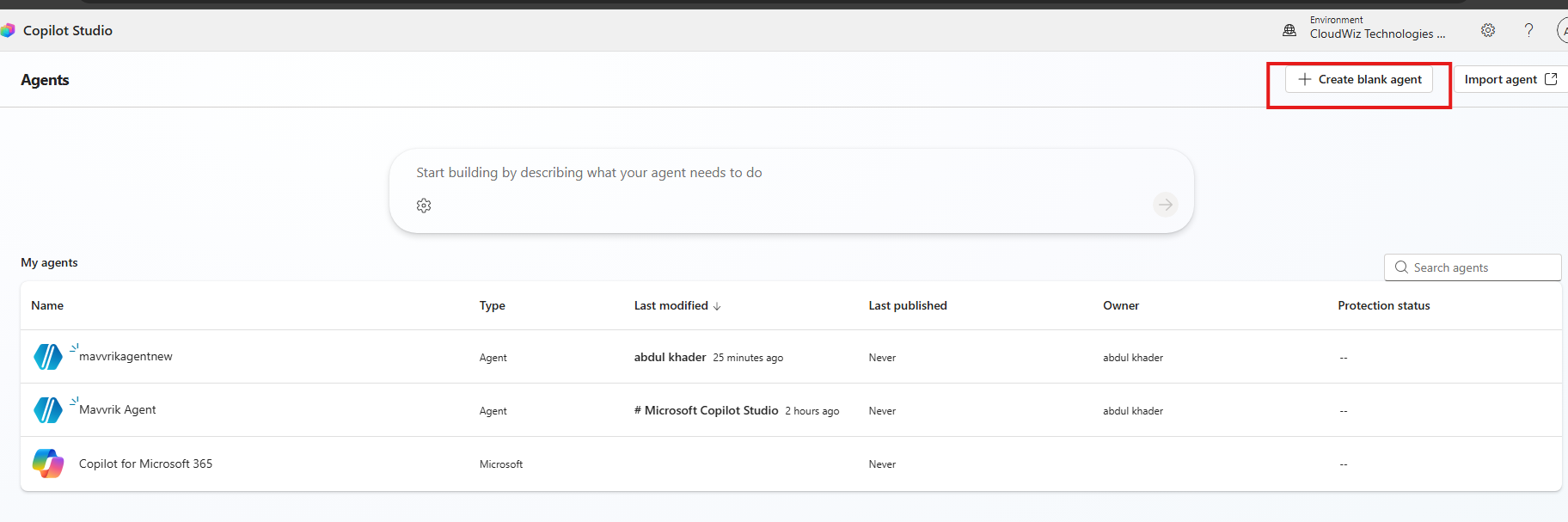
Select Create blank agent, and give it a name (e.g. Mavvrik).
-
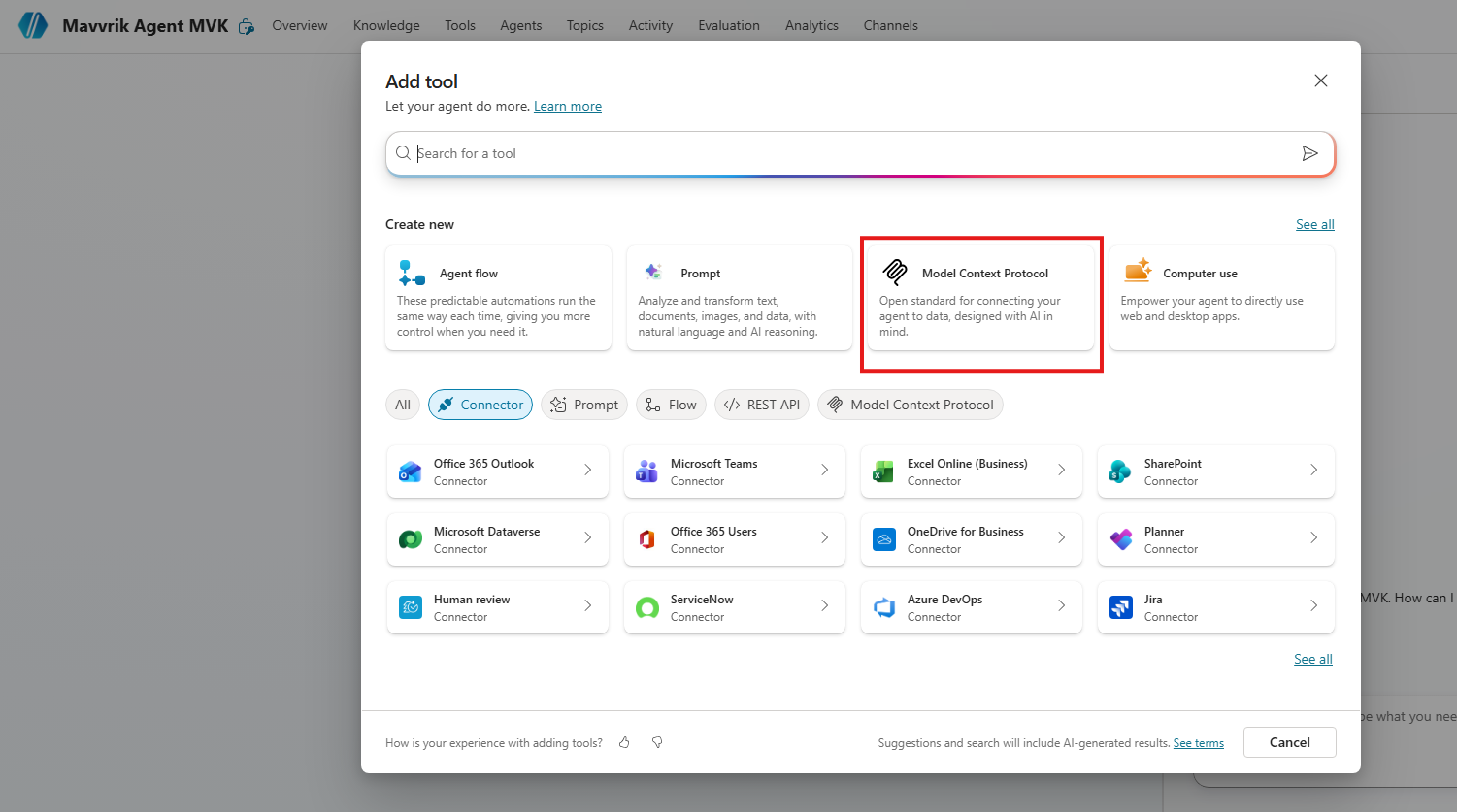
Open the Tools tab → Add a tool → New tool → Model Context Protocol.
-
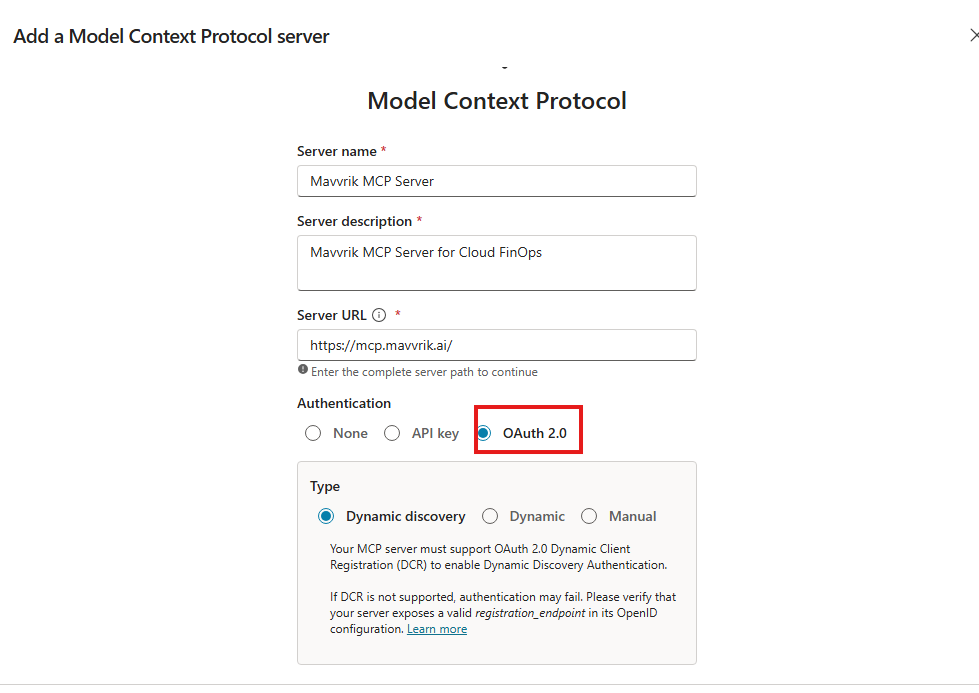
Fill in the server name and description, then set the Server URL to
https://mcp.mavvrik.ai/mcp. -
Under authentication, select OAuth 2.0 → Dynamic discovery, then Create.
-
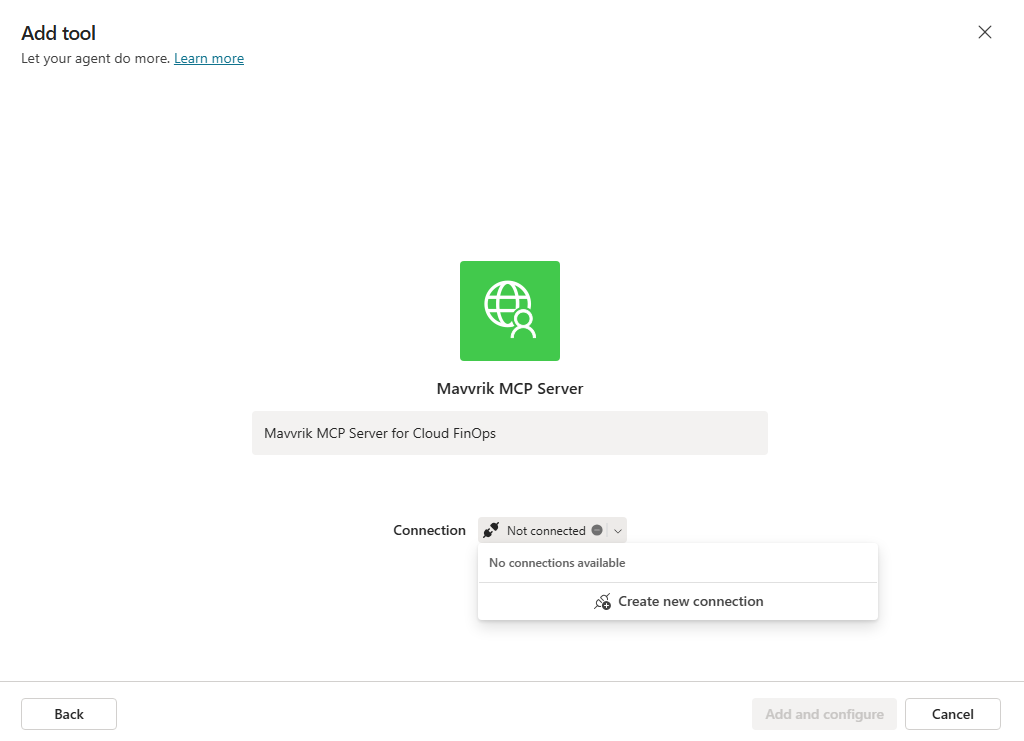
On the connection screen, select Create new connection → Create.
-
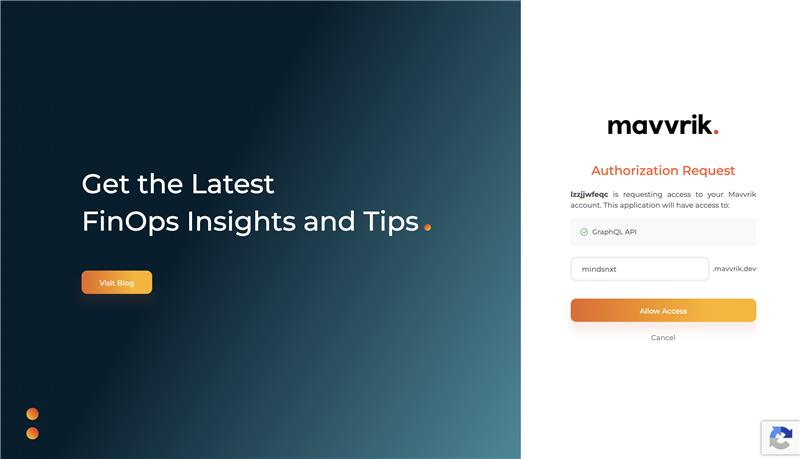
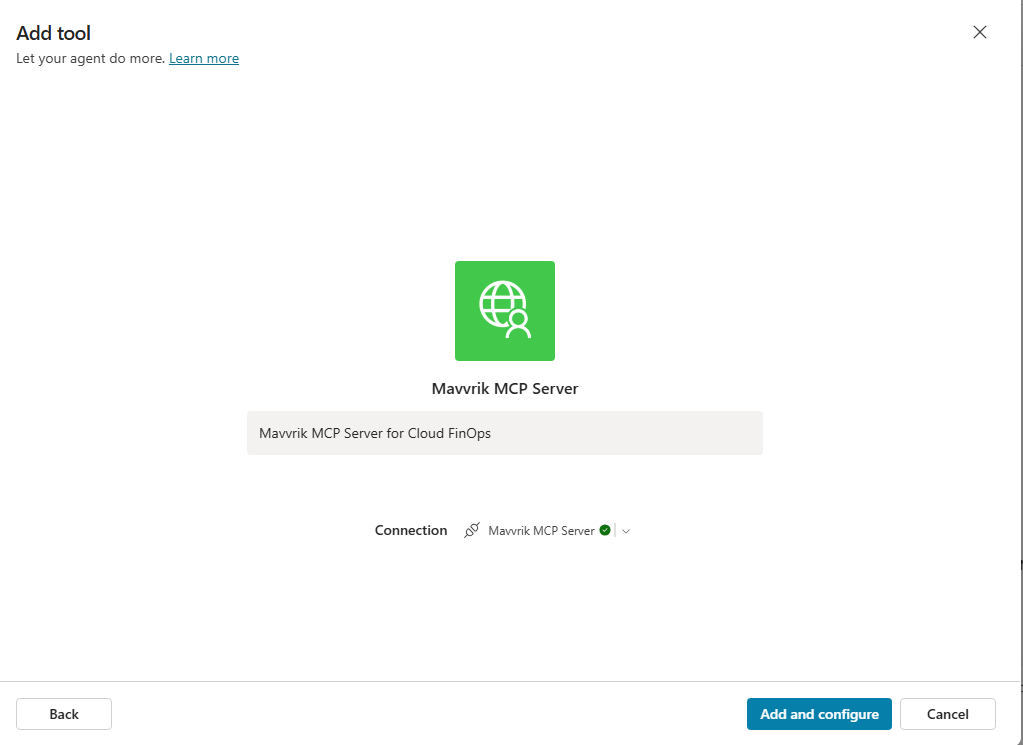
Sign in with your Mavvrik tenant URL and credentials to authorize the connection, then select Add and configure.
-
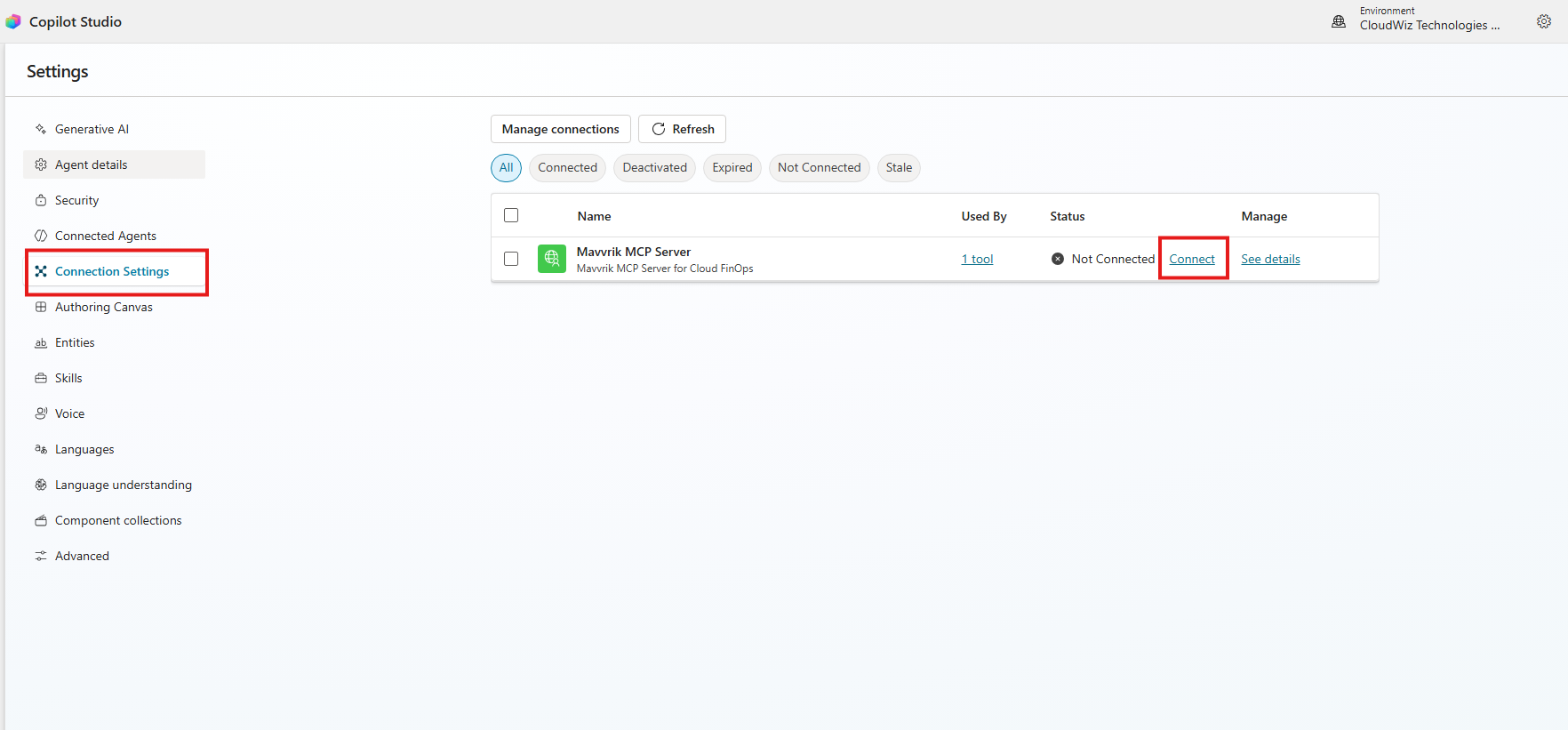
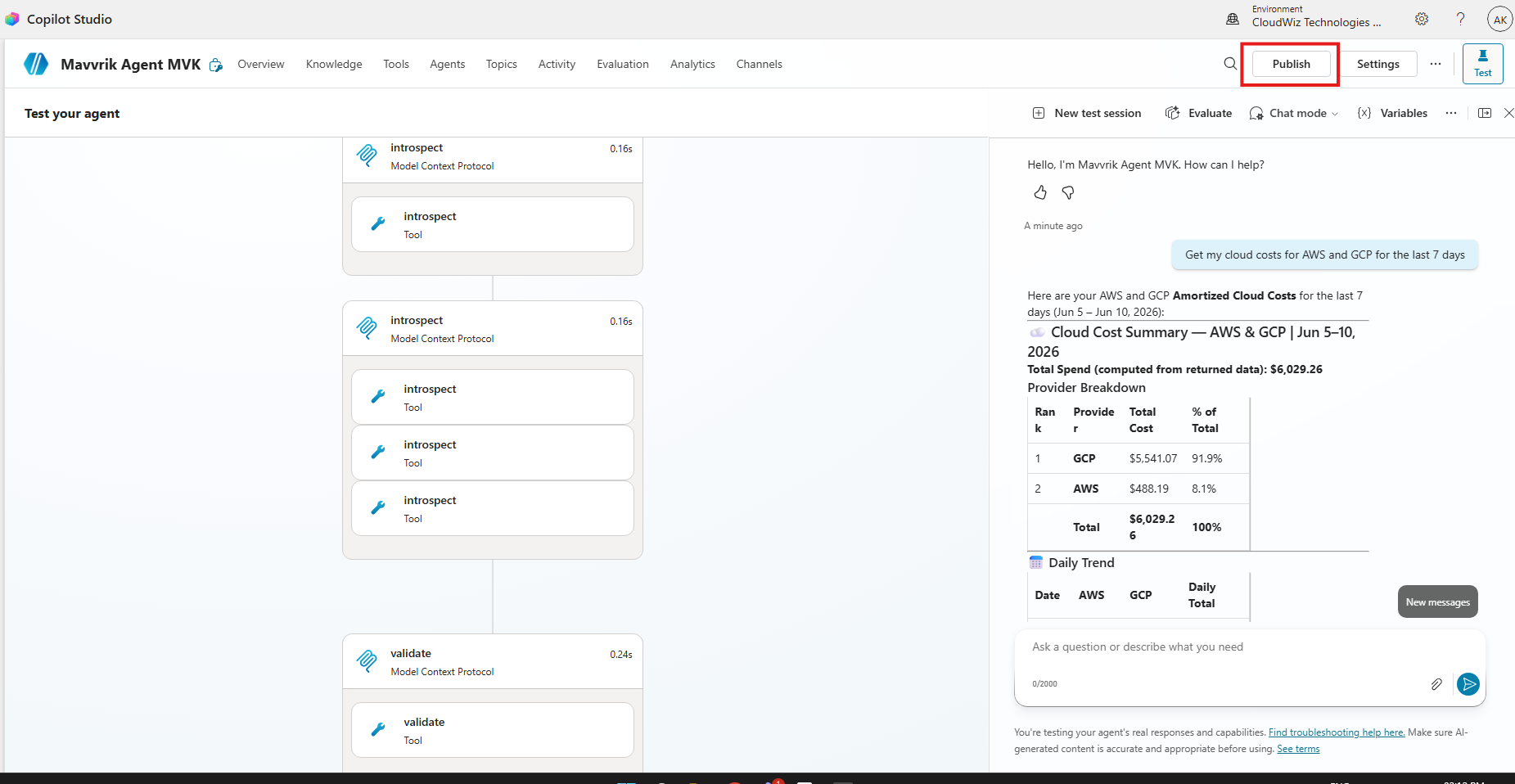
Open Settings → Connection Details, select Connect and Submit, and confirm the status shows Connected . Then test the agent with a prompt like "Get my cloud costs for AWS and GCP for the last 7 days."
-
When the test looks right, select Publish.
-
Go to Channels → Teams and Microsoft 365 Copilot → Availability options → Show to everyone in my org → Submit for admin approval.
-
A Teams or Global admin reviews and approves the request in the https://learn.microsoft.com/en-us/microsoftteams/submit-approve-custom-apps or Microsoft 365 admin center.
-
Once approved, the agent appears in Built for your org (Teams app store) and Built by your org (Microsoft 365 Agent Store) for everyone.
-
Optionally, the admin can use a Teams app setup policy to auto-install and pin the agent for all users, so they don't have to find it themselves. See https://learn.microsoft.com/en-us/microsoftteams/teams-app-setup-policies.
-
Note: Approval publishes the agent, not a shared data connection. Each person who chats with it still connects to Mavvrik with their own account (see Part 2). Copilot Studio automatically grants users the Environment Maker role in the agent's environment when it publishes to them; this only grants permission to chat with the agent (the ChatBotReaders privilege), not to edit it. No extra license or manual role assignment is required beyond a standard Microsoft 365 Copilot license.
Granting Access to the Connector (if needed)
If some users still can't reach the agent after admin approval, the connector itself may need to be shared and their Power Platform environment access checked:
-
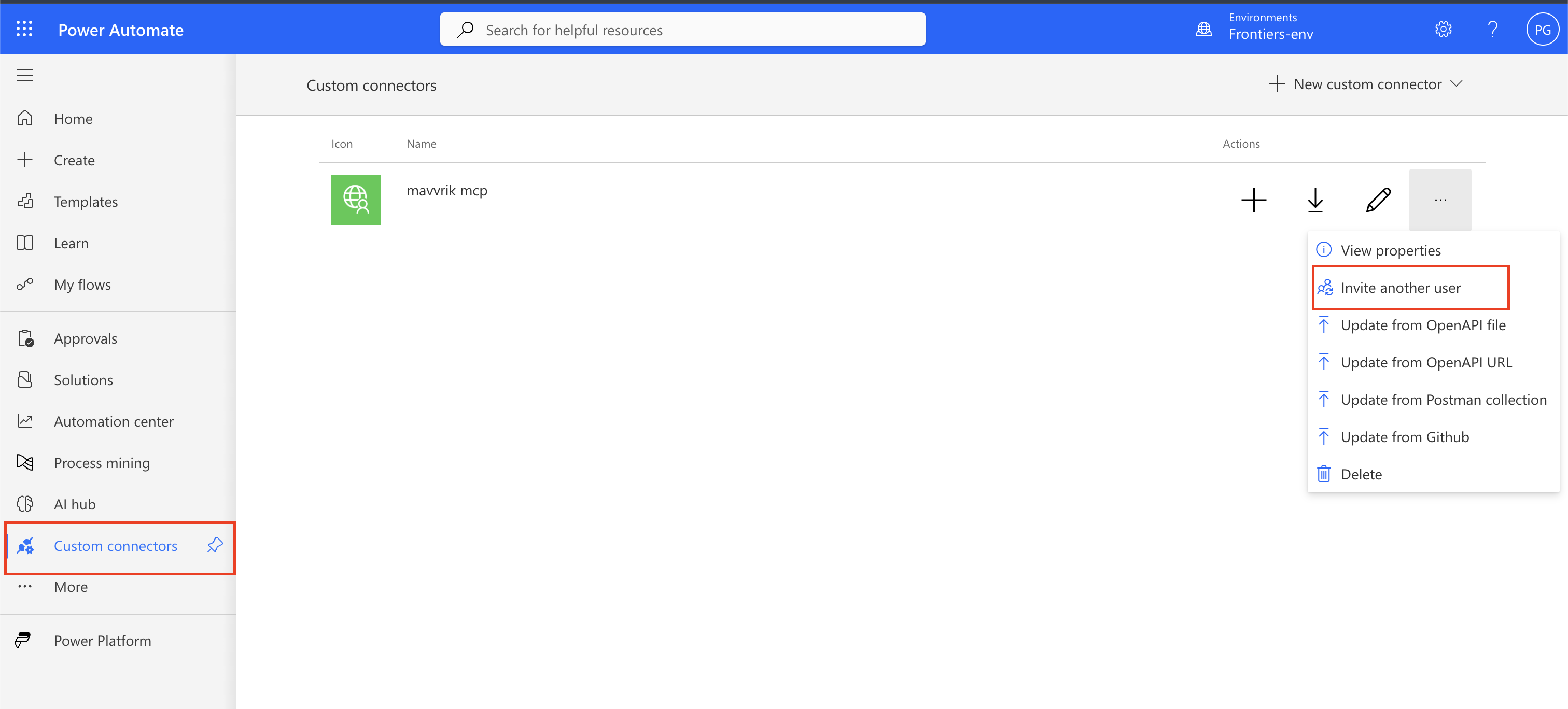
Share the MCP connector with the organization: go to Power Automate → Custom Connectors → Invite another user.
-
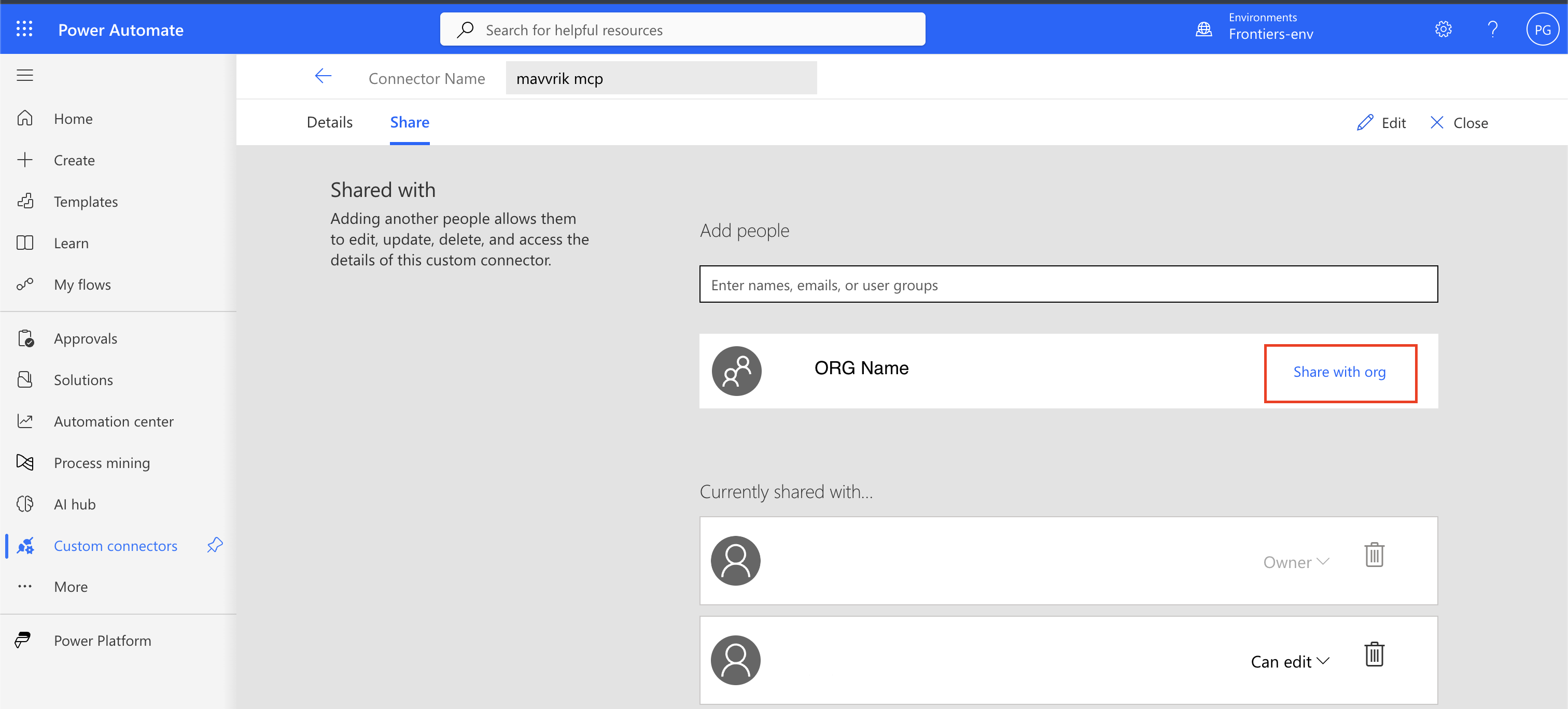
Share with the org or the specific user, granting Can view access.
-
If a user still can't access the app or environment, check their access in the Power Platform admin center → Environments, and provide Environment Maker access to that user.

Part 2: What each user does (first use only)
-
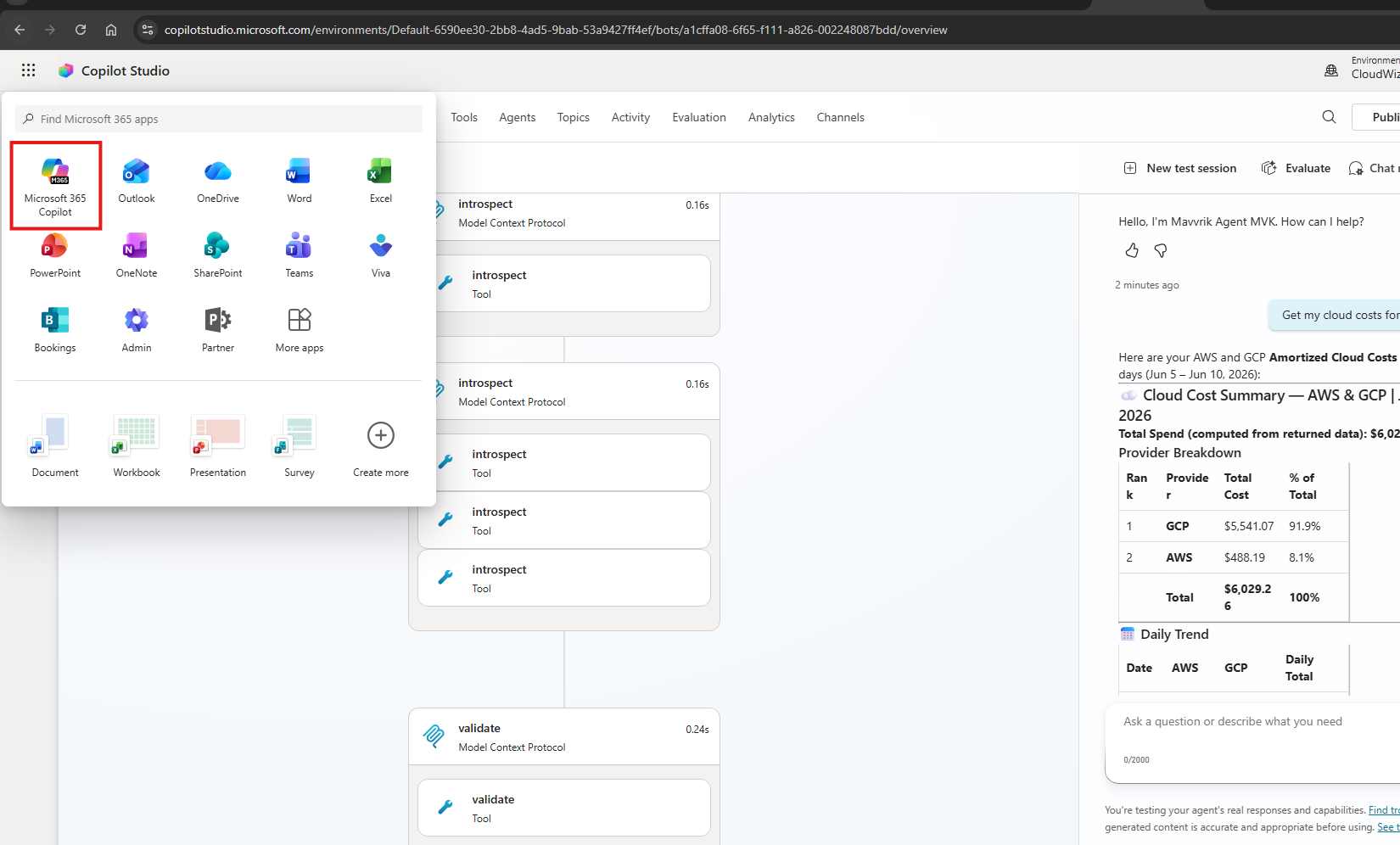
Open Microsoft 365 Copilot (or Teams).
-
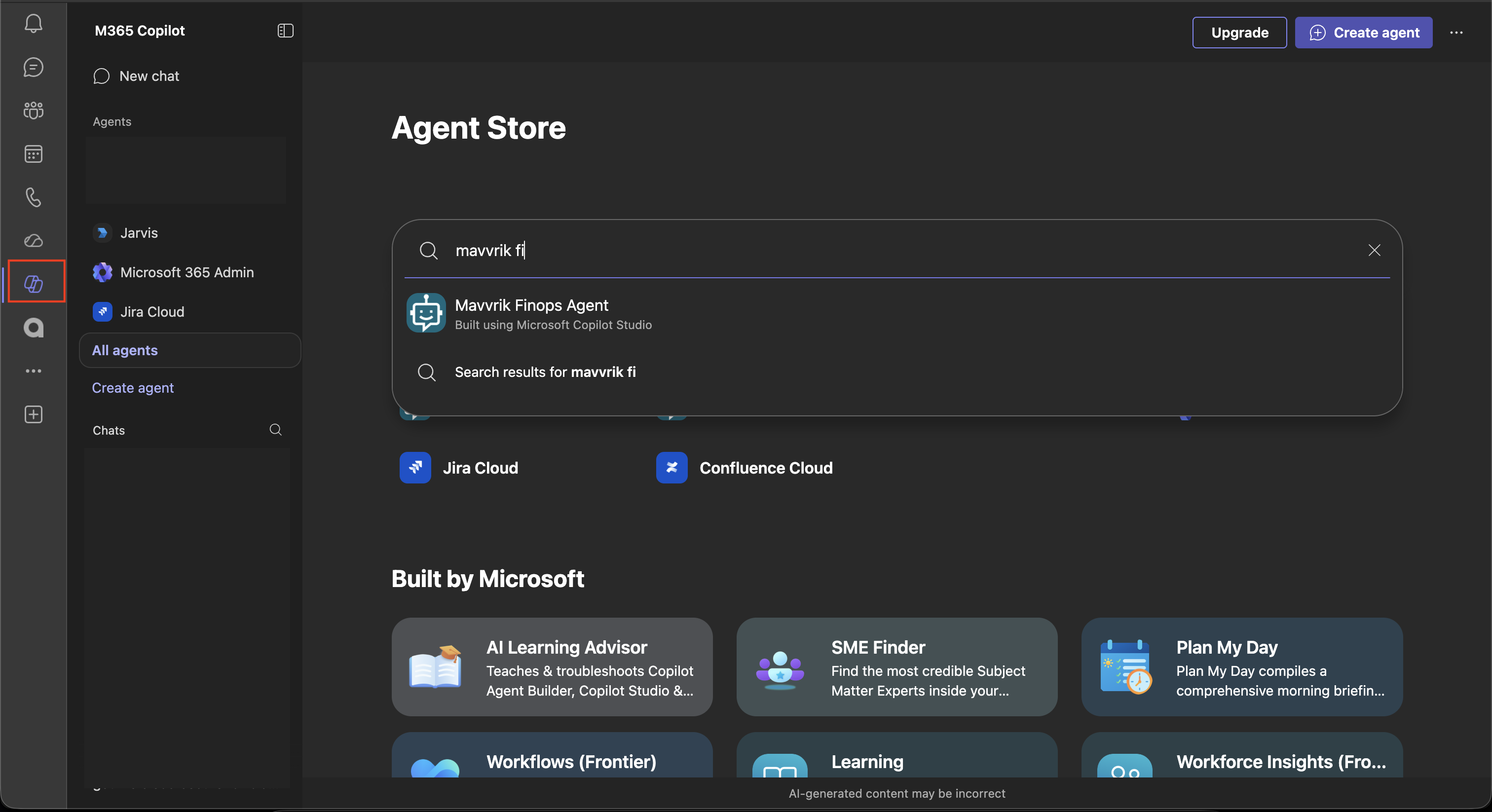
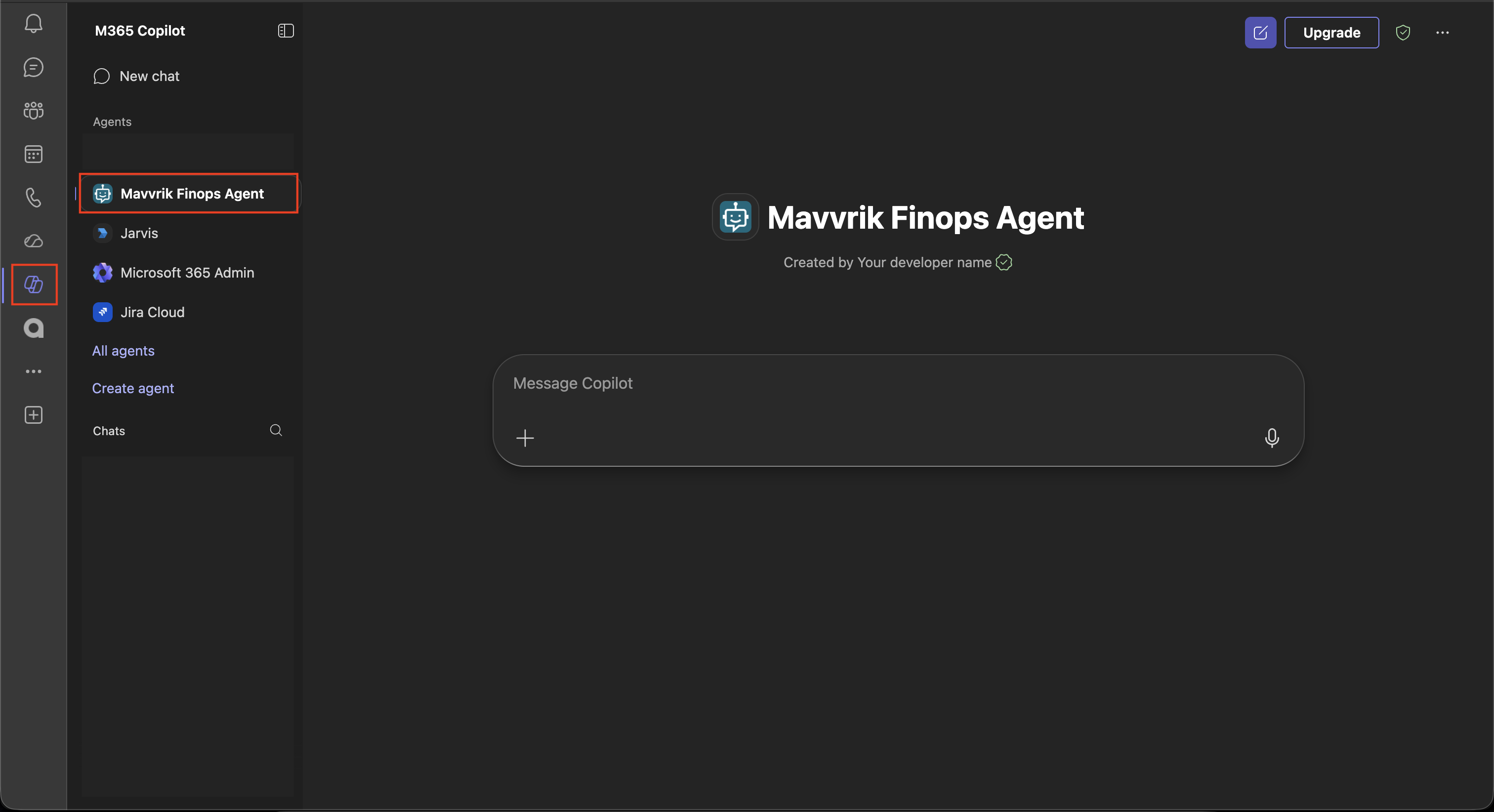
Search for Mavvrik in the Agent Store, or find it pinned in the app bar if your admin set up auto-install.
-
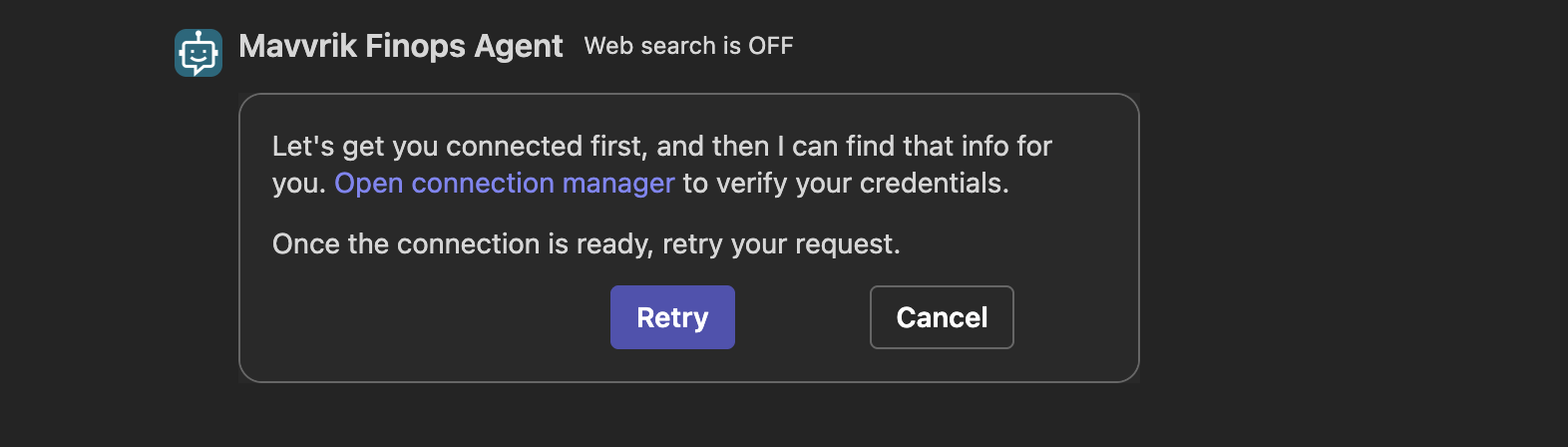
On first use, you may see the following error appear:
-
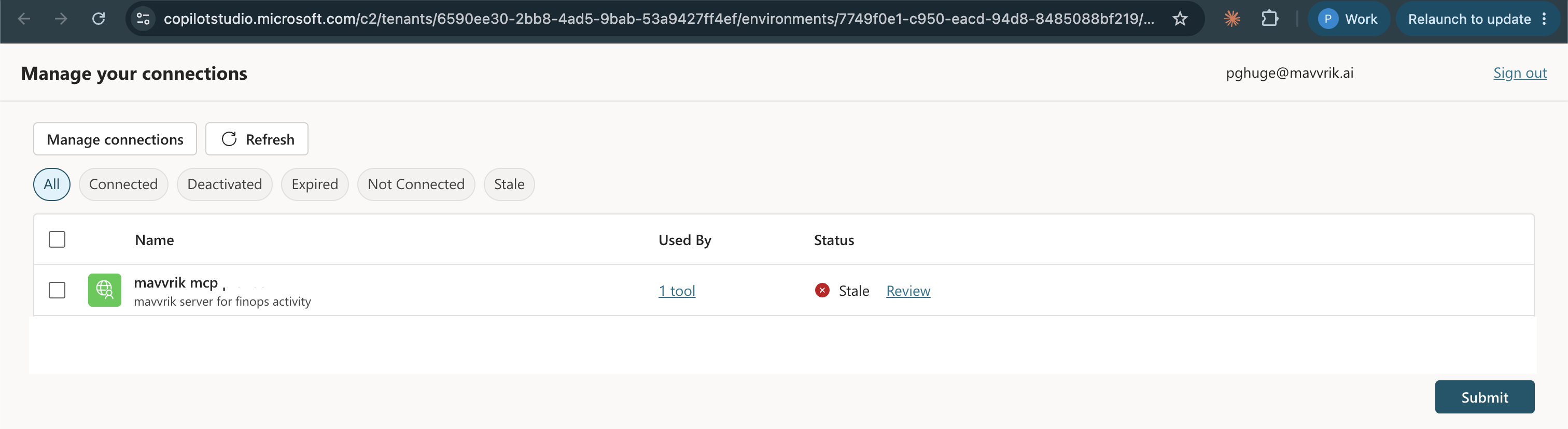
Open the connection manager to connect Mavvrik MCP for your account.
-
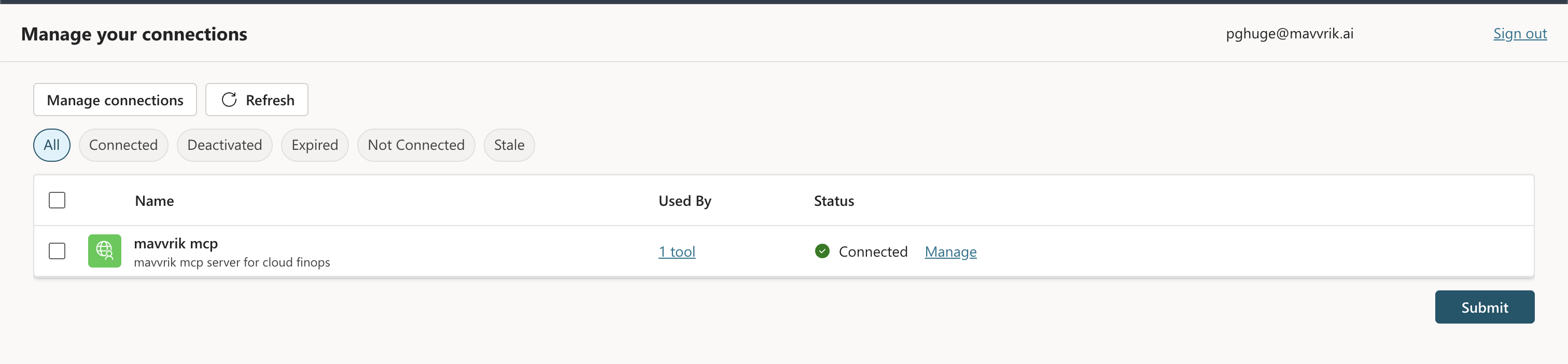
Click Review and add connection. Once successful, it should show:
-
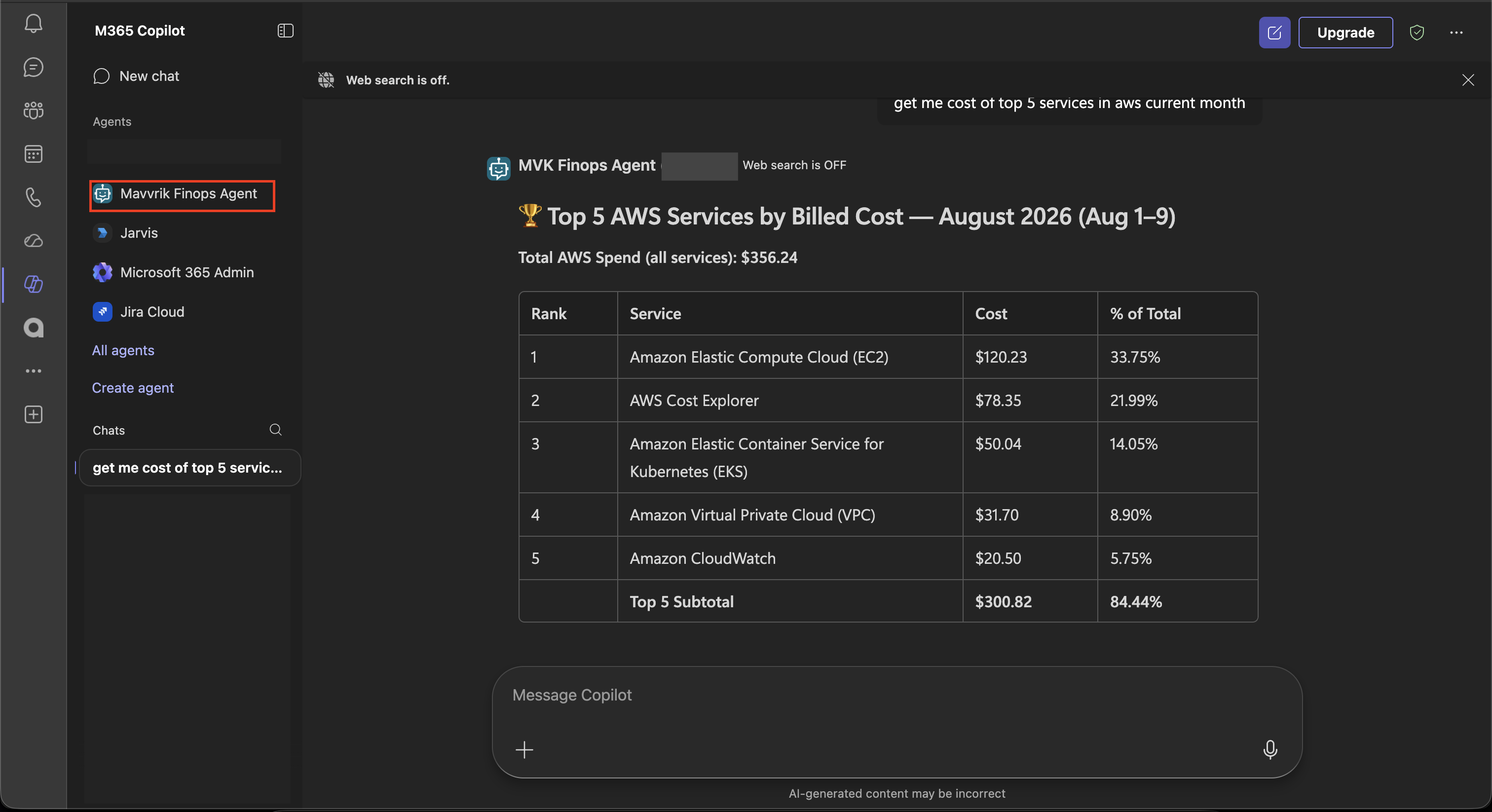
Select Add, then start a chat and ask a question, e.g. "Get me the cost of the top 5 services in AWS for the current month."
-
On first use, sign in with your Mavvrik account when prompted and approve the connection. This is a one-time step per user; after that, Mavvrik answers questions directly in Copilot using your own tenant's data.
Troubleshooting
Connection shows green in Copilot Studio, but tool calls still fail after publishing:
Recreate the connection in Step 6 to force a fresh sign-in instead of reusing a cached token.
Agent doesn't appear in "Built for your org" after admin approval:
Teams can cache app data. Sign out and back in (desktop app) or refresh the browser (web app).
A user can't find or install the agent:
Confirm with your Teams admin that Power Platform apps are allowed in Teams, and that the agent's rollout (Step 11) was approved, not just published.
FAQs
Does every user need to sign in separately?
Yes, each person signs in with their own Mavvrik account the first time they use the agent, so results are always scoped to their own tenant and permissions.
Does approving the agent give it a shared data connection to everyone's Mavvrik data?
No, approval publishes the agent only, not a shared data connection. Each user still connects to Mavvrik individually with their own account.