.png)
If you have cost and usage reports already created follow Use already created report otherwise Create new report
Use already created report
-
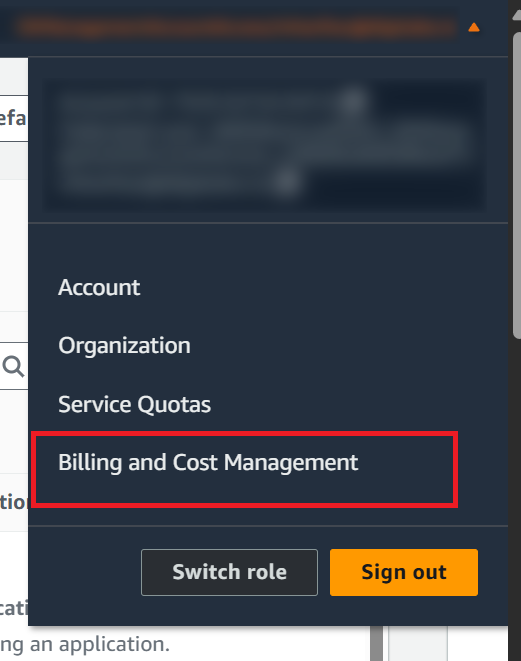
Log into AWS console and go to Billing and Cost Management
-
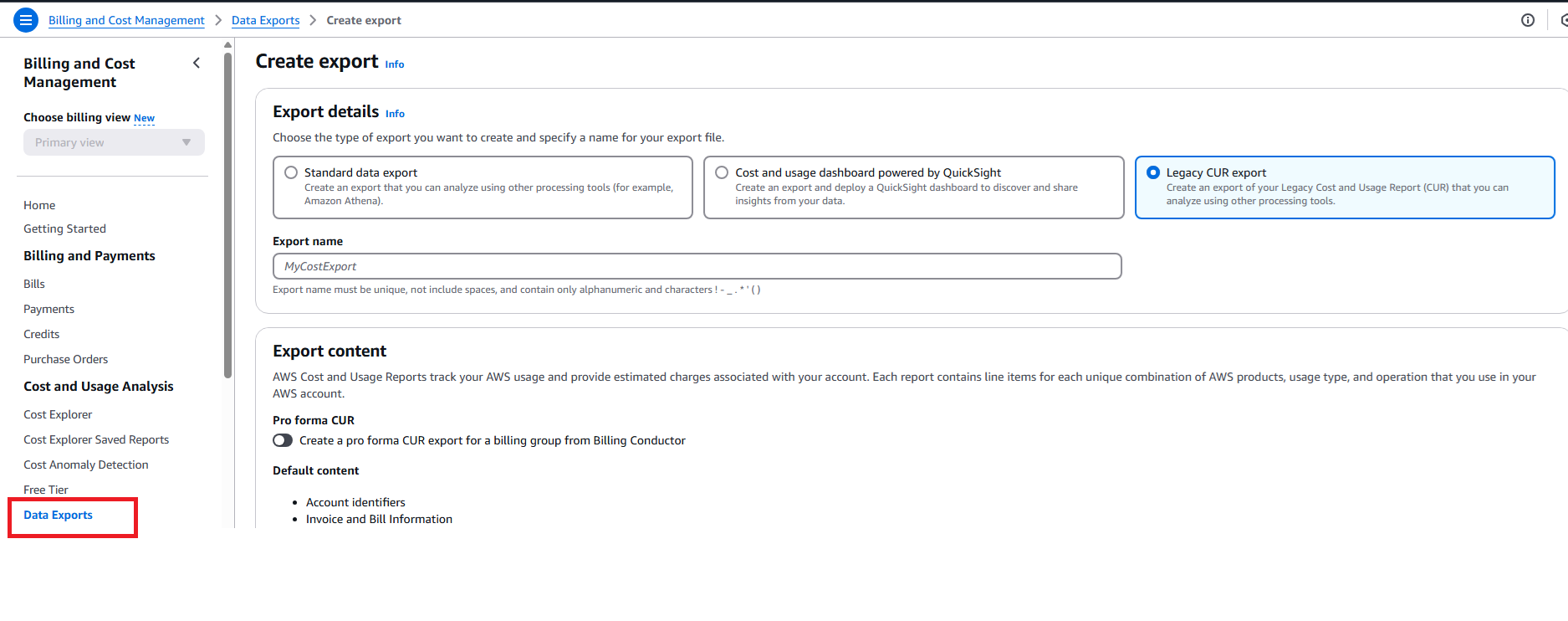
Click on Data Exports
-
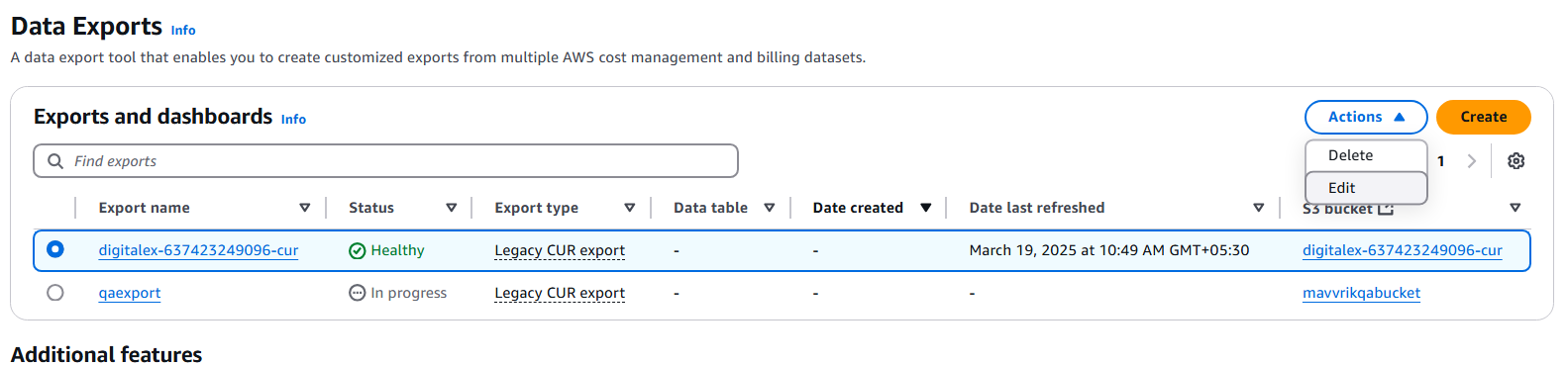
Out of multiple available reports, choose the oldest and the one having following properties
-
Time granularity : Daily / Hourly
-
File format : text/csv
-
-
Select the report you chose in the previous step > Actions and Edit
-
Scroll down and capture the S3 bucket, S3 path prefix fields from the report details section for the report
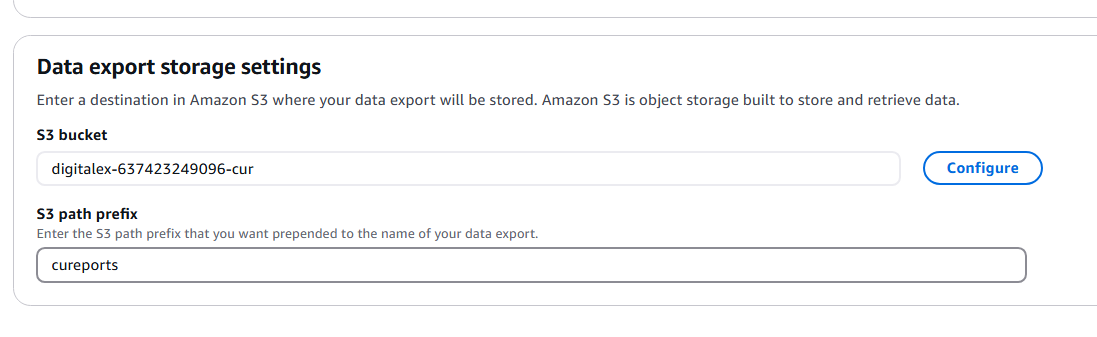
Specify the report path using the format S3 path prefix/export_name. For example, if your S3 path prefix is cureports and your export name is MyCostExport, the report path will be cureports/MyCostExport. Copy the report path and paste it into Step 4.
Creating New Report
-
Log into AWS console and go to Billing and Cost Management under profile
-
Click on Data Exports and Select Legacy CUR export
-
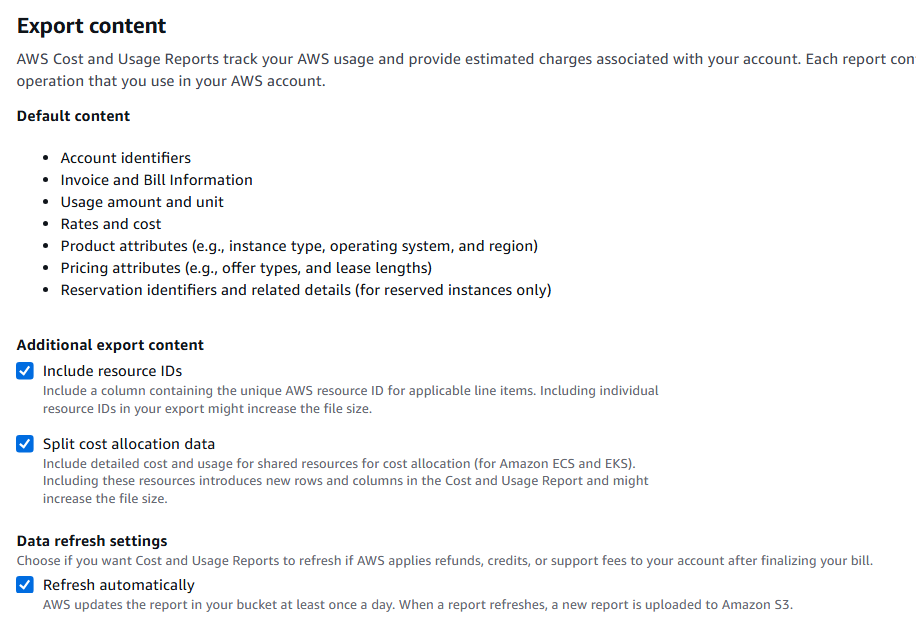
Enter the Export name of your choice and enable the below options under Export content
-
Include Resource IDs
-
Split cost allocation data
-
Refresh Automatically
-
-
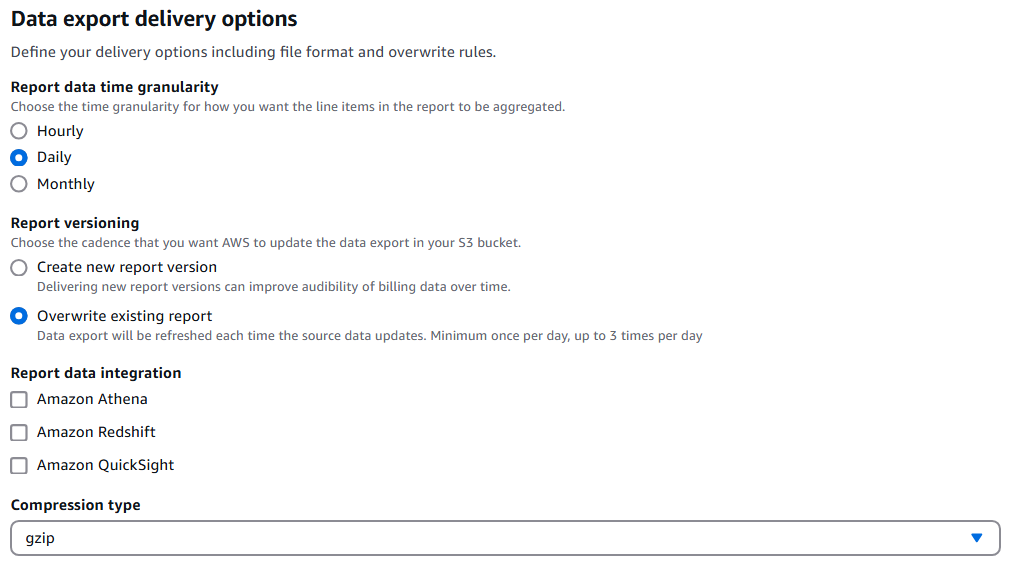
Under Data export delivery options select
-
Time granularity : Daily
-
Report versioning : overwrite existing report
-
Compression type : GZIP
-
-
Under Data export storage settings
-
Configure bucket by choosing one of the existing or creating a new one
-
Enter S3 path prefix and create the report
-
Make a note of S3 bucket and S3 path prefix as its used in subsequent steps
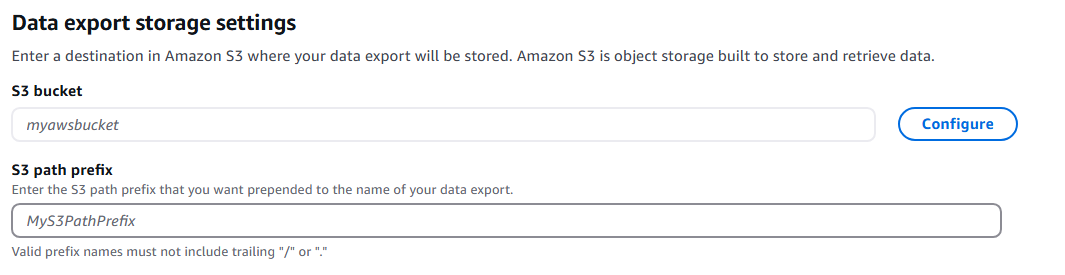
Specify the report path using the format S3 path prefix/export_name. For example, if your S3 path prefix is cureports and your export name is MyCostExport, the report path will be cureports/MyCostExport. Copy the report path and paste it into Step 4.
-
To enable cost explorer follow the steps mentioned here https://docs.aws.amazon.com/cost-management/latest/userguide/ce-enable.html
AWS takes up to 24 hours to create first report to the configured bucket.