.png)
To carry out role-based steps, a Tenant ID is required. Please consult your partner company to share tenant id before moving forward.
Mavvrik supports both types of AWS authentications,
-
Role Based
-
Access/Secret Key Based
Role-based access is generally considered to be more secure than user-based access, as it allows organizations to control access to resources and functions based on defined roles and responsibilities. We recommend using roles over individual users whenever possible
Creating Role
-
Go to IAM from the Services tab.
-
Click on Roles from the left menu options and Click on
Create Role -
Select
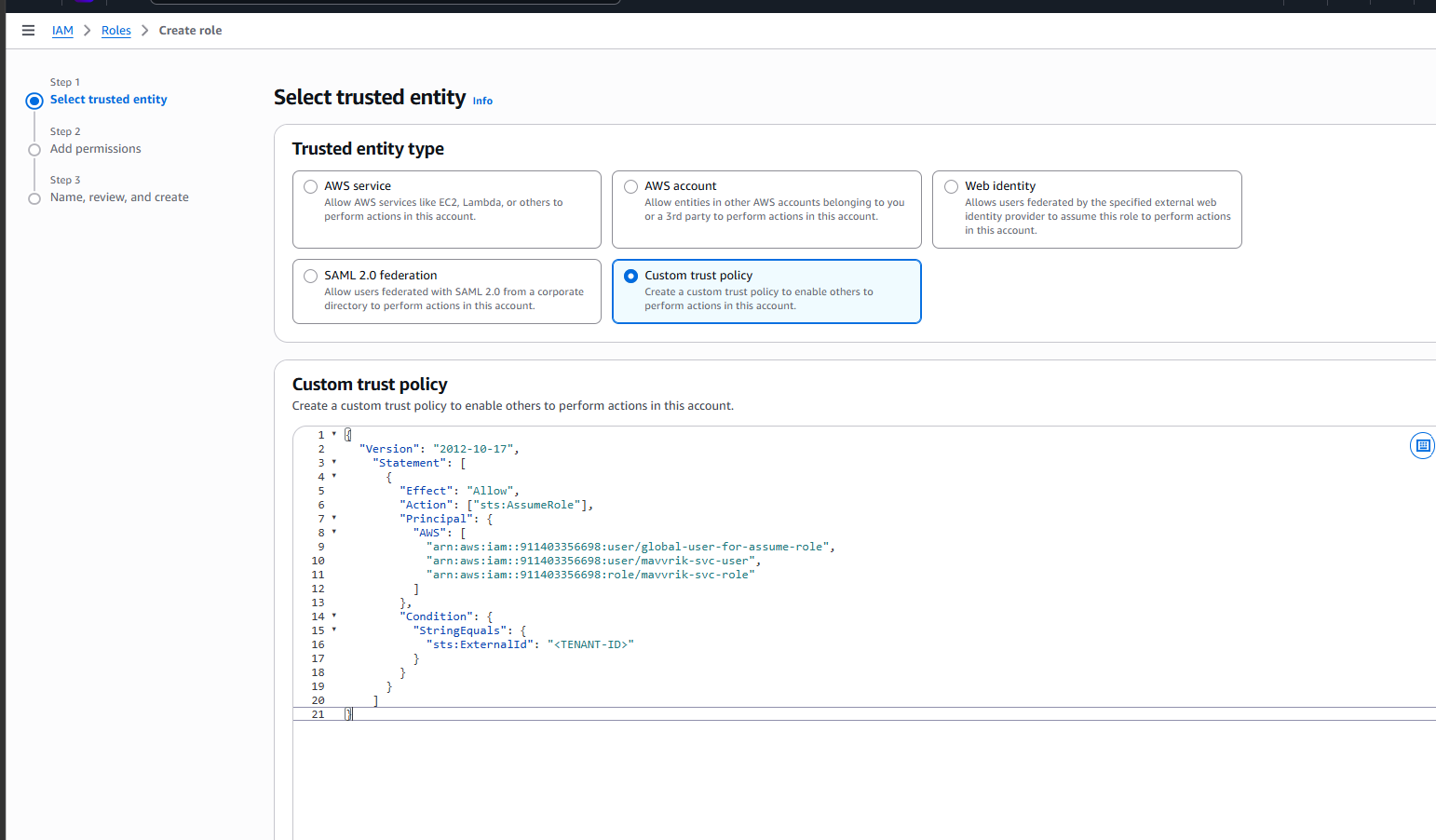
Custom trust policy -
Copy the JSON
{ "Version": "2012-10-17", "Statement": [ { "Effect": "Allow", "Action": ["sts:AssumeRole"], "Principal": { "AWS": [ "arn:aws:iam::911403356698:user/global-user-for-assume-role", "arn:aws:iam::911403356698:user/mavvrik-svc-user", "arn:aws:iam::911403356698:role/mavvrik-svc-role" ] }, "Condition": { "StringEquals": { "sts:ExternalId": "<TENANT-ID>" } } } ] } -
Paste the copied JSON in Custom trust policy editor
-
Remove <TENANT-ID>

-
Enter your tenant id as shown image. To get the tenant id to follow instructions,
-
-
Login to Mavvrik
-
From the side menu, select
APIunder theAdminsection -
Capture the Tenant ID
-
8. Click Next, don't select any permissions
-
Click
Next -
Enter the Role Name of your choice and Click Create Role.
-
New Role should be created and displayed in the list.
-
Click on the newly created Role which is navigated to the below page
-
Click on
Add Permissions -> Create Inline PolicyunderPermissionsTab & Click onJSONtab & replace existing JSON with the following JSON-
JSON
JSON{ "Version": "2012-10-17", "Statement": [ { "Effect": "Allow", "Action": [ "s3:GetObject", "s3:ListBucket" ], "Resource": [ "arn:aws:s3:::<BUCKET_NAME>", "arn:aws:s3:::<BUCKET_NAME>/*" ] }, { "Effect": "Allow", "Action": [ "organizations:ListAccounts", "organizations:DescribeAccount" ], "Resource": "*" }, { "Effect": "Allow", "Action": [ "ce:Get*", "ce:Desc*", "ce:List*" ], "Resource": "*" }, { "Effect": "Allow", "Action": [ "iam:Get*", "iam:List*", "iam:SimulateCustomPolicy", "iam:SimulatePrincipalPolicy" ], "Resource": "*" }, { "Effect": "Allow", "Action": [ "cur:Get*", "cur:ValidateReportDestination", "cur:Describe*" ], "Resource": "*" } ] } -
And replace
<BUCKET_NAME>on lines 11 & 12 with the name of the bucket captured in Step-1 : Enable CUR & Cost Explorer -
Finally, your window should look like the following image. Note that, the bucket name in the image is for reference, it shouldn't be copied as is, instead you should put your own bucket name
-
-
Review Policy, Name it & Click
Create policy -
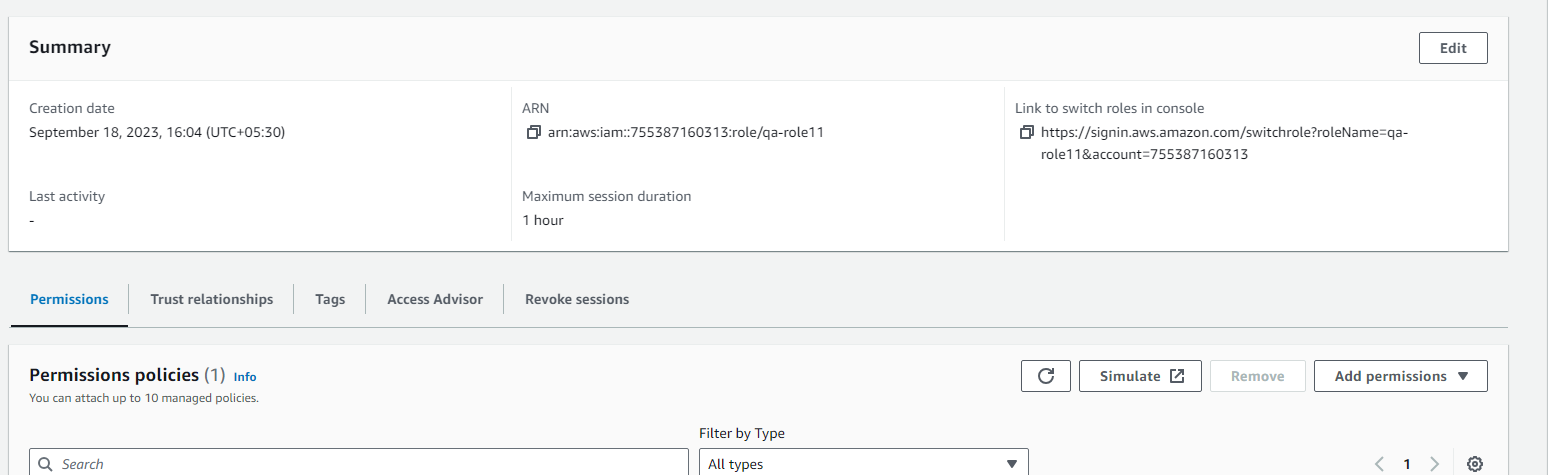
Capture
ARNof the role we created from the summary section for the next steps.
Creating IAM User & Access/Secret Keys
This step is not required if you have created a Role.
-
Go to IAM from the Services tab & navigate to Users tab
-
Click Add Users, enter name of your choice
-
Skip permissions for now. Keep doing Next & finally Create User.
-
Open the User you have created & click on Security credentials.
-
Scroll down & click on Create access key
-
Select Others & click on next
-
Click on Create Access Key
-
Save Access key ID and Secret access key for later use.
-
Click Done
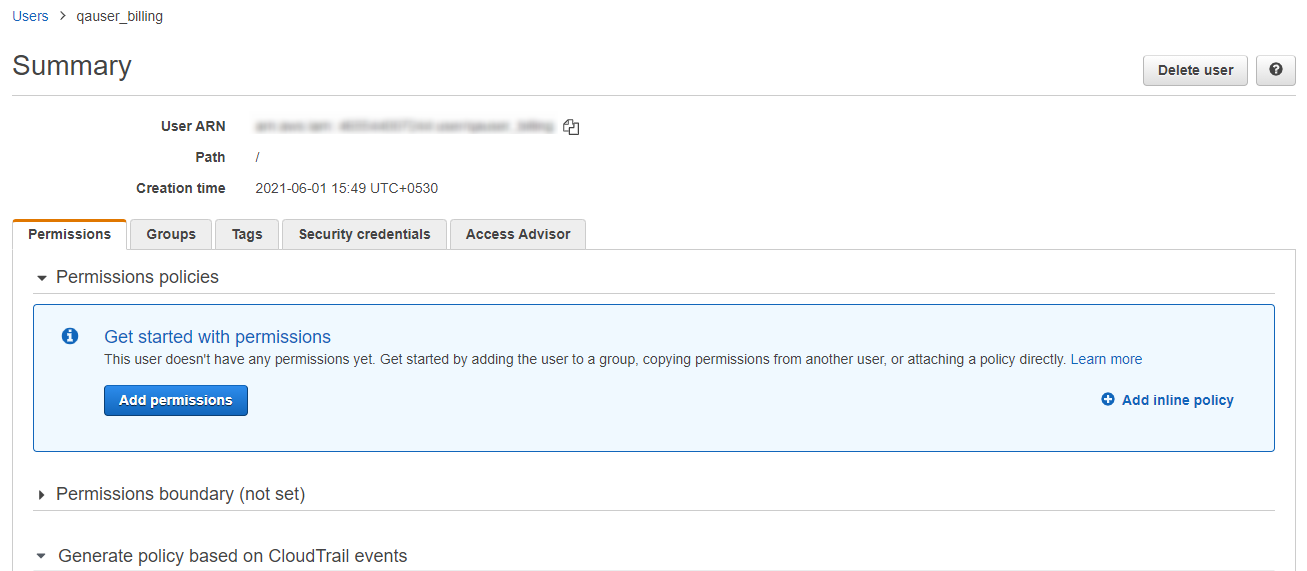
10. Navigate to the details of the user we just created
-
Click
Add Inline PolicyunderPermissionsTab & Click onJSONtab & replace existing JSON with the following JSON-
JSON
JSON{ "Version": "2012-10-17", "Statement": [ { "Effect": "Allow", "Action": [ "s3:GetObject", "s3:ListBucket" ], "Resource": [ "arn:aws:s3:::<BUCKET_NAME>", "arn:aws:s3:::<BUCKET_NAME>/*" ] }, { "Effect": "Allow", "Action": [ "organizations:ListAccounts", "organizations:DescribeAccount" ], "Resource": "*" }, { "Effect": "Allow", "Action": [ "ce:Get*", "ce:Desc*", "ce:List*" ], "Resource": "*" }, { "Effect": "Allow", "Action": [ "iam:Get*", "iam:List*", "iam:SimulateCustomPolicy", "iam:SimulatePrincipalPolicy" ], "Resource": "*" }, { "Effect": "Allow", "Action": [ "cur:Get*", "cur:ValidateReportDestination", "cur:Describe*" ], "Resource": "*" } ] } -
And replace
<BUCKET_NAME>on lines 11 & 12 with the name of the bucket captured in Step-1 : Enable CUR & Cost Explorer -
Finally, your window should look like the following image. Note that, the bucket name in the image is for reference, it shouldn't be copied as is, instead you should put your own bucket name
-
-
Review the policy & click create