.png)
Mavvrik integrates with PagerDuty via email-based alerts to automatically route incidents and critical notifications to your PagerDuty services. By connecting Mavvrik to a PagerDuty service's email integration, alerts from Mavvrik can trigger incident workflows within PagerDuty. This ensures that your teams receive real-time notifications for cost, resource, or operational events, enabling faster response and resolution through your existing escalation policies.
Why this matters: a cost or resource alert that only appears in Mavvrik depends on someone actively checking the dashboard. Routing it through PagerDuty means it enters your existing on-call escalation path, the same process already used for infrastructure incidents, so a critical alert gets the same urgency and follow-through as any other page.
PagerDuty alerts through Email
To Integrate the PagerDuty in Mavvrik follow these steps
-
Create a new service for Integration or use existing service for Integration in PagerDuty
-
Add Integration in Mavvrik
Create a New Service in PagerDuty
-
Login into the PagerDuty
-
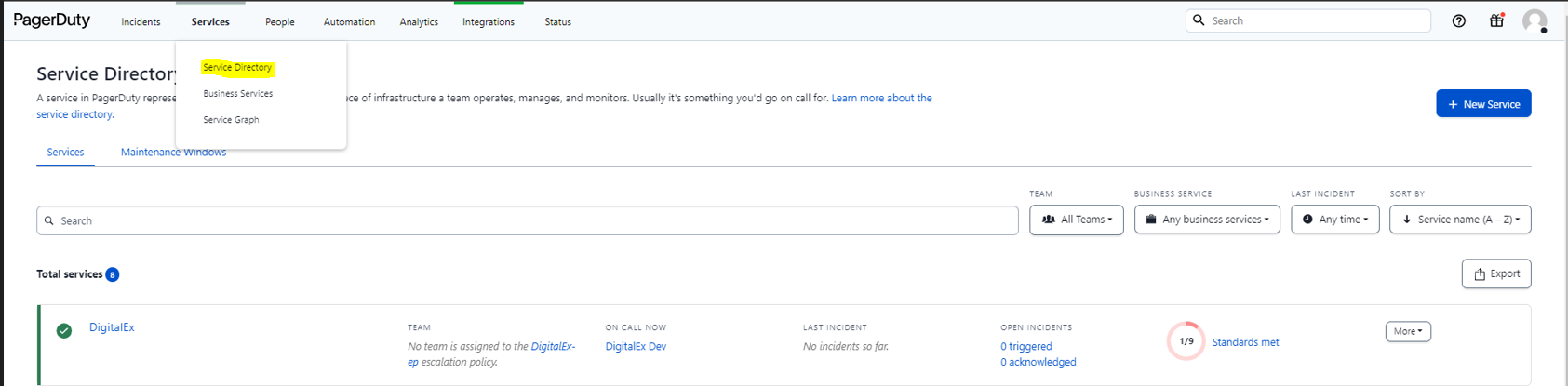
Click on Service > service directory from in the navbar.
-
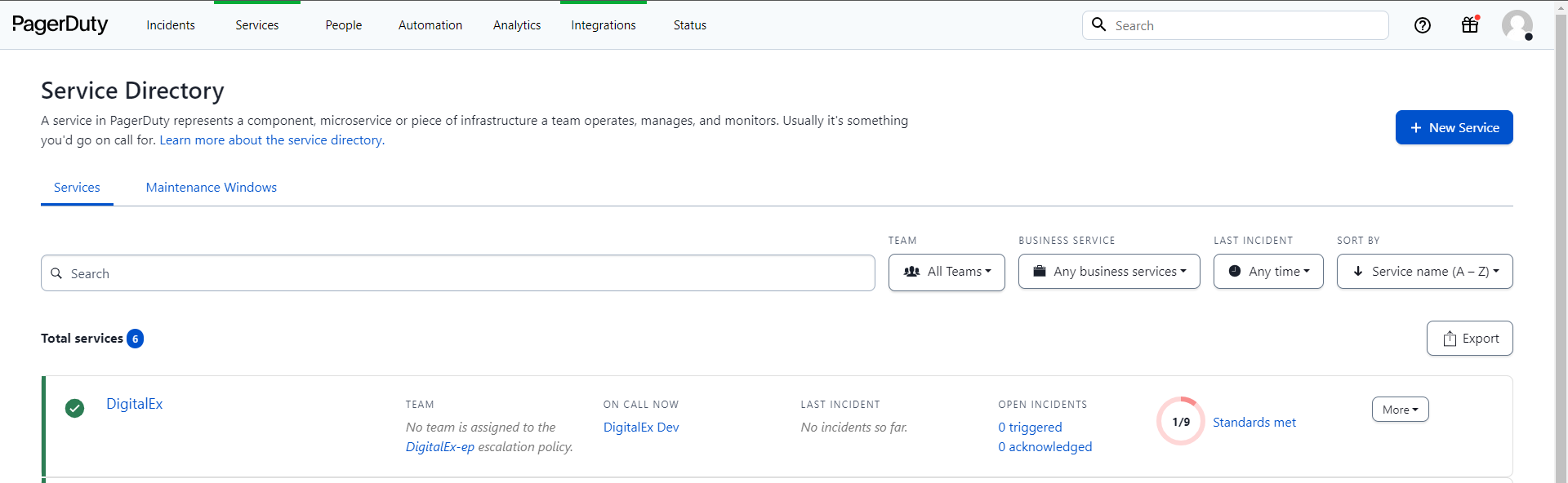
Click on the "+ New service" button
-
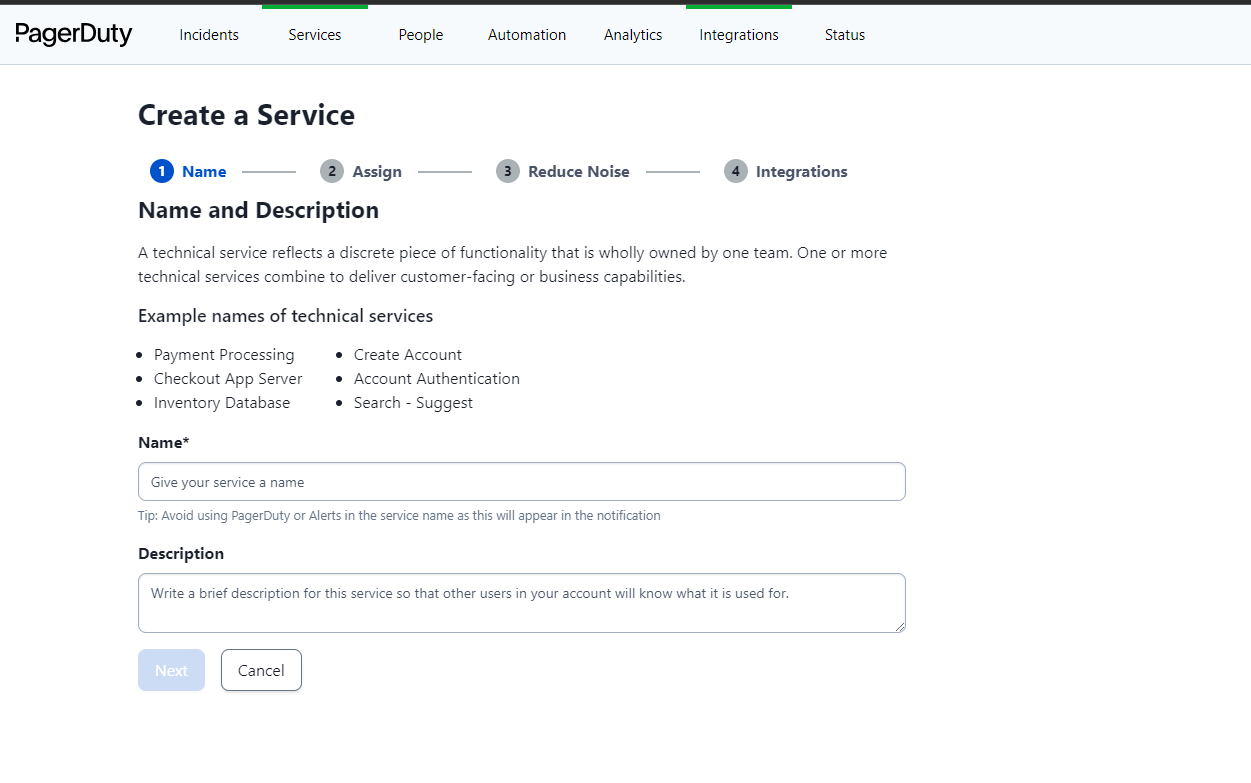
Name: Enter a Name and Description based on the function that the service provides
-
click Next to continue.
-
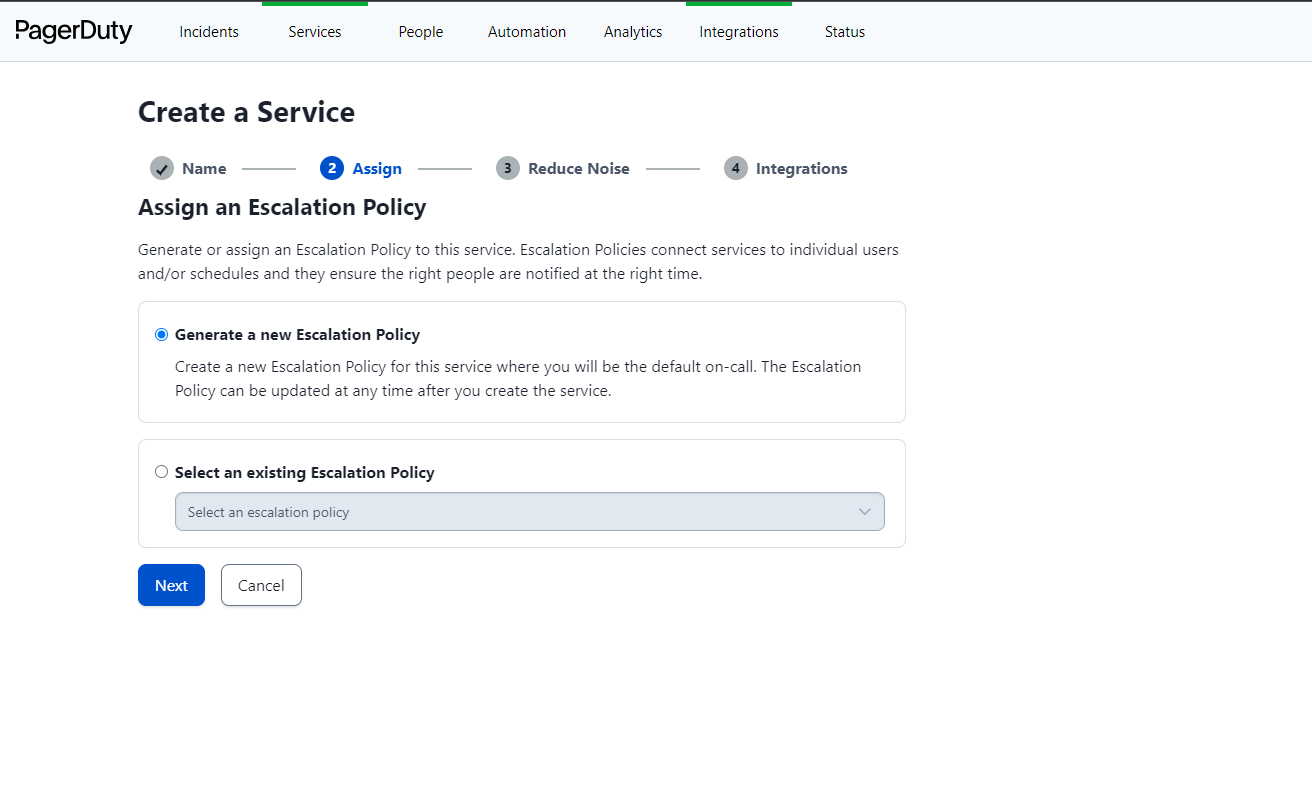
Assign: Select Generate a new Escalation Policy or Select an existing Escalation Policy. Click Next to continue.
-
Click Next to continue.
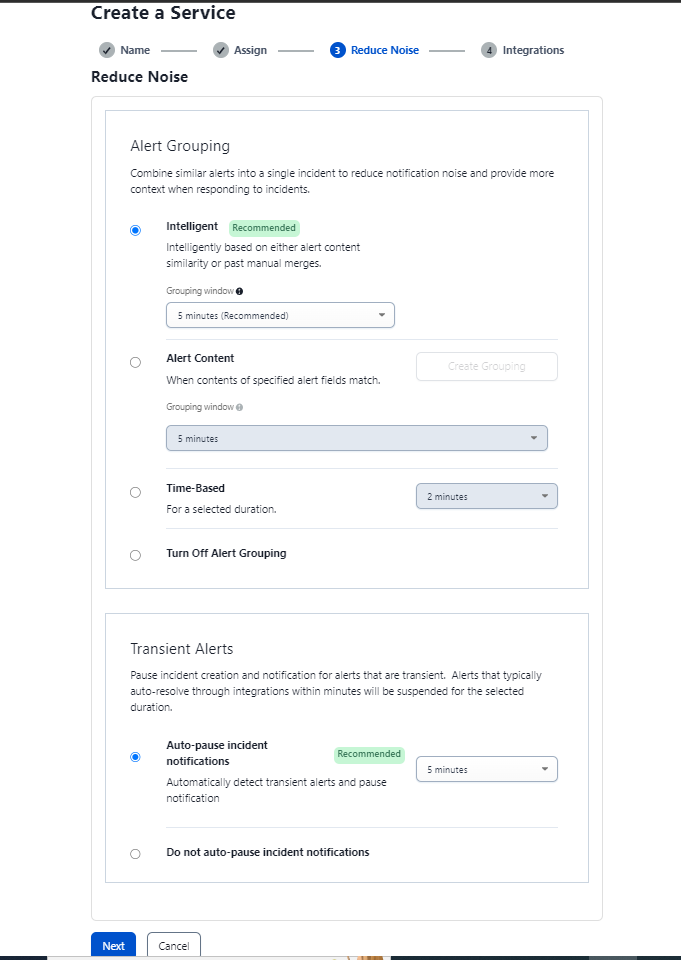
-
Integrations: Search for Email Integrations and Select it as we currently support using Email
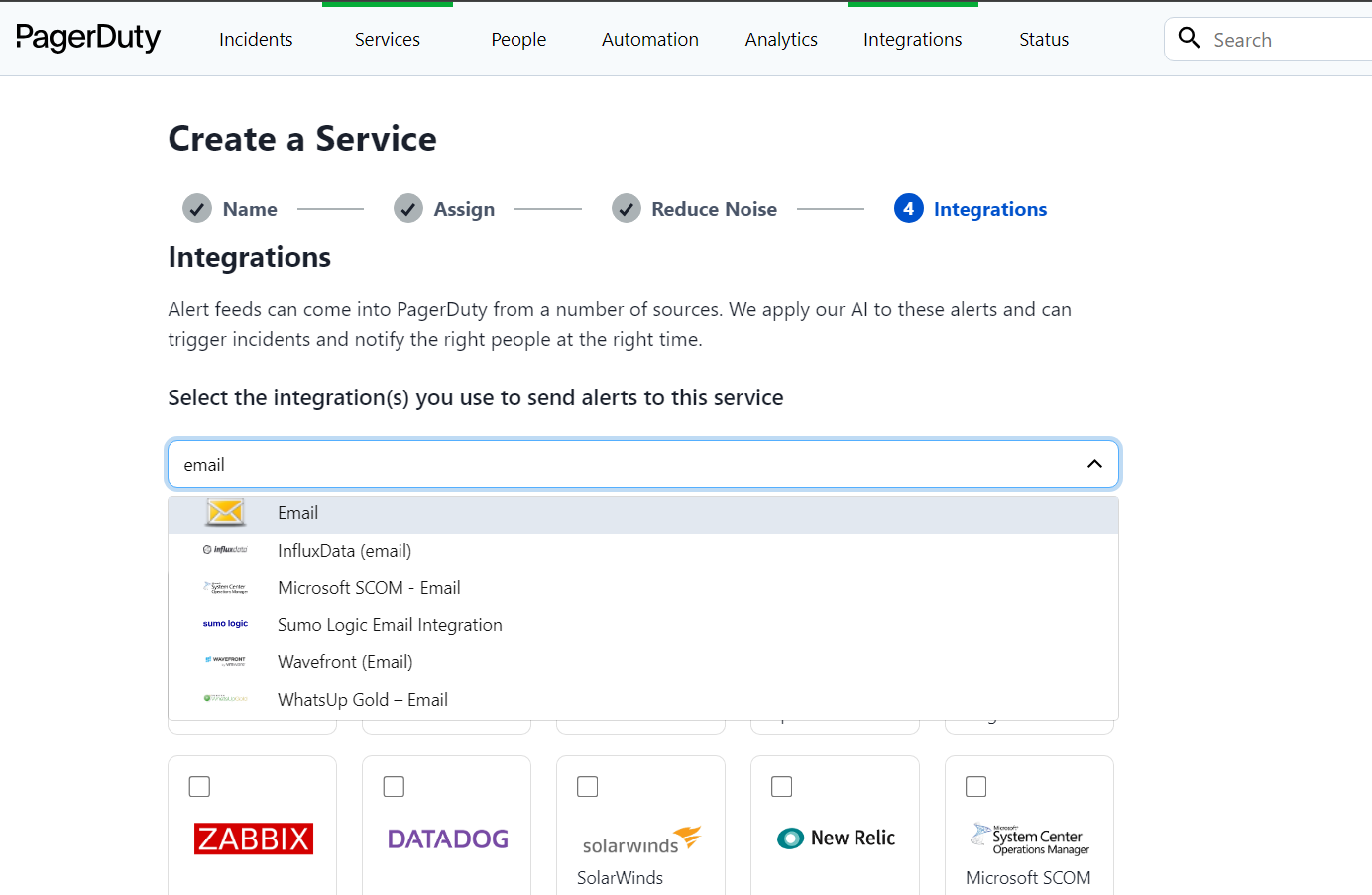
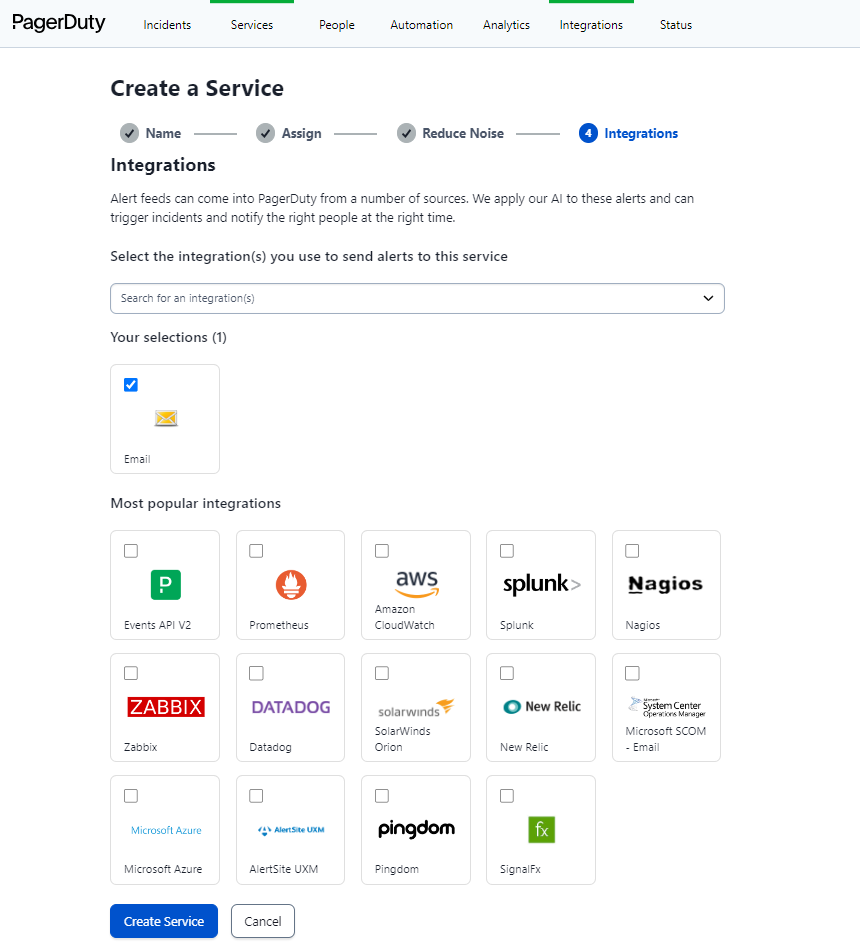
-
Click on Create Service
-
Click on Integration Tab
-
Click on '^'
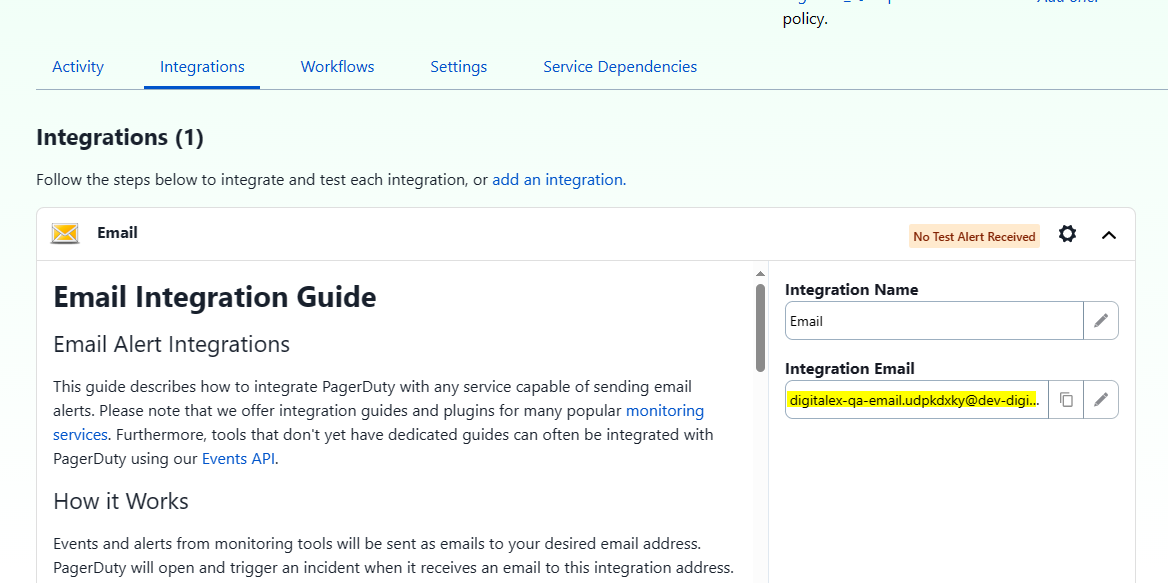
-
Capture the integration email to integrate it into Mavvrik
Use existing service for Integration in PagerDuty
-
Login into the PagerDuty
-
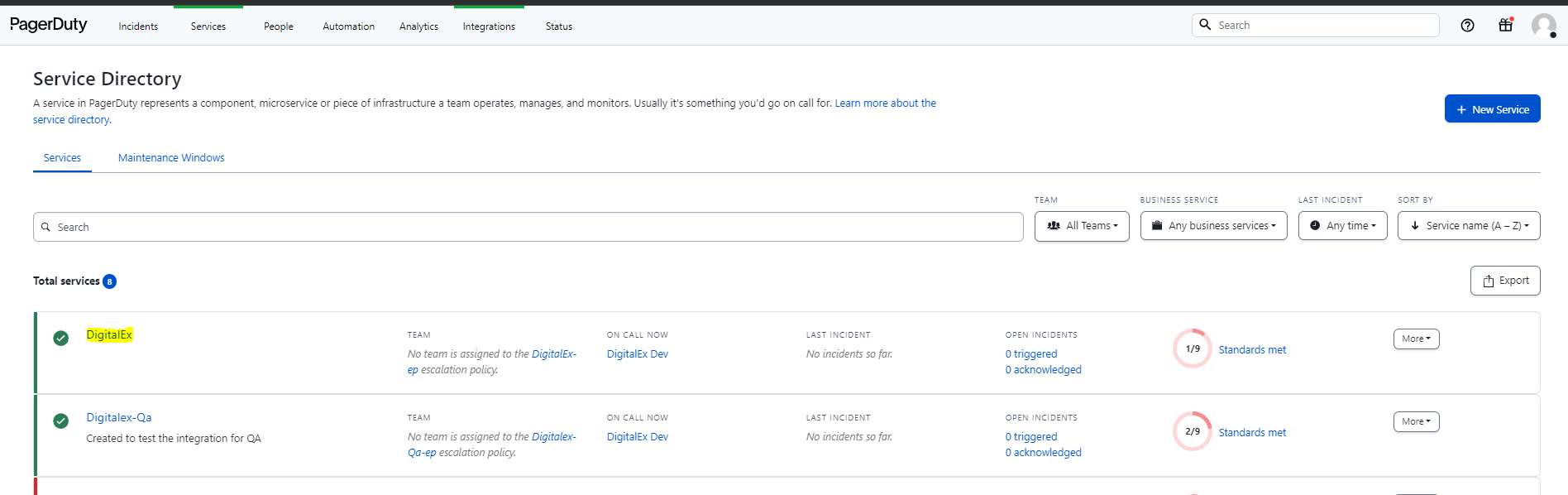
Click on Service > service directory from in the navbar.
-
Select the service in which you want to add the integration.
-
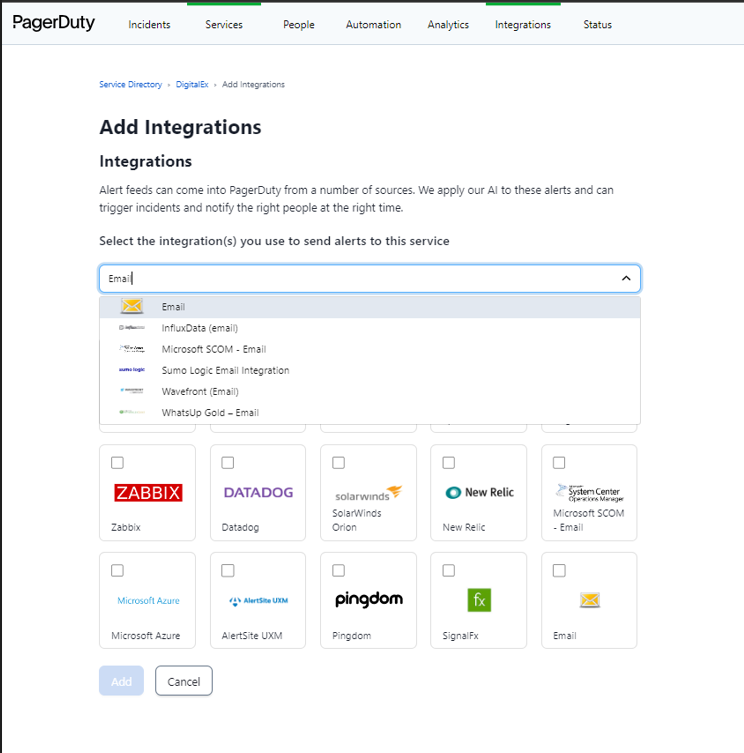
Click on the integration tab to add the new integration
-
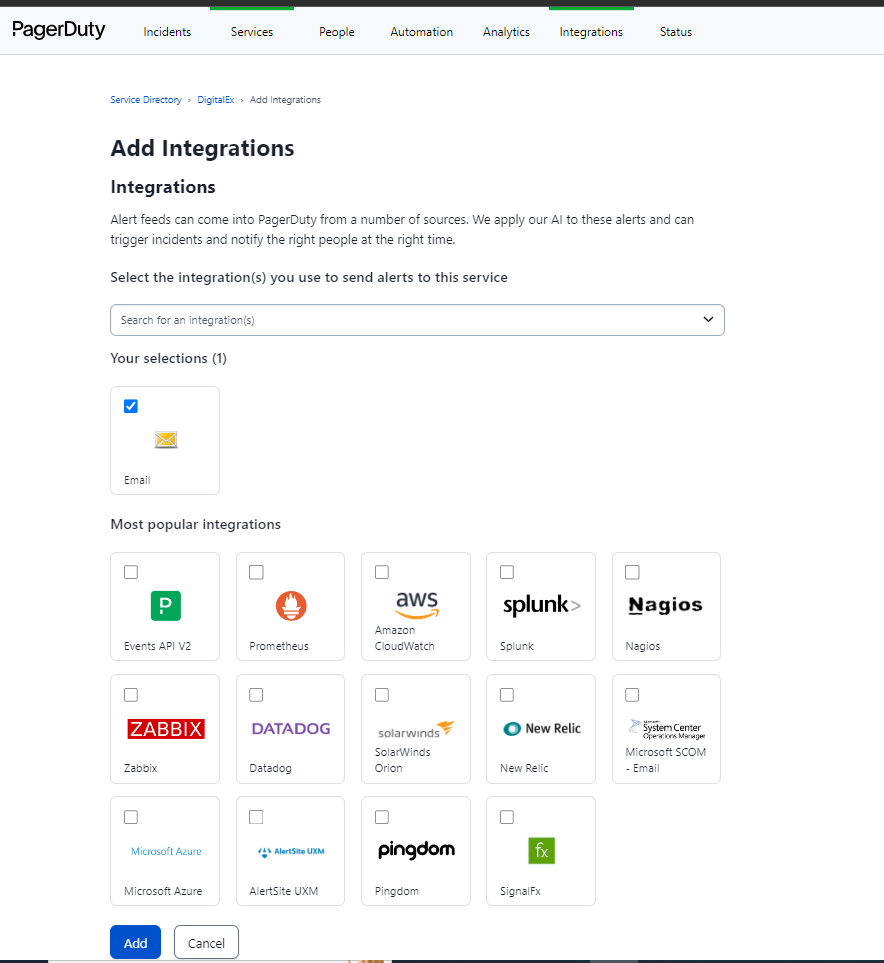
Integrations: Search for Email Integrations and Select it as we currently support using Email
-
Click on Add
-
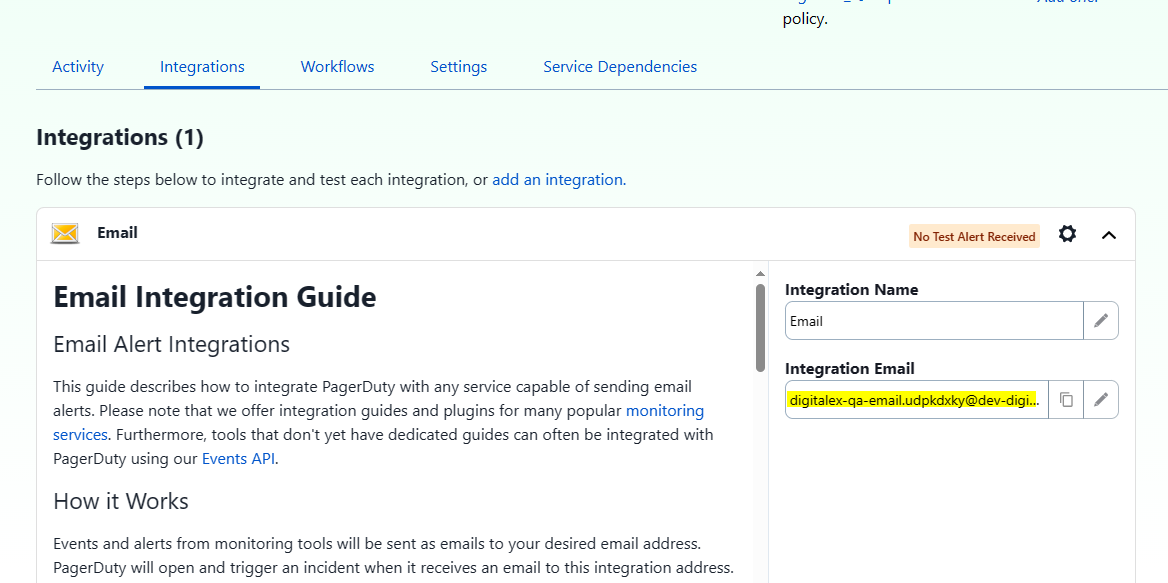
Click on Integration Tab
-
Click on '^'
-
Capture the integration email to integrate it into Mavvrik
Integration of PagerDuty in Mavvrik
-
Login into Mavvrik and navigate to Integrations page under Admin
-
Click on Add integration.
-
Click on the App and select PagerDuty
-
Enter all the details in the field
-
Integration name
-
Integration description
-
App as PagerDuty
-
Type as email
-
Address copied above in Step 10
-

-
Click on "Create"
Troubleshooting
-
If you don't see the PagerDuty integration type you're looking for, note that Mavvrik currently only supports Email-based integration; other PagerDuty integration types (like the Events API) aren't yet supported.
FAQs
Does Mavvrik support PagerDuty's Events API or other integration types?
Not currently; only Email integration is supported for PagerDuty right now.
Can I add this to an existing PagerDuty service instead of creating a new one?
Yes, both paths work. Use the existing service's Integration tab to add the Email integration the same way you would for a new service.