
At a glance
-
What it is. A login for a program, not a person. Power BI, a script or an AI agent uses it to read Mavvrik data, or, with a write role, to change it. Each account has its own name, role, team and keys that expire.
-
Why it matters. No shared logins, and automation keeps working when people leave. Each tool sees only the data of its teams.
-
Main risk. Write roles (Finance Manager, Operations Manager) can change budgets, forecasts, cost allocations and settings for the whole tenant. Rule: use Member for reporting and read-only use. Use Finance Manager only for anything that changes budgets or allocations, and give its key a short expiry.
-
Who owns it. Owners and Editors create and manage service accounts.
A service account is a machine user inside your Mavvrik tenant. Use it to let Power BI, a script or an AI agent read Mavvrik data (or, with a write role, change it) without sharing a person's login or the tenant-wide Admin API key. Roles decide what the account can do, and teams decide which cost data it can see.
Availability: Service Accounts is turned on per tenant. If you do not see Admin › Users & Access › Service Accounts, ask Mavvrik Support to turn on Service Accounts for your tenant.
Why use a service account
-
Limited data. The account only sees the cost data of the teams you link to it.
-
Its own identity. Each account has a name, roles and a list of keys, so you can see who uses what and when.
-
Safe rotation. Every key has an expiry date and can be switched off or revoked on its own, without breaking the other keys.
Example scenarios
These everyday examples show how teams use a service account. The names are made up. A key works like a password for a program, and every key has an expiry date. To revoke a key means to remove it for good, so it can never be used again. The technical details are in the Developer guide at the bottom.
1. A monthly cost report that updates by itself
The need. The finance team shows monthly cloud costs in a reporting tool such as Power BI. The report used to sign in with one analyst's own login, so it stopped working whenever that person changed jobs or left.
How it is set up.
-
Account name: powerbi-finance-report
-
Access level: Member (reads data and can create bookmarks, but cannot create dashboards or reports)
-
Team: Finance
-
Key: expires after 90 days
What they get. The report refreshes on its own and shows only Finance team costs. When the analyst leaves, nothing breaks. Before the key expires, the team adds a new key, points the report at it and revokes the old one (see Rotate a key without downtime).
2. Each team sees its own spending, and only its own
The need. The Platform team wants a small program that posts its daily cloud spend to the team's chat channel. It must not be able to see what other teams spend.
How it is set up.
-
Account name: platform-nightly-spend
-
Access level: Member
-
Team: Platform
-
Key: expires after 90 days
What they get. The program sees Platform costs only. If it asks for another team's data, it gets nothing back. Other teams set up their own accounts the same way.
3. An AI assistant answers cost questions
The need. The Operations team lets an AI assistant answer questions such as "What did our team spend on compute last week?"
How it is set up.
-
Account name: ai-agent-cost-questions
-
Access level: Member
-
Team: Operations
-
Key: expires after 90 days
What they get. The assistant can read Operations costs and nothing else. It cannot change anything unless Mavvrik Support turns that on for your company.
4. A software release stops when the budget is used up
The need. Before a new version of the software goes live, an automatic check looks at the team's budget. If the budget is already used up, the release stops.
How it is set up.
-
Account name: ci-budget-check
-
Access level: Member
-
Team: the team that owns the budget
-
Key: expires after 30 days, kept in the release tool's secure storage
What they get. The check sees only the budgets shared with its team. Because the key lasts only 30 days, the team adds a new one before the old key expires.
5. New projects get a budget automatically
The need. The FinOps team wants a budget to be created automatically each time a new project starts, so nobody has to do it by hand.
How it is set up.
-
Account name: finops-budget-automation
-
Access level: Finance Manager (can create and change budgets)
-
Team: FinOps
-
Key: expires after 30 days
What they get. Every new project gets a budget without manual work. Because this account can change data, it uses a short key expiry.
6. A contractor key leaks
What happened. A contractor's program uses a key that was accidentally posted in a public place.
What to do. Open the account and switch the key off or revoke it. It stops working within about a minute, and the account's other keys keep working. If you cannot tell which key leaked, set the whole account to inactive, which stops all of its keys. Then create a new key for the contractor. See Stop a leaked key.
7. An employee leaves and the automations keep running
What happened. The person who owned a reporting program leaves the company, and their user is deactivated.
What it means. Nothing breaks, because the program uses a service account and not that person's login. From time to time, check the Last used dates and revoke keys that nobody uses.
Before you begin
-
You need to be an Owner or Editor in the tenant.
-
If the account should see cost data, create or pick a team first.
-
Have your tenant ID and API addresses ready. They are on Admin › Users & Access › API.
Roles
A service account needs at least one role. It can do what a person with the same role can do. The roles you can give are:
|
Role |
What the account can do |
|---|---|
|
Member |
Read data it is allowed to see. Create bookmarks. It cannot create dashboards or reports. |
|
Executive |
Same as Member, for executive views. |
|
Finance Manager |
Everything a Member can do, plus create and change dashboards, reports, budgets, forecasts, cost allocations, alerts and settings. |
|
Operations Manager |
Same write access as Finance Manager. |
The Editor and Owner roles cannot be given to a service account. A service account also cannot manage the tenant: it cannot create or change teams, users, other service accounts or the Admin API key, and it cannot log in to the Mavvrik web app.
Writes apply to the whole tenant. The team limit only restricts what the account can read. Give the narrowest role that does the job (see At a glance at the top).
Teams and data access
Link one or more teams to the account. Every cost query the account makes is limited to the data of those teams, and a request it makes for data outside its teams returns nothing.
-
Teams are optional, but an account without a team sees no cost data.
-
Budgets shared with a specific team are visible only to accounts linked to that team. Budgets that are not shared with any team are visible to all.
-
Alerts, users, teams, cloud and AI accounts, Kubernetes and datacenter inventory follow the account's roles only. They are not limited by team, the same as for people.
-
You can link an account from the account form or from the Service Accounts field in the team form.
-
A team that still has a service account linked cannot be deleted. Unlink the account first.
Create a service account
-
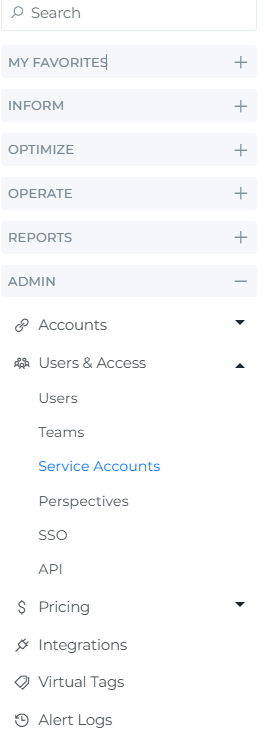
Go to Admin › Users & Access › Service Accounts.
-
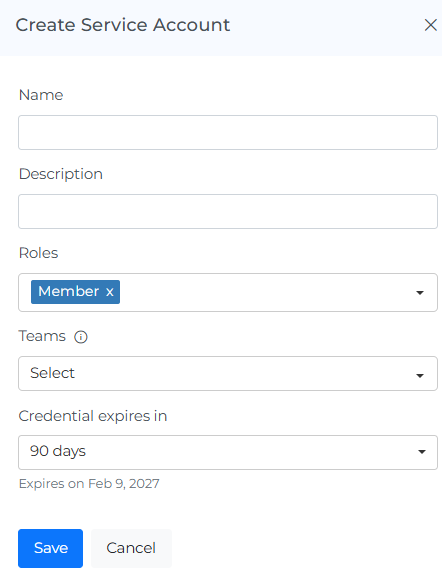
Click Create Service Account.
-
Enter a Name (required) and an optional Description. HTML tags in the name or description are removed when you save.
-
Choose one or more Roles.
-
Choose the Teams the account may read data from.
-
Choose when the first key expires under Credential expires in: 30, 90, 180 or 365 days, or Custom (1 to 365 days).
-
Click Save.
-
Copy the key shown in the Token created window and store it in your secret manager.
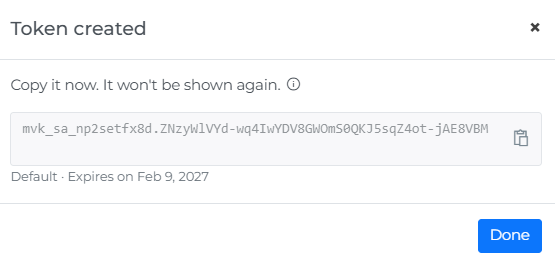
The key is shown only once. Mavvrik stores only a fingerprint of it and cannot show it again. If you lose it, add a new key and revoke the old one.
Change an account
-
In the list, click the pencil icon on the account.
-
Change the name, description, roles or teams. Use the Active toggle to disable or re-enable the account.
-
Click Save.
Changes to roles, teams and the Active toggle take effect within about a minute, and the existing keys keep working with the new access. You do not need to create new keys. A disabled account stops all of its keys. Re-enabling it brings them back. The account must always keep at least one role.
Rotate a key without downtime
-
Open the account and add a new credential (or client secret). Copy it.
-
Update your tool, script or Power BI data source to use the new key.
-
Check that the old key's Last used date has not moved. Wait at least a day before you decide. Last used is recorded at most once an hour per key, so a quick check can look as if the key stopped when it is still in use.
-
Switch the old key off. If something still depends on it, switch it back on while you fix the tool.
-
When everything works, revoke the old key.
Stop a leaked key
-
One key: switch it off or revoke it. The account's other keys keep working.
-
Everything on an account: set the account to inactive or delete it. All of its keys stop.
Access stops within about a minute, usually much faster. A deleted account cannot be restored.
Expiry reminders
Owners and Editors receive one email a week that lists the keys expiring within 30 days. Once any key has 7 days or less left, the email is sent every day. The email names the account, the key type, the key name and the expiry date. Keys that are switched off are not listed. If an email cannot be sent, it is tried again the next day. Reminders are sent by email only. In the key list, the Status column shows Expiring soon for keys that are close to expiry. An expired key stops working.
The Admin API key
The tenant-wide key on Admin › Users & Access › API keeps working as before and is now labelled Admin API Key. It sees all tenant data and has no identity, so prefer a service account for tools that need only part of the data.
Developer guide
Open the section below if you set up the tools that call Mavvrik. It covers keys, API calls, limits and troubleshooting.
Related
-
Teams: create a team that limits which cost data a service account can read.
-
Users & Access: manage people and their roles.