.png)
Introduction
Teams can streamline user management by automatically applying changes to group access rights to all members of the team. Teams can be created based on shared characteristics, such as role or department. For example, you can create a team called 'AWS Finance' and grant its members access to the AWS Cost Dashboard, making it easier for your finance team to access this tool.
Why this matters: this is the other half of the keycard system covered on the Users page: a user's role decides what kind of access they get, and their team decides which specific accounts and dashboards that access actually applies to.
This shows up differently depending on your role:
-
Admins/Owners use Teams to onboard a new hire's access in one step — add them to the right team — instead of granting billing/usage account access one at a time.
-
FinOps managers use Teams to scope which billing and usage accounts a group can see, keeping unrelated or sensitive accounts restricted to only the people who need them.
-
IT/Security use Team scope as the practical enforcement point for least-privilege access — reviewing which accounts a team can reach is faster than auditing every individual user.
Create Team
Here are some key points to consider when creating a team:
-
By default, a team named "Team Owner - Default" (described as the "Default Owner Team") is created with full access to the account.
Here are the steps for creating a team
-
Login to Mavvrik.
-
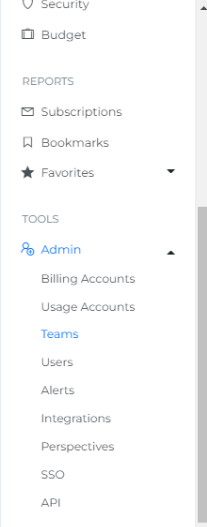
Go to the teams page from the side menu.
-
Click on the "Create Team" button.
-
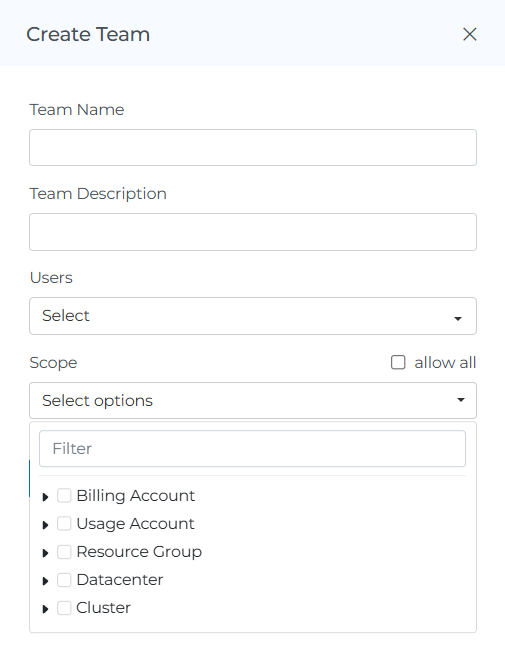
Enter the team name and description.
-
Select the users which you want to add to the team. (If the user is not created, go to the users module and create new users and leave blank team option. Refer Modify User page.)
-
Click on scope and select options to grant access (Options displayed here are Billing account, usage account, resource group, datacenter, cluster,namespace).
Scope picker structure: each of the six categories is expandable (click the ▸ arrow) into a tree of the specific accounts/resources within it, and a Filter search box at the top narrows the tree as you type — useful once a category has many entries.
-
If you select the 'Allow all' checkbox, it will enable all accounts to be accessed by this team.
-
"If you don't want to give full access to all accounts, you can select specific teams from the list to grant access to
-
Click on "Create".
-
Team is created and displayed as shown below. When you select the number of rows, you will be able to view that same quantity of rows on the page.
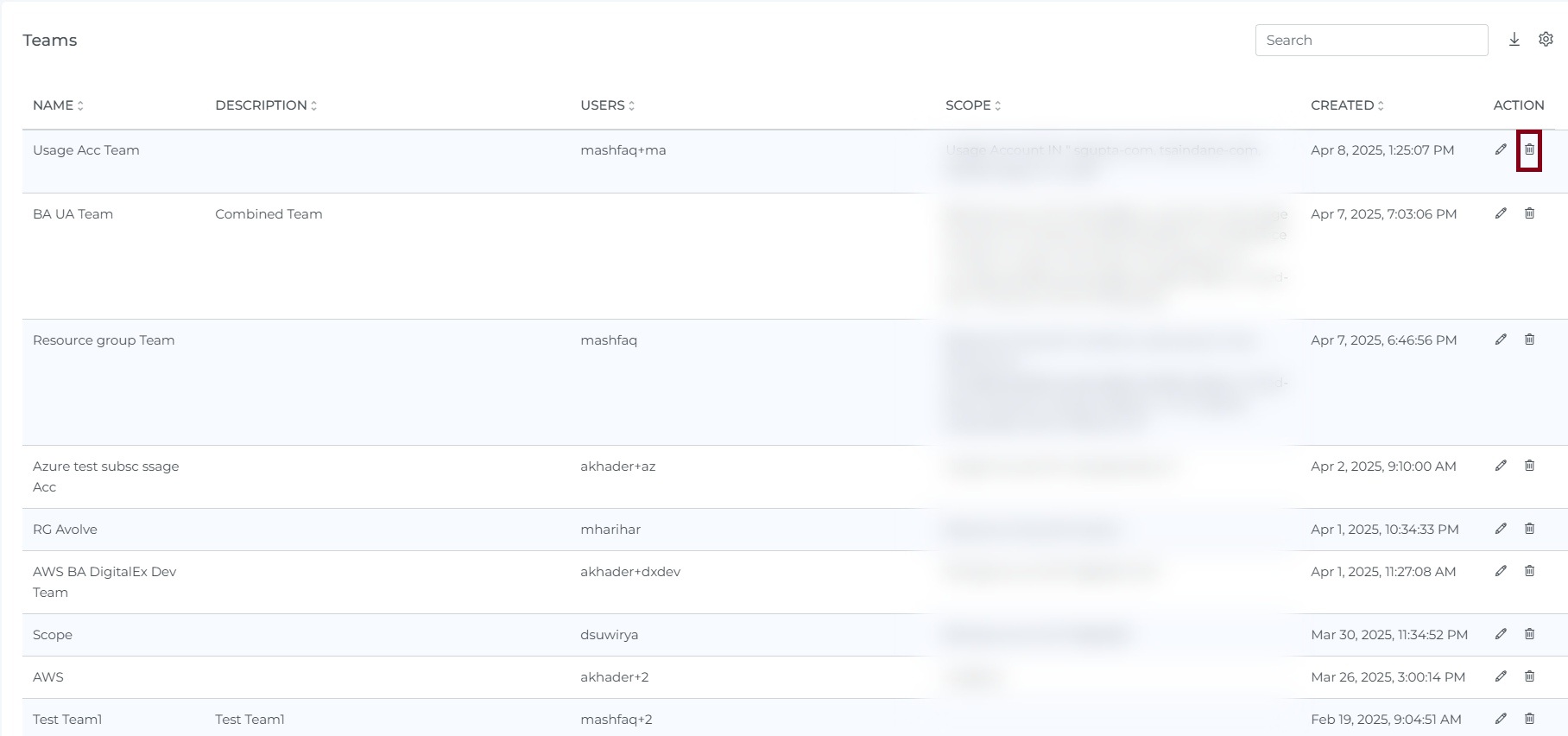
Teams list columns: the table shows Name, Description, Users, Scope, Created, and an Action column (Edit/Delete — Delete is hidden for the default team).
Edit Team
Here are some key points to remember when editing a team:
-
The account access for the "Team Owner - Default" team (the default team, described as "Default Owner Team") cannot be modified. This team will always have full access to all accounts.
Below are the steps to edit a Team
-
Login to Mavvrik.
-
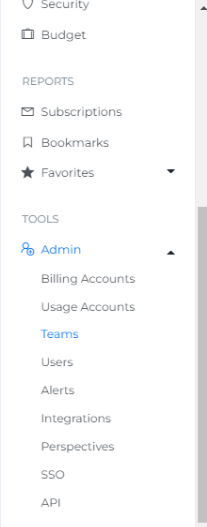
Go to the teams page from side menu.
-
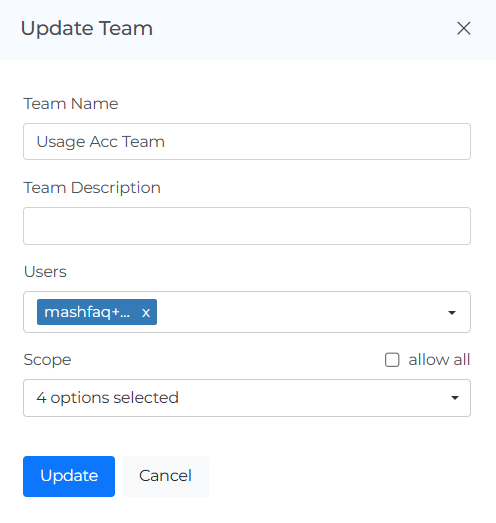
Click on edit team icon.
-
Update the fields which you want to change.
-
Click on "Update".
-
Check the main team page to see the changes.
Delete Team
Here are some key points to remember when editing a team:
-
"The 'Team Owner - Default' team (described as the 'Default Owner Team') cannot be deleted. This team is a default team that is automatically created when an account is set up and it cannot be removed."
Below are the steps to delete a Team
-
Login to Mavvrik.
-
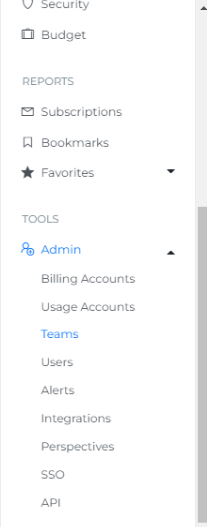
Go to the teams page from side menu.
-
Click on Delete Team Icon.
-
Click on the Delete icon
-
Click Delete button from the popup
-
Team is deleted from the List
-
Click on the Cancel or X icon to close the pop-up
Note: If a team has any users assigned to it, you will not be able to delete the team. To delete the team, you will need to remove all users from the team, update the team, and then try to delete the team again. This is to ensure that no users are left without a team assignment when the team is deleted.
Troubleshooting
-
If a user reports missing accounts in their dashboard, check which team they belong to and that team's scope — access is entirely determined by team scope, not the user's role alone.
-
If you can't change the "Team Owner - Default" team's account access, that's expected — it always has full access to all accounts and this cannot be modified.
FAQs
What does selecting "Allow all" for a team's scope actually do?
It grants that team access to every account across the options listed (billing account, usage account, resource group, datacenter, cluster, namespace) rather than only the specific ones you'd otherwise pick individually. Use it deliberately — it's the broadest access option available for a team.
Why can't I delete a team?
A team can't be deleted while it still has users assigned to it, and the "Team Owner - Default" team can never be deleted at all. If you're trying to delete a non-default team, remove all its users first, save that change, then delete the team.