
Send traces from agents already instrumented with OpenTelemetry to Mavvrik, and see cost and usage per agent. No Mavvrik SDK is needed.
Using OpenRouter? Follow Connect OpenRouter agents instead.
Before you start
-
Your agents emit OpenTelemetry traces for their model calls.
-
Your app or OpenTelemetry Collector can export OTLP over HTTP (
http/protobuf) with custom headers. Supported protocols -
You can create an agent connection in Mavvrik.
Step 1. Register the connection
-
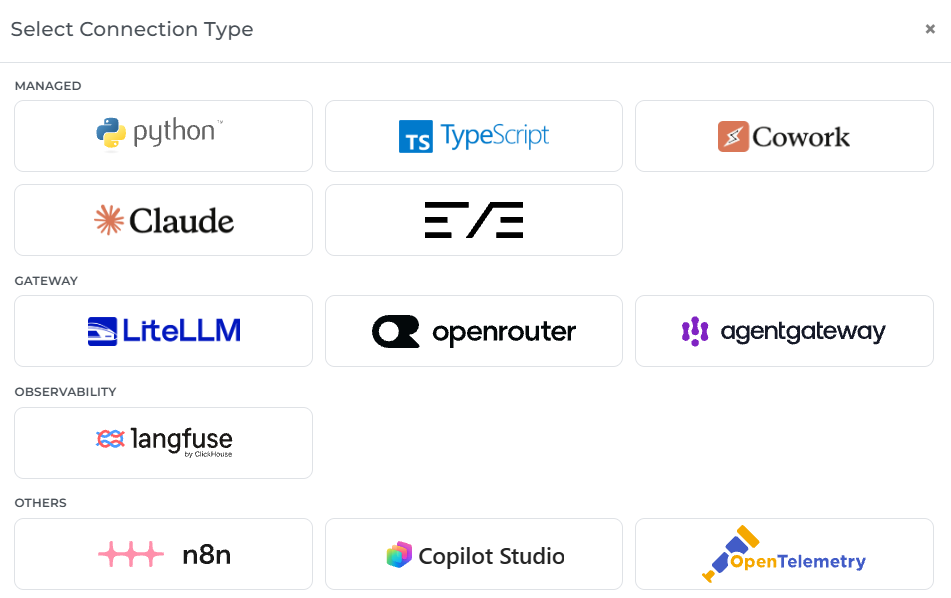
In Mavvrik, go to Agents and select + Agent.
-
Under Others, select OpenTelemetry.
-
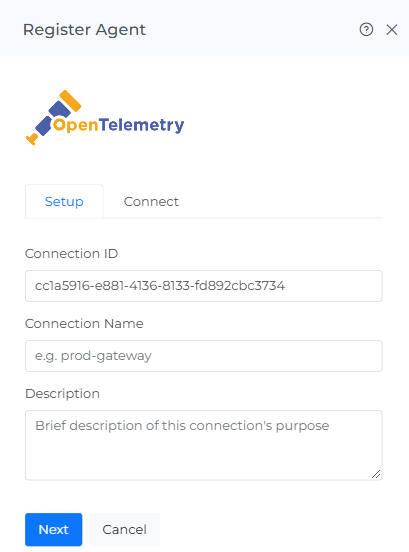
Enter a Connection Name, for example
prod-agents, and select Next.
Step 2. Copy the endpoint and headers
-
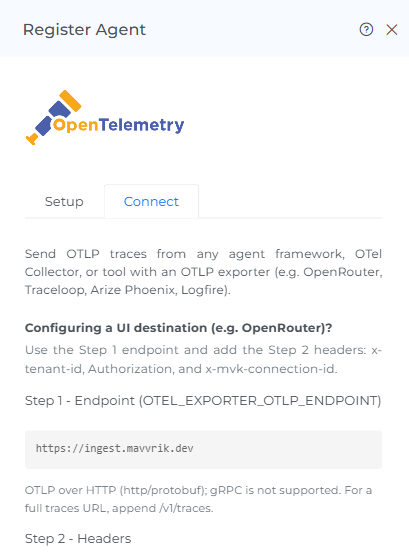
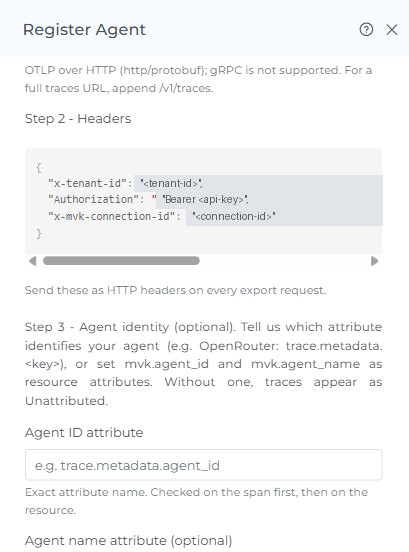
Copy the Endpoint and the three Headers. The
Authorizationvalue is a secret key; store it securely. -
In Agent ID attribute, enter the attribute that names the agent in your traces. If you set
mvk.agent_idas a resource attribute, leave it empty. How Mavvrik identifies agents -
Select Register.
Step 3. Send traces to Mavvrik
Use one of the following.
From your application (OpenTelemetry SDK)
OTEL_EXPORTER_OTLP_ENDPOINT=<endpoint>
OTEL_EXPORTER_OTLP_PROTOCOL=http/protobuf
OTEL_EXPORTER_OTLP_HEADERS=x-tenant-id=<tenant-id>,Authorization=Bearer%20<api-key>,x-mvk-connection-id=<connection-id>
From an OpenTelemetry Collector
Add Mavvrik as an exporter. Your existing exporters keep receiving the same traces.
exporters:
  otlphttp/mavvrik:
    endpoint: <endpoint>
    headers:
      x-tenant-id: "<tenant-id>"
      Authorization: "Bearer <api-key>"
      x-mvk-connection-id: "<connection-id>"

service:
  pipelines:
    traces:
      receivers: [otlp]
      exporters: [otlphttp/mavvrik]
Reload the Collector and check its logs for export errors.
Step 4. Check your data
-
Run your agents so they make model calls.
-
Go to Agents → Others, open the connection and confirm your agents are listed by name.
-
Open Agent Cost and confirm LLM calls, tokens and cost appear.
Data usually appears within an hour, and always within 24 hours. Something missing? See Troubleshooting.