.png)
Below is the description of the steps to Configure SSO in Mavvrik
-
Login to Mavvrik as owner.
-
Click on Menu > Admin > SSO
-
Click on Configure SSO button
-
Enter Entity Id, SSO URL and Certificate copied in Step-2
-
Click Save
-
SSO is Configured Successfully, You can Edit or Delete the existing data if required.
-
Click on Login with SSO
-
Pop up/new page appears which navigates to office 365 Sign-in page to let you sign in using your business account
-
Enter your Microsoft work account credentials and click login
-
Users who are added to Mavvrik are able to log in successfully with their office365 accounts and access the Application based on their privileges.
Edit SSO Configuration
Enable Enforce SSO

Once enforced, users will be required to authenticate exclusively through SSO, and no other login methods will be allowed.
Enable User Provisioning
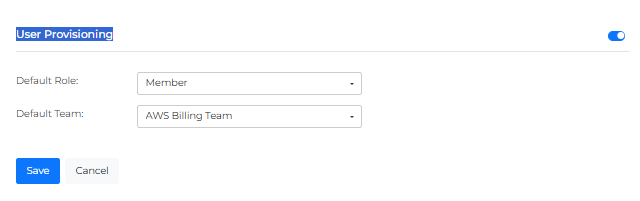
When User Provisioning is enabled, new users logging in via SSO will be automatically created in the Mavvrik platform during their first successful login attempt.
Password-based login is available only when Enforce SSO is disabled. In that case, users can set their password using the “Forgot Password” option after their account has been automatically created.
When this option is disabled, new users signing in through SSO will not be automatically provisioned in Mavvrik.
Troubleshooting
SSO login through Microsoft Entra ID fails
-
Use Login with SSO on the Mavvrik login page and sign in with the intended Microsoft work account. The Microsoft Entra ID setup guide notes that its Test Single Sign-on option is not the supported test for this integration.
-
Check that Mavvrik's IdP Entity ID uses the Microsoft Entra Identifier and IdP SSO URL uses the Login URL from the intended enterprise application.
-
Verify that the IdP Certificate contains the Base64 SAML signing certificate from that application, and compare its Identifier and Reply URL with Mavvrik's SP Entity ID and SP ACS URL.
-
Confirm that the user, or the appropriate group, is assigned to the enterprise application. Save any corrected configuration and retry from Mavvrik.