.png)
Mavvrik does not support IDP-initiated flow for single sign-on (SSO). In order to use SSO with Mavvrik, you will need to initiate the SSO process from Mavvrik
Below is the description of the steps to Create SAML App in Microsoft 365
-
Login to Microsoft 365 Admin Console.
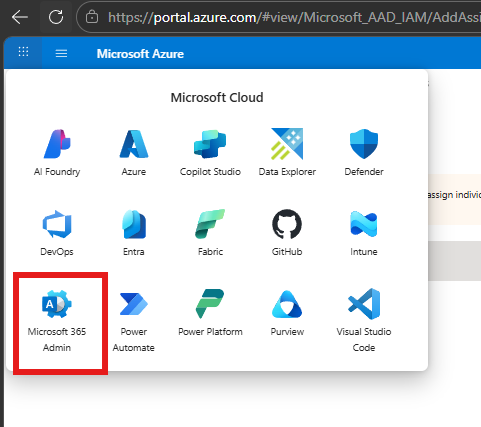
-
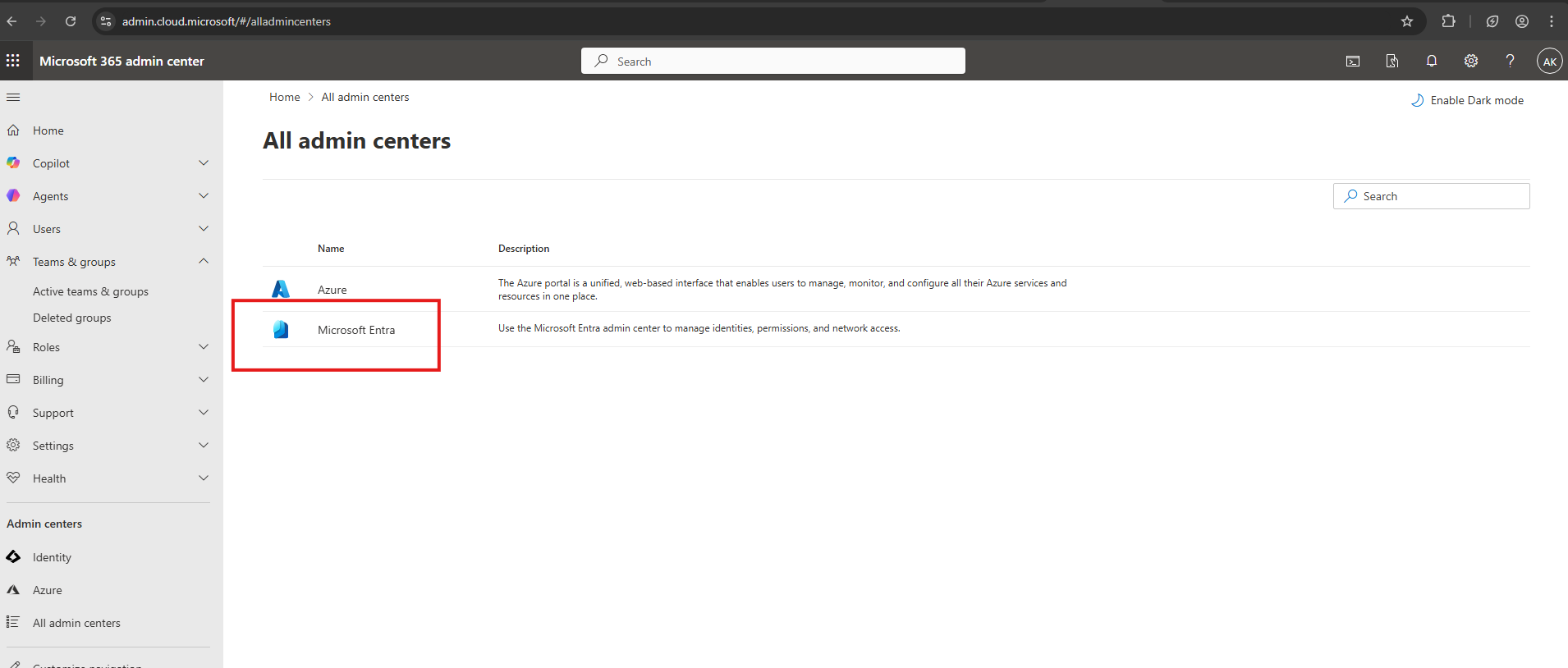
In the Microsoft 365 Admin Center, click on All Admin Centers
-
Click on Microsoft Entra, as shown below.
-
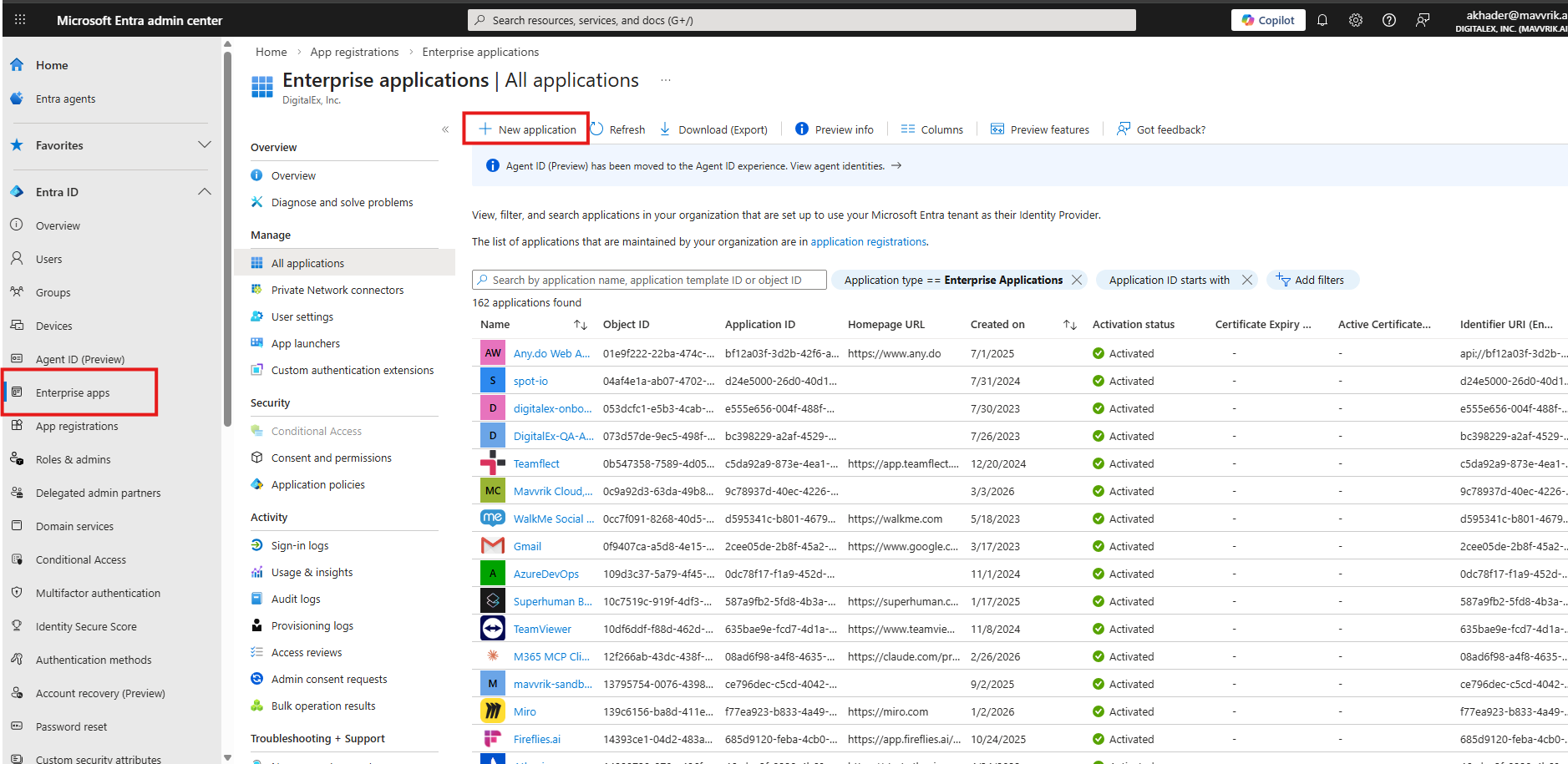
Go to Enterprise apps
-
From Enterprise apps click on "New application" as shown below.
-
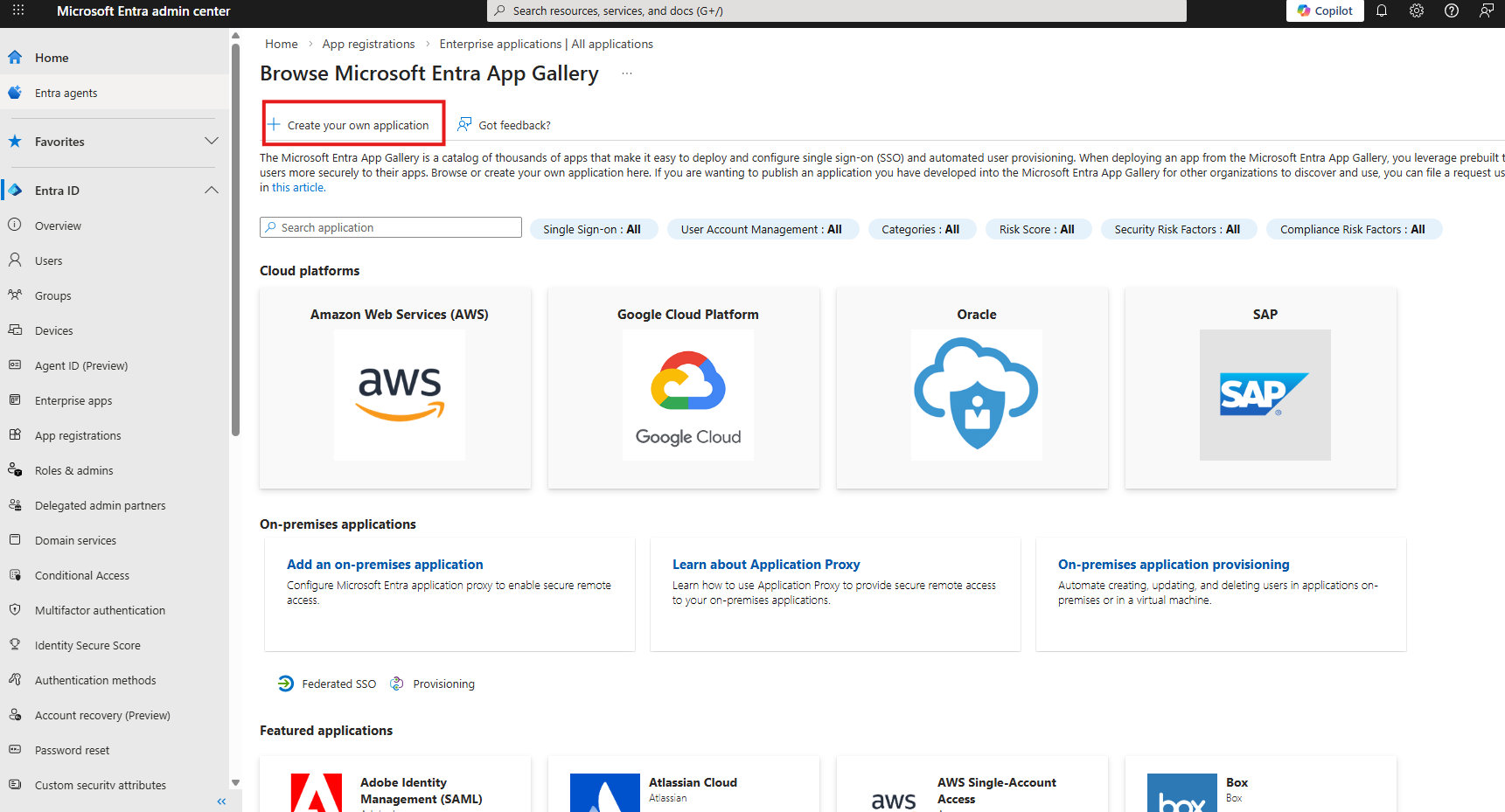
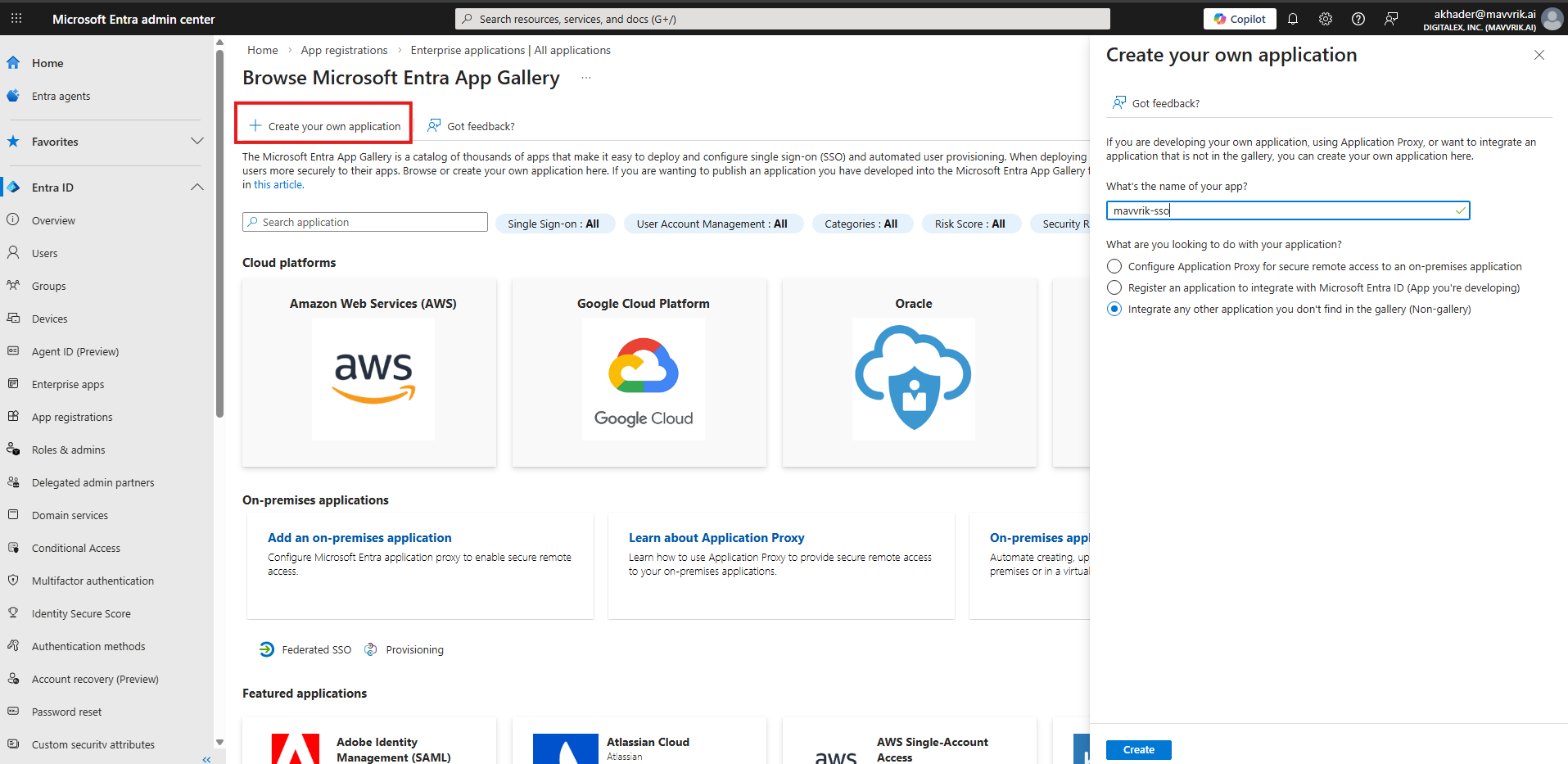
Click on "Create your own application" as shown below
-
Enter the application name (e.g. "Mavvrik") and select the third option, "Integrate any other application you don't find in the gallery", as shown below.
-
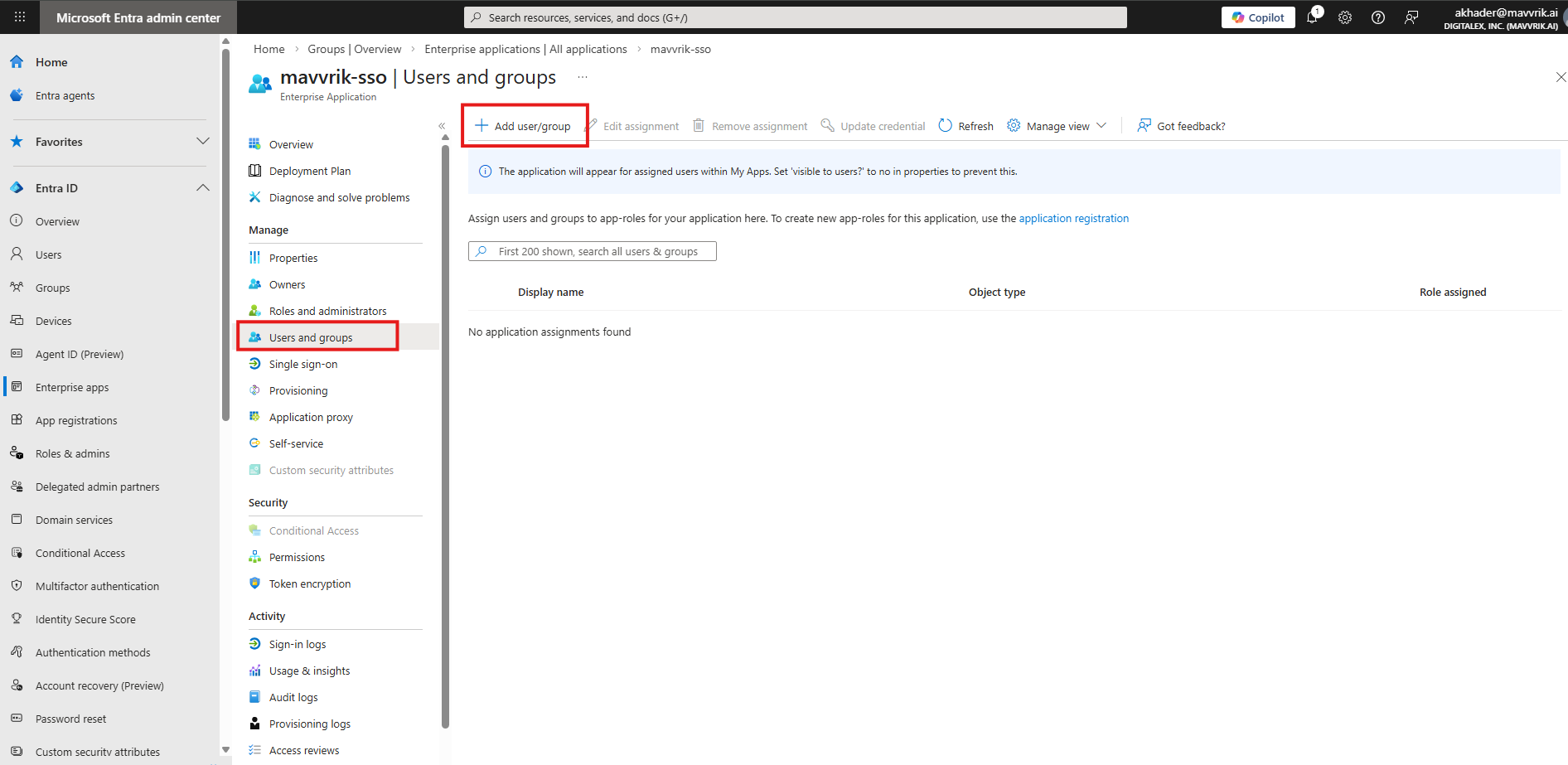
Add users or groups. We recommend adding a group to avoid assigning access to individual users when onboarding new employees.
-
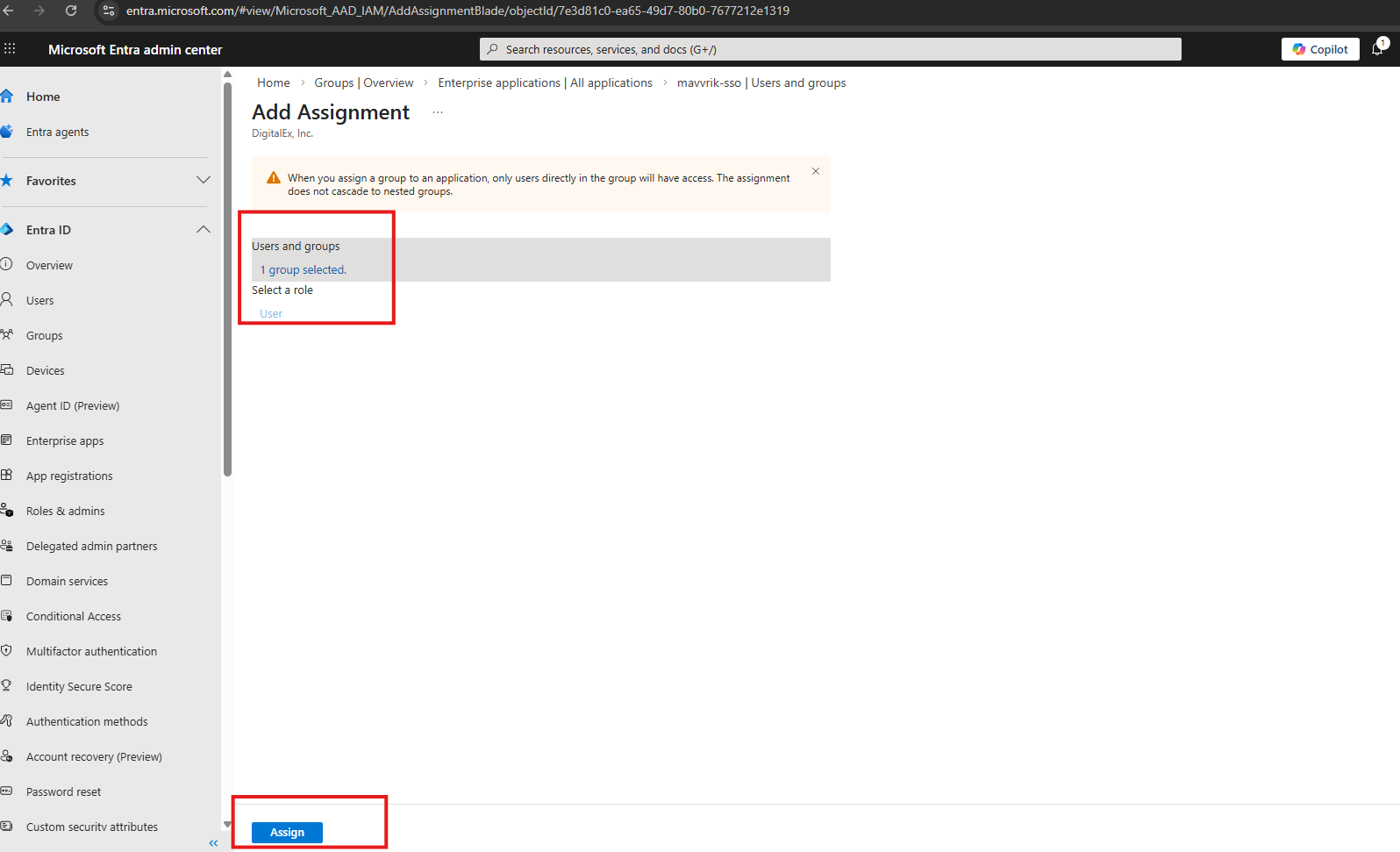
After adding users, you can see them listed as shown below.
-
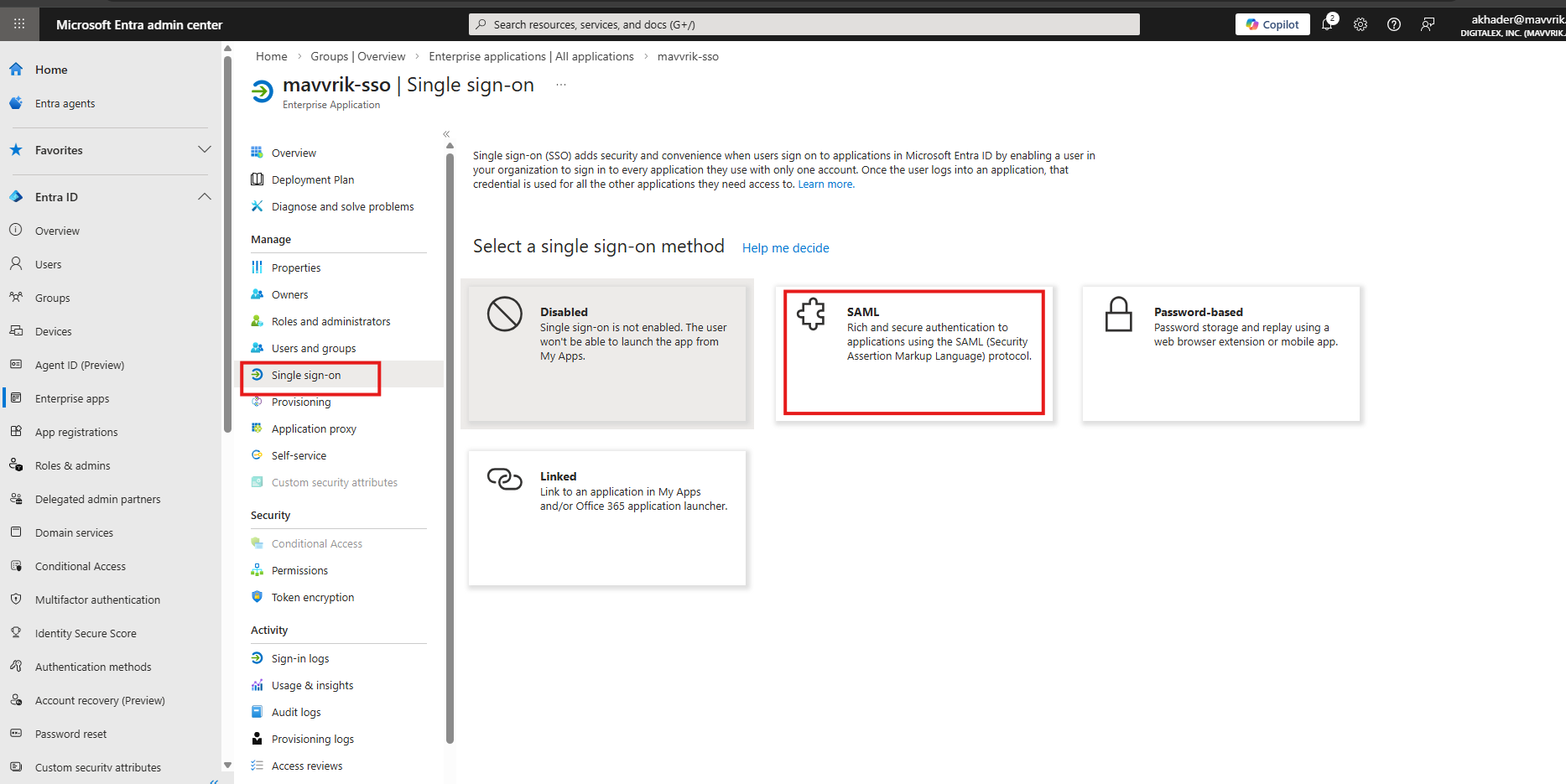
Go to Single Single-on and select SAML
-
Click on Edit button
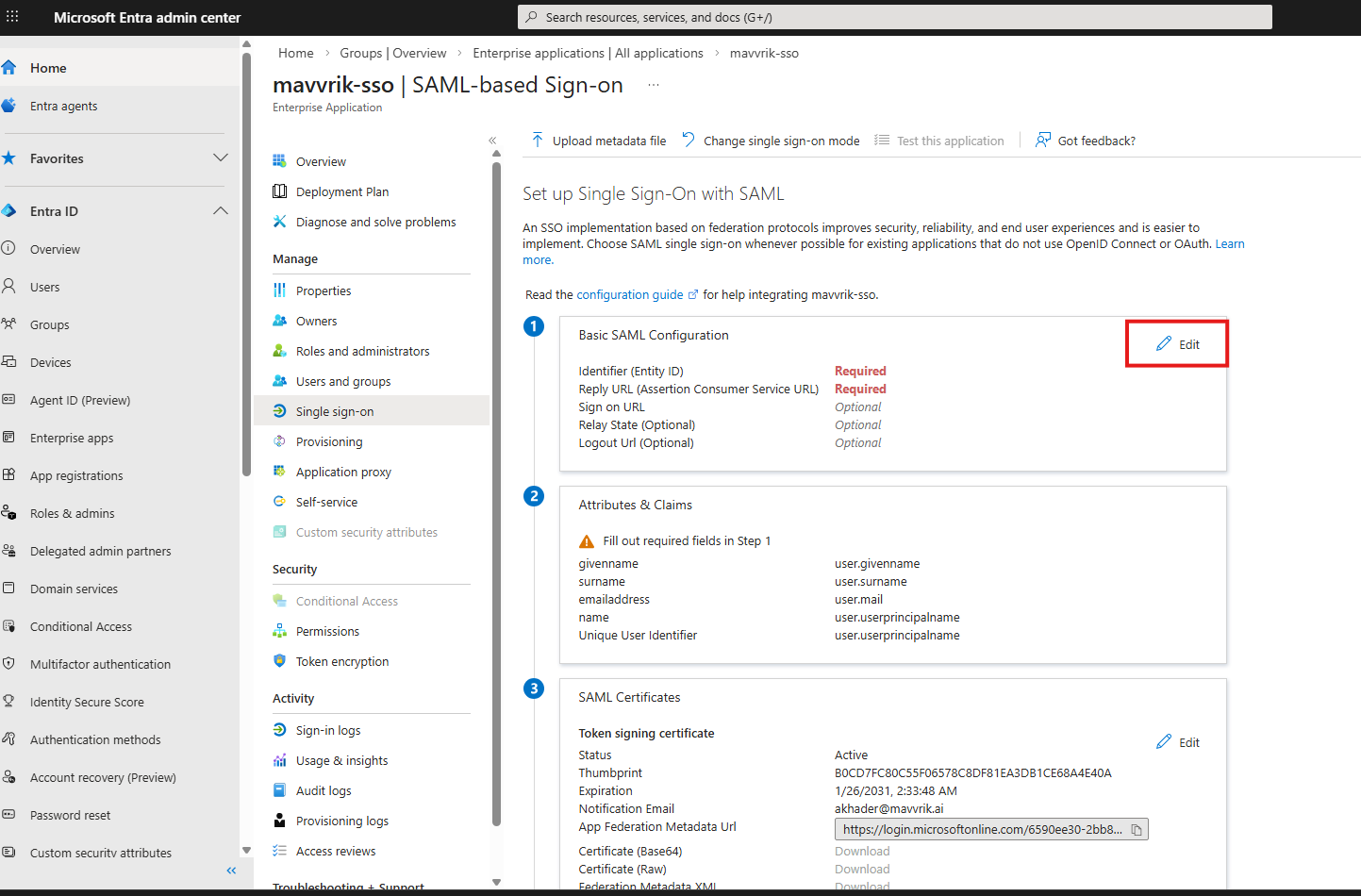
-
Enter the "SP Entity ID" copied from Step 1 and paste it into the Add Identifier field. Then copy the "SP ACS URL" from Step 1 and paste it into the Add Reply URL field, as shown below.
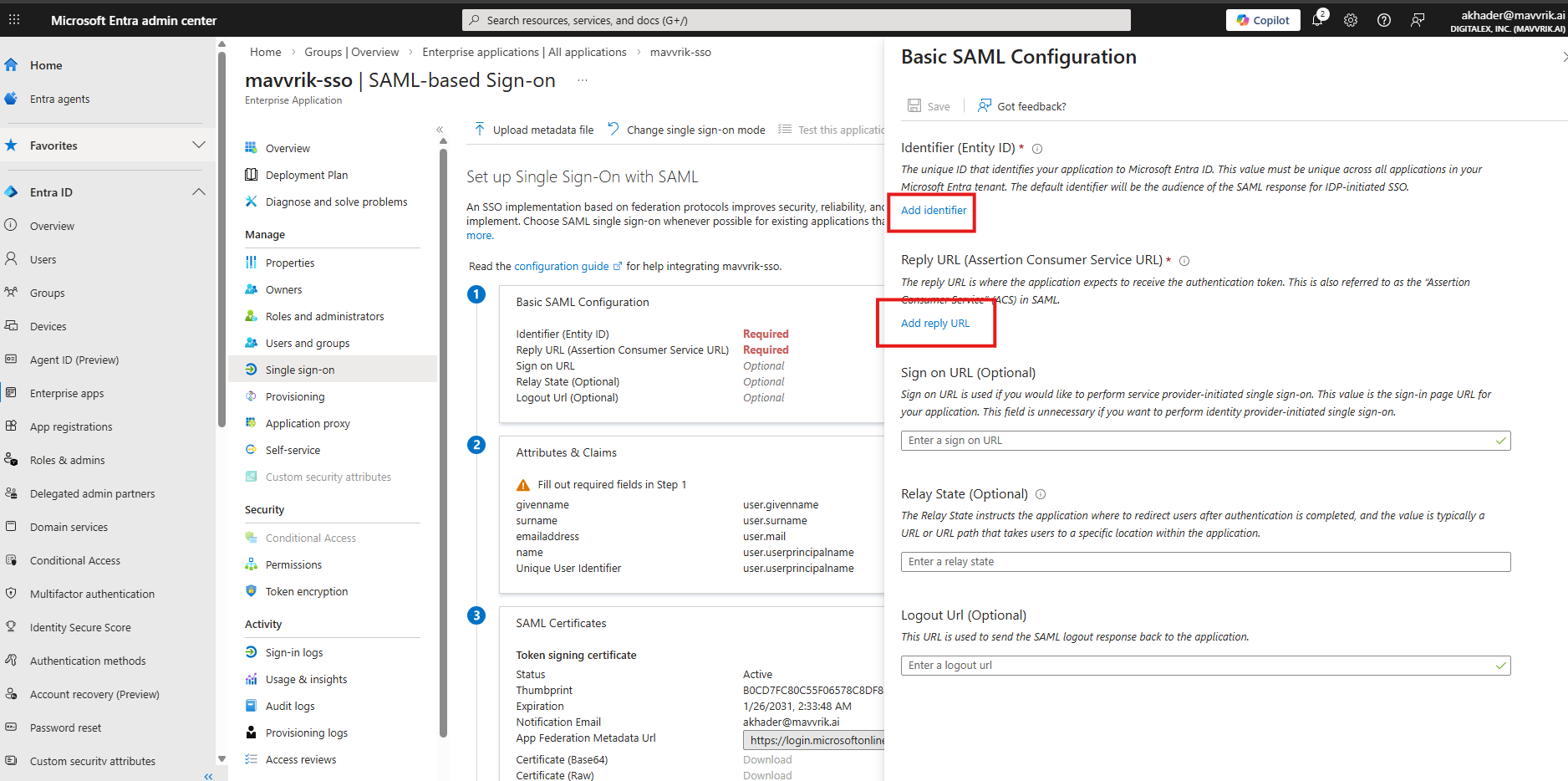
-
Click on Save
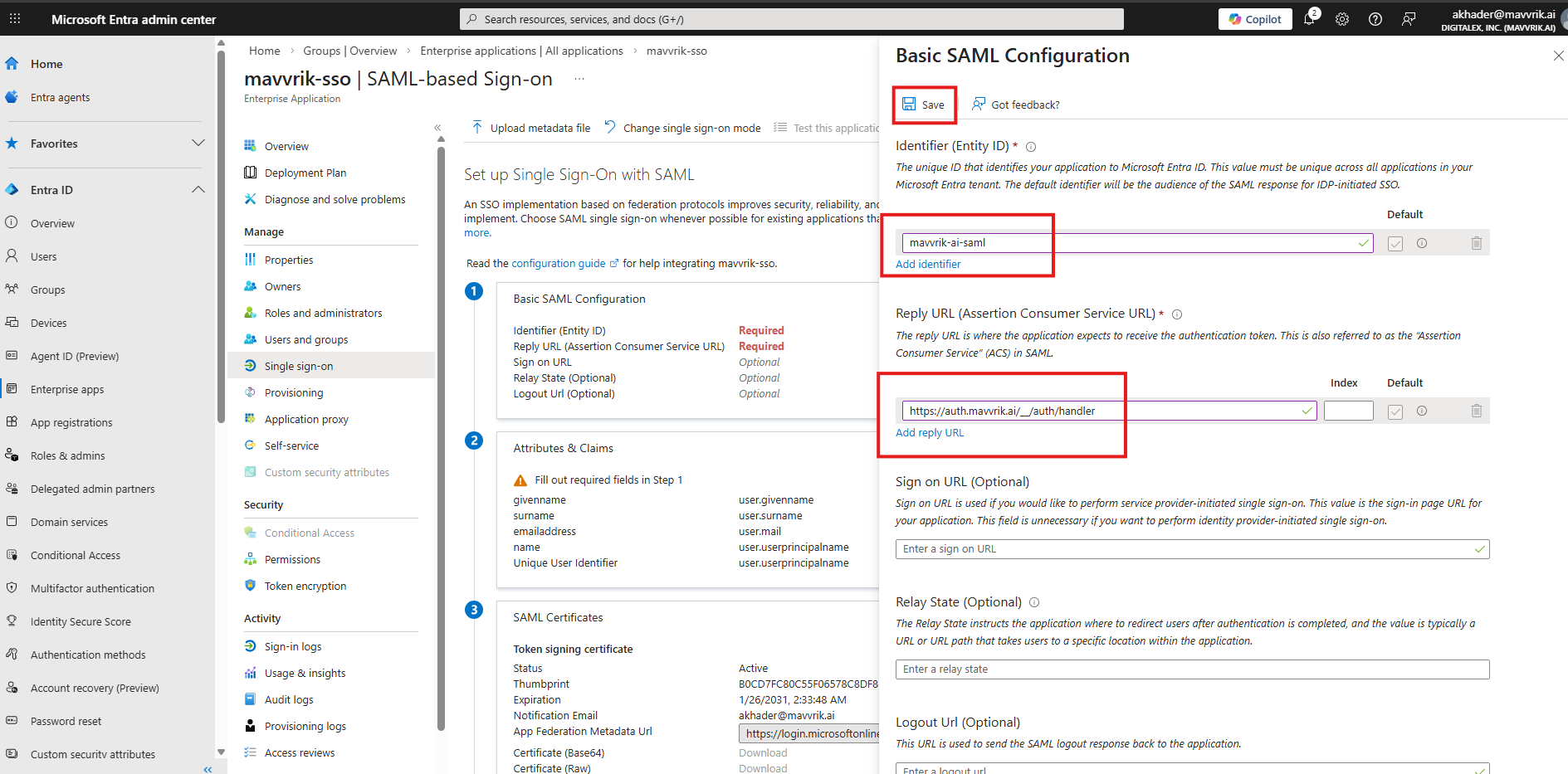
-
Download SAML Signing Certificate, Base64 version as shown below
-
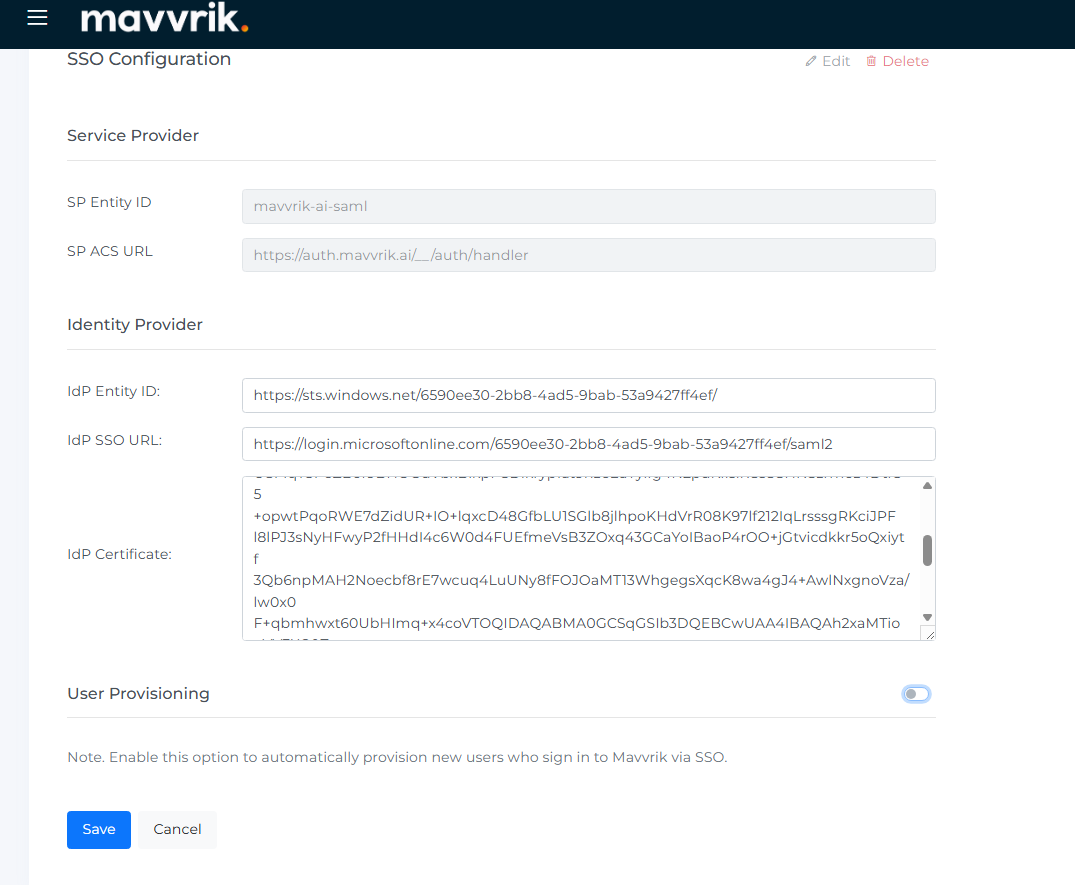
Copy the Microsoft Entra Identifier from Step 4, as shown in the picture below, and paste it into the IdP Entity ID field on the Mavvrik SSO configuration page.
-
Copy the Login URL from Step 4, as shown in the picture below, and paste it into the IdP SSO URL field on the Mavvrik SSO Configuration page.
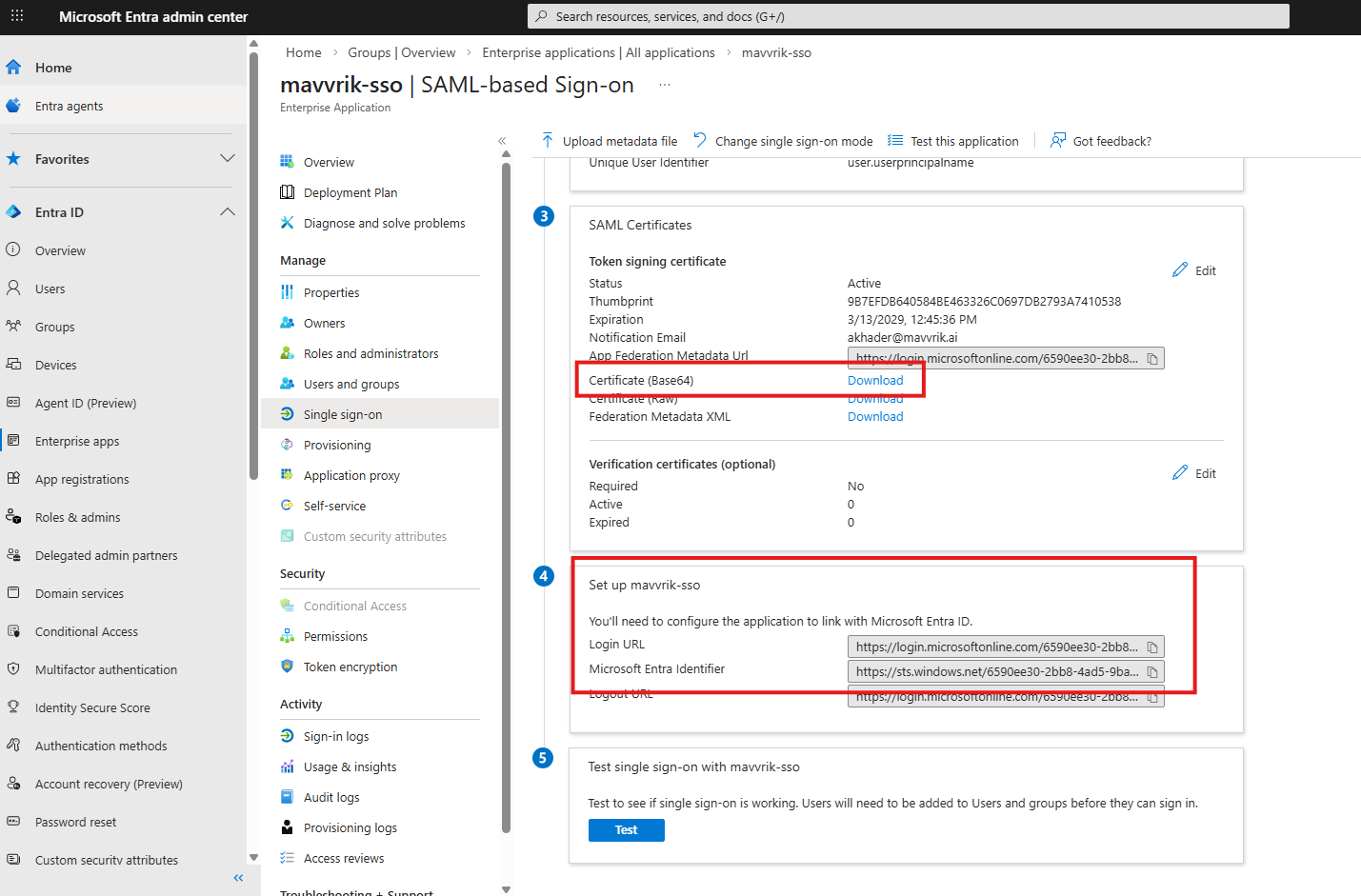
-
Copy the contents of the certificate you downloaded earlier and paste them into the IdP Certificate field on Mavvrik.
-
The Test Single Sign-on doesn't work. However, you can use Login with SSO from the Mavvrik login page to test this integration.