.png)
Manual Subscription onboarding can be done either through the Azure UI by following the steps below, or by using Azure CLI commands
If you wish to onboard through Azure Manual UI follow below steps
The steps below will guide you through the process of onboarding from the Azure UI . Please log in to the Azure and follow these steps
If you wish to onboard through Azure Manual CLI follow below steps
The steps below need to be executed in the Azure Cloud Shell. Please log in to the Azure and launch the Cloud Shell from the navigation bar
To manage an Azure Active Directory (AAD) app and to assign a role, the owner role is required.
-
Login to Microsoft Azure Cloud Shell and execute the below command.
az ad sp create-for-rbac -n <APP_NAME> --role Reader --scopes "/subscriptions/<SUBSCRIPTION_ID>"
<APP_NAME> : App name of your choice
<SUBSCRIPTION_ID> : Your azure subscription id, follow this link to get subscription id. https://learn.microsoft.com/en-us/azure/azure-portal/get-subscription-tenant-id#find-your-azure-subscription
The above command will create an <APP_NAME> of your choice and assign the Reader role for the <SUBSCRIPTION_ID> subscription that you want to onboard as a usage account in Mavvrik.
-
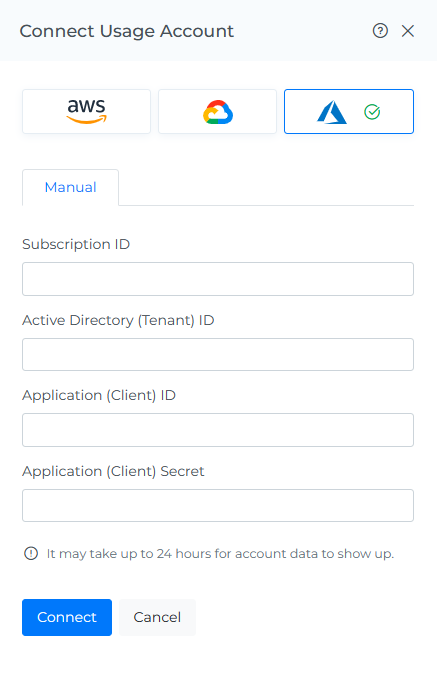
Go to the Mavvrik and follow this steps Connect Subscription and enter the credentials obtained in the previous cloud shell output.
IF U DONT HAVE OWNER ROLE TO EXECUTE ABOVE COMMAND FOLLOW BELOW STEPS
Create AAD & Secret
To manage an Azure Active Directory (AAD) app and create a client secret, the Active Directory administrator role is required.
az ad sp create-for-rbac --display-name "<APP_NAME>" --years=2 -o table
-
<APP_NAME>: AD app name of your choice
-
Capture App id and share it with Owner required to Assign Permissions to the App
-
Capture App Id, Password(Secret) and Tenant id and share it with the partner company required to Connect Management Group
To assign permissions to the Azure Active Directory (AAD) app, it is recommended to have the Owner role. Alternatively, you can have both the Contributor and User Access Administrator roles.
Assign Permissions to the App
az role assignment create --assignee "<APP_ID>" --role "Reader" --scope "/subscriptions/<SUBSCRIPTION_ID>" -o table
<APP_ID> : Enter App id
<SUBSCRIPTION_ID> : Enter your subscription id
Connect Subscription
-
Login to Mavvrik as Owner
-
Go to Menu > Admin > Public Clouds
-
Click on Connect for the subscription under subscriptions tab of Azure & Enter required details
-
Click Connect.