.png)
Introduction
When teams use Claude Code across an organization, usage can spread quickly across many users, sessions, and workflows. Provider billing may show the total spend, but it does not always make it easy to understand who used Claude Code, which sessions drove cost, what models were used, or how usage changed over time.
Mavvrik gives you that visibility.
Why this matters: Claude Code usage is typically billed per organization, not broken down by individual developer or session — so a spend spike shows up on the invoice with no easy way to trace which team or workflow drove it. Connecting Claude Code here gives you that breakdown, the same way Mavvrik already does for cloud spend.
Once Claude Code is connected, Mavvrik captures usage and cost data and shows it in Agentic cost and session views. Enterprise owners can review spend over time, inspect usage by user, analyze session-level activity, and understand which Claude Code workflows are contributing to cost.
This guide gets you from registration to first visible Claude Code data in Mavvrik. You will add Claude Code in the Mavvrik dashboard, copy the generated credentials, configure them in the Claude admin console, and verify that data appears in Mavvrik.
Claude Code sends telemetry to Mavvrik through OpenTelemetry configuration in Claude managed settings.
Once integrated, you will mainly use two places in the dashboard: Cost for spend over time and Sessions for user and session-level inspection.
Step 1: Register Claude Code in the Mavvrik dashboard
Go to Admin → Accounts → Agents and click + Agent.
A right-side drawer opens with two tabs: Setup and Connect.
In the Setup tab, Mavvrik generates an Agent ID automatically. You can keep it or edit it during registration. It cannot be changed after registration.
Enter an Agent Name.
Use a clear name such as:
claude-code
or
company-claude-code
Add an optional description if needed.
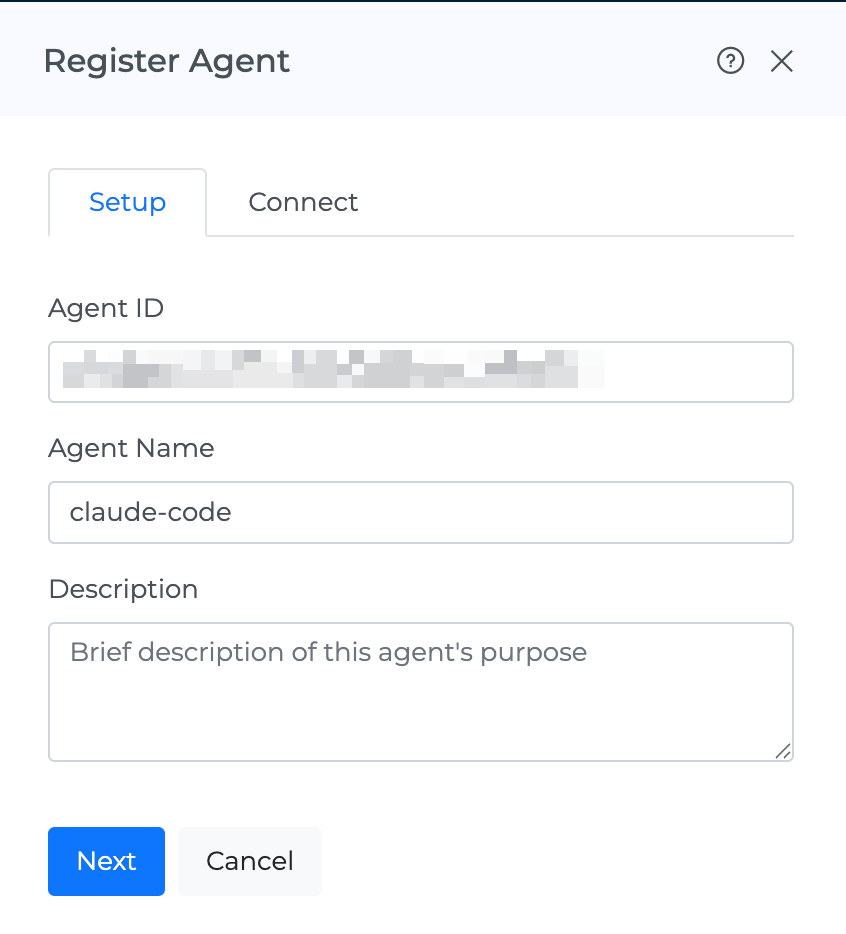
Click Next to move to the Connect tab.
Step 2: Copy the Mavvrik credentials
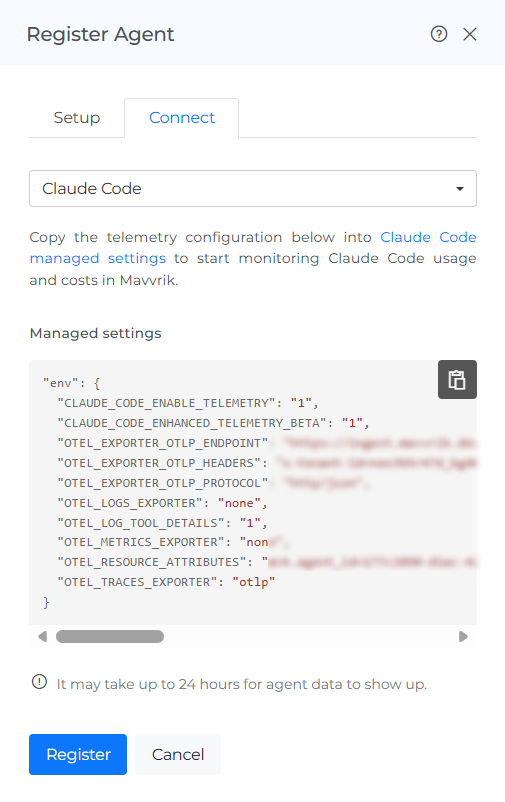
In the Connect tab, copy the values generated by Mavvrik.
Step 3: Open Claude Code managed settings
Go to the Claude admin console.
Open:
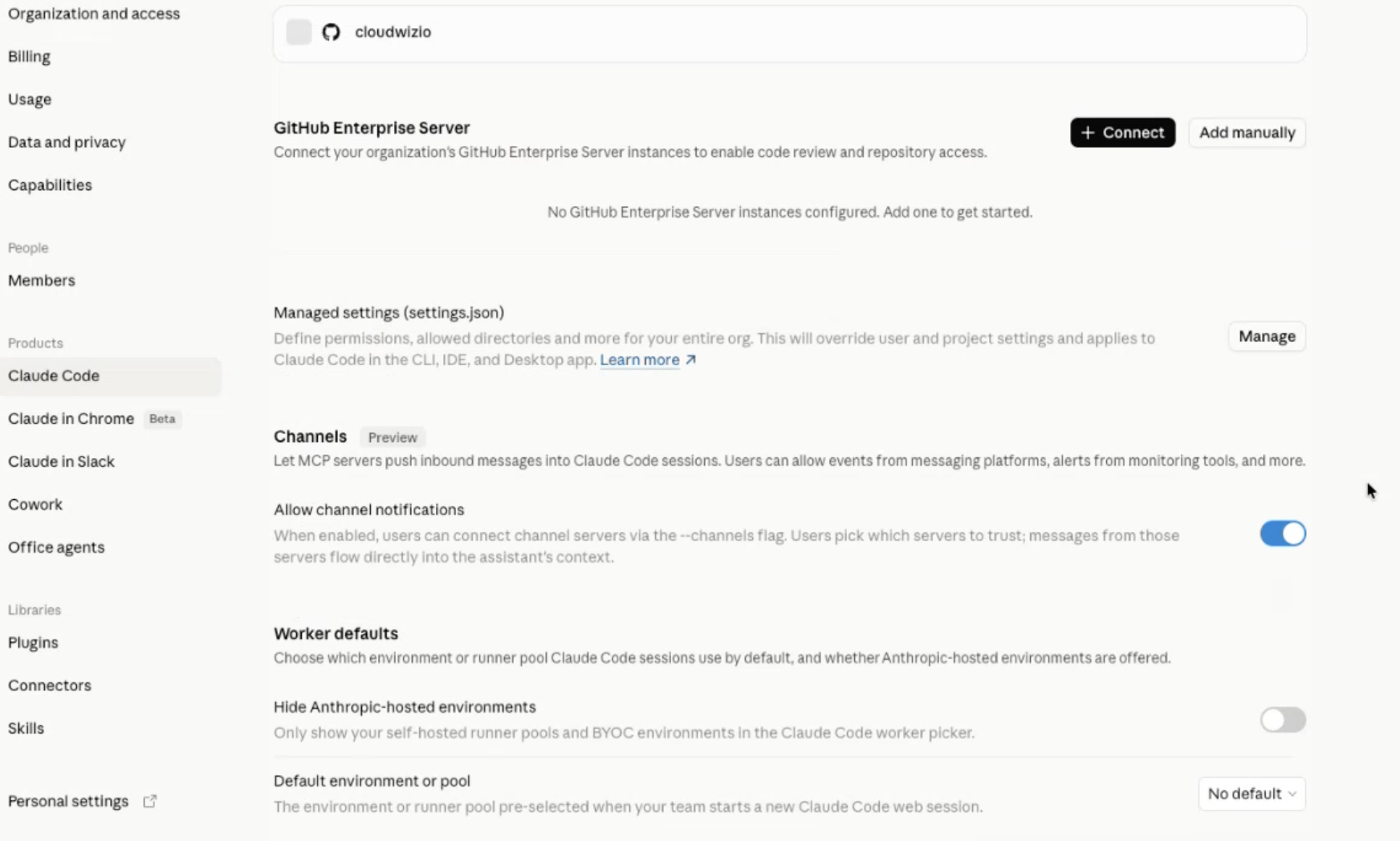
Organization settings → Products → Claude Code
Scroll to Managed settings.
Click Manage.
Claude Code managed settings are configured using a settings.json file.
Step 4: Add the Mavvrik telemetry configuration
In the managed settings.json, add the following env configuration.
Replace the placeholders with the values copied from Mavvrik:
"env": {
  "CLAUDE_CODE_ENABLE_TELEMETRY": "1",
  "CLAUDE_CODE_ENHANCED_TELEMETRY_BETA": "1",
  "OTEL_EXPORTER_OTLP_ENDPOINT": "https://ingest.mavvrik.ai",
  "OTEL_EXPORTER_OTLP_HEADERS": "x-tenant-id={MVK_TENANT_ID},Authorization=Bearer {MVK_API_KEY}",
  "OTEL_EXPORTER_OTLP_PROTOCOL": "http/json",
  "OTEL_LOGS_EXPORTER": "none",
  "OTEL_LOG_TOOL_DETAILS": "1",
  "OTEL_METRICS_EXPORTER": "none",
  "OTEL_RESOURCE_ATTRIBUTES": "mvk.agent_id={MVK_AGENT_ID}",
  "OTEL_TRACES_EXPORTER": "otlp"
}
For example, the final values should look like this:
"OTEL_EXPORTER_OTLP_HEADERS": "x-tenant-id=your-tenant-id,Authorization=Bearer your-api-key",
"OTEL_RESOURCE_ATTRIBUTES": "mvk.agent_id=your-agent-id"
Do not include extra spaces inside the header value.
Step 5: Save the Claude Code managed settings
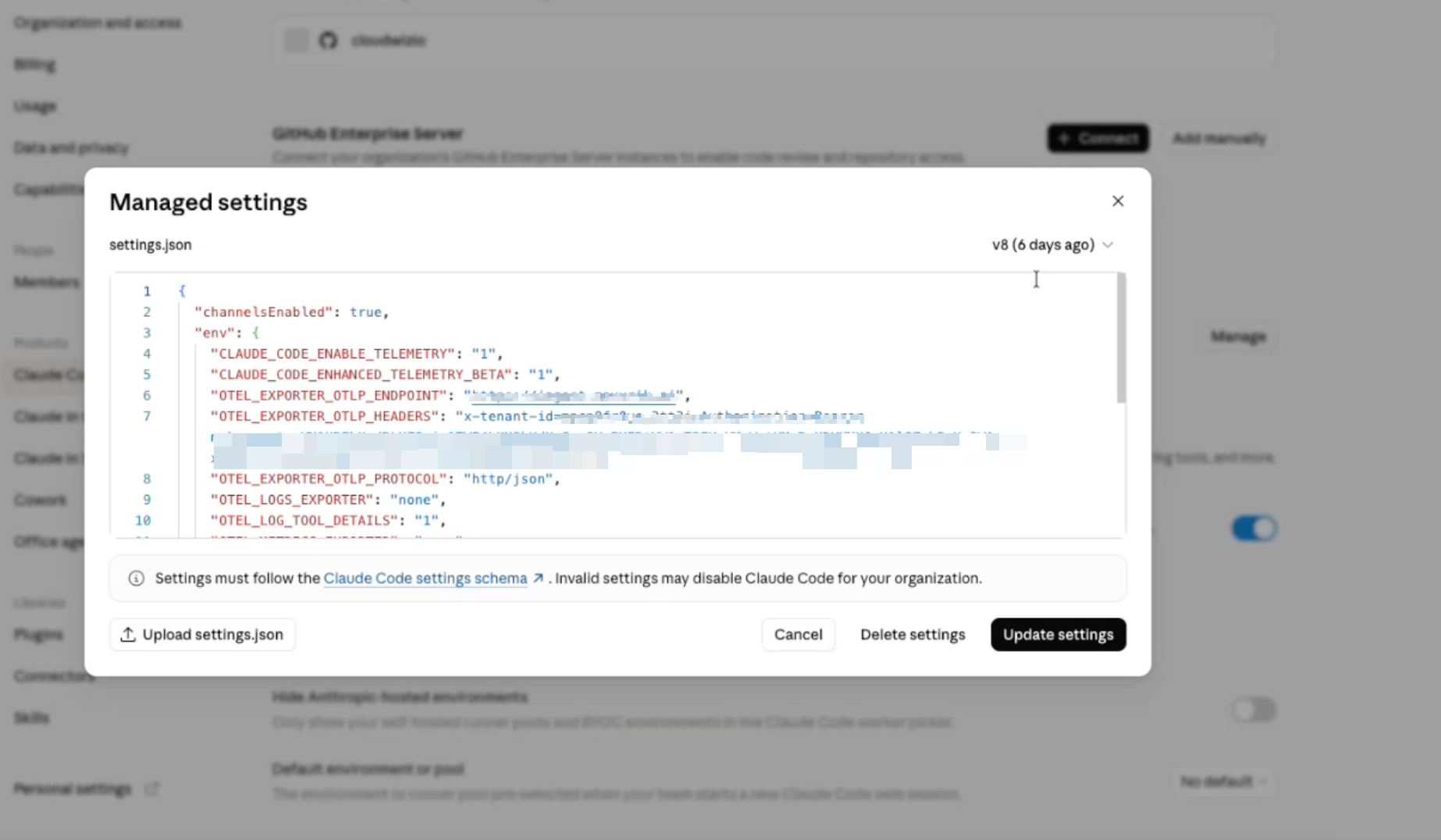
Click Update settings to save the configuration.
Claude Code managed settings apply at the organization level. Before saving, confirm that the JSON is valid.
If your existing settings.json already contains an env section, do not replace the full file unless intended. Add the Mavvrik values into the existing env object.
For example, if env already exists, merge the values like this:
{
  "channelsEnabled": true,
  "env": {
    "EXISTING_SETTING": "existing-value",
    "CLAUDE_CODE_ENABLE_TELEMETRY": "1",
    "CLAUDE_CODE_ENHANCED_TELEMETRY_BETA": "1",
    "OTEL_EXPORTER_OTLP_ENDPOINT": "https://ingest.mavvrik.ai",
    "OTEL_EXPORTER_OTLP_HEADERS": "x-tenant-id={MVK_TENANT_ID},Authorization=Bearer {MVK_API_KEY}",
    "OTEL_EXPORTER_OTLP_PROTOCOL": "http/json",
    "OTEL_LOGS_EXPORTER": "none",
    "OTEL_LOG_TOOL_DETAILS": "1",
    "OTEL_METRICS_EXPORTER": "none",
    "OTEL_RESOURCE_ATTRIBUTES": "mvk.agent_id={MVK_AGENT_ID}",
    "OTEL_TRACES_EXPORTER": "otlp"
  }
}
Important note
Invalid managed settings may affect Claude Code availability for users in the organization.
Before clicking Update settings, check that:
JSON syntax is valid
The env object is placed correctly
The Mavvrik API key is copied exactly
The tenant ID is copied exactly
The agent ID is copied exactly
The OTLP endpoint is https://ingest.mavvrik.ai
The OTLP protocol is http/json
If you are unsure whether the existing managed settings contain other required configuration, copy the current settings before making changes.
Step 6: Generate Claude Code activity
After the managed settings are saved, ask one or more users to run Claude Code.
For first-time verification, use a known user and perform a simple Claude Code workflow that includes at least one model interaction.
Mavvrik starts showing data after Claude Code emits telemetry and the data is processed by Mavvrik.
Step 7: Verify the integration in Mavvrik
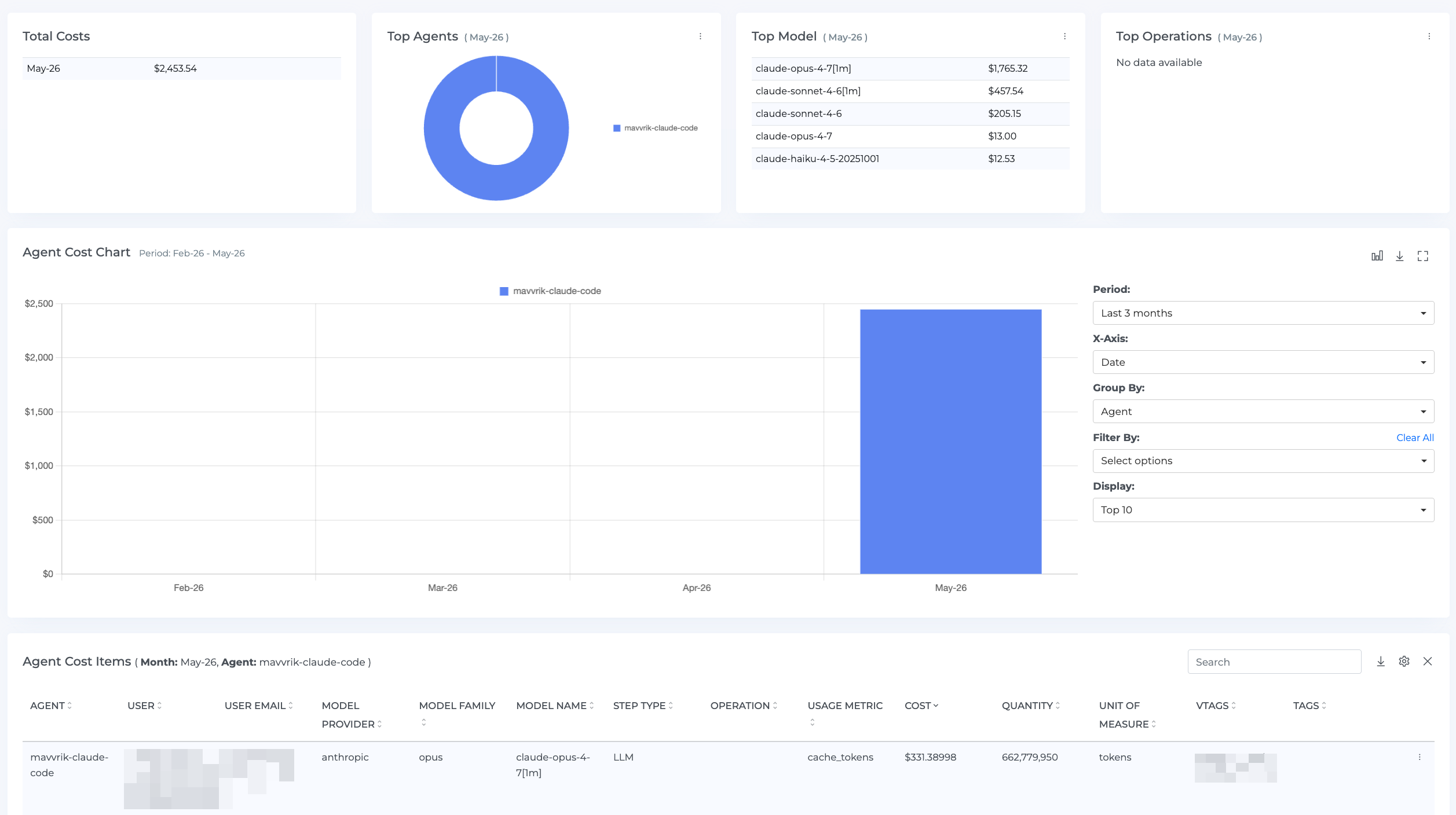
After running a test workflow, go to: Home → Agentic → Cost
Confirm that Claude Code activity appears for the agent you registered.
You should be able to see Claude Code cost and usage over time.
Review fields such as: User, User email, Model, Operation, etc
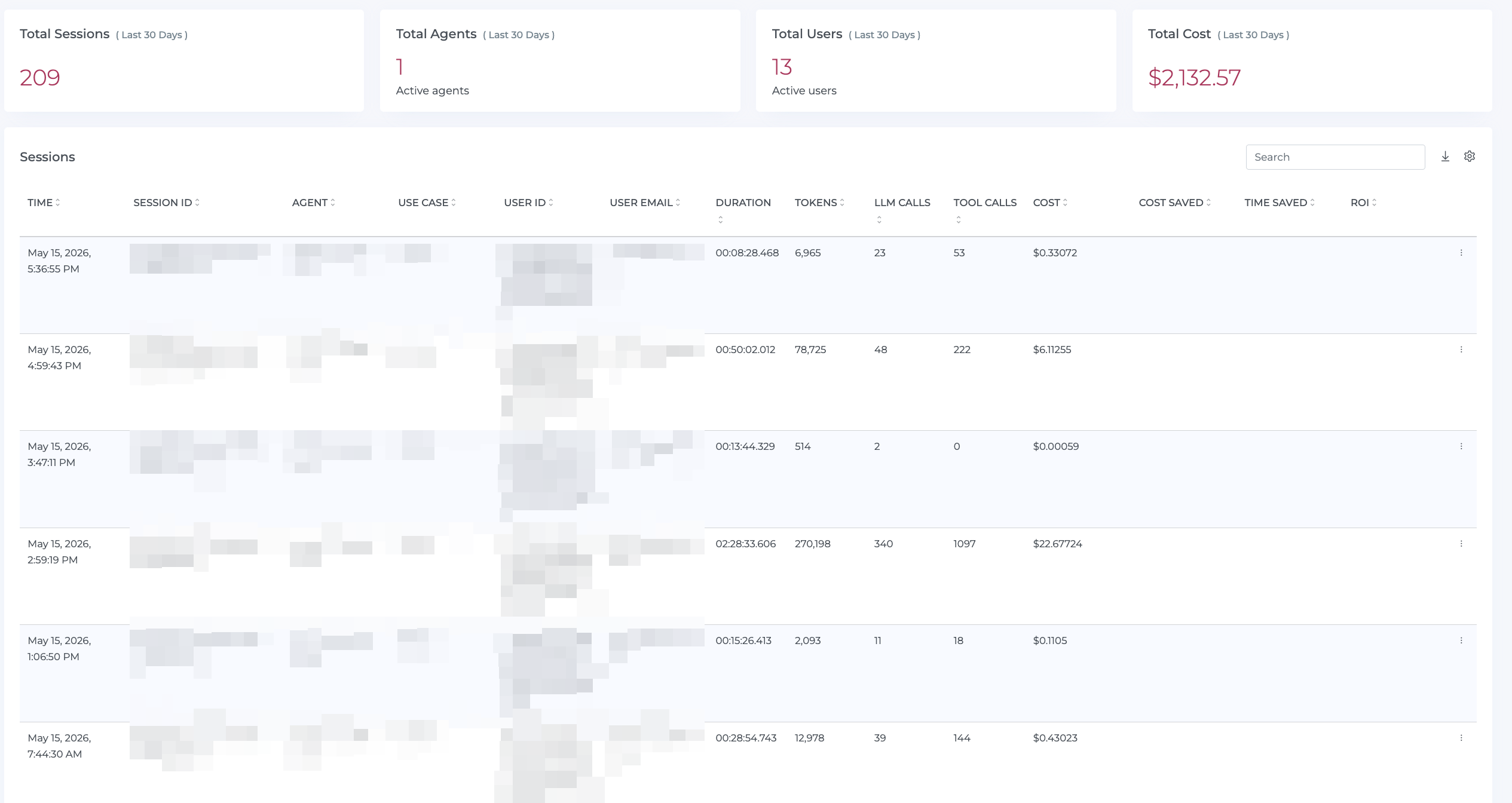
Then go to: Home → Agentic → Sessions
Search or filter by the user who performed the test.
Open a session and confirm that the expected Claude Code activity appears.
Review fields such as: Session ID, Agent, User, Duration, Tokens, LLM Calls, Tool Calls, Cost, etc
Troubleshooting
No data in the Mavvrik dashboard
Confirm that the Claude Code managed settings were saved successfully.
Check that the following values are present:
CLAUDE_CODE_ENABLE_TELEMETRY=1
CLAUDE_CODE_ENHANCED_TELEMETRY_BETA=1
OTEL_EXPORTER_OTLP_ENDPOINT=https://ingest.mavvrik.ai
OTEL_EXPORTER_OTLP_PROTOCOL=http/json
OTEL_TRACES_EXPORTER=otlp
Also confirm that the Mavvrik header value is formatted correctly:
x-tenant-id={MVK TENANT_ID},Authorization=Bearer {MVK_API_KEY}
There should be no extra spaces before or after the comma.
Data appears under the wrong agent
Check the OTEL_RESOURCE_ATTRIBUTES value.
It should contain the Agent ID copied from the Mavvrik agent you registered for Claude Code:
mvk.agent_id={MVK_AGENT_ID}
If this value is missing or incorrect, Mavvrik may not associate the telemetry with the expected agent.
User or session details are missing
Claude Code telemetry must include the relevant user and session attributes for Mavvrik to show user and session-level breakdowns.
If cost appears but user or session details are incomplete, confirm that Claude Code is emitting enhanced telemetry and that the following setting is enabled:
CLAUDE_CODE_ENHANCED_TELEMETRY_BETA=1
Cost looks lower than expected
Confirm that Claude Code activity was generated after the managed settings were saved.
Only telemetry emitted after the configuration is active will appear in Mavvrik.
Also check that the test workflow included model activity. Workflows without model usage may not produce the expected cost records.
Claude Code users report issues after saving settings
Managed settings apply at the organization level.
If users report issues immediately after saving the configuration, review the settings.json for syntax errors or accidental overwrites of existing settings.
If needed, restore the previous managed settings and re-apply only the Mavvrik telemetry values.
Final checklist
Before calling the integration complete:
[ ] Claude Code is registered as an agent in Mavvrik
[ ] MVK_AGENT_ID was copied from the Mavvrik Connect tab
[ ] MVK_TENANT_ID was copied from the Mavvrik Connect tab
[ ] MVK_API_KEY was copied from the Mavvrik Connect tab
[ ] Claude Code managed settings were opened in the Claude admin console
[ ] Mavvrik telemetry values were added to the env object
[ ] The settings.json file was saved successfully
[ ] A test Claude Code workflow was run
[ ] Activity is visible in Home → Agentic → Cost
[ ] Session-level activity is visible in Home → Agentic → Sessions
Configuration reference
Use this configuration when setting up Claude Code telemetry for Mavvrik:
"env": {
  "CLAUDE_CODE_ENABLE_TELEMETRY": "1",
  "CLAUDE_CODE_ENHANCED_TELEMETRY_BETA": "1",
  "OTEL_EXPORTER_OTLP_ENDPOINT": "https://ingest.mavvrik.ai",
  "OTEL_EXPORTER_OTLP_HEADERS": "x-tenant-id={MVK_TENANT_ID},Authorization=Bearer {MVK_API_KEY}",
  "OTEL_EXPORTER_OTLP_PROTOCOL": "http/json",
  "OTEL_LOGS_EXPORTER": "none",
  "OTEL_LOG_TOOL_DETAILS": "1",
  "OTEL_METRICS_EXPORTER": "none",
  "OTEL_RESOURCE_ATTRIBUTES": "mvk.agent_id={MVK_AGENT_ID}",
  "OTEL_TRACES_EXPORTER": "otlp"
}